How to Transfer Large Video Files from iPhone to PC
Are you in trouble with transferring large video files from iPhone to PC? This guide offers 5 methods to help you transfer long video files from iPhone to PC with ease.


Quickly and efficiently transferring large video files from iPhone to PC can help us free up storage space. The main concern is how to transfer large video files from iPhone to PC using USB or not. In this guide, we’ll share five effective methods. Please choose one of the methods that works best for you depending on your situation.
| Method | Speed Rating | Max File Size | Quality Retention |
|---|---|---|---|
| FonneTool | ★★★★★ | Unlimited | 100% |
| File Explorer | ★★★★☆ | Unlimited | 100% |
| iCloud | ★★★☆☆ | 5GB (free) | High |
| iTunes | ★★★☆☆ | Unlimited | 100% |
| Bluetooth | ★☆☆☆☆ | <500MB | Medium |
Way 1: Fastest Way to Transfer Large Video Files from iPhone to PC
How to transfer videos from iPhone to PC without losing quality? you may wonder. I highly recommend FoneTool, as the ideal software solution. FoneTool allows you to transfer full-resolution videos from iPhone quickly and safely without interruptions due to network interference.
Powerful iPhone Data Transfer Software
- Quickly share files from your iPhone to your PC without any quality loss.
- Easily preview and extract your videos, photos, music, contacts and ringtones.
- Safe and stable USB connections without network.
- Various and latest iOS devices/versions are supported.
Windows 11/10/8/8.1/7

100% Secure
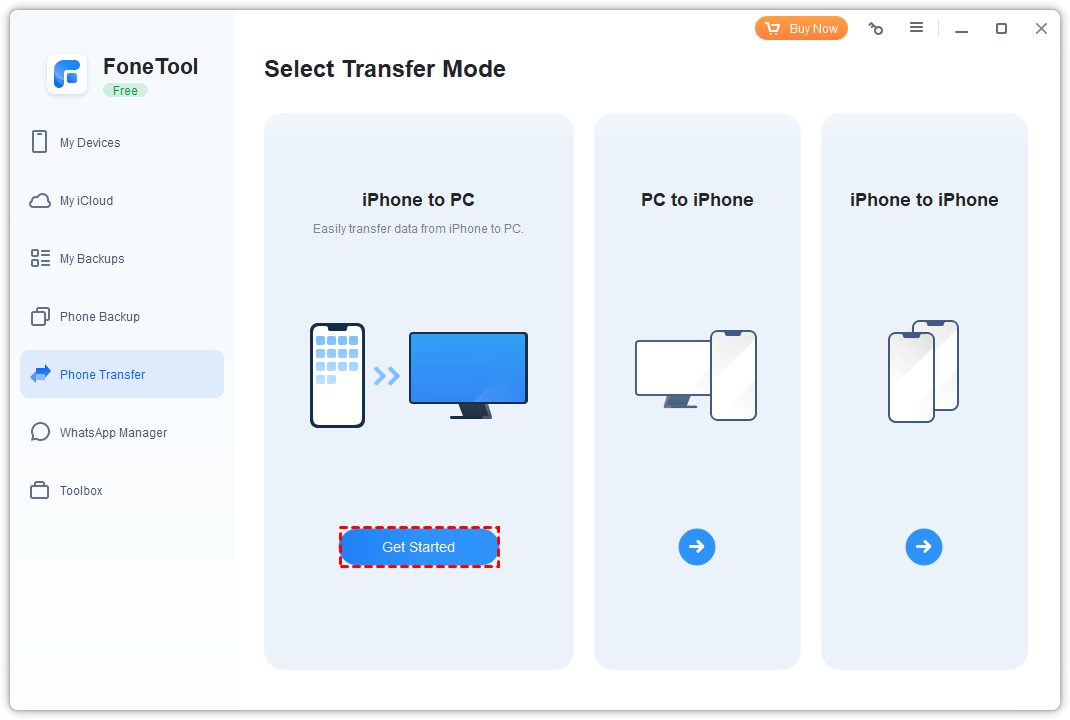
Step 1. Download and launch FoneTool > Click iPhone to PC and tap on Get Started.
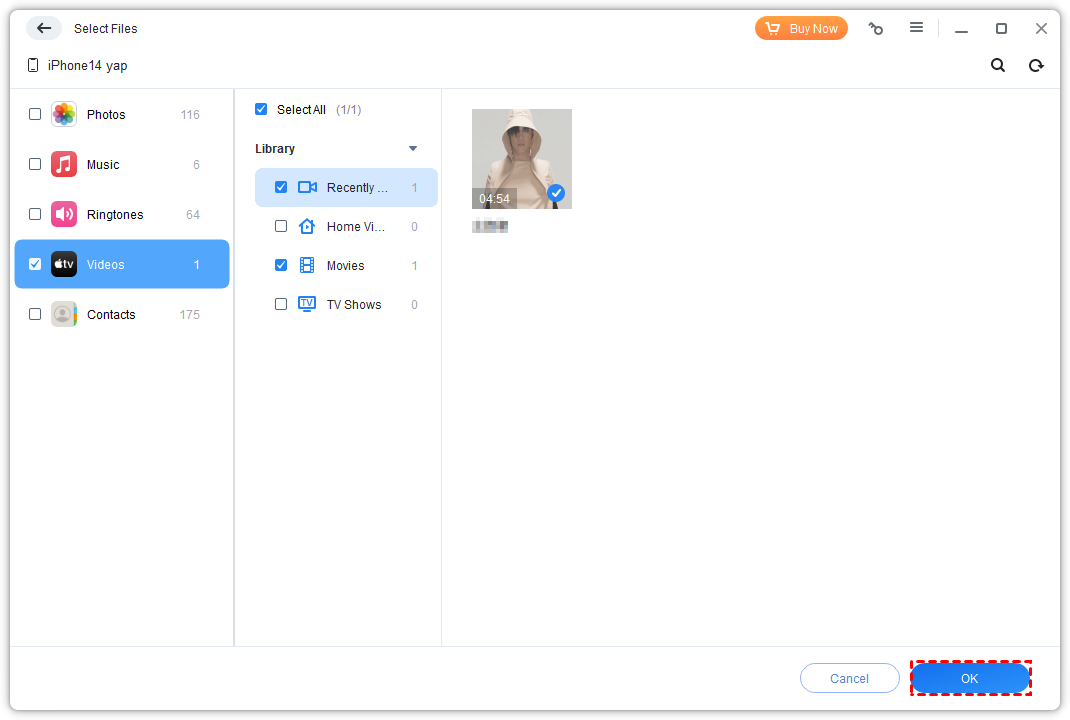
Step 2. Check the icon you need to preview and choose the videos > Click OK to continue.
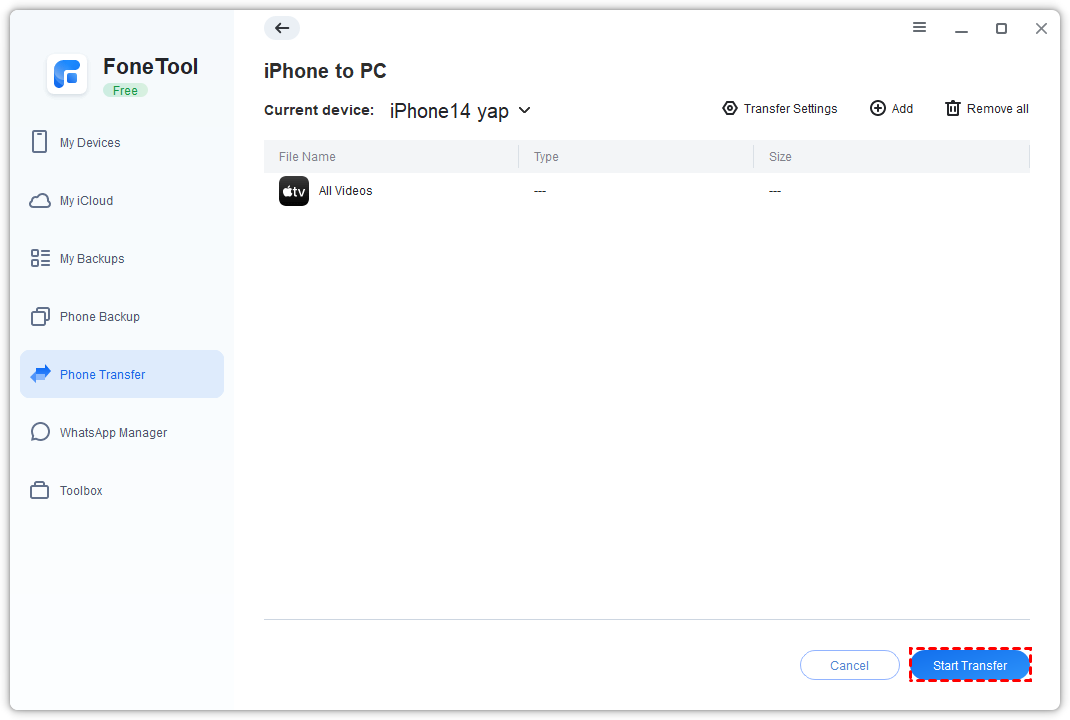
Step 3. From the Transfer Settings, select a storage path. You can also send videos from iPhone to PC > Tap Start Transfer to begin the task.
Way 2: Transfer Videos from iPhone to PC with File Explorer
You can also rely on File Explorer as an alternative method for previewing and extracting large video files, photos, music, or documents. Follow the steps carefully to transfer files from iPhone to PC without iTunes.
Step 1. To begin with, connect your iPhone to your PC > Trust this iPhone on your computer.
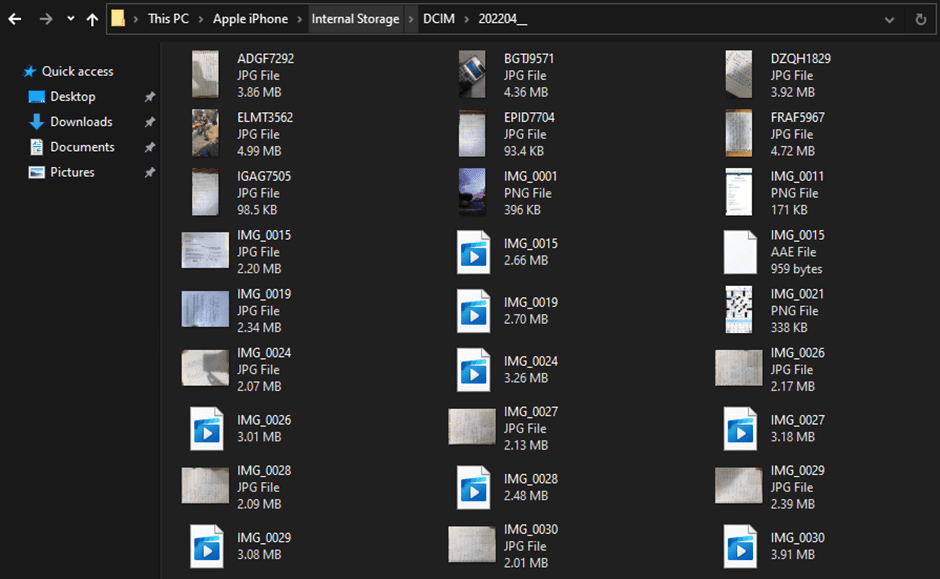
Step 2. Open File Explorer and then there will be an icon on your iPhone and you need to double-click it.
Step 3. Find the DCIM folder and open it.
Step 4. Find the video you want, right-click on it, and copy it from iPhone to PC.
- ★Note:
- This method will only recognize your iPhone videos stored in the DCIM folder. It may take you quite a long time to find the video through random files.
Way 3: Copy Large Videos from iPhone to PC with iCloud
With the help of iCloud, you can copy large video files from iPhone to PC without USB. Developed by Apple, iCloud enables you to share photos across your devices wirelessly.
How to share files from your iPhone to PC by iCloud from the official website. Now, let’s explore the steps.
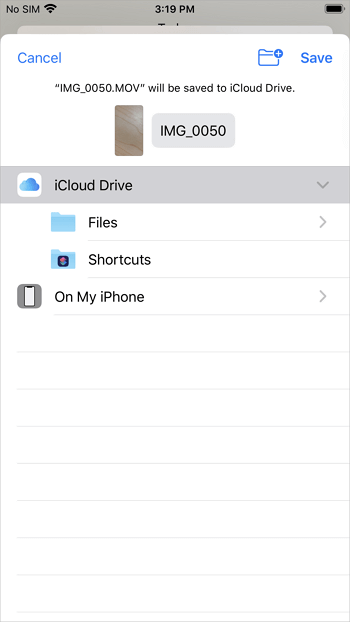
Step 1. Go to Settings on iPhone > tap your Apple ID > iCloud > enable the iCloud Drive.
Step 2. Choose the large video files that you want to send to the PC.
Step 3. Log in with the same iCloud account on PC > Choose iCloud Drive among the options and click the folder where you saved the large videos.
Step 4. Select and download large video files from iPhone to PC.
Way 4: Transfer Long Videos from iPhone to PC with iTunes
iTunes was also developed by Apple and served as another reliable method for getting a long video from iPhone to PC. It offers you a wireless method to finish the process. Although iTunes has been discontinued, you can also install it on PC and use it to export long video files, including movies and TV shows.
Step 1. Download and launch the latest iTunes, and connect your devices to PC.
Did you find your iPhone icon is not showing up? Please check:
- Please check your USB cable and restart the program.
- Restart your iPhone and your PC.
- Check for iTunes /iOS updates.
Step 2. Set up the Wi-Fi syncing option > Click Summary > Select the checkbox for Sync with this [device] over Wi-Fi > Click Apply.
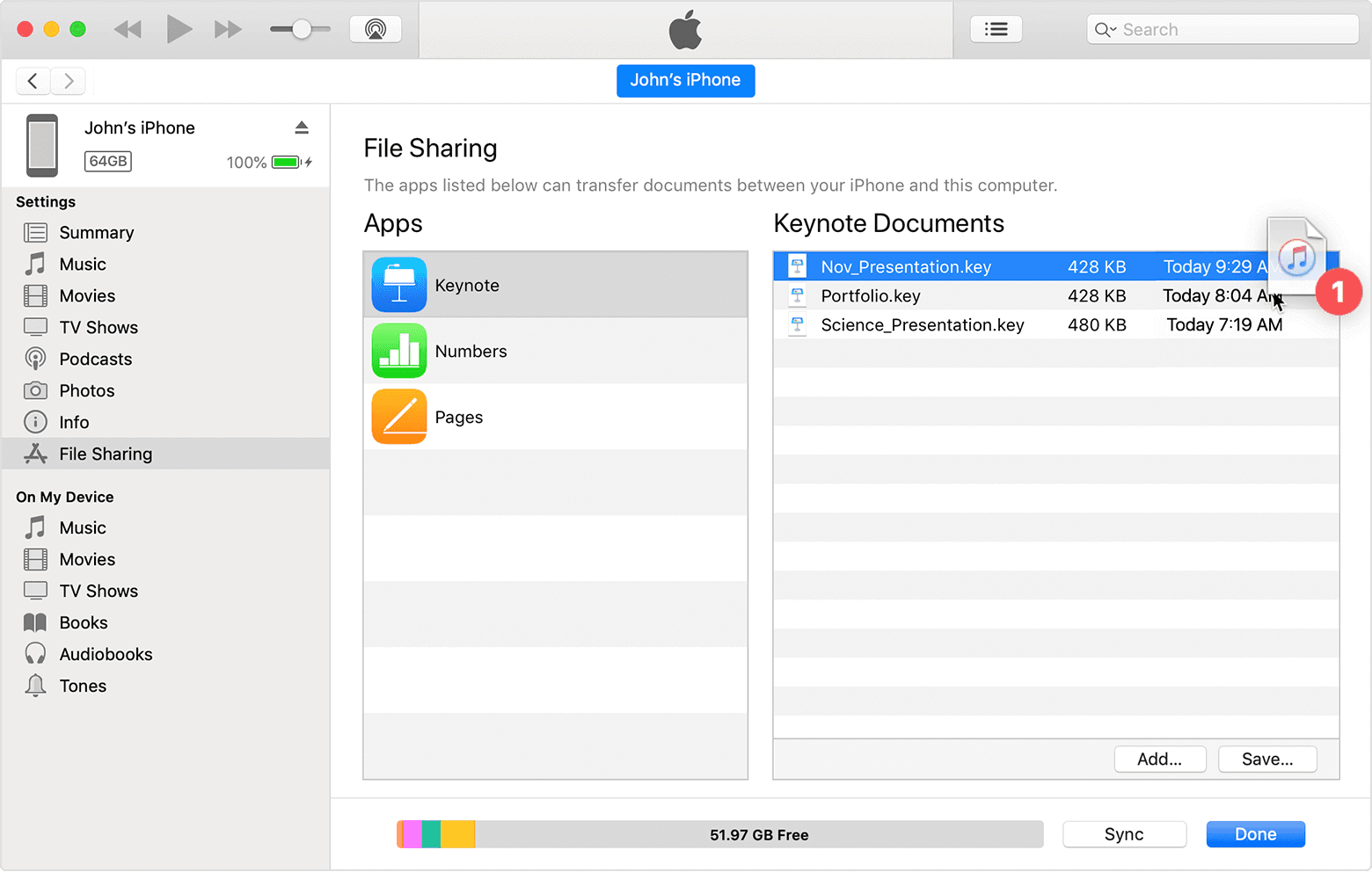
Step 3. Click the File Sharing option, and choose the app that you want to transfer long video files from.
Step 4. Choose the files that you want to send to the PC > Click Save To > Select the path where you want to save the files, then click Save To to add your iPhone files.
- Limitations:✎...
- Photos and videos cannot be accessed directly.
- The files cannot be selected in bulk.
- There may be a risk of quality loss when transferring 4K/60fps video.
- There is a risk of deleting existing files.
Way 5: Transfer Videos from iPhone to Computer with Bluetooth
Before your transfer, you need to check if you can connect your computer and phone via Bluetooth. You can transfer large videos through Bluetooth from iPhone to PC window 10 or 11 after connecting.
Follow the step-by-step process below to make it.
Step 1. Go to your iPhone's Control Center to enable your Bluetooth.
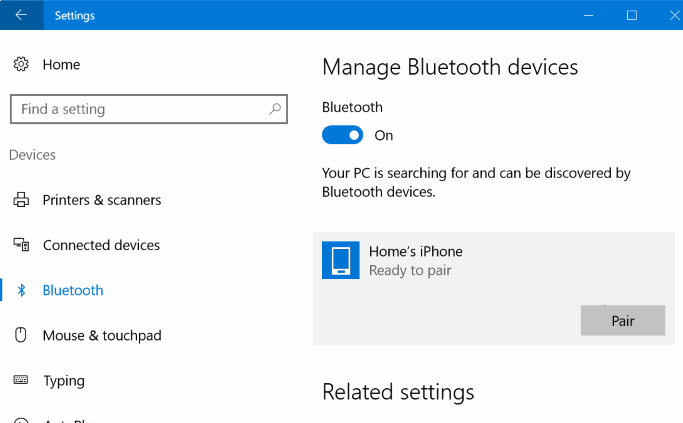
Step 2. On your PC, click Start > Settings > Locate and click Devices > Add Bluetooth other devices.
Step 3. Pair your iPhone with the list of nearby Bluetooth devices.
Step 4. Open the iPhone Photos app and choose the photos that you want to export.
Step 5. Click Send and use Bluetooth.
- Limitation:✎...
- iOS will automatically compress videos larger than 500 MB.
Conclusion
That’s all the way to transfer large video files from iPhone to PC. For > 10GB transfers: Use FoneTool or File Explorer; For wireless convenience: iTunes, iCloud, or Bluetooth. Then, using a USB cable with the professional iPhone data transfer software - FoneTool can be a better alternative.
FoneTool - All-in-one iPhone Data Manager
Transfer, backup and manage data on iPhone, iPad and iPod touch in an easy way.
-
 iOS 27 Compatible
 iPhone 17 Supported
Windows 11/10/8/8.1/7

100% Secure

Kelsey is an English editor at FoneTool, passionate about helping users solve tech issues. She specializes in iPhone data management, backup, and recovery. In her free time, she enjoys learning IT skills and spending time with loved ones.
Read author info >>



 as a preferred
source on Google
as a preferred
source on Google