Transfer Photos from iPhone to PC Wirelessly: 6 Top Ways
How can you do to transfer pictures from iPhone to PC wirelessly? Here are 6 ways to finish the process and you can choose the most suitbale one to meet your needs!


Why Transfer Photos from iPhone to PC Wirelessly?
When you need to transfer photos from your iPhone to your PC, wireless methods offer superior convenience, especially for smaller quantities of photos. Can you wirelessly transfer photos from iPhone to computer? Absolutely!
If you're uncertain which method suits your needs best, this article provides detailed guidance. For large file transfers, wired solutions like FoneTool often deliver better performance.
| Method | Connection | Transfer Speed | Storage Limitation | Effectiveness |
| FoneTool | Wired | Super-Fast | No Limits | High - 3 Steps |
| Bluetooth | Wireless | Slow | No Limits | Low |
| iCloud | Wireless | Internet Dependent | 5 GB for free | Medium |
| Dropbox | Wireless | Internet Dependent | 16 GB for free | Medium |
| Google Photos | Wireless | Internet Dependent | 15 GB for free | Medium |
| Wireless | Slow | Email Service Dependent | Low |
1. How to transfer photos from iPhone to PC wirelessly - Bluetooth
Bluetooth enables direct wireless photo transfer between iPhone and PC, suitable for small quantities of images.
Step 1. On PC: Enable Bluetooth discovery in Settings; On iPhone: Enable Bluetooth in Settings.
Step 2. Search and select your PC from iPhone's Bluetooth devices > Follow pairing instructions.
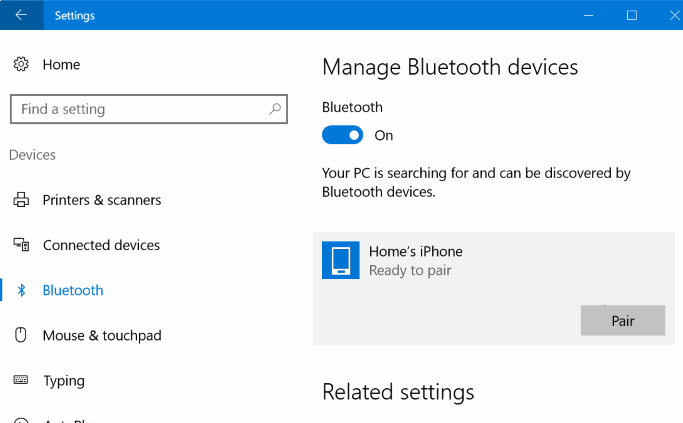
Step 3. Open Photos app > Select pictures > Share via Bluetooth > Confirm reception on PC.
2. How to send photos from iPhone to PC wirelessly - iCloud
iCloud automatically syncs photos across Apple devices, enabling seamless download to your PC. For a faster teansfer, you can skip to Part 2 to use a professional iCloud manager.
Prerequisite: Enable iCloud Photos (Settings > [your name] > iCloud > Photos > Sync this iPhone)
Part 1. Export iCloud photos to PC via iCloud.com
Step 1. Go to iCloud.com on PC > Login with Apple ID.
Step 2. Click Photos icon > Select desired images.
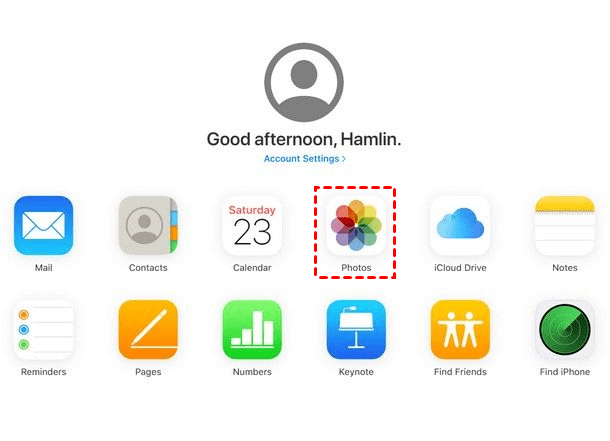
Part 2. Access iCloud photos on PC via professional FoneTool
FoneTool provides superior iCloud management with enhanced download speeds and security.
- Key Features:
- · Download, upload, or delete iCloud data from Windows PC
- · Transfer 1,000 photos in approximately 20 minutes
- · SSL encryption ensures account security
- · Sync iCloud data between accounts with one click.
Step 1. Install and launch FoneTool> My iCloud > Login > Manage iCloud.
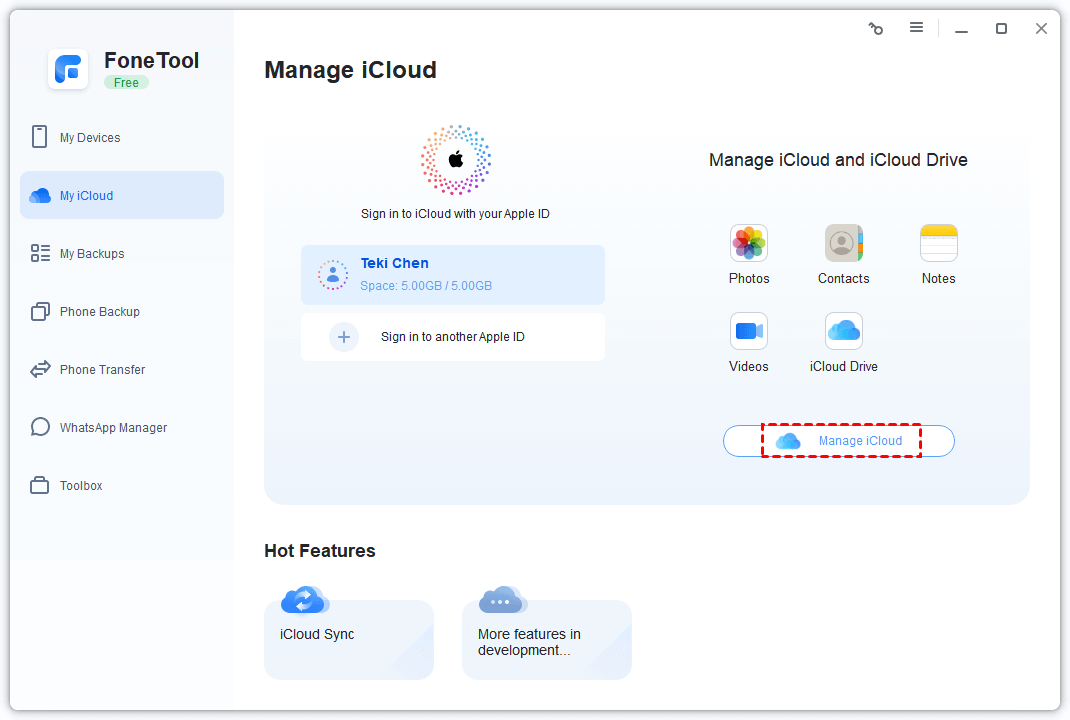
Step 2. Click the Photos icon to access iCloud photos on PC > Select Download.
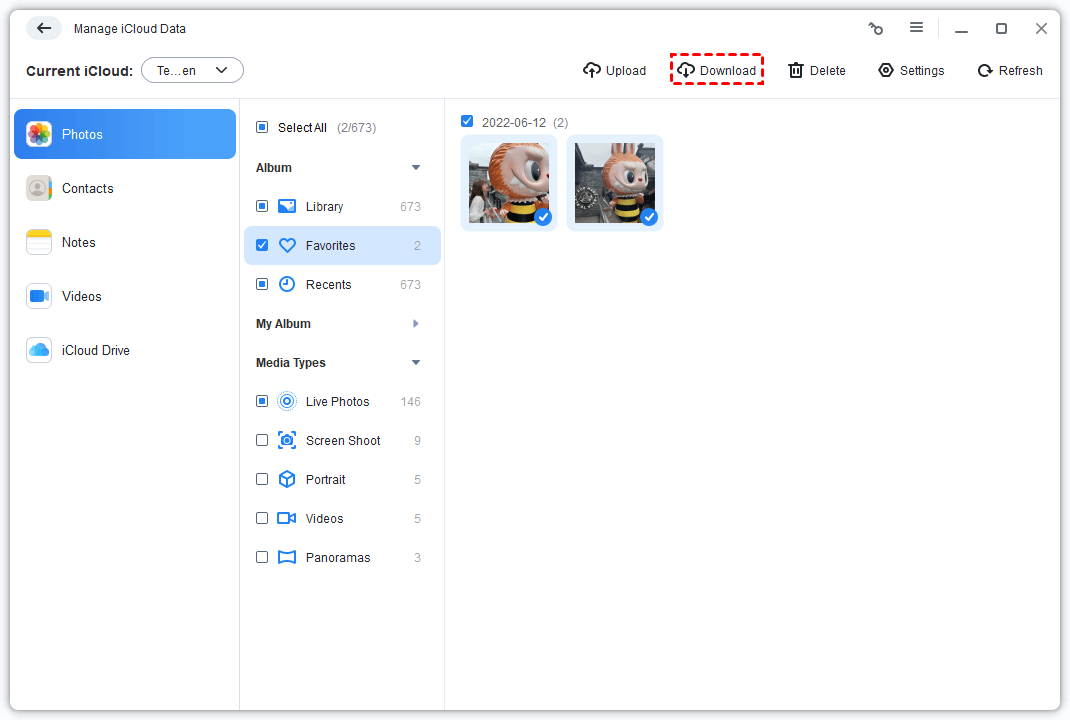
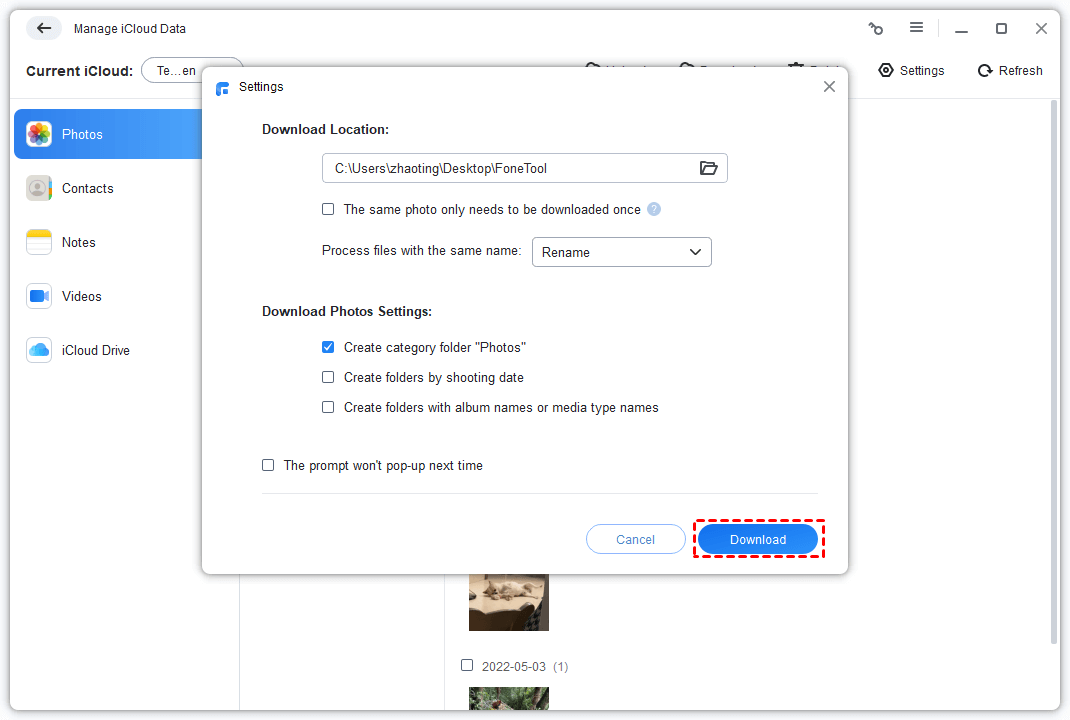
Step 3. Adjust download settings > Click Download.
3. How to transfer files from iPhone to PC wirelessly - Dropbox
Dropbox offers up to 16GB free storage for wireless photo transfers between iPhone and PC.
Step 1. Install Dropbox from App Store on iPhone.
Step 2. Enable Camera Upload > Turn on Background Uploading.
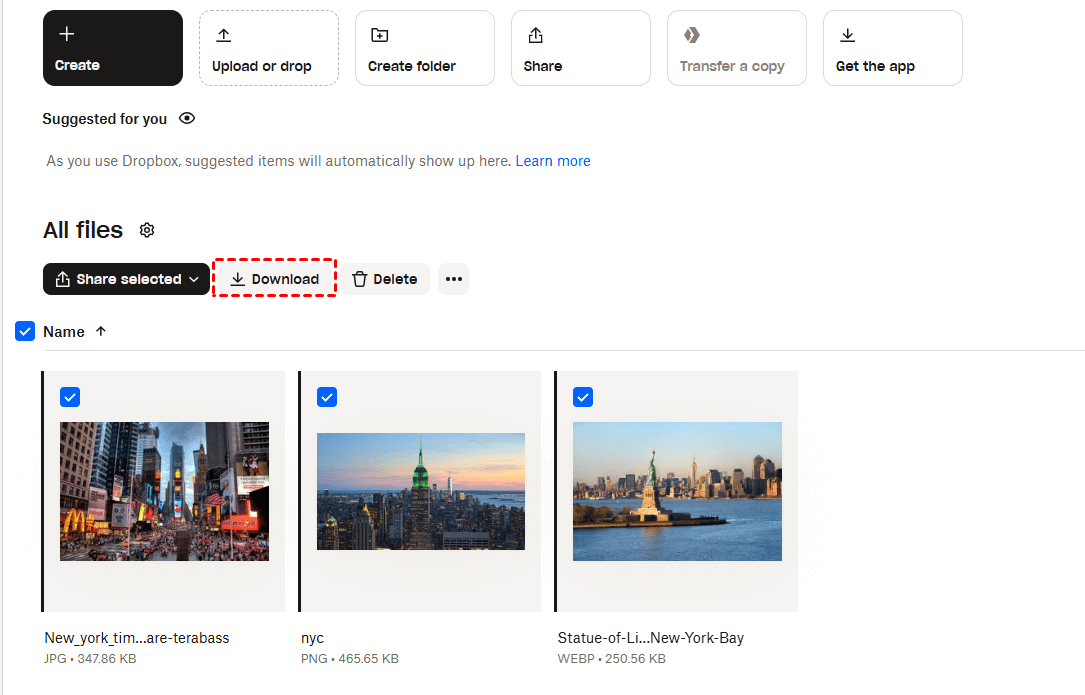
Step 3. Access dropbox.com > Select images > Download.
4. How to transfer photos from iPhone to PC without cable - Google photos
Google Photos provides 15GB free storage for cross-platform photo sharing.
Step 1. O n iPhone: Visit photos.google.com or use Google Photos app > Login > Upload photos.
Step 2. On PC: Access photos.google.com > Login same account > Select photos > Three-dots menu > Download.

5. Transfer photos from iPhone to Windows laptop/desktop wirelessly - email
Email provides a straightforward method for transferring small quantities of photos.
Step 1. Open Photos app on iPhone > Select photos > Share icon.
Step 2. Choose Mail option > Compose your email > Tap Send.
Step 3. Access email on PC > Save attachments to desired folder.
Best alternative: Fastest way to transfer photos from iPhone to PC
For large photo collections, FoneTool offers the most efficient transfer solution with superior speed and quality preservation. If you're wondering how to transfer photos from iPhone to PC without iTunes, FoneTool provides the perfect answer with its intuitive interface and powerful features.
Best & Free iPhone to PC Photo/Video Transfer Software
- Transfer unlimited photos/videos between iPhone and PC
- Move 1,000 full-resolution photos in 10 minutes
- Zero quality compression during transfer
- Preview and selective photo transfer
- Support for multiple formats (JPG, PNG, GIF, HEIC, RAW, etc.)
- Flexible storage locations (PC, USB drives, etc.)
Windows 11/10/8/8.1/7

100% Secure
Send photos from iPhone to Windows with a USB cable:
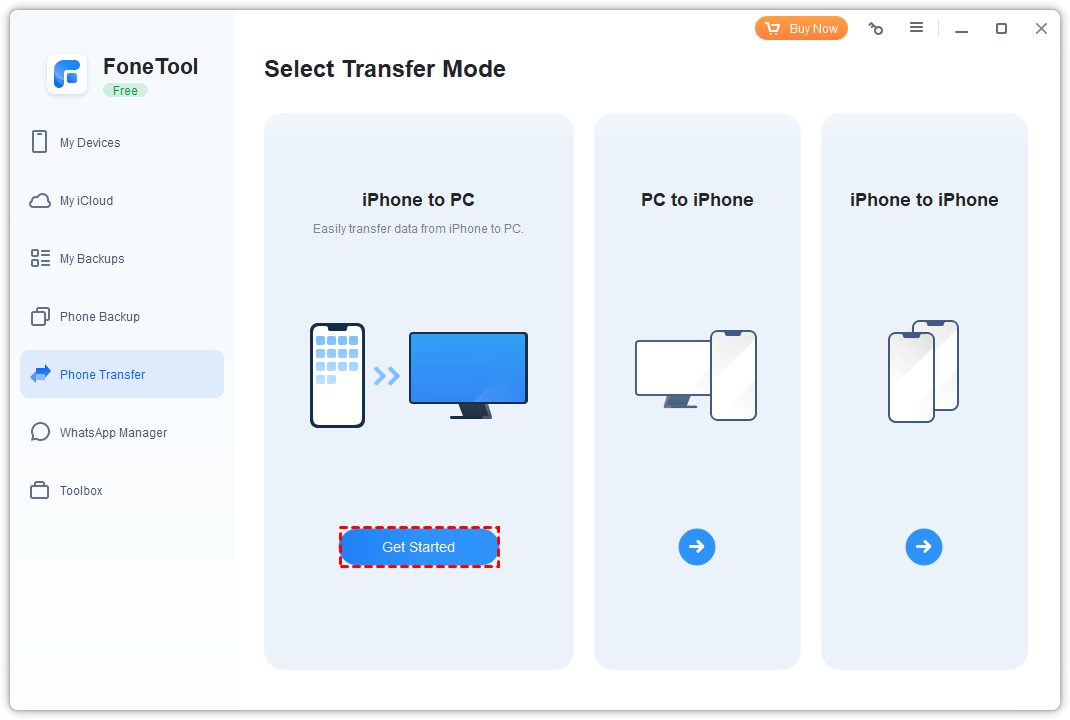
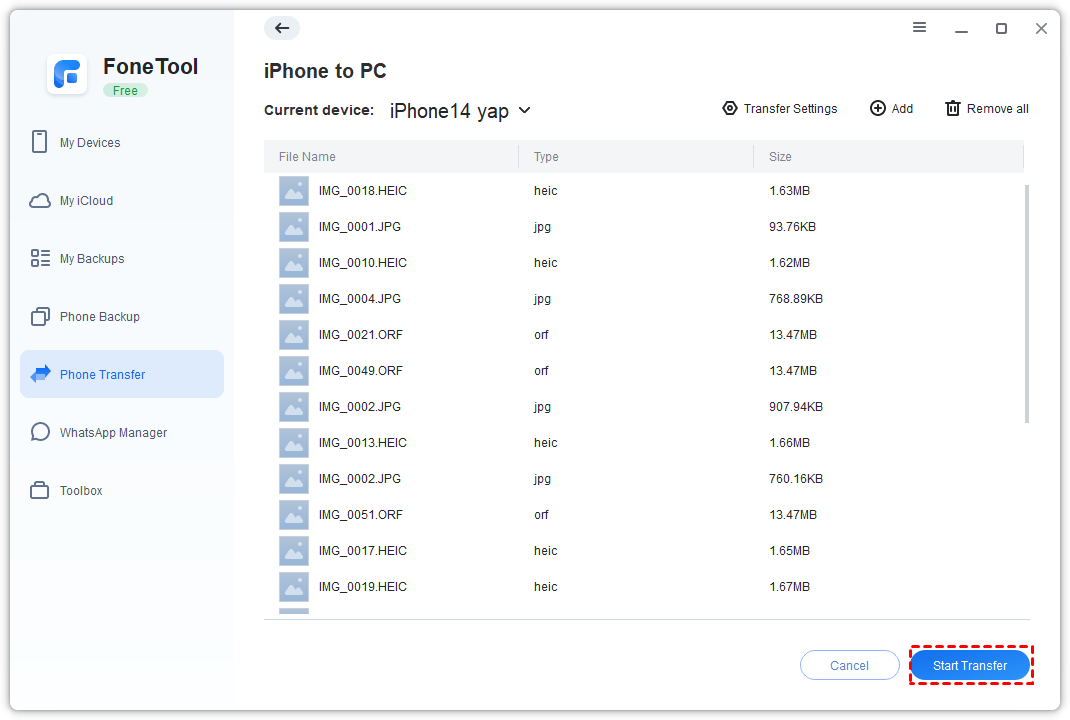
Step 1. Connect iPhone to PC via USB > Tap Trust > Launch FoneTool > Phone Transfer > iPhone to PC.
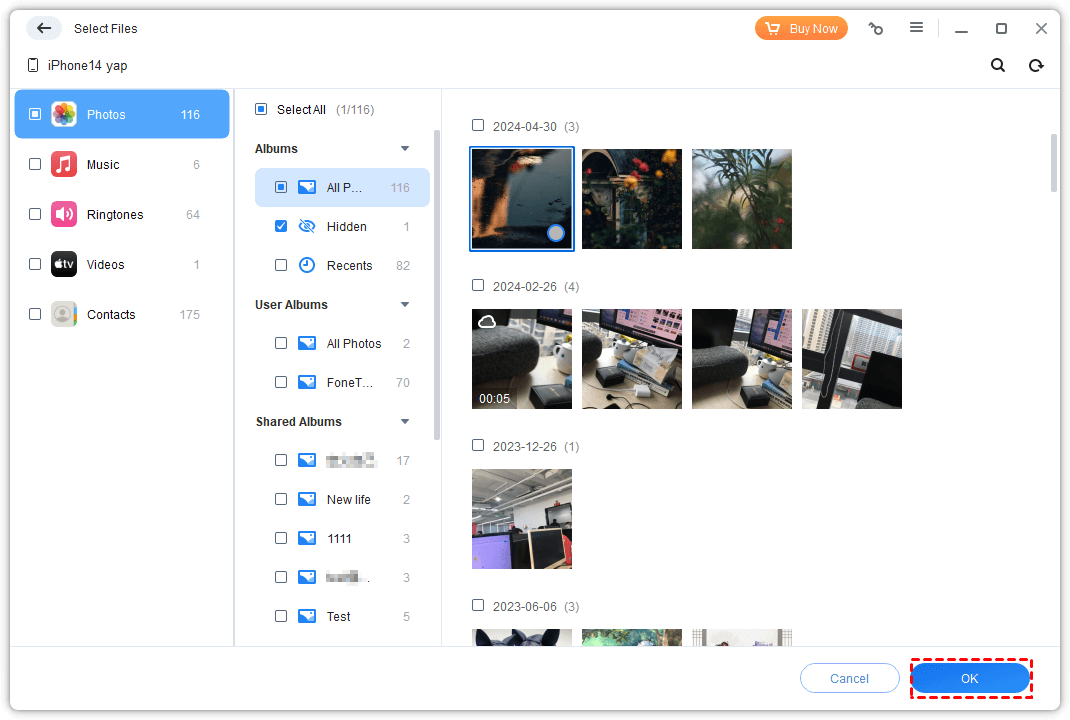
Step 2. Select Photos or Videos icons > Choose files > OK.
Step 3. Adjust storage location in Transfer Settings > Start Transfer.
FoneTool also offers a mobile app to help you easily send pictures from Android to iPhone 15/16/17.
FAQs on iPhone to PC Photos Transfer
Conclusion
This guide demonstrates six effective methods for wireless photo transfer from iPhone to PC. For occasional small transfers, Bluetooth, email, or cloud services work well. However, for multiple large files, FoneTool emerges as the optimal solution, offering superior speed, reliability, and quality preservation for your photo transfer needs.
FoneTool - All-in-one iPhone Data Manager
Transfer, backup and manage data on iPhone, iPad and iPod touch in an easy way.
-
 iOS 27 Compatible
 iPhone 17 Supported
Windows 11/10/8/8.1/7

100% Secure

Kelsey is an English editor at FoneTool, passionate about helping users solve tech issues. She specializes in iPhone data management, backup, and recovery. In her free time, she enjoys learning IT skills and spending time with loved ones.
Read author info >>



 as a preferred
source on Google
as a preferred
source on Google