4 Easy Ways to Transfer Music from iPhone to Computer
Learn how to transfer music from iPhone to computer with 4 proven methods: using FoneTool, iTunes, cloud services and re-download purchased music. Step-by-step guide included!


How do I transfer music from iPhone to computer without iTunes?
My old iPhone is dying and I want to transfer music to my computer, and some are purchased from iTunes. Can you give me some advice on how to quickly transfer all my music files on my iPhone?
- Question from Reddit
Why Transfer Music from iPhone to Computer?
There are several compelling reasons to transfer music from iPhone to computer:
💾 Backup music library - Protect your favorite songs from iPhone damage or loss
📱 Free up space - Move music files to computer to optimize iPhone storage
🎵 Easy access - Organize and play music directly from your computer
This guide demonstrates how to move iPhone music to computer efficiently, handling both purchased and non-purchased songs without iTunes limitations.
| Method | Speed | Advantages | Limitations |
|---|---|---|---|
| FoneTool | Very Fast | All music types supported; user-friendly | Requires software download |
| iTunes | Moderate | Official Apple tool; no additional software | Purchased music only |
| Cloud Services | Fast | Wireless; device-independent | Needs internet & storage |
| Purchased Music | Moderate | Simple for iTunes purchases | Limited to store purchases |
Way 1. How to Transfer Music from iPhone to PC without iTunes
FoneTool provides the most comprehensive solution for transferring music from iPhone to computer without iTunes, handling all music types while preserving your existing data.
- Quickly transfer large music files, saving you time.
- Choose specific songs, albums, or playlists to transfer.
- Ensures that no music will be lost during the transfer process.
- Easy-to-navigate interface with drag-and-drop functionality.
- Provides stable and fast transfer speeds using a USB cable.
Windows 11/10/8/8.1/7

100% Secure
Download the free FoneTool, connect your iPhone to PC, and follow the guide to learn how to transfer music from iPhone to computer without iTunes.
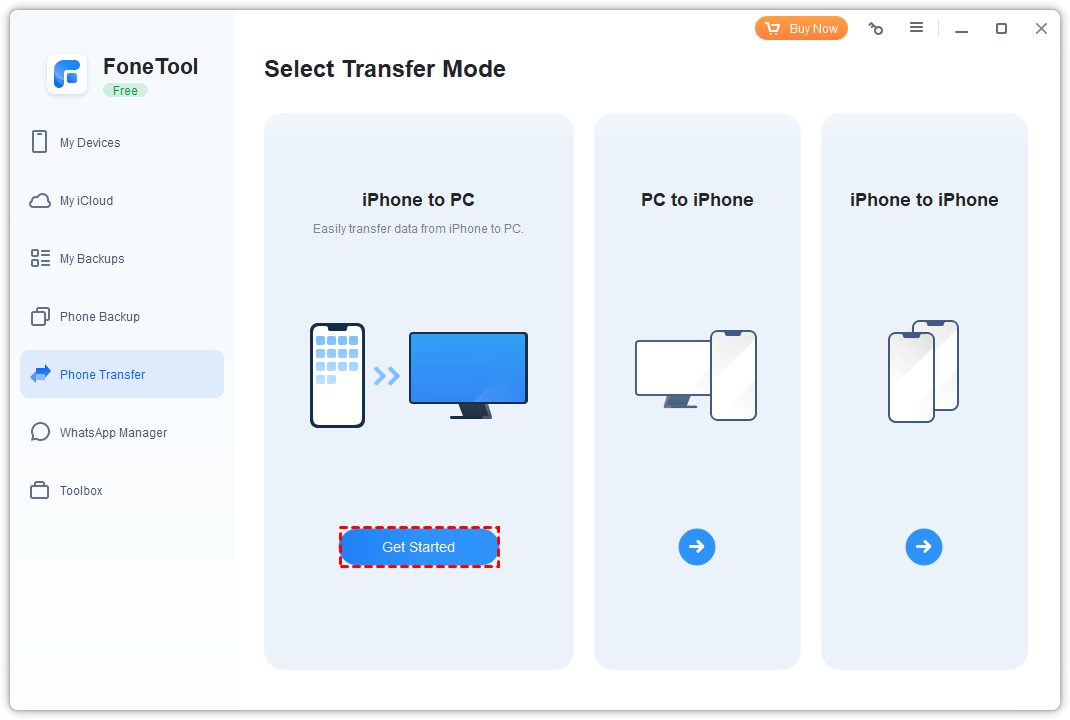
Step 1. Open FoneTool to tap Phone Transfer > Mouse over to iPhone to PC > Click Get Started.
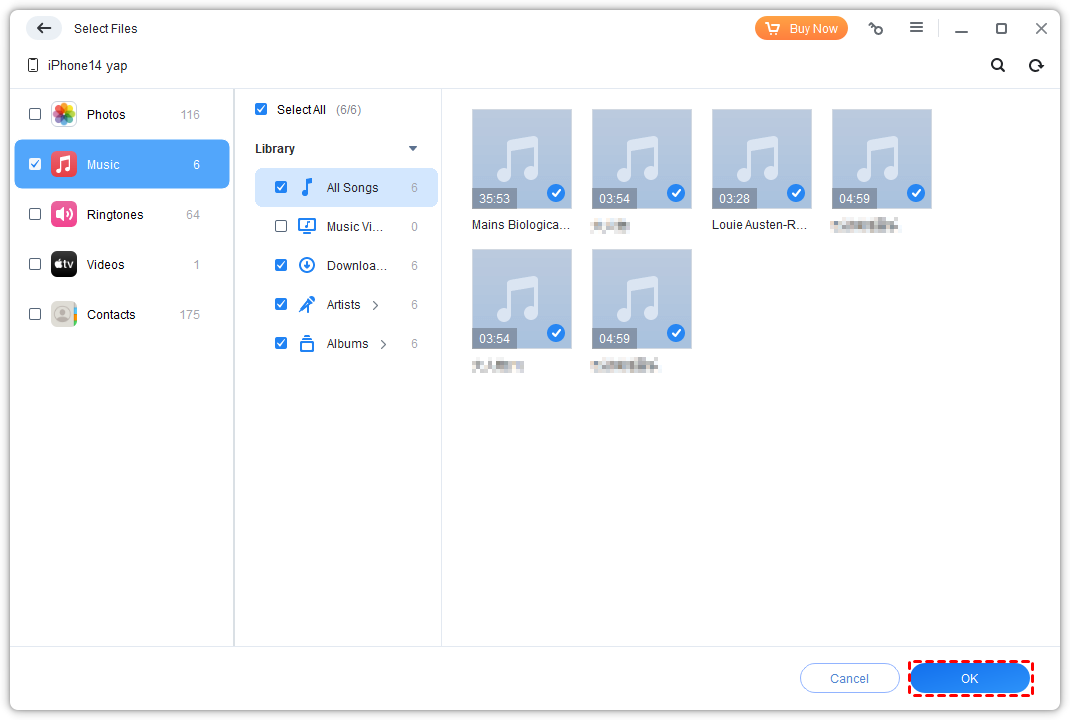
Step 2. Check the Music icon > Select your wanted songs or Select All button > Click OK to confirm.
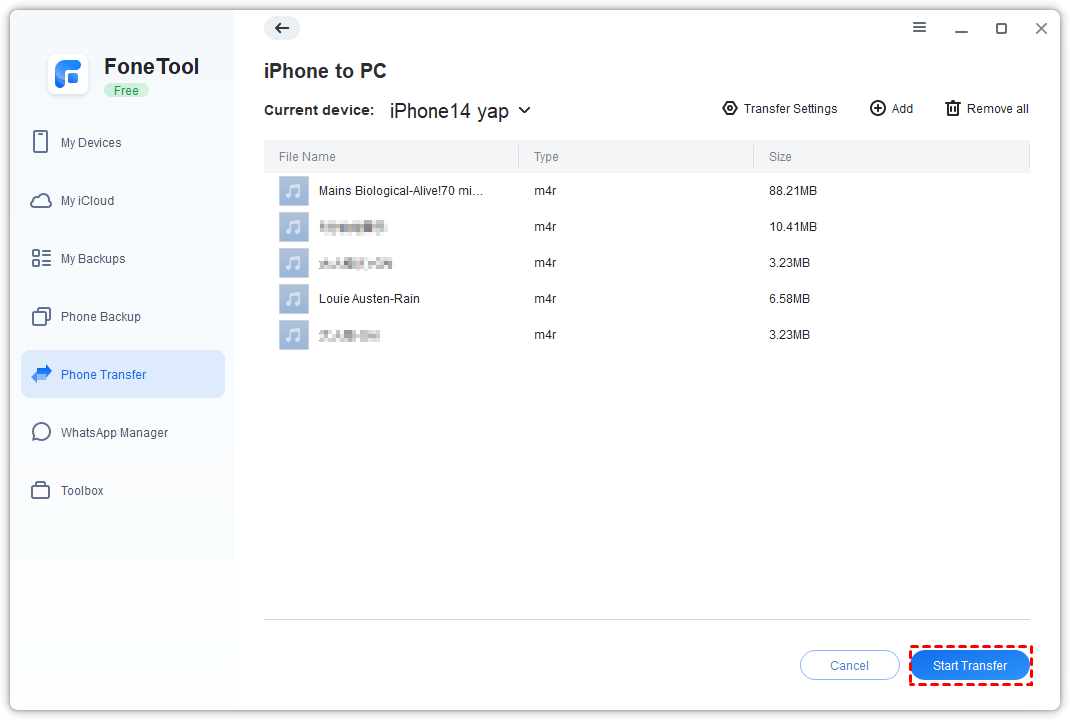
Step 3. Choose a storage path from Transfer Settings > tap Start Transfer.
Way 2. How to Copy Music from iPhone to Computer with iTunes
iTunes facilitates transferring purchased music from iPhone to computer but excludes non-purchased songs from transfer capabilities.
📝Important Limitations:
-
Only transfers purchased music content
-
Requires stable internet connection for authorization
-
Excludes personal music collections
Step 1. Connect iPhone to computer > Launch the latest version of iTunes.
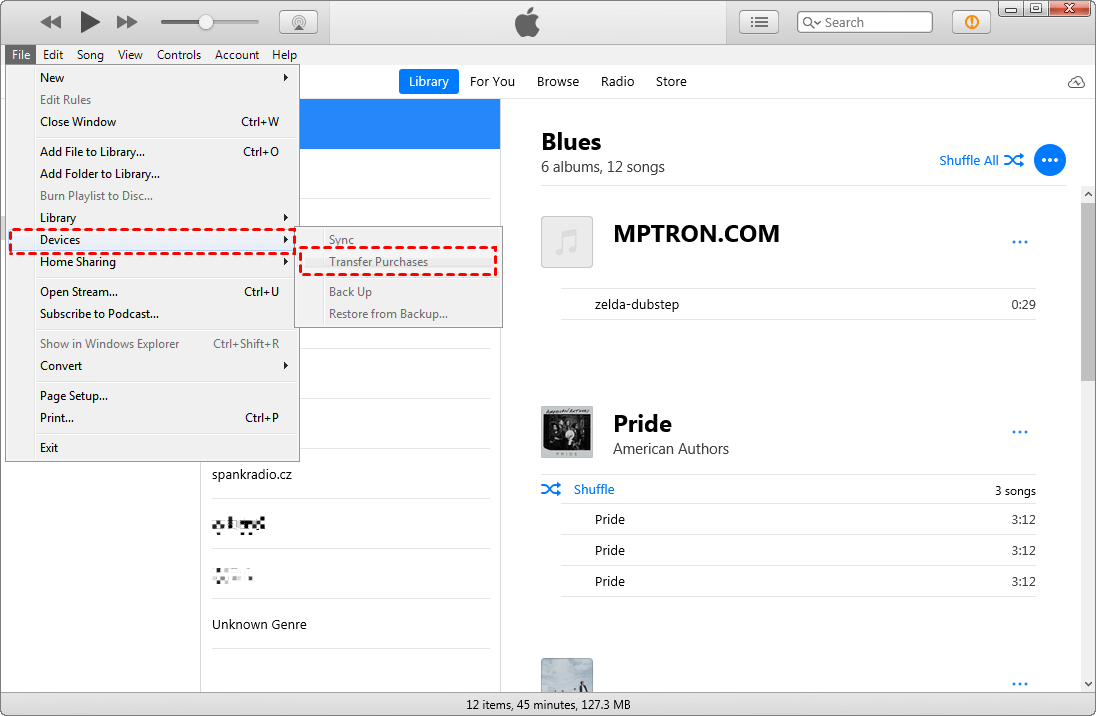
Step 2. Tap File > Devices > Select Transfer Purchases from [Your iPhone].
Step 3. Navigate to Recently Added > Select the purchased music > Tap Download button.
Way 3. How to Transfer Songs from iPhone to PC via Cloud Services
Cloud services like iCloud Drive, Google Drive, and Dropbox enable wireless music transfer but require internet connectivity and sufficient cloud storage.
Step 1. On iPhone: Settings > [Apple ID] > iCloud > Enable iCloud Drive.
Step 2. Open the Files app > Choose the songs > Tap on the Copy button.
Step 3. Go to the iCloud Drive > Long press to paste to sync music between devices with same accounts.
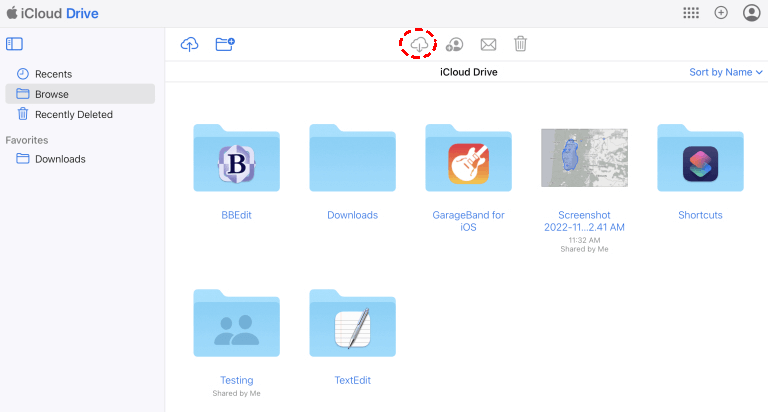
Step 4. On computer: Visit iCloud website > Sign in on the iPhone > Go to iCloud Drive > Download the music files you need.
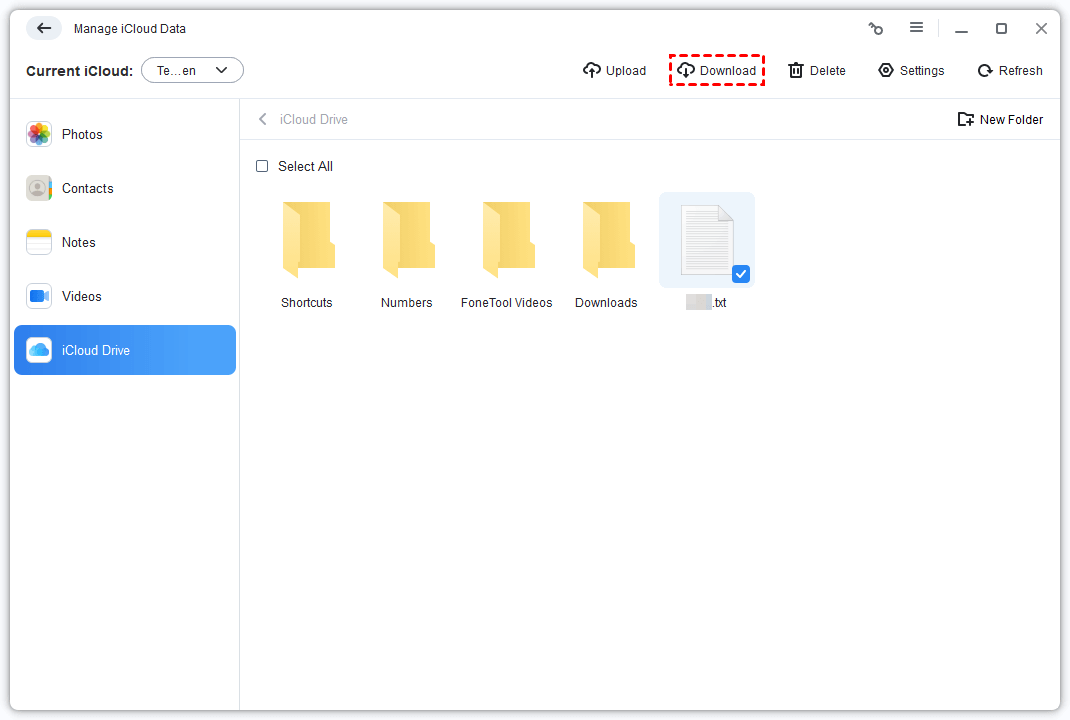
★Tip: For faster downloads, use FoneTool's Manage iCloud feature to directly download iCloud files to your PC and can also upload, delete and sync data.
Way 4. How to Download Purchased Music on Computer
Re-download previously purchased iTunes music directly to your computer using your Apple ID, supporting up to 10 authorized devices. Here are the steps to download purchased music on iPhone from iTunes.
Step 1. Launch iTunes > Navigate to Account > Sign In with purchase Apple ID.
Step 2. Click Account > Click Purchased > Select Music.
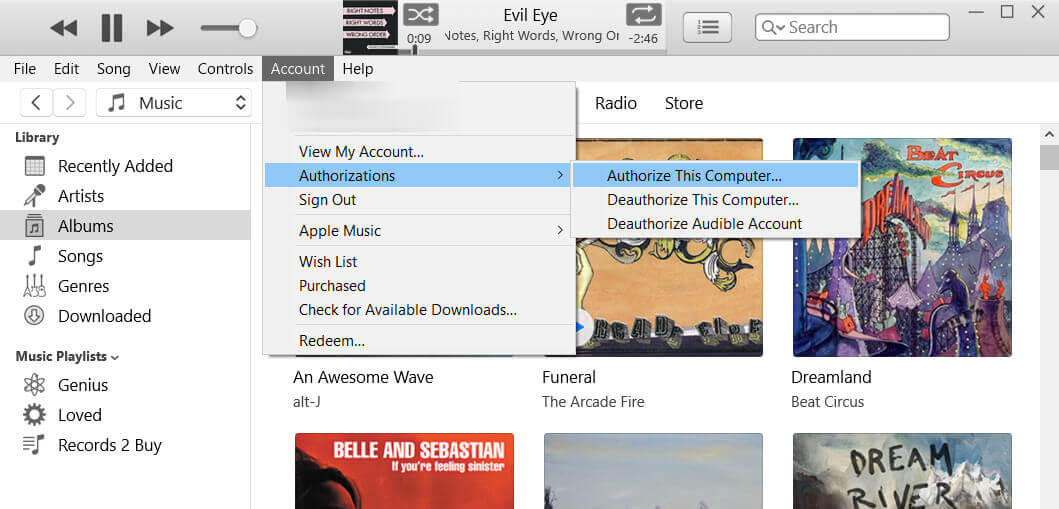
Step 3. Tap the Not in My Library > Tap the download button to redownload your purchased music.
FAQs on Transferring iPhone Music to Computer
Conclusion
Transferring music from iPhone to computer becomes straightforward with these four effective methods. For the most versatile solution handling all music types with maximum speed and ease, FoneTool stands out as the recommended choice. It supports both purchased and personal music collections while ensuring data safety throughout the transfer process. Download FoneTool today to simplify your music transfer needs!
FoneTool - All-in-one iPhone Data Manager
Transfer, backup and manage data on iPhone, iPad and iPod touch in an easy way.
-
 iOS 27 Compatible
 iPhone 17 Supported
Windows 11/10/8/8.1/7

100% Secure

Kelsey is an English editor at FoneTool, passionate about helping users solve tech issues. She specializes in iPhone data management, backup, and recovery. In her free time, she enjoys learning IT skills and spending time with loved ones.
Read author info >>



 as a preferred
source on Google
as a preferred
source on Google