Find My iPhone Not Updating Location? Here's the Fix
Is your Find My iPhone location not updating? This guide explains common causes like network issues, settings problems, or system glitches, and provides step-by-step fixes.


When Find My iPhone isn't updating your location, it can be frustrating and worrying. This common issue can stem from simple settings misconfigurations to more complex software glitches. This guide will help you diagnose the root cause and provide clear, step-by-step solutions to restore accurate location tracking.
Why Is Find My iPhone Location Not updating?
Understanding the cause is the first step to a solution. Several factors can prevent Find My from updating your location in real-time.
- Poor Internet Connection: A weak or unstable Wi-Fi or cellular data connection is a primary culprit. Find My requires a stable network to transmit location data.
- Location Services Disabled: If Location Services or the Find My app specifically doesn't have permission to access your location, it cannot update.
- Outdated iOS Software: Bugs in older iOS versions can disrupt location services. Updating often resolves these glitches.
- Incorrect Date & Time Settings: If your iPhone's date and time are not set automatically, it can interfere with location accuracy and updating.
- System Glitches: Temporary software bugs or deeper iOS system corruption can cause the Find My iPhone not working.
Step-by-Step Solutions to Fix Location Updating Issues
Try these methods in order, from simple checks to more advanced repairs.
Method 1. Basic Checks and Restarts
Start with these foundational steps to resolve common, minor glitches.
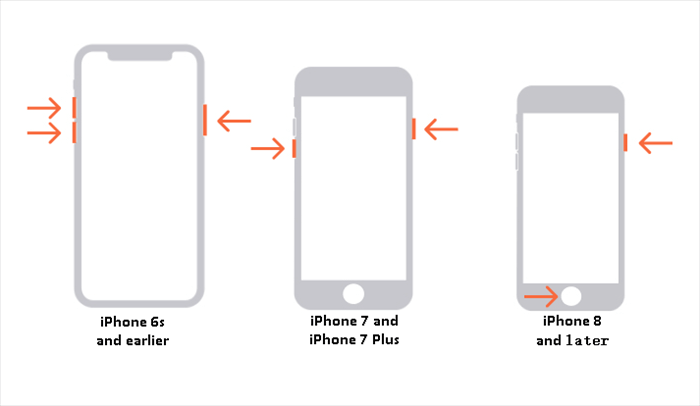
Step 1. Restart Your iPhone
- For iPhone X and later: Press and hold the Side button and a Volume button, then drag the slider. Turn back on after 30 seconds.
- For earlier models: Hold the Side button (or Top button), drag the slider, and restart.
Step 2. Check Network Connection
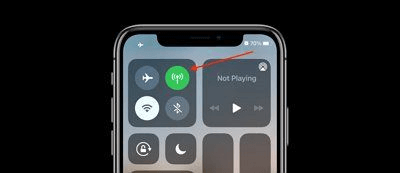
- Swipe down to open the Control Center and tap the airplane icon. Wait 10 seconds, then turn it off.
- Ensure you have a strong Wi-Fi or cellular signal.
Step 3. Verify Location Services
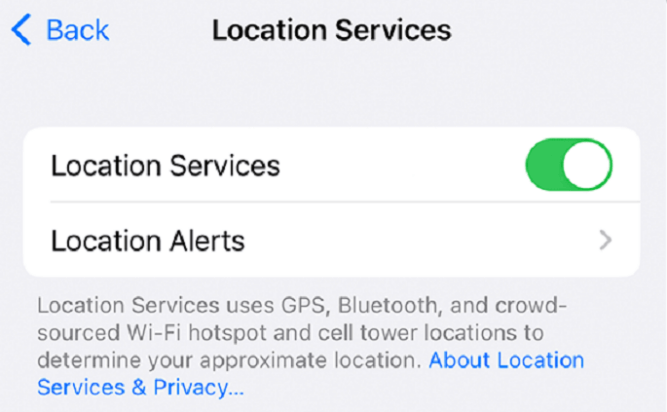
- Go to Settings > Privacy & Security > Location Services.
- Ensure Location Services is turned on.
- Scroll down and tap Find My.
- Set location access to "While Using the App" or "Always".
Method 2. Network and Account Refresh
If basic steps don't work, delve deeper into network and account settings.
Step 1. Reset Network Settings
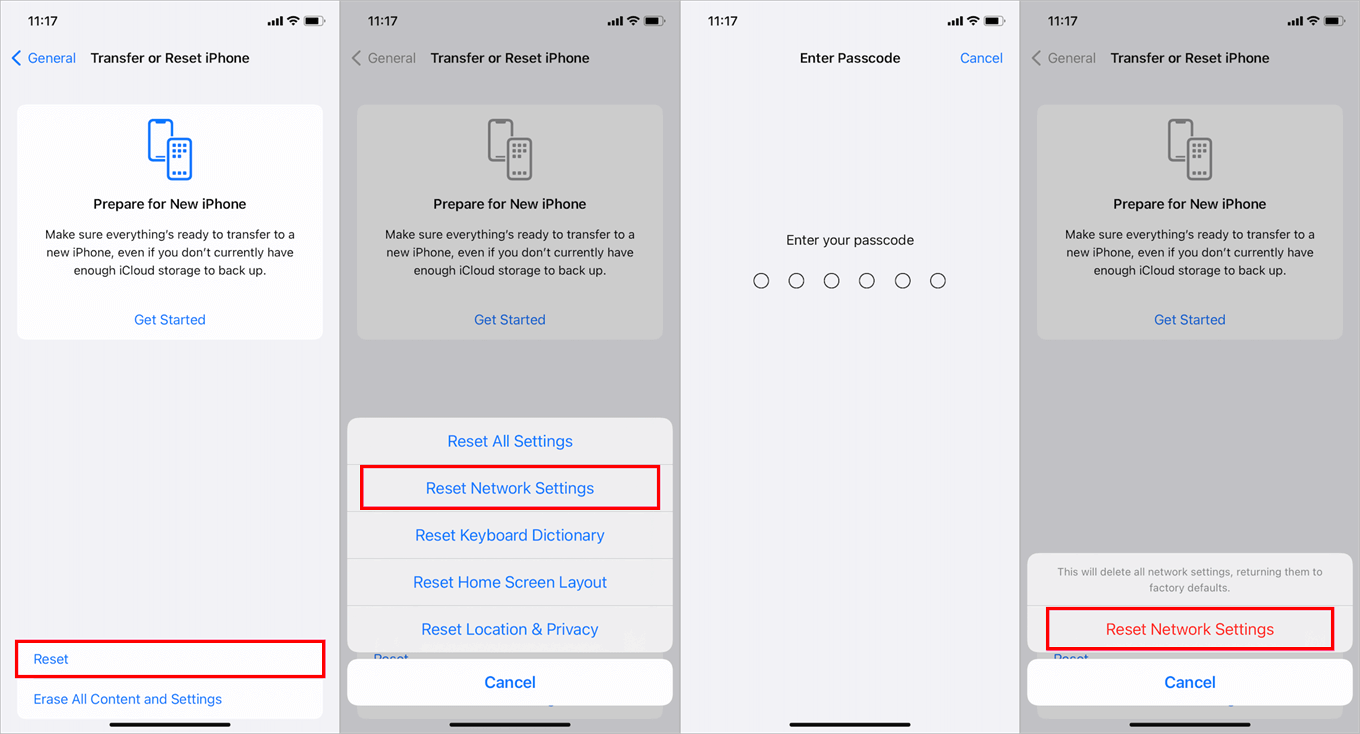
- Go to Settings > General > Transfer or Reset iPhone.
- Tap Reset and choose Reset Network Settings.
- Enter your passcode when prompted.
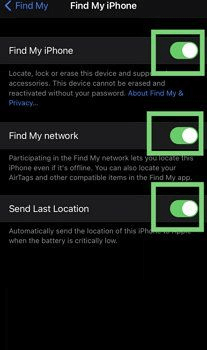
Step 2. Check Find My Settings
- Open Settings > [Your Name] > Find My > Find My iPhone.
- Ensure all switches are turned on (green).
Step 3. Refresh Apple ID Connection
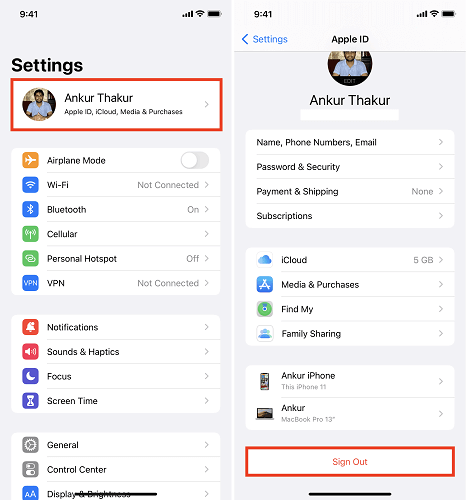
- Go to Settings > [Your Name].
- Tap Sign Out (choose to keep data on iPhone).
- Restart your device.
- Sign back into your Apple ID.
Method 3. Software and Settings Verification
Ensure your device's software and core settings are optimized.
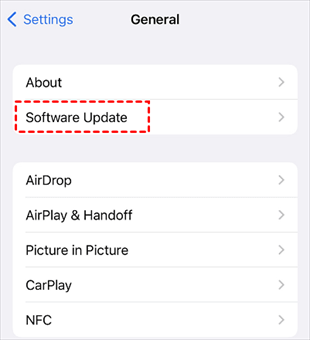
Step 1. Update iOS Software
- Go to Settings > General > Software Update.
- Download and install any available updates.
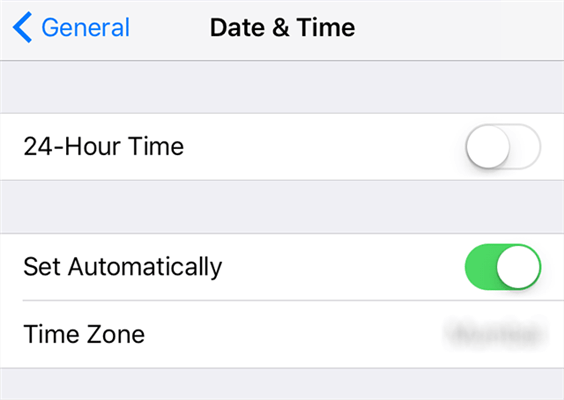
Step 2. Configure Date & Time Settings
- Navigate to Settings > General > Date & Time.
- Turn on Set Automatically.
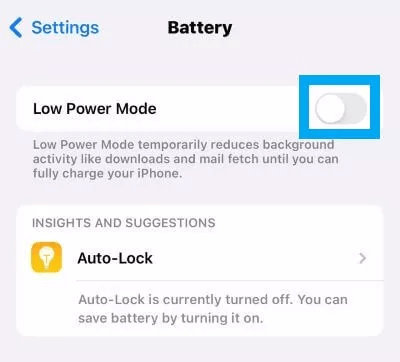
Step 3. Check Battery & Power Settings
- Go to Settings > Battery.
- Ensure Low Power Mode is turned off.
- Check battery health percentage.
✨Tip: Restore your real location after GPS simulation
Have you used FoneTool VirtualLocation before? After ending the simulation, check Find My. Its location control allows you to:
- Restore your actual GPS location with one click, before verifying whether Find My is updated correctly.
- Stop the active simulation route before returning the connected iPhone to its real geographical location.
- If multiple devices were connected during troubleshooting, select the faulty iPhone from the device list.
- Check the current coordinates in the software, and then verify the restored location on the iPhone.
Step 1. Open FoneTool VirtualLocation, connect your unlocked iPhone by USB, and tap Trust if prompted.
Step 2. Cancel any active route, then click the circular-arrow control on the right toolbar to restore your real location.
Step 3. Verify your position in Maps, then reopen Find My and check its location timestamp.
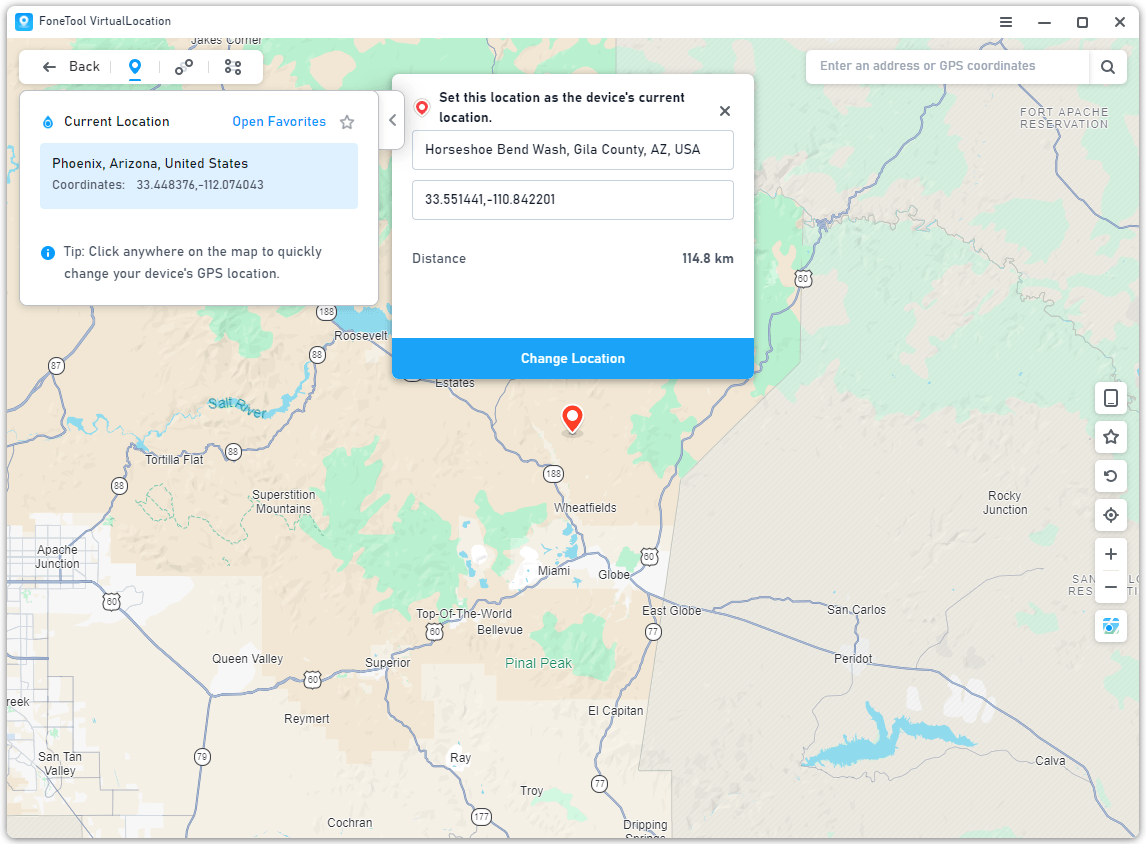
Restoring your GPS position does not fix Find My sharing settings or service issues.
Method 4. Consider iOS System Repair with FoneTool Repair
If, after checking the “Find My” settings, connections, and any previous simulation attempts, it still cannot be updated, it may be a problem with the iOS software, which requires further attention. FoneTool Repair offers iOS system repair options for supported devices. First, back up your iPhone, and check the repair mode you have chosen before proceeding.
This powerful iOS system repair tool is the best way to fix iOS/iPadOS issues without data loss
Step 1. Download and install FoneTool Repair on your Windows computer.
Step 2. Launch the software and connect your iPhone via USB cable, then choose iOS System Repair.

Step 3. Click Start Repair and select Standard Mode.

Step 4. Download the required firmware, and click Start Repair to begin the process.

- ★Tips:
-
Standard Mode is designed to preserve personal data during support operations. It cannot resolve issues such as Find My services disruptions, changes to others’ sharing permissions, or repairs of damaged hardware. It maintains the current backup state before starting up.
Frequently Asked Questions
Conclusion
If Find My iPhone is not updating location, please first check the timestamp, connection status, permissions, and shared devices. If you have previously simulated your location, end this session before testing again and restore your real location. After performing these basic checks, FoneTool Repair remains a possible solution for iOS software issues; FoneTool VirtualLocation, on the other hand, provides a way to stop the simulation of your location.
Fixes 160+ iOS/iPadOS issues, boot loops, crashes, failed updates, with no data loss.
-
 iOS 27 Compatible
 iPhone 17 Supported
100% Secure

Kelsey is an English editor at FoneTool, passionate about helping users solve tech issues. She specializes in iPhone data management, backup, and recovery. In her free time, she enjoys learning IT skills and spending time with loved ones.
Read author info >>



 as a preferred
source on Google
as a preferred
source on Google