iPad Won't Charge? Fix It Now With Quick Solutions
Is your iPad not charging? This guide explains common causes like faulty cables, dirty ports, or software glitches. Get easy solutions, including using FoneTool Repair for system-related issues and preventive tips.


Common Causes of iPad Charging Issues
Understanding why your iPad won't charge is crucial for effective troubleshooting:
- Faulty or incompatible chargers/cables (e.g., using a low-wattage iPhone adapter).
- Dust or debris blocking the charging port.
- Software glitches or outdated iPadOS.
- Overheating or extreme temperatures disrupting battery function.
- Hardware damage, such as a broken charging port or battery failure.
7 Effective Methods to Fix iPad Charging Problems
Follow these practical steps to resolve your iPad charging issues quickly and effectively.
Method 1. Check Your Charging Accessories
Start with the simplest solution first - your charging accessories. Damaged cables or weak power sources often cause charging problems.
Step 1. Examine the cable for fraying or bent connectors. Replace it with an Apple-certified Lightning or USB-C cable.
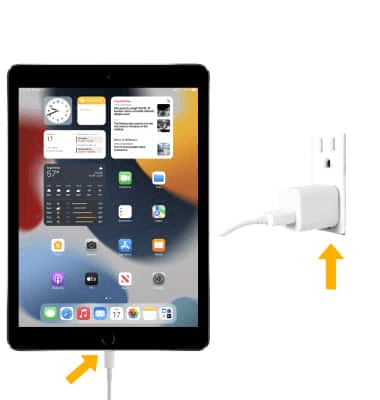
Step 2. Ensure the power adapter is firmly plugged into a working wall outlet. Avoid low-power sources like computer USB ports.
Step 3. Test with a different combination of cable and adapter to isolate the issue.
Method 2. Clean the Charging Port
Dust and lint accumulation can physically block charging connections. A clean port often resolves charging issues.
Step 1. Power off your iPad to avoid short circuits.
Step 2. Use a dry, soft-bristled brush or toothpick to gently remove debris from the port.

Step 3. Avoid metal tools that could damage internal components. Compressed air can be used carefully for stubborn particles.
Method 3. Force Restart Your iPad
A simple restart can fix software glitches affecting charging. This safe procedure doesn't delete your data.
For iPads without a Home button: Quickly press and release the Volume Up button, then the Volume Down button. Press and hold the Top button until the Apple logo appears.

For iPads with a Home button: Hold both the Home and Top (or Side) buttons until the Apple logo displays.

Method 4. Update iPadOS
Outdated software may contain charging-related bugs. Keeping iPadOS current prevents many issues.
Step 1. Connect to Wi-Fi and go to Settings > General > Software Update.
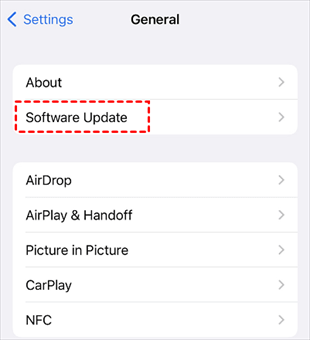
Step 2. Install any available updates. If your iPad won’t turn on, use a computer with iTunes/Finder to update.
Method 5. Use FoneTool Repair for System Issues
If basic steps fail, software issues might require advanced repair tools. FoneTool Repair can resolve system-related charging problems, such as an iPad stuck on Apple logo not responding to power.
This powerful iOS system repair tool is the best way to fix iOS/iPadOS issues without data loss
Step 1. Get the tool from the FoneTool Repair page on a Windows computer. Use a USB cable to link your iPad to the PC.
Step 2. On the main interface, select the function. Here, click on iOS System Repair.

Step 3. Select Repair Mode: Pick Standard Mode to preserve data.

Step 4. Follow prompts to download compatible iPadOS firmware.
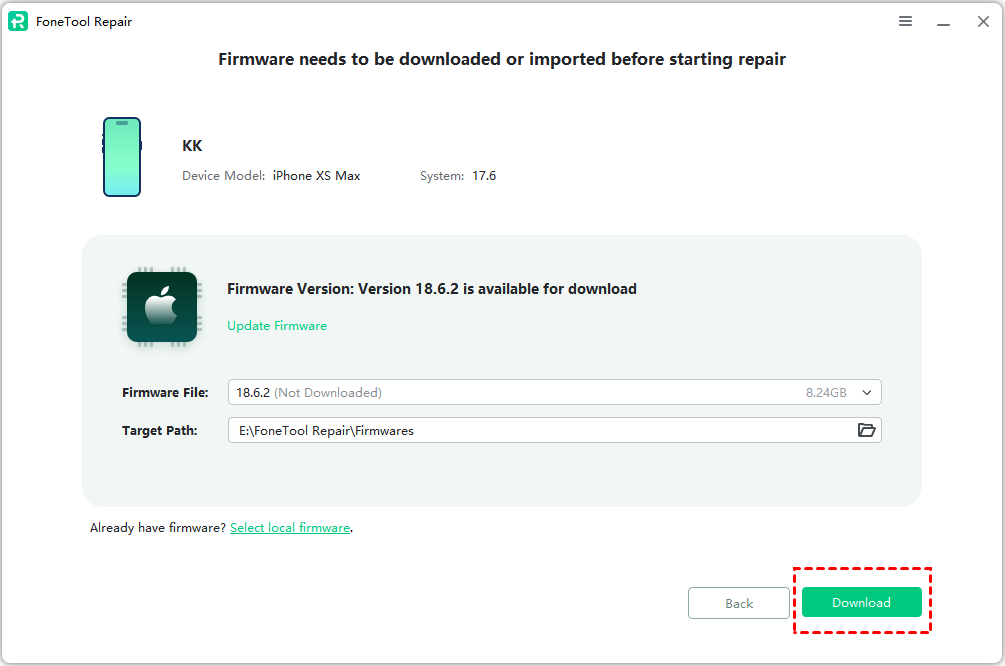
Step 5. Click Start Repair to begin the process. Your iPad should restart normally afterward.

Method 6. Address Overheating or Battery Optimization
iPad safety features may limit charging in certain conditions. Understanding these helps troubleshoot.
Step 1. Move your iPad to a cooler area and let it cool down before recharging.
Step 2.Disable Optimized Battery Charging (if enabled) via Settings > Battery to ensure full charging.
Method 7. Contact Apple Support
Persistent issues may indicate hardware problems. Professional help ensures proper repair.
Step 1. Visit the Apple Support Website to schedule a repair.
Step 2. Describe the troubleshooting steps you’ve tried to speed up diagnostics.
Frequently Asked Questions on iPad Issues
Conclusion
Most iPad charging issues can be resolved with simple steps like checking cables, cleaning the port, or force-restarting. For persistent software problems, FoneTool Repair provides a reliable solution to system errors without professional help. If hardware damage is involved, contact Apple Support for safe repairs. Regular maintenance, such as using certified accessories and keeping iPadOS updated, can prevent future problems.
Fixes 160+ iOS/iPadOS issues, boot loops, crashes, failed updates, with no data loss.
-
 iOS 27 Compatible
 iPhone 17 Supported
100% Secure

Kelsey is an English editor at FoneTool, passionate about helping users solve tech issues. She specializes in iPhone data management, backup, and recovery. In her free time, she enjoys learning IT skills and spending time with loved ones.
Read author info >>



 as a preferred
source on Google
as a preferred
source on Google