Wi-Fi Not Working on iPhone But Working on Other Devices
Solve "Wi-Fi not working on iPhone but working on other devices" with our guide. Explore steps like restarting devices, resetting network settings, updating iOS, and using FoneTool Repair for deeper system issues.


Wi-fi Working on every device except for our iPhones
Hello, i hope someone can give me an idea of what is going on because this is so weird. Internet is working fine in every device except for my iPhone and my mom's (these are the only two iphones in my house), every other device (laptops, tvs, etc) are working just fine.
- Question from Reddit Forum
It's a common and puzzling scenario: every device in your home connects perfectly to the Wi-Fi, but your iPhone refuses to join the party. Whether your iPhone shows a Wi-Fi connection with no internet access, frequently drops the signal, or won't connect at all while other devices work fine, this connectivity issue can disrupt your daily routine. This comprehensive guide explains why this happens and provides step-by-step solutions to restore your iPhone's Wi-Fi functionality.
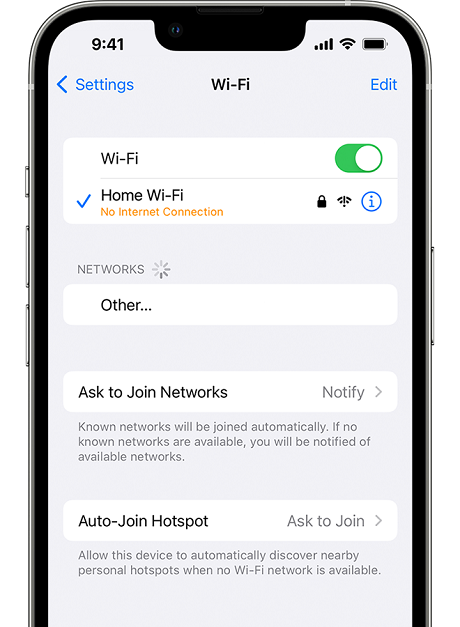
Why Your iPhone's Wi-Fi Fails When Other Devices Work?
Several factors can cause your iPhone to struggle with Wi-Fi connections when other devices operate normally. Software glitches are common culprits, as temporary iOS bugs can disrupt network connectivity without affecting other functions. Incorrect network settings may prevent your iPhone from obtaining a valid IP address, even when it successfully connects to the router.
Outdated iOS versions often contain unpatched Wi-Fi-related bugs that manifest on iPhones but not other devices. Router compatibility issues can occasionally arise, where specific router settings conflict with your iPhone's network stack. Network configuration conflicts occur when your iPhone retains outdated network information that other devices don't have.
7 Effective Methods to Fix iPhone Wi-Fi Issues
Now that we knowwhy your iPhone's Wi-Fi might malfunction while other devices work perfectly, let's explore practical solutions to resolve this frustrating problem. These methods are organized from simplest to most advanced, ensuring you can systematically address the issue without unnecessary complexity. Start with the basic troubleshooting steps before progressing to more technical approaches if the problem persists.
Method 1. Basic Troubleshooting Steps
Start with these simple solutions that resolve many common Wi-Fi connectivity issues on iPhones.
Step 1. Restart Your iPhone and Router:
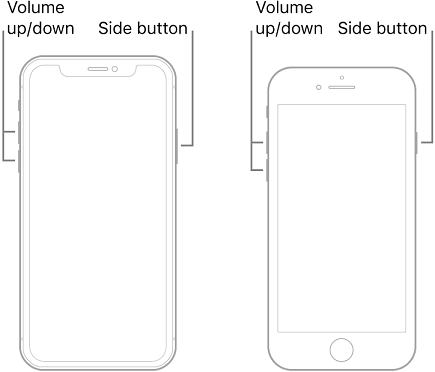
Power cycle both devices to clear temporary glitches. For your iPhone, press and hold the side button with either volume button, then slide to power off. Wait 30 seconds before turning it back on. Unplug your router for 60 seconds before reconnecting.
Step 2. Toggle Airplane Mode:
Swipe down from the top-right corner to open Control Center. Tap the airplane icon to enable Airplane Mode, wait 10 seconds, then tap it again to disable. This refreshes all network connections.

Step 3. Verify Wi-Fi Password:
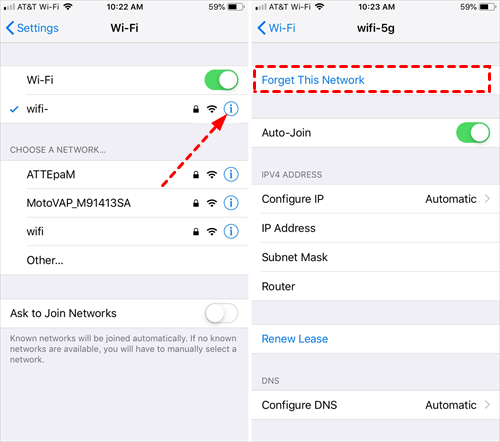
Go to Settings > Wi-Fi, tap your network, and select "Forget This Network." Reconnect by selecting the same network and entering the password carefully, ensuring correct capitalization and special characters.
Method 2. Check iPhone Network Settings
Incorrect network configurations often cause iPhones to struggle with Wi-Fi when other devices connect successfully.
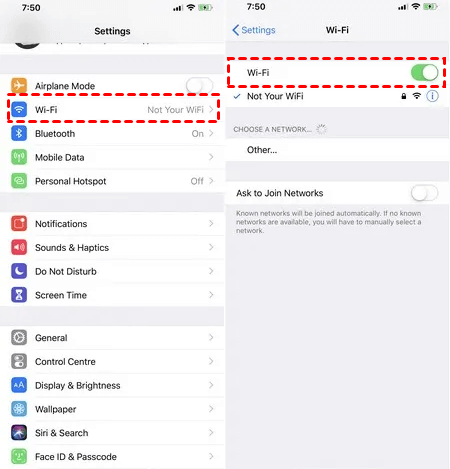
- Disable and Re-enable Wi-Fi: Go to Settings > Wi-Fi and toggle the switch off. Wait 15 seconds, then toggle it back on. This simple reset can resolve minor software conflicts.
- Forget Problematic Network: Navigate to Settings > Wi-Fi, tap the "i" icon next to your network, and select "Forget This Network." Confirm your choice, then reconnect by selecting the network and entering the password.
Method 3. Reset Network Settings
When simpler methods fail, resetting network settings can resolve deeper configuration issues affecting Wi-Fi performance.
Step 1. Open Settings and tap General.
Step 2. Scroll to Transfer or Reset iPhone and tap Reset.
Step 3. Select Reset Network Settings.
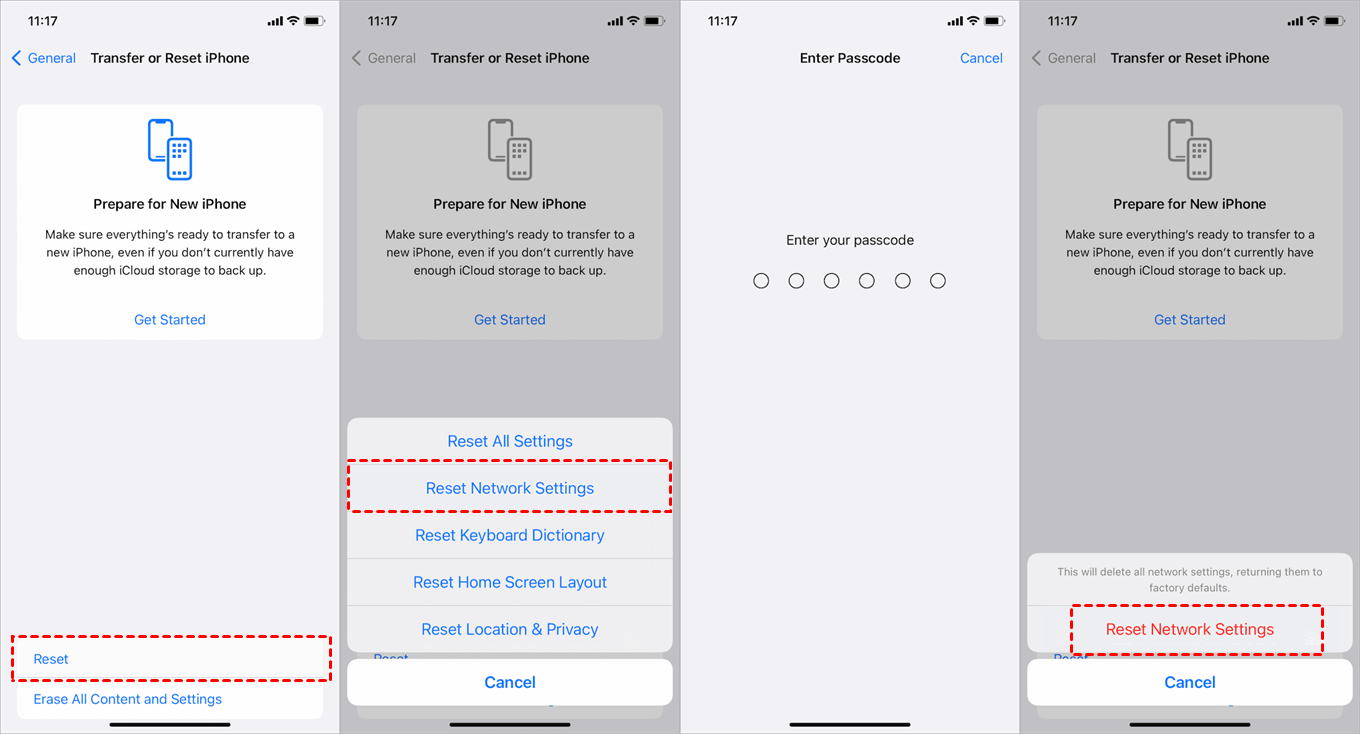
Step 4. Enter your passcode if prompted and confirm the reset.
Method 4. Update Your iOS Software
Outdated iOS versions often contain bugs that specifically affect Wi-Fi connectivity. Apple regularly releases updates with connectivity fixes.
Step 1. Connect your iPhone to a stable internet source (use cellular data or another Wi-Fi network).
Step 2. Go to Settings > General > Software Update.
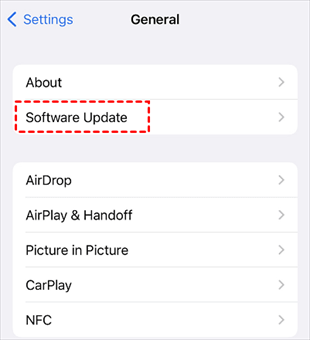
Step 3. Download and install any available updates.
Step 4. Restart your iPhone after the update completes.
Method 5. Disable Wi-Fi Networking Services
Location-based Wi-Fi services can sometimes interfere with stable connections.
Step 1. Navigate to Settings > Privacy & Security > Location Services.
Step 2. Tap System Services, and find Networking & Wireless and toggle it off.
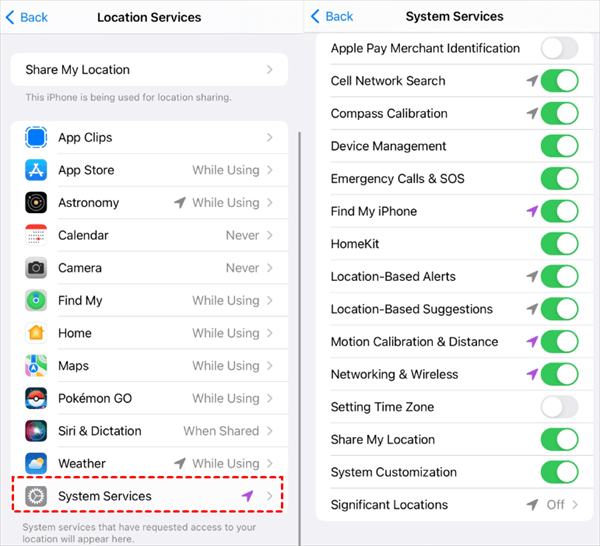
Step 3. Restart your iPhone and test Wi-Fi connectivity.
Method 6. Use FoneTool Repair for Any iPhone Issue
When standard troubleshooting fails, the problem might lie deeper within iOS. FoneTool Repair specializes in resolving system-level issues that can affect Wi-Fi performance and other connectivity functions.
This powerful iOS system repair tool is the best way to fix iOS/iPadOS issues without data loss
Step 1. Download FoneTool Repair on Windows PC, connect your iPhone with a USB cable, and launch the software.
Step 2. Choose "iOS System Repair" from the main interface.

Step 3. Select "Standard Mode" to fix the Wi-Fi problem without data loss.

Step 4. Follow prompts to install compatible iOS firmware, and tap "Start Repair" to resolve system issues.

Method 7. Contact Apple Support
If all previous solutions fail, you may have a hardware issue requiring professional attention.
Step 1. Visit the Apple Support Website for guidance.
Step 2. Schedule an appointment at an Apple Store or authorized service provider.
Step 3. Describe the troubleshooting steps you've already attempted.
- ★Tip:
- Hardware issues like a damaged Wi-Fi antenna or network chip require professional repair.
Frequently Asked Questions on iPhone Wi-Fi Issue
Conclusion
Dealing with Wi-Fi not working on your iPhone when other devices connect fine can be frustrating, but most cases resolve with systematic troubleshooting. Start with basic steps like restarting devices and toggling connections, then progress to network resets and iOS updates. For persistent issues potentially related to system software, FoneTool Repair offers a comprehensive solution that addresses deeper iOS problems while protecting your data. If hardware issues are suspected, contact Apple Support for professional diagnostics and repair. With these methods, you can identify and resolve your iPhone's WiFi connectivity issues efficiently.
Fixes 160+ iOS/iPadOS issues, boot loops, crashes, failed updates, with no data loss.
-
 iOS 27 Compatible
 iPhone 17 Supported
100% Secure

Kelsey is an English editor at FoneTool, passionate about helping users solve tech issues. She specializes in iPhone data management, backup, and recovery. In her free time, she enjoys learning IT skills and spending time with loved ones.
Read author info >>



 as a preferred
source on Google
as a preferred
source on Google