iPad Won't Turn Off? Here's How to Fix It
Stuck with an iPad that won't turn off? This guide explains frozen screens, button issues, or software glitches. Get step-by-step force restart instructions, recovery mode steps, FoneTool Repair solution, and FAQs.


My iPad is frozen.. it won't shut off..
I can't do a forced restart, it doesn't respond to that either. I can't connect it to iTunes, because it needs passcode entered, but again the iPad is frozen. so I can't input the passcode… can't do recovery mode. Help!
- Question from Apple Community
It's frustrating when your iPad won't turn off -the screen stays frozen, buttons become unresponsive, or the device seems to have a mind of its own. Whether your iPad is completely unresponsive, stuck on a particular screen, or the power button isn't working, this comprehensive guide will help you understand why it's happening and provide step-by-step solutions to regain control of your device.
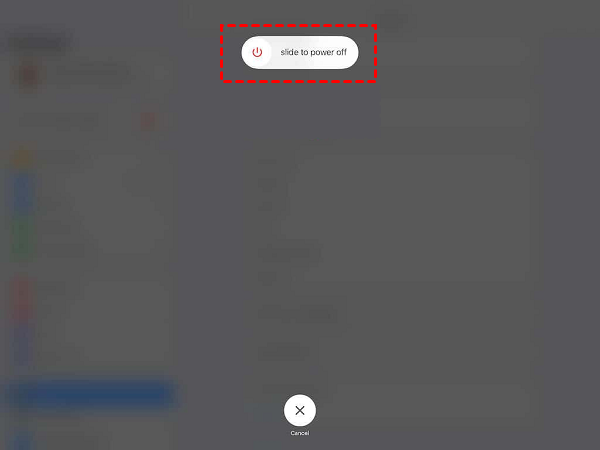
Why Your iPad Won't Turn Off?
Several factors can prevent your iPad from shutting down properly. Software glitches are among the most common causes, where temporary system errors or app conflicts can freeze your iPad's interface . Hardware issues such as a stuck power button, damaged volume buttons, or internal component problems can physically prevent the shutdown process.
iOS system corruption from failed updates, jailbreaking attempts, or system file errors can lead to more severe unresponsiveness . Additionally, an overheating device may become unresponsive as a protective measure, while a completely drained battery might prevent even basic functions until some charge is restored.
7 Effective Methods to Fix an iPad That Won't Turn Off
Now that we knowthe potential reasons behind your iPad's unresponsiveness, let's explore practical solutions arranged from simplest to most advanced. These step-by-step methods will help you systematically address the issue, starting with basic troubleshooting before progressing to more technical approaches if the problem persists.
Method 1. Force Restart Your iPad
A force restart is the most effective first solution for an unresponsive iPad, as it clears temporary glitches without deleting your data . This process varies by model:
iPad without Home Button (iPad Pro 2018 and later, iPad Air 4 and later):
Step 1. Press and quickly release the Volume Up button.
Step 2. Press and quickly release the Volume Down button.
Step 3. Press and hold the Top button until the Apple logo appears.

iPad with Home Button (most earlier models):
Step 1. Press and hold both the Home button and Top button simultaneously.
Step 2. Continue holding until the Apple logo appears.

Method 2. Wait for the Battery to Drain Completely
If your iPad is completely unresponsive to button presses, allowing the battery to drain fully might resolve the issue:
Step 1. Leave your iPad untouched until the battery depletes completely.
Step 2. Connect it to a power source and let it charge for at least 30 minutes.
Step 3. Once sufficiently charged, attempt to force restart your device.
- ★Tip:
- This approach can sometimes clear persistent software locks that prevent normal shutdowns.
Method 3. Enter Recovery Mode
When force restarting doesn't work, recovery mode provides a deeper system-level solution:
iPad without Home Button:
Step 1. Connect your iPad to a computer with iTunes/Finder.
Step 2. Press and quickly release the Volume Up button, then the Volume Down button.
Step 3. Press and hold the Top button until the recovery mode screen appears.

iPad with Home Button:
Step 1. Connect to a computer with iTunes/Finder.
Step 2. Press and hold both the Home and Top buttons simultaneously.
Step 3. Keep holding until the recovery mode screen displays.
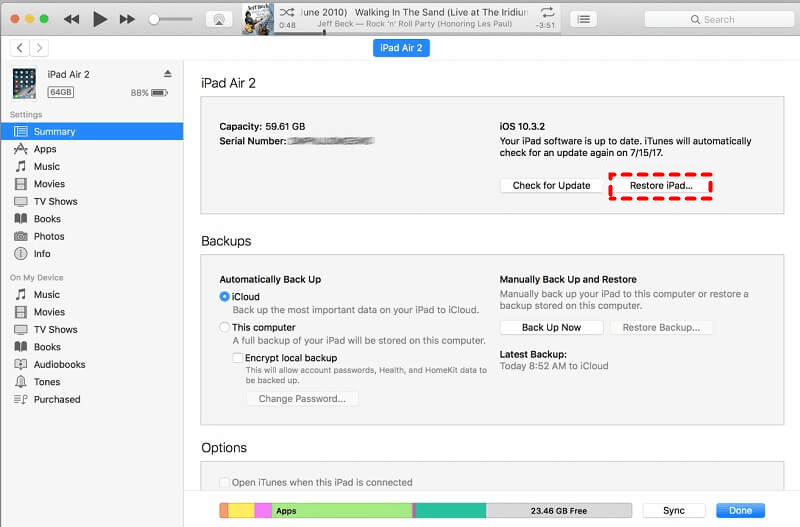
Step 4. In recovery mode, choose "Update" to reinstall iOS without data loss, or "Restore" to erase all content (ensure you have a backup).
Method 4. Use FoneTool Repair for System Issues
For persistent software problems causing your iPad to remain unresponsive, FoneTool Repair offers a specialized solution that addresses deeper iOS system issues.
Step 1. Download FoneTool Repair and install it on your Windows computer.
Step 2. Launch the application and connect your iPad via USB cable, choose "iOS System Repair".

Step 3. Select Standard Mode to fix iPad issue and preserve your data.

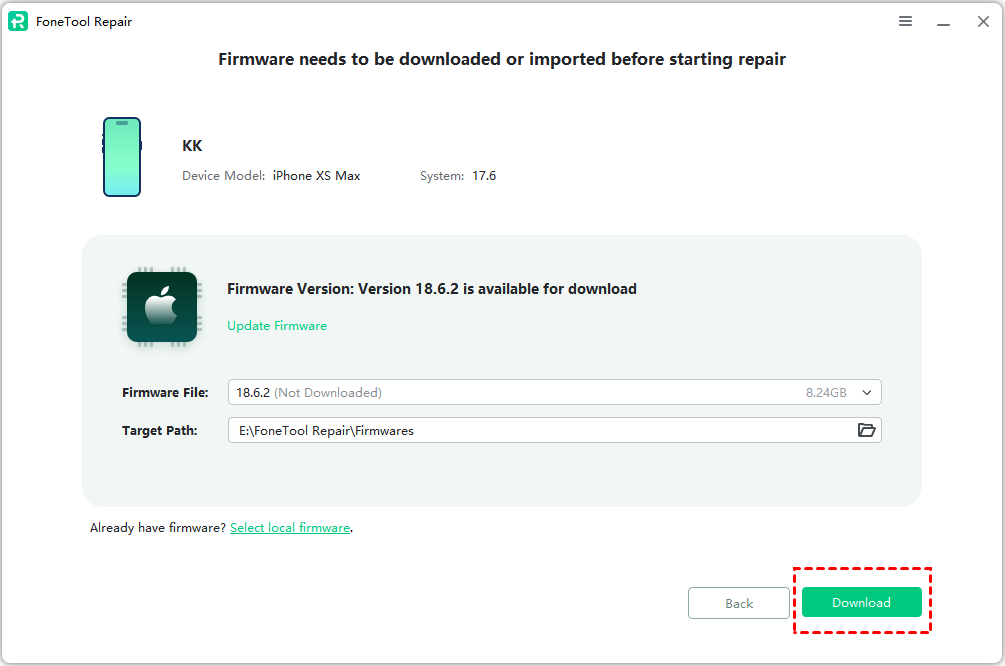
Step 4. Follow prompts to download the appropriate firmware package.
Step 5. Click "Start Repair" to begin fixing system issues.

Method 5. Erase iPad via iCloud
If your iPad is frozen but connected to Wi-Fi and Find My iPad is enabled, you can erase it remotely:
Step 1. Visit icloud.com/find from any computer or device.
Step 2. Sign in with your Apple ID and password.
Step 3. Select your iPad from the list of devices.
Step 4. Click "Erase iPad" to remotely wipe the device.
- ★Tip:
- This method is particularly useful when the screen is completely unresponsive but the device has internet connectivity.
Method 6. Reset All Settings
If your iPad turns on but remains unstable, resetting settings can help:
Step 1. Go to Settings > General > Transfer or Reset iPad.
Step 2. Tap Reset and slect Reset All Settings.
- ★Tip:
- This resets system settings to defaults without erasing your personal data.
Method 7. Contact Apple Support
When all else fails or hardware issues are suspected, professional assistance may be necessary:
Step 1. Visit the Apple Support Website for guidance.
Step 2. Schedule an appointment at an Apple Store or authorized service provider.
Step 3. Describe the troubleshooting steps you've already attempted.
📝Note: Physical issues like damaged buttons, internal component failures, or liquid damage require professional repair.
Frequently Asked Questions on iPad Issue
Conclusion
Dealing with an iPad that won't turn off can be frustrating, but most cases resolve with systematic troubleshooting. Start with basic solutions like force restarting, then progress to recovery mode or software tools like FoneTool Repair for persistent issues.
For suspected hardware problems, contact Apple Support for professional service. Regular iOS updates, adequate storage management, and avoiding problematic apps can prevent many of these issues. With these methods, you can effectively address your iPad's unresponsiveness and restore normal functionality.
Fixes 160+ iOS/iPadOS issues, boot loops, crashes, failed updates, with no data loss.
-
 iOS 27 Compatible
 iPhone 17 Supported
100% Secure

Kelsey is an English editor at FoneTool, passionate about helping users solve tech issues. She specializes in iPhone data management, backup, and recovery. In her free time, she enjoys learning IT skills and spending time with loved ones.
Read author info >>



 as a preferred
source on Google
as a preferred
source on Google