Why Is iPhone Volume Going Down By Itself? Answered & Fixed!
iPhone volume going down by itself? This guide explains causes like Attention Aware features, Reduce Loud Sounds, software bugs, and provides step-by-step solutions to fix automatic volume decreases on iPhone.


If you've noticed your iPhone volume going down by itself, you're not alone. This widespread issue affects users across various iPhone models and iOS versions. When your iPhone volume decreases automatically, it can disrupt music listening, video watching, and even call audio. This comprehensive guide will explain why this happens and provide proven solutions to restore proper volume control.
Why Does Your iPhone Volume Decrease Automatically?
Understanding the underlying causes is the first step toward fixing your automatic volume decrease iPhone issue. Based on widespread user reports and Apple's own documentation, here are the primary culprits:
- Attention Aware Features: Uses Face ID to lower alert volumes when you're looking at the screen
- Reduce Loud Sounds: A health feature that automatically lowers headphone volume above set decibel levels
- Software Glitches: iOS updates often introduce bugs affecting volume control
- Bluetooth Connections: Audio may be routed to other devices automatically
- App Notifications: Temporarily lower media volume to play notification sounds
- Focus Modes: Scheduled or location-based modes can change volume settings
Proven Solutions to Fix iPhone Automatic Volume Decrease
If you're tired of your iPhone volume going down by itself, these proven methods will help you regain control. We'll start with simple settings adjustments and progress to more advanced solutions for stubborn cases.
1. Disable Attention Aware Features
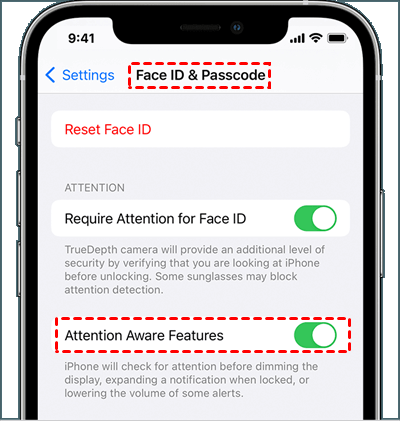
Attention Aware features use Face ID to detect when you're looking at your device and automatically adjust volumes. This is a common culprit for iPhone volume going down by itself.
Step 1. Open Settings and tap "Face ID & Passcode", enter your passcode when prompted
Step 2. Scroll to the "Attention" section.
Step 3. Toggle off "Attention Aware Features".
2. Turn Off Reduce Loud Sounds
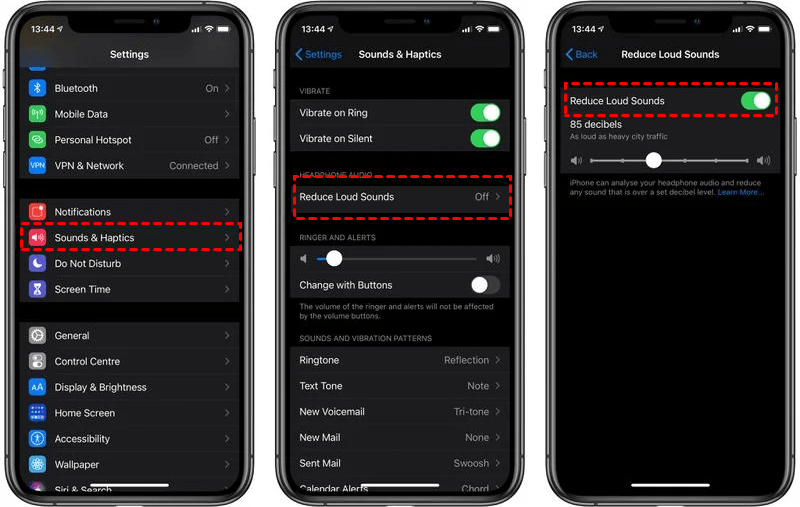
This hearing protection feature automatically lowers volume when it exceeds safe listening levels, often causing unexpected automatic volume decrease iPhone issues.
Step 1. On iPhone, go to Settings > Sounds & Haptics.
Step 2. Tap "Headphone Safety".
Step 3. Toggle off "Reduce Loud Sounds".
3. Check Sound and Music Settings
Various audio normalization features can interfere with your volume settings without obvious indicators.
Step 1. Navigate to Settings > Music, turn off "Sound Check" (normalizes song volumes).
Step 2. Tap "EQ" and select "Off" to disable equalizer settings.
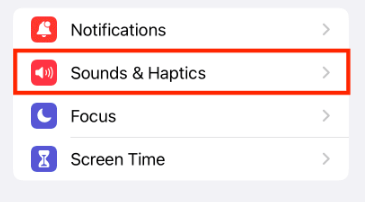
Step 3. Visit Settings > Sounds & Haptics and ensure "Change with Buttons" is configured to your preference.
4. Manage Bluetooth Connections
Persistent Bluetooth connectivity issues can cause audio routing problems that seem like the iPhone volume decreases automatically.
Step 1. Swipe down to open Control Center, and tap the Bluetooth icon to temporarily disable it.
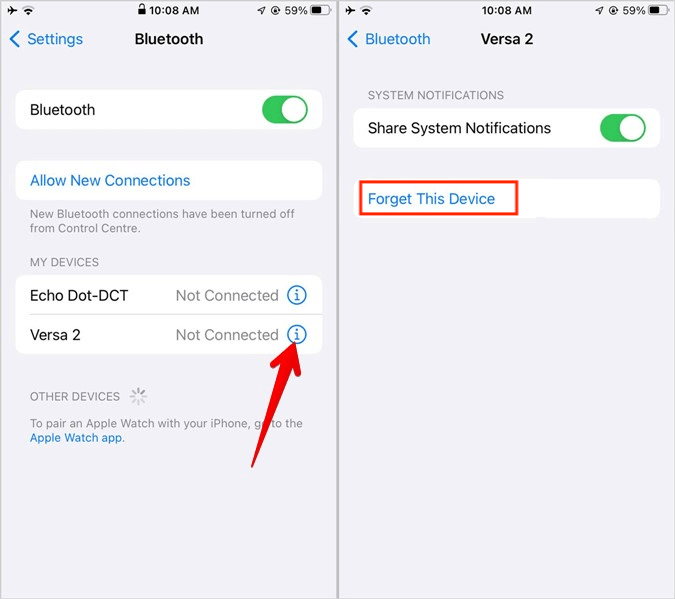
Step 2. For problematic devices: Go to Settings > Bluetooth, tap the "i" icon next to devices, and select "Forget This Device".
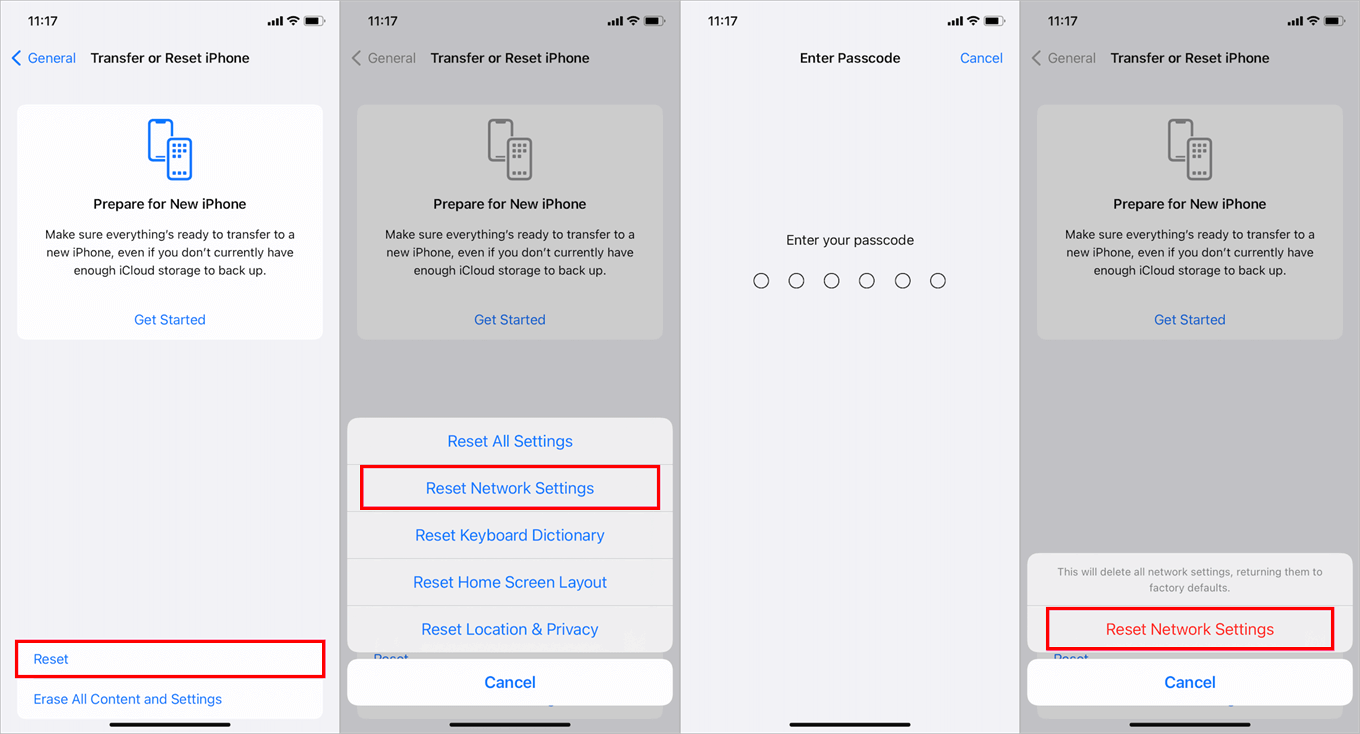
Step 3. Reset network settings via Settings > General > Transfer or Reset iPhone > Reset > Reset Network Settings.
5. Disable Notification Sounds
Background notifications can temporarily lower media volume, creating the appearance that your iPhone volume change automatically occurs randomly.
Step 1. Go to Settings > Notifications, select specific apps that might be causing interruptions.
Step 2. Tap each app and toggle off "Sounds" while keeping other notification types enabled.
- ★Tip:
- Alternatively, enable Silent Mode via the Ring/Silent switch when you want uninterrupted listening.
6. Update or Restart Your iPhone
Software glitches often cause temporary iOS volume bugs that can be resolved with simple restarts or updates.
• Force restart: Quickly press and release Volume Up, then Volume Down, then press and hold the Side button until the Apple logo appears.
• Check for updates: Go to Settings > General > Software Update to install any available iOS updates.
• Regular maintenance: Restart your iPhone weekly to clear temporary glitches.
7. Reset All Settings
When other solutions fail, resetting all settings can resolve deeper configuration issues, causing your iPhone volume to go down by itself without erasing your data.
Step 1. Open Settings > General > Transfer or Reset iPhone.
Step 2. Tap "Reset", and select "Reset All Settings".
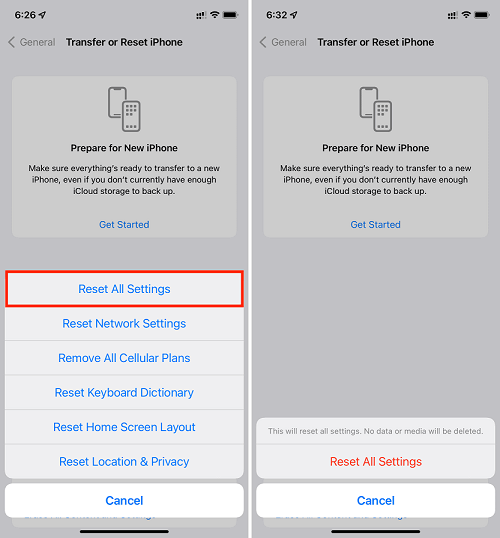
Step 3. Enter your passcode when prompted and confirm.
Advanced Solution-Fix iOS System Issues with FoneTool Repair
When standard troubleshooting fails to resolve persistent iPhone volume going down by itself, the issue may lie deeper within iOS system files. For these stubborn cases, FoneTool Repair offers a comprehensive solution that addresses system-level problems standard fixes can't reach.
This powerful iOS system repair tool is the best way to fix iOS/iPadOS issues without data loss
Step 1. Download and install FoneTool Repair on a Windows computer.
Step 2. Connect your iPhone via USB cable and launch the software, select "iOS System Repair”.

Step 3. Choose "Standard Mode" to preserve your data while fixing system issues.

Step 4. Follow the on-screen instructions to download the necessary firmware.
Step 5. Tap “Start Repair” to initiate the repair process and wait for completion.

Frequently Asked Questions
Conclusion
Fixing iPhone volume going down by itself is usually straightforward. Start with settings adjustments like disabling Attention Aware Features and reducing loud sounds. For persistent issues, FoneTool Repair provides the deep system repair needed to resolve stubborn iOS bugs. Most automatic volume problems are software-related and completely fixable with the right approach.
Fixes 160+ iOS/iPadOS issues, boot loops, crashes, failed updates, with no data loss.
-
 iOS 27 Compatible
 iPhone 17 Supported
100% Secure

Kelsey is an English editor at FoneTool, passionate about helping users solve tech issues. She specializes in iPhone data management, backup, and recovery. In her free time, she enjoys learning IT skills and spending time with loved ones.
Read author info >>



 as a preferred
source on Google
as a preferred
source on Google