Why WhatsApp Keeps Crashing on iPhone & How to Fix It
Learn to fix WhatsApp crashes iOS issues using troubleshooting, storage cleanup, network reset, and FoneTool system repair for iPhone WhatsApp crashing problems.


WhatsApp keeps crashing on iPhone 2025
I can open WhatsApp from the start. It will be open for a few seconds, then crash. I reopen the app, and it will work flawlessly for the next hour. I could then move away from app (without closing it fully) and use other apps and come back after an hour, type out my really long reply message to someone, and it will randomly crash again without warning. I'm at a loss on what to do next. Is anyone experiencing the same problem as me and come up with a solution?
- Question from Reddit
Are you frustrated because WhatsApp keeps crashing on your iPhone? You're not alone. This widespread issue can disrupt your communication, especially after an iOS update or when you need the app the most. Unlike generic advice, this guide dives deep into the root causes and provides unique, step-by-step solutions to get your WhatsApp running smoothly again.
What's Really Causing WhatsApp to Crash on Your iPhone?
When WhatsApp repeatedly crashes on your iPhone, it's typically more than just a random glitch. Understanding the underlying cause is the first step to an effective fix.
Multiple factors can cause WhatsApp to keep crashing and not open on iPhone:
- iOS compatibility issues after system updates
- Corrupted app data and cache accumulation
- Insufficient storage space for app operation
- Network configuration conflicts
- System-level iOS glitches
Effective Solutions to Stop WhatsApp from Crashing
Tackle these solutions in order, from simple checks to more comprehensive iPhone repairs.
Solution1. Basic Troubleshooting and Checks
Start with these foundational steps, which resolve a significant number of WhatsApp crashes on iPhone.
Step 1. Force Restart Your iPhone:
A simple restart can clear temporary software glitches. On newer iPhone models (without a Home button), quickly press and release the Volume Up button, then the Volume Down button, then press and hold the Side button until the Apple logo appears.
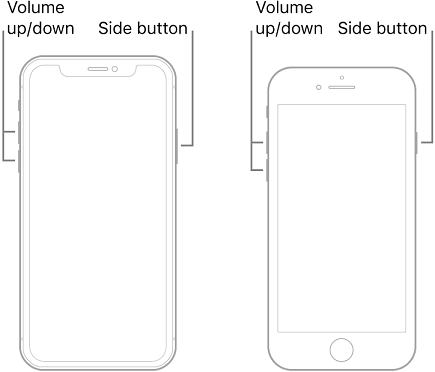
- ★Tip:
- Force restart resolves most temporary glitches causing WhatsApp not opening on iPhone.
Step 2. Check WhatsApp's Server Status:
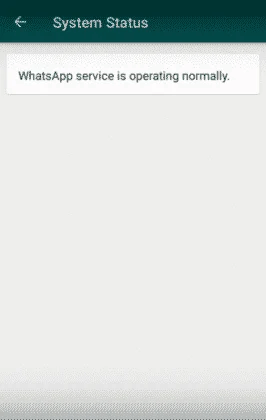
Before making changes to your phone, verify if the problem is on your end or WhatsApp's. Visit a site like DownDetector to see if there are widespread reports of issues- a sign of server-side problems.
Step 3. Update WhatsApp and iOS:
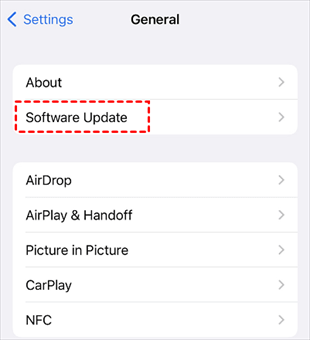
Outdated software is a primary cause of crashes. Go to the App Store and check for a WhatsApp update. Then, navigate to Settings > General > Software Update to ensure your iOS is current.
Solution2. Free Up Storage on Your iPhone
Low storage is a frequent but often overlooked cause of WhatsApp crashing on iPhone after an update. To check:
Step 1. Go to Settings > General > [Device] Storage.
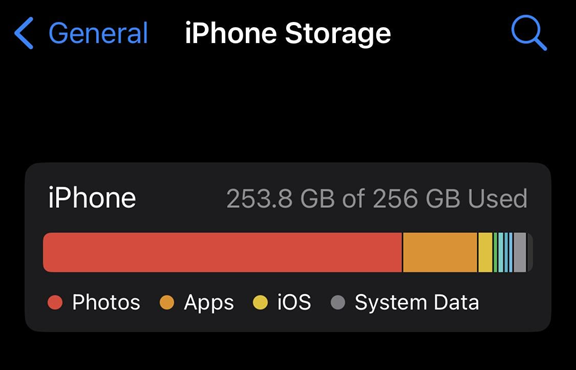
Step 2. If your available space is less than 1-2GB, you need to clean up.
Step 3. Delete unused apps, offload photos and videos to the cloud, and clear old message threads directly within WhatsApp.
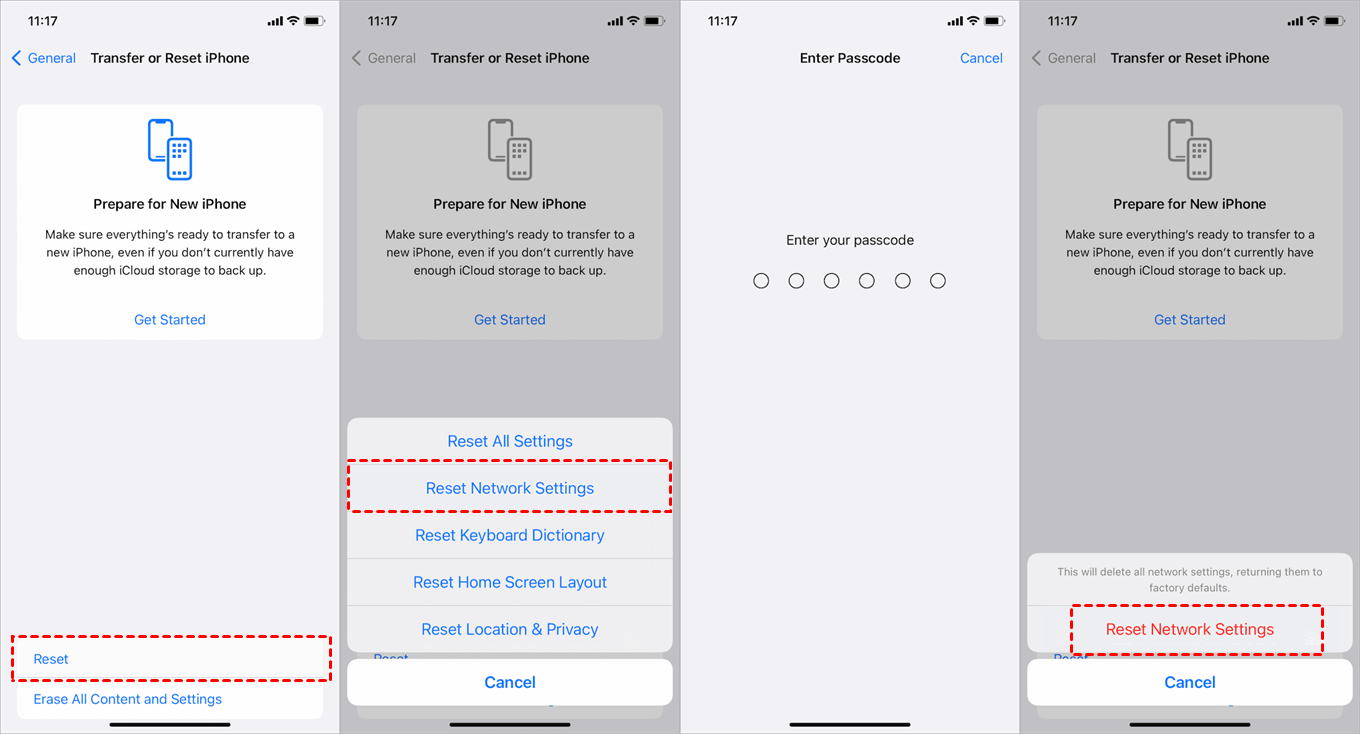
Solution3. Reset Network Settings
Corrupted network settings can cause app instability. Resetting them can resolve connection-related crashes without deleting your personal data.
Step 1. Open Settings > General > Transfer or Reset iPhone.
Step 2. Select Reset > Reset Network Settings.
Step 3. Enter your passcode and confirm. Your device will restart, and you will need to rejoin Wi-Fi networks.
Solution 4. Advanced Fix for WhatsApp Issue on iPhone
If the crashes persist after trying the above steps, the issue is likely a deeper iOS system problem. This is where general troubleshooting falls short, and a specialized tool like FoneTool Repair becomes invaluable.
This powerful iOS system repair tool is the best way to fix iOS/iPadOS issues without data loss
Step 1. Download FoneTool Repair on Windows PC, and connect your iPhone via a USB cable.
Step 2. On the main interface, select iOS System Repair.

Step 3. Choose repair mode, Standard Mode or Deep Mode.

Step 4. The tool will automatically detect your device model and download the appropriate firmware package.
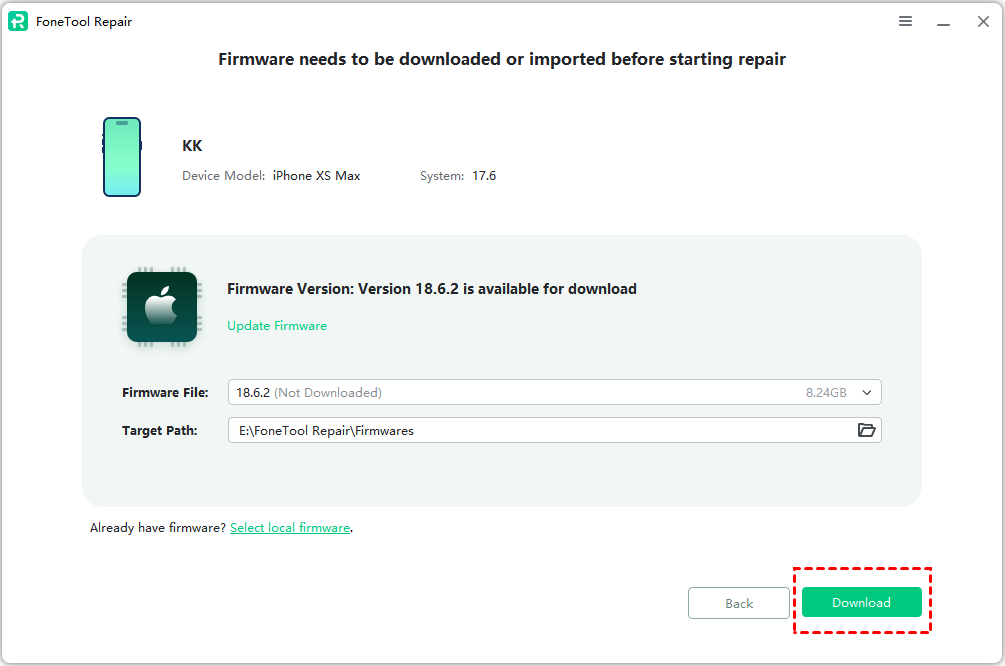
Step 5. Click Start Repair to begin the process. Your iPhone will restart, and the system issues causing WhatsApp to crash should be resolved.

- ★Tip:
- For WhatsApp crashes, the Standard Repair mode is recommended first, as it fixes the issue without erasing your data.
Frequently Asked Questions
Conclusion
Dealing with a WhatsApp that keeps crashing on your iPhone is undeniably frustrating. The key is a systematic approach: start with basic restarts and updates, ensure you have enough free storage, and reset network settings if needed. For persistent, stubborn crashes stemming from deeper iOS system corruption, a professional tool like FoneTool Repair offers a powerful and reliable solution to get you back to seamless messaging.
Fixes 160+ iOS/iPadOS issues, boot loops, crashes, failed updates, with no data loss.
-
 iOS 27 Compatible
 iPhone 17 Supported
100% Secure

Kelsey is an English editor at FoneTool, passionate about helping users solve tech issues. She specializes in iPhone data management, backup, and recovery. In her free time, she enjoys learning IT skills and spending time with loved ones.
Read author info >>



 as a preferred
source on Google
as a preferred
source on Google