How to Bypass Google Account Verification on PC | 2 Ways
Locked out by Google account verification? Learn two effective FRP bypass tools for PC – and regain access to your authorized Android device.


Can You Bypass Google Account Verification on a PC?
Yes, Google Account Verification can sometimes be bypassed using a PC, but the available method depends on the phone model, Android version, and FRP status. If you have the original Google account, signing in is the safest solution. If you cannot access the account, a compatible FRP removal tool for PC may provide another option for supported devices.
🌟 To learn more situations about bypassing Google verification, please refer to this complete guide: How to Bypass Google Verification.
How to Choose a Google FRP Bypass Tool for PC
When choosing a Google FRP bypass tool for PC, consider compatibility, supported devices, Android versions, ease of use, and safety.
✅ Check device & Android compatibility – Confirm the tool supports your phone model, Android version, chipset, and regional variant.
✅ Look for clear supported methods – Good tools list specific procedures (e.g., for MediaTek, Qualcomm, or particular Android versions) rather than vague "works on all devices" claims.
✅ Consider ease of use – Choose software with a simple interface and step-by-step guidance—no complex commands required.
✅ Verify Windows compatibility – Ensure the tool officially supports your Windows version (e.g., Windows 10 or 11) before installing.
✅ Prioritize safety & transparency – Download only from reputable sources. Avoid suspicious executables or unnecessary permissions, and review the developer's documentation.
✅ Check for updates & support – Regular updates and accessible support help confirm whether your device is supported amid changing Android security.
How to Bypass Google Account Verification After Factory Reset
After a factory reset, an Android phone may ask you to verify the Google account that was previously synchronized with the device. If you own the device but cannot complete the verification, learn how to bypass Google account verification on PC using two effective tools below.
Method 1: Bypass Google Account Verification with FoneTool Unlocker
FoneTool Unlocker is a Windows-based tool that supports Samsung FRP removal on selected devices.
- Key Features:
- ⭐USB Connection: Connect your Samsung device to a Windows PC via USB to get started.
- ⭐Multiple FRP Unlock Methods: Features One-click Removal, along with solutions for Android OS 16, MediaTek devices, Qualcomm (Snapdragon) devices, US models, and Android OS 6/7/8/9/10/11/12/13.
- ⭐Supported Devices: Samsung Galaxy S26, S25, S24, and selected Galaxy S, A, M, Z, Fold, and Flip models.
- ⭐System Requirements: Compatible with Windows 11, 10, 8.1, 8, and 7, and supports Android OS 6 through 16.
- ⭐iOS Device Unlock: Besides unlocking Samsung devices, it can also help you bypass iCloud Activation Lock, remove Apple ID, and more.
Follow the instructions below to perform Samsung Google verification bypass via FoneTool Unlocker:
Step 1. Connect the FRP-locked Samsung phone to your Windows PC with a USB cable.
Step 2. Download, install and launch FoneTool Unlocker. Then select Unlock Samsung Devices > Start.
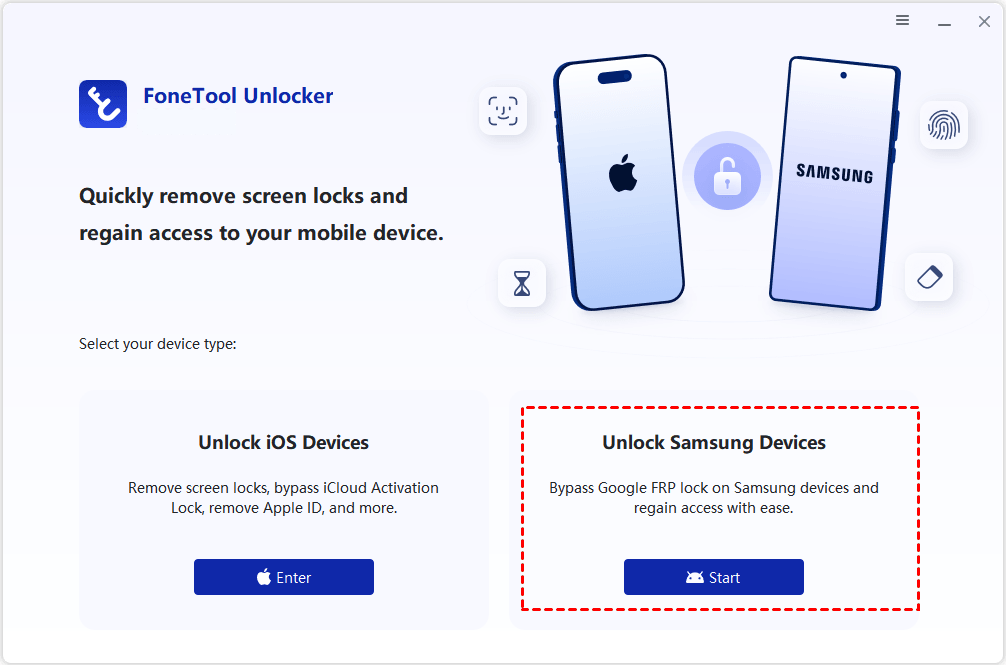
Step 3. Select the FRP removal method that matches your Samsung device's Android version and chipset and click Remove Now. The software also provides a Universal (One-Click Removal) option for supported devices.
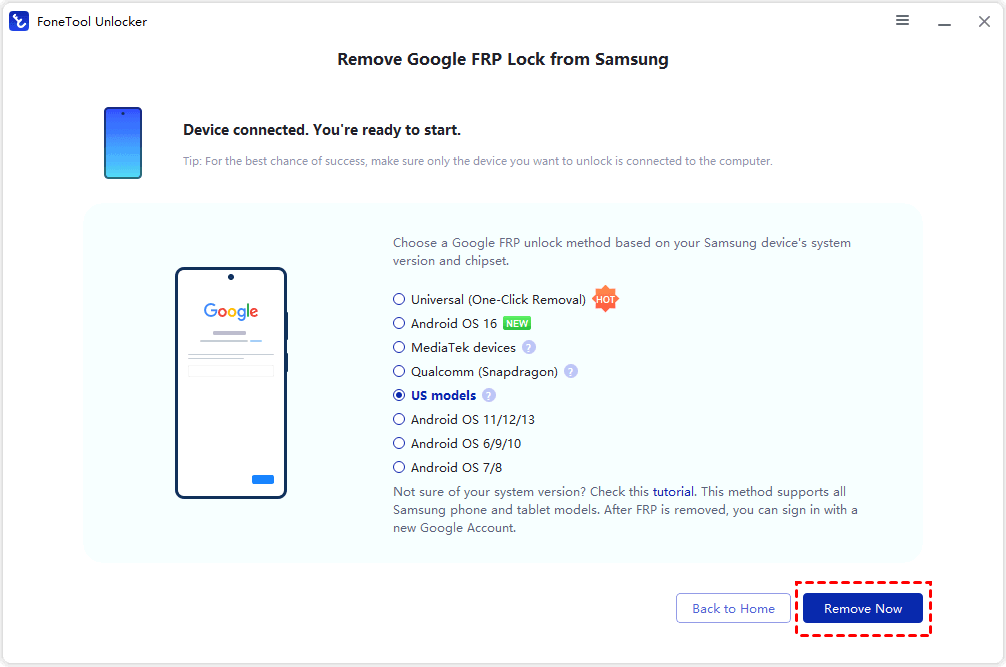
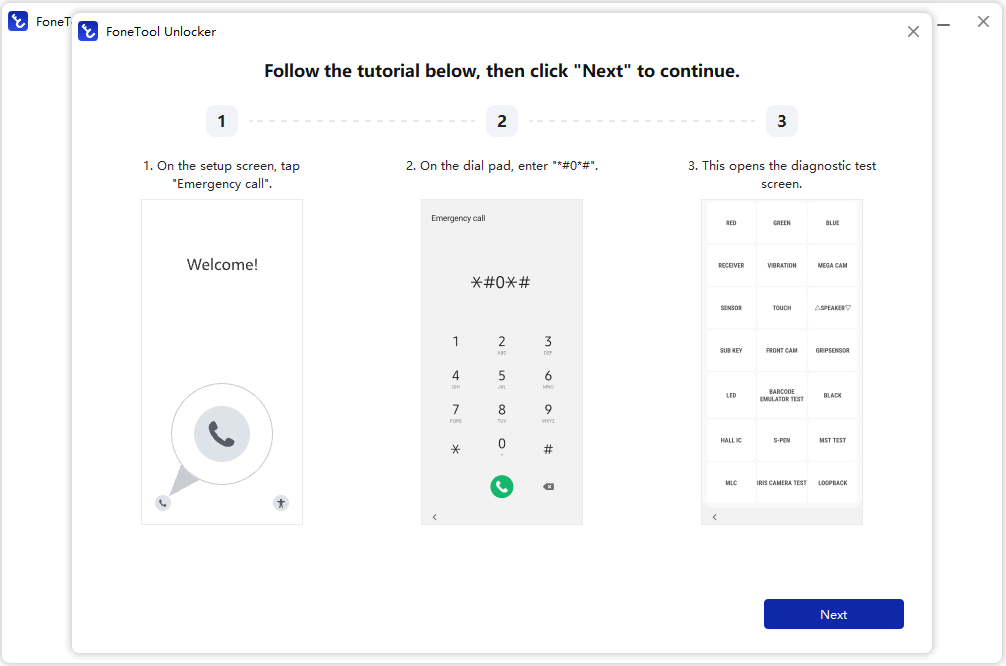
Step 4. Do required operation on your phone. Tap Emergency call on the phone screen and enter the specific code (e.g., *#0*#) to activate Test Mode. Once completed, click Next on the computer.
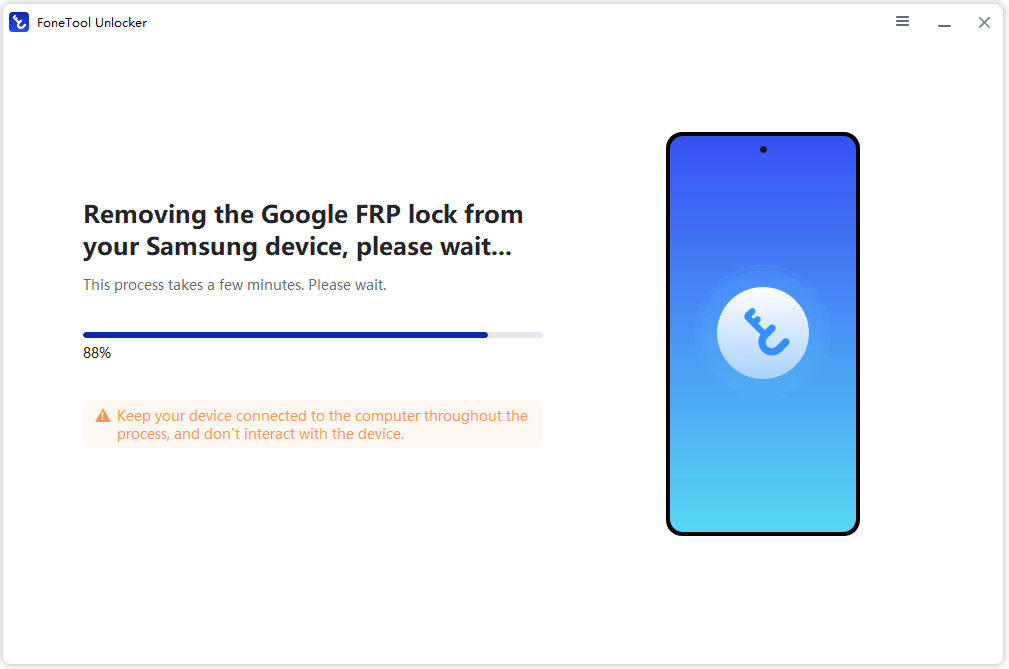
Step 5. Keep the phone connected while FoneTool Unlocker processes the FRP removal.
Step 6. When the process finishes, follow the on-screen instructions to complete the device setup.
Method 2: Remove FRP on Android using SamFw Tool
SamFw Tool is another Windows utility that provides FRP-related functions for Samsung devices, along with additional device-management features.
- FRP removal: Provides methods for removing FRP on supported Android devices.
- CSC management: Allows users to change the device's Country Specific Code (CSC).
- ADB and MTP utilities: Provides functions for reading device information and performing supported device-management operations.
- Samsung support: Primarily designed for Samsung devices, with additional utilities for some other Android brands and chipsets.
- Download Mode tools: Includes functions related to Samsung Download Mode and device troubleshooting.
Learn how to use SamFw Tool to remove FRP on Android devices below:
Step 1. Connect the Samsung phone to the PC with a suitable USB data cable. Install the Samsung Android USB Driver if it is not already installed.
Step 2. On the Samsung phone, open Emergency Call and enter *#0*# to open Test Mode.
Step 3. Download and launch SamFw Tool. Open the Samsung section and select the FRP function.
Step 4. Choose the FRP removal method that matches your device.
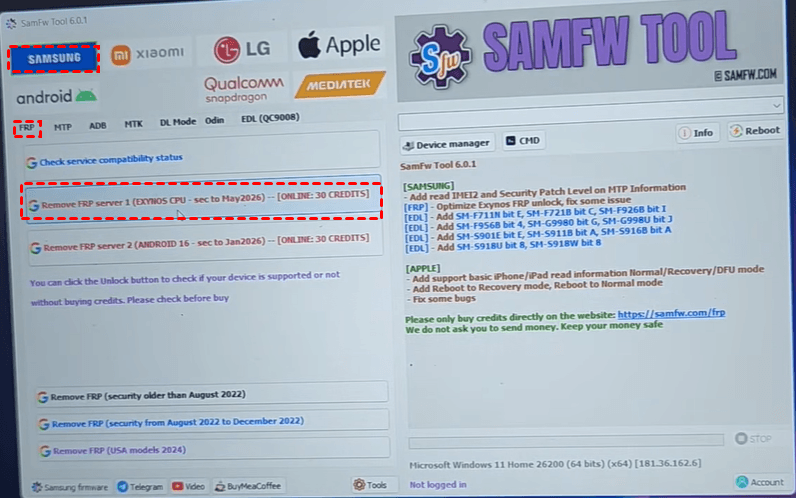
Step 5. The tool will send a command to your phone and prompt you to ensure you have dialed the *#0*# code. Click OK or Next on the software prompt.
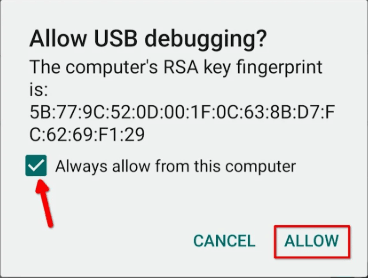
Step 6. Keep an eye on your phone's screen. Within a few seconds, an "Allow USB debugging?" pop-up window will appear. Check the box that says “Always allow from this computer” and tap Allow or OK.
Step 7. Keep the device connected until the process is finished and the phone restarts.
FAQs About Google Account Verification on PC
1. Why does Google Account Verification appear after a factory reset?
Google Account Verification can appear because of Factory Reset Protection (FRP). When a protected Android device is reset without first removing the associated Google account, the device may require the previously synchronized account during setup.
2. Can I remove Google Account Verification without the previous Google account?
For a device you own or are authorized to manage, available options depend on the manufacturer and device configuration. You can first try recovering the original Google account. For supported Samsung devices, a PC tool such as FoneTool Unlocker may provide an FRP removal method.
3. Can I use an FRP bypass tool on any Android phone?
No. FRP tools do not necessarily support every Android phone. Supported models, Android versions, chipsets, security patches, and regional variants can differ between tools. Always check the tool's compatibility information before proceeding.
Verdict
Google Account Verification after a factory reset is part of Android’s Factory Reset Protection (FRP), which helps prevent unauthorized access to a protected device. This article shows you how to bypass Google account verification on PC with two reliable FRP removal tools – FoneTool Unlocker and SamFw Tool.
In addition, FoneTool Unlocker offers many practical unlock features for iPhone. You can use it to find Apple ID password as necessary. Don’t hesitate to try it out!
FoneTool Unlocker - 1-Click Phone Unlock Software
Easily remove passcodes and restrictions from iPhone, iPad, iPod touch, and Samsung devices.
-
 iOS 27 Compatible
 iPhone 18 Supported
-
Samsung FRP Removal
100% Secure

Lily Green is dedicated to helping users protect their valuable mobile data and addressing issues that arise on mobile devices. She consistently stays vigilant about the latest trends in technology, guaranteeing that the given information aligns with the ongoing advancements in the field.
Read author info >>



 as a preferred
source on Google
as a preferred
source on Google