Best 1Password Alternative for iOS in 2026 (Free & Paid Picks)
Discover the best 1Password alternative iOS in 2026. Compare Apple Passwords, Bitwarden, Dashlane, NordPass and more by security features, pricing, AutoFill, passkeys and cross-platform support.


If you're searching for a reliable 1Password alternative iOS users can trust, you're not alone. While 1Password remains one of the best password managers for iPhone or iPad, many iOS users now look for alternatives that offer lower pricing, better free plans, tighter Apple integration, or stronger passkey support.
In this guide, we’ll compare the best password managers for iPhone or iPad in 2026 and help you choose the right option based on security, usability, and Apple ecosystem compatibility.
📚 Best 1Password Alternatives for iOS in 2026 - Quick Recommendations
If you're short on time, here are the best 1Password alternatives based on different user needs:
- Best overall alternative: Bitwarden
- Best free alternative: Bitwarden Free
- Best Apple-only option: Apple Passwords
- Best privacy-focused option: Proton Pass
- Best premium experience: Dashlane
- Best family sharing option: Bitwarden Families
- Best business solution: Dashlane Business
- Best two-in-one password manager: FoneTool Unlocker
What Is 1Password and What Are Its Disadvantages?
1Password is a well-known password manager that stores, generates, and autofills passwords across apps, browsers, and devices. It also supports secure notes, credit card storage, two-factor authentication (2FA), passkeys, and secure password sharing. It works across iPhone, iPad, Mac, Windows, Android, and major browsers, making it a strong cross-platform solution for individuals and teams.
However, despite its popularity, some users start looking for alternatives due to cost, ecosystem preferences, or simplicity needs.
- No free permanent plan - only 14-days trial (while others provide a 30-day trial)
- Higher pricing. By comparison, competitors like Bitwarden and Proton Pass offer similar core functionality at lower prices or even for free.
- Preference for Apple ecosystem integration. With Apple Passwords and iCloud Keychain improving significantly, including AutoFill, passkeys, iCloud sync, etc., without a subscription, many users prefer a native iOS experience instead of a third-party app.
- Simpler user experience requirements. Casual users often want a lightweight, “set-and-forget” solution without vault complexity, multiple settings, or advanced security workflows.
Despite these drawbacks, 1Password remains a highly secure and reliable password manager. However, it may not always be the most cost-effective or flexible option for iOS users.
What to Look for in an iOS Password Manager?
When choosing a 1Password alternative for iPhone or iPad, the decision should go beyond brand name and focus on real usability factors in daily life,
- 📌 Security and encryption standards: Look for strong end-to-end encryption, zero-knowledge architecture, and regular security audits to ensure your data stays protected.
- 📌 AutoFill compatibility: A good password manager must work seamlessly with iOS AutoFill across Safari and apps for fast, frictionless logins.
- 📌 Cross-platform support: If you use iPhone/iPad, Mac, Windows, Android, or multiple browsers, cross-device syncing becomes essential for maintaining consistent access.
- 📌 Password sharing and family features: Family vaults, shared credentials, and permission controls are important for households and small teams managing multiple accounts.
- 📌 Passkey support: As passkeys replace traditional passwords, modern password managers must support secure, passwordless authentication across iOS and the web.
7 Best 1Password Alternatives for iPhone and iPad
If you’re searching for a reliable 1Password alternative for iOS, today’s top password managers offer different strengths in pricing, usability, Apple integration, and security. Below is a refined breakdown of the best options for iPhone and iPad users in 2026, including real-world user experience insights.
Apple Passwords (Built-in iOS Password Manager)
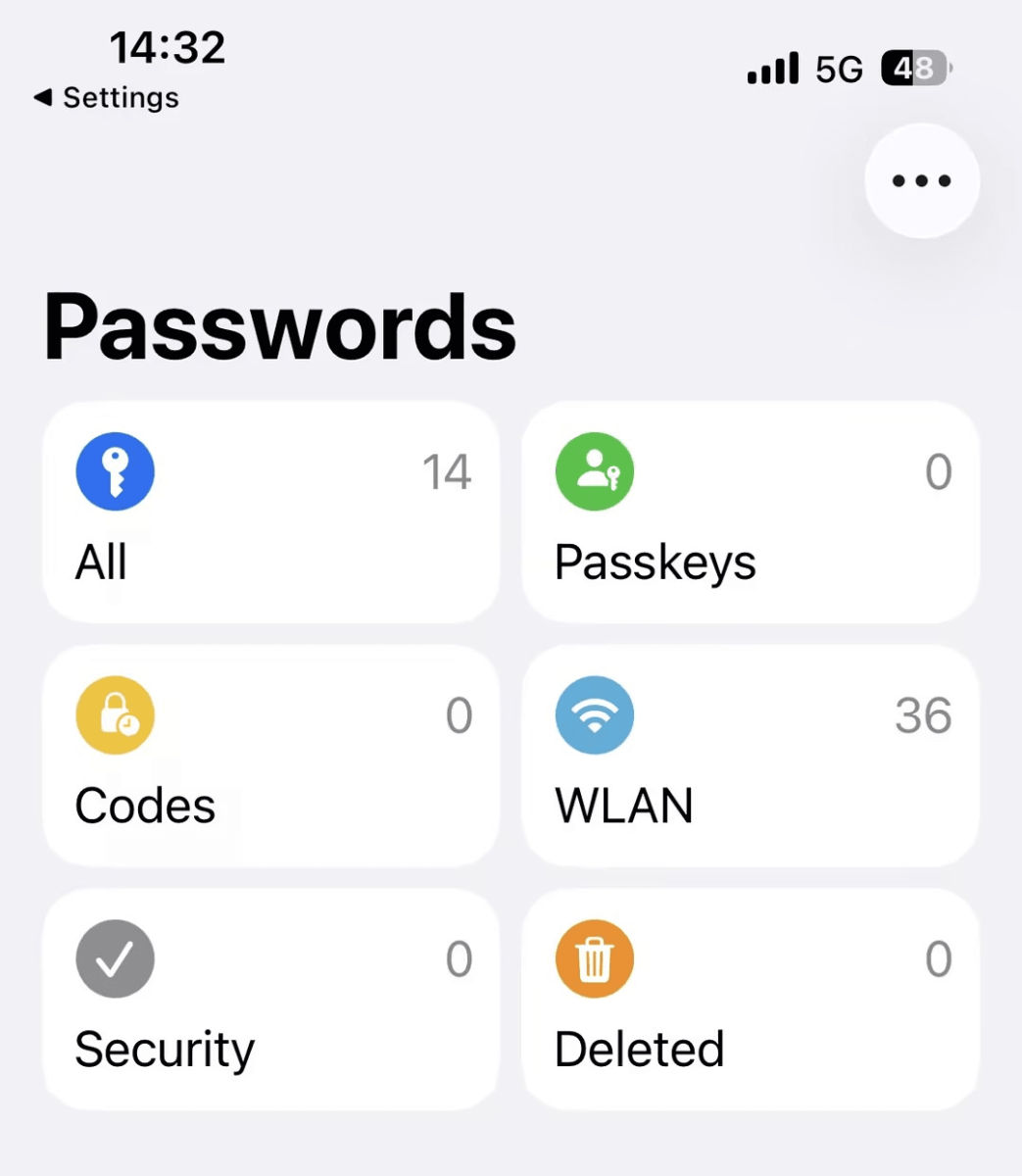
Apple Passwords is Apple’s native password management system built into iOS, iPadOS, and macOS through iCloud Keychain. It securely stores passwords, passkeys, Wi-Fi credentials, and verification codes, and automatically syncs them across all Apple devices using iCloud.
Because it is deeply integrated into the operating system, it delivers one of the fastest and most seamless login experiences available on iPhone, with strong support for AutoFill and passkeys without requiring any third-party app.
✅ Pros:
- Completely free and pre-installed on iPhone and iPad
- Seamless AutoFill integration in Safari and apps
- Native passkey support with iCloud syncing
- Fast, system-level performance with no extra setup required
- Strong privacy and encryption within Apple ecosystem
❌ Cons:
- Limited functionality outside Apple devices
- Basic sharing and organization features
- Not ideal for advanced workflows or business use
🙆♀️User experience:
Apple Passwords feels invisible in daily use. Once enabled, it automatically suggests logins without opening a separate app. It’s extremely smooth and fast, but it offers limited customization, which may feel restrictive for power users.
Bitwarden
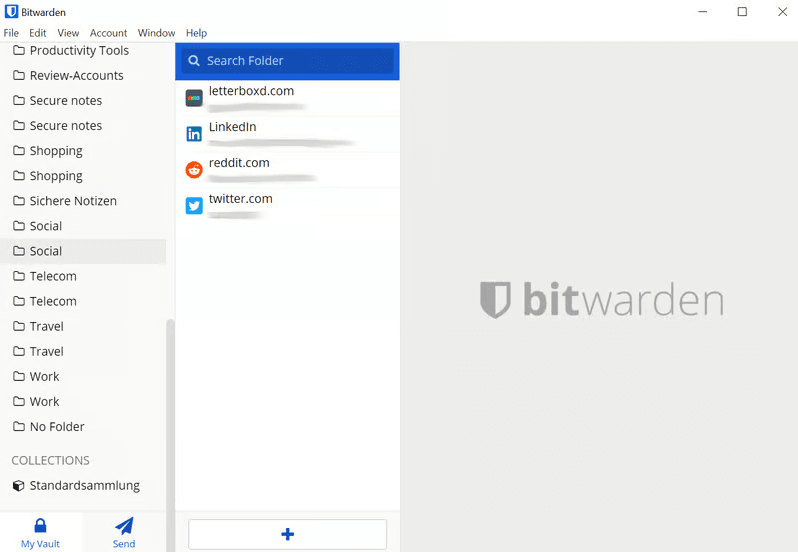
Bitwarden is one of the most trusted open-source password managers and a strong 1Password alternative for iOS users who want a balance of security, transparency, and affordability.
It stores passwords, passkeys, secure notes, and sensitive data in an encrypted vault that syncs across iPhone, iPad, Mac, Windows, Android, and browsers. Also, it’s regularly audited, making it popular among everyday users and professionals
✅ Pros:
- Fully open-source and independently audited
- Excellent free plan with unlimited devices and passwords
- Strong AutoFill support on iOS and Safari
- Works across iPhone, Android, Windows, and Mac
- Optional self-hosting for advanced users
❌ Cons:
- UI is less modern compared to premium competitors
- Some features require manual configuration
🙆♀️User experience:
Bitwarden feels lightweight and functional. The interface is simple and slightly technical, but once set up, it delivers a very reliable and consistent experience across devices. It’s especially popular among users who prefer control over design polish.
Dashlane
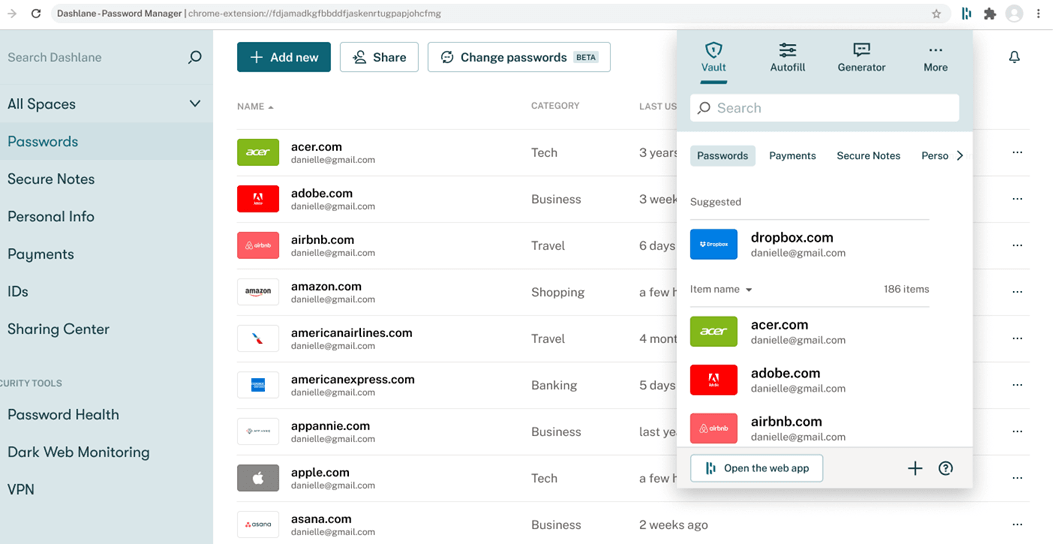
Dashlane is a premium password manager built for users who want a simple, guided, and highly polished security experience on iPhone and iPad. It stores passwords, passkeys, payment details, and secure notes in an encrypted vault while also adding extra layers of protection like password health analysis, breach alerts, and identity monitoring.
Unlike more technical tools, Dashlane focuses heavily on usability, making it easy for beginners to secure their digital life without needing to understand complex settings.
✅ Pros:
- Clean, modern, and beginner-friendly interface
- Built-in security alerts and password health reports
- Strong AutoFill performance on iOS
- Include VPN and dark web monitoring
❌ Cons:
- Higher subscription cost
- Limited free plan functionality
🙆♀️User experience:
Dashlane offers one of the smoothest onboarding experiences. Everything is guided, visually polished, and easy to understand, making it ideal for non-technical users. However, it can feel slightly heavy due to its feature-rich dashboard.
NordPass
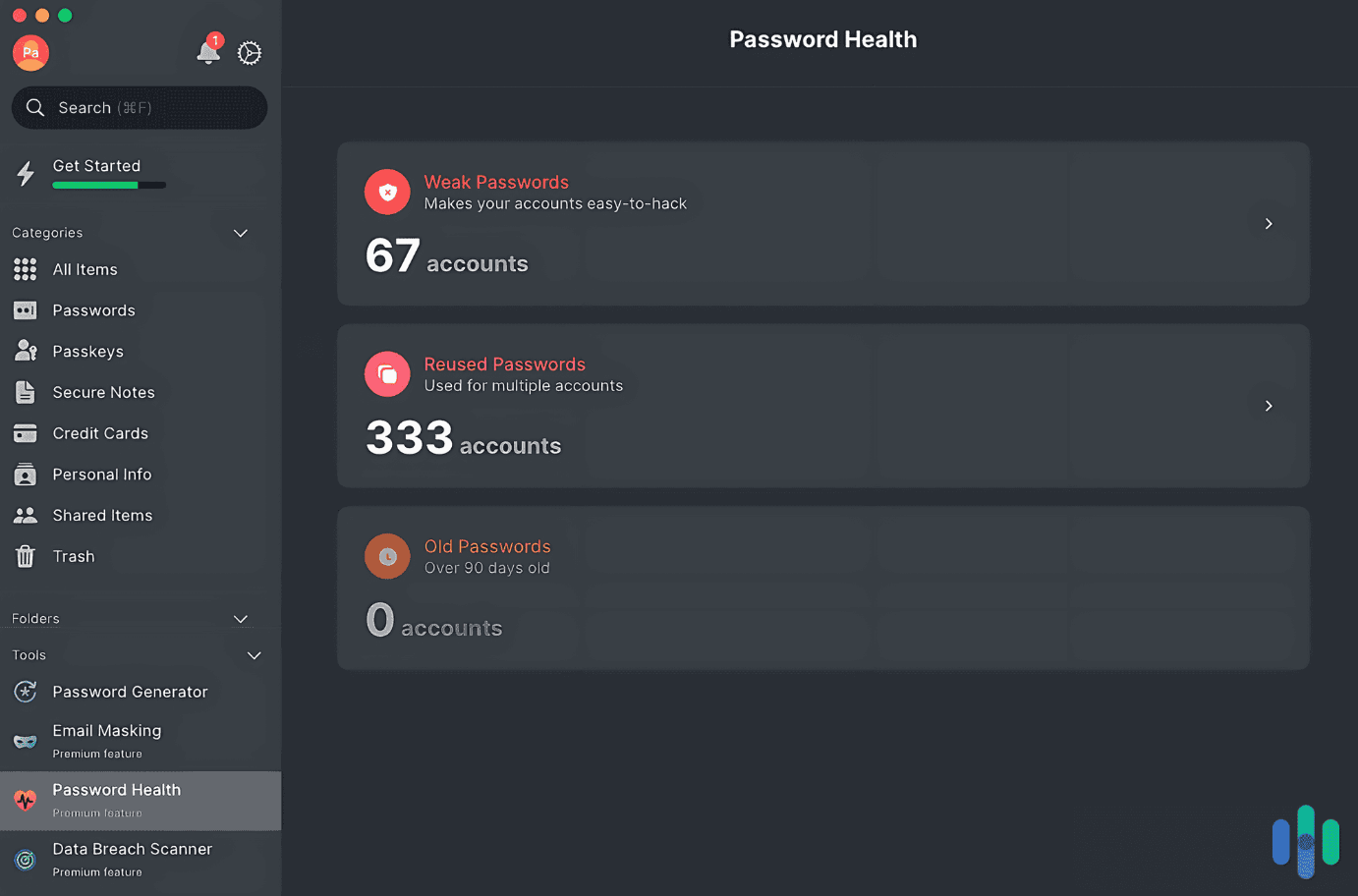
NordPass is a modern password manager developed with a strong focus on simplicity, speed, and advanced encryption security. Itworks smoothly across iPhone, iPad, Mac, Windows, Android, and browsers. With support for passwords, passkeys, secure notes, and credit card storage, NordPass delivers a straightforward experience without overwhelming users with complex settings.
Unlike more feature-heavy tools, NordPass prioritizes a minimalist interface and fast syncing, making it especially appealing for users who want quick access to their credentials on multiple devices without friction.
✅ Pros:
- Advanced XChaCha20 encryption
- Clean and minimal interface
- Reliable AutoFill and passkey support on iOS
- Easy syncing across devices
❌ Cons:
- Log in to only one device at a time on the Free edition.
- Fewer advanced customization options
🙆♀️User experience:
NordPass feels very streamlined and beginner-friendly. The interface is minimal and fast, with very little learning curve. It’s ideal for users who want “set it and forget it” password management without complexity.
RoboForm
RoboForm is one of the longest-standing password managers and is best known for its highly accurate form-filling technology. It is designed for users who frequently fill out online forms, log into multiple accounts daily, or want a fast, automation-focused password manager on iPhone and other devices. While it does not focus heavily on modern design trends, it excels at speed, simplicity, and reliability in everyday login tasks.
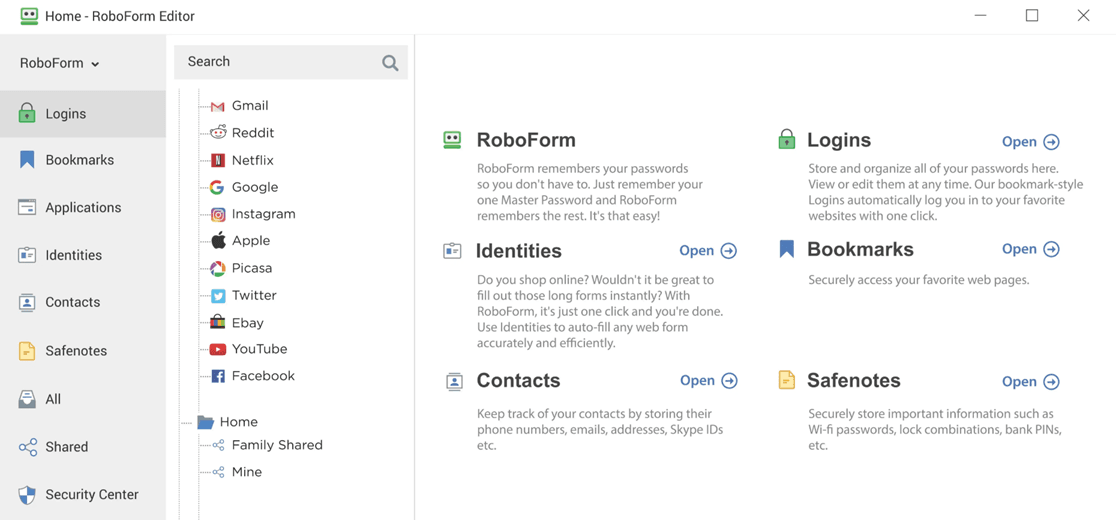
✅ Pros:
- Excellent form auto-fill accuracy
- Very affordable pricing
- Lightweight and fast on iOS
- Strong focus on login automation
❌ Cons:
- Outdated UI design
- Limited support for newer features like passkeys
🙆♀️ User experience:
RoboForm is extremely practical and efficient. It prioritizes speed over design, making it ideal for users who want quick logins without extra features. However, its interface feels dated compared to modern competitors.
iOS Password Manager Comparison
Choosing a password manager on iPhone is not just about security- it’s about daily usability. AutoFill, passkey support, and syncing reliability often matter more in real-world use.
|
Feature |
Bitwarden |
Apple Passwords |
Dashlane |
Proton Pass |
NordPass |
1Password |
|
iPhone AutoFill |
Excellent |
Excellent |
Excellent |
Very Good |
Very Good |
Excellent |
|
Safari Extension |
Yes |
Native |
Yes |
Yes |
Yes |
Yes |
|
Passkey Support |
Yes |
Yes |
Yes |
Yes |
Yes |
Yes |
|
TOTP / 2FA |
Yes |
Limited |
Yes |
Yes |
Yes |
Yes |
|
Apple Watch Support |
Limited |
Native |
Partial |
Limited |
Partial |
Partial |
|
Cross-device Sync |
Excellent |
iCloud |
Excellent |
Excellent |
Excellent |
Excellent |
|
Family Sharing |
Yes |
iCloud Family |
Yes |
Yes |
Yes |
Yes |
|
Free Plan |
Yes |
Yes |
Limited |
Yes |
Limited |
No |
|
Offline Access |
Yes |
Yes |
Yes |
Yes |
Yes |
Yes |
|
Open Source |
Yes |
No |
No |
Partial |
No |
No |
Which Password Manager Has the Best AutoFill?
Apple Passwords provides the smoothest experience for Apple-only users. Bitwarden offers the most reliable cross-platform AutoFill experience.
Which Is the Best Value?
Bitwarden remains the strongest free or low-cost option for most users.
Which Is Best for Apple Ecosystem Users?
Apple Passwords is ideal for users who never leave the Apple ecosystem and want a free built-in solution.
How to Switch from 1Password on iPhone without Losing Logins
Switching password managers on iPhone is straightforward if you follow the correct order. The key is to safely export your data, import it into a new manager, and verify everything before deleting the old vault.
- If you use multiple vaults, verify each one is complete
- Make sure you are signed into all devices (Mac, iPad, iPhone) before exporting.
Step 1. Open 1Password on your iPhone. Click Settings > Vaults / Accounts and confirm all items are synced to the cloud.
Step 2. Open 1Password on Mac or Windows. Go to File >Export >All Items and choose format: .CSV or 1Password export file (.1pux). Save the file in a secure, offline location (not public cloud or shared computers).
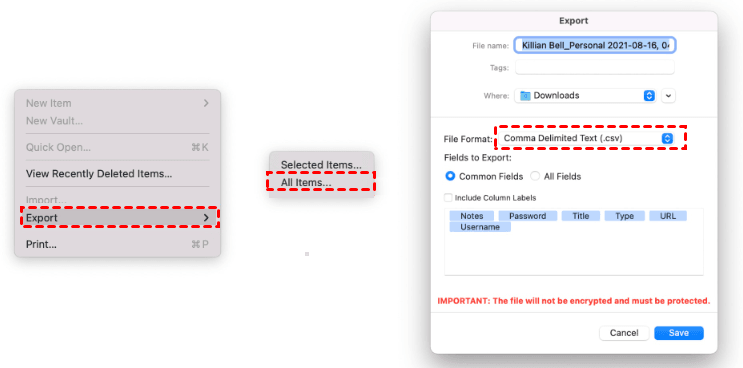
Step 3. Now, open your 1Password alternative iOS and import your data. If using Bitwarden:
- Open Bitwarden. Go to Tools > Import Data, and select 1Password format.
- Upload your exported file with on-screen instructions.
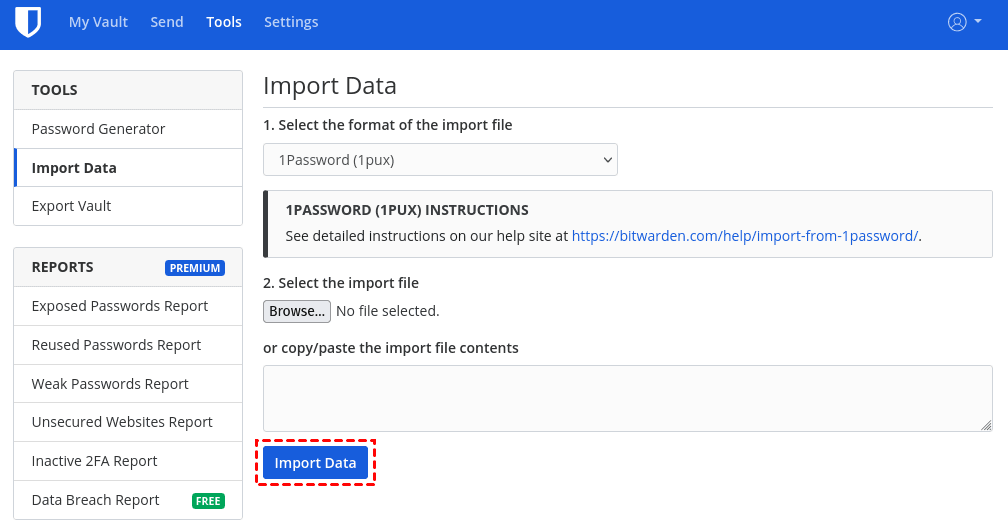
Step 4. After import, allow time for full sync across devices and verify your data. Check the following items and attempt to log in to your account manually to confirm this.
- Website logins and passwords
- Secure notes
- Credit card entries
- Two-factor authentication (TOTP codes)
- Shared vault items
Step 5. Enable AutoFill on iPhone to make your new password manager work across apps and Safari.
- Open Settings on your iPhone. Search for Passwords and click View AutoFill Settings at the bottom.
- Turn AutoFill Passwords and Passkeys ON.
- Under Allow Filling From, select your new password manager (Bitwarden / Dashlane / Proton Pass, etc.)
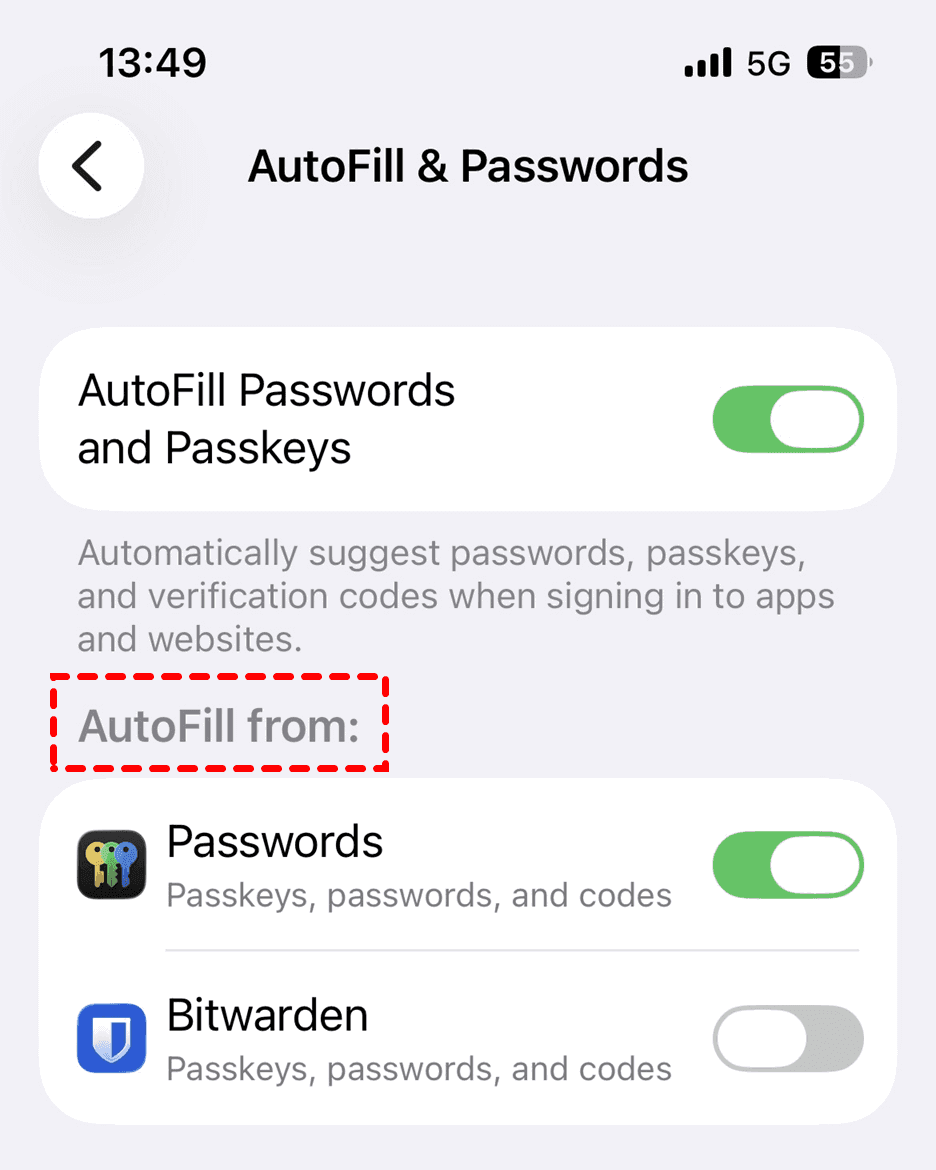
Step 6. Open the Files app, locate and delete exported CSV or vault files. Be sure to check Recently Deleted.
How to Manage and Recover Password Access on iPhone
Many password managers focus on storing, generating, and autofilling passwords. However, they often overlook a common problem: what if you can't unlock your iPhone to access those passwords in the first place?
FoneTool Unlocker not only retrieves and exports existing Wi-Fi passwords, iTunes backup encryption, Apple ID, Safari and appsaccount credentialsstored on your iOS device, but also unlocks screen passcode(4digit/6digit), Touch ID, Face ID, apple ID/ iCloud activation lock, etc., to make your iPhone always accessible.
So even if you're locked out of your iPhone because of a forgotten passcode, disabled device, or screen lock issue, you can regain access and get back to your passwords, accounts, and apps more quickly.
Step 1. Open FoneTool Unlocker on your Windows PC. On the main interface, click Password Management.

Step 2. Click Start Scan to find Wi-Fi passwords, credentials saved in Safari and other apps, check Apple ID info, and back up scan history.
Step 3. For a smooth process, it requires you to connect your iPhone, unlock it, tap Trust This Computer, and confirm it's trusted in FoneTool Unlocker.
Step 4. Click Continue Scan and wait for the process to be complete.
Step 5. Then, click View Password to check all passwords and credentials it finds.
Step 6. Click Screen Time Passcode, Wi-Fi Account, Web & App Passwords, etc., to check all available passwords and credentials.
To remove screen passcode, Touch ID, etc., click Remove Now under Remove iOS screen Passcode and follow the on-screen instructions.
Conclusion
The best 1Password alternative for iOS depends on your needs. Apple Passwords is a great choice for users who stay within the Apple ecosystem and want a free, built-in solution. Bitwarden offers the best balance of affordability, security, and cross-platform support, while Dashlane and NordPass provide user-friendly experiences with additional security features.
Whichever password manager you choose, look for essential features like AutoFill, passkey support, and reliable syncing across devices. Finally, here's a different password manager- FoneTool Unclocker. As its name suggests, in addition to password management, it can also handle unexpected lockouts.
FoneTool Unlocker - 1-Click iPhone Unlock Software
Easily unlock all passcodes and restrictions on your iPhone, iPad, and iPod Touch.
-
 iOS 27 Compatible
 iPhone 17 Supported
100% Secure

Ivey is passionate about teaching users how to easily protect mobile device data. With the FoneTool series of iPhone management, unlocking, and repair software, even beginners can perform data backup, iPhone unlocking, and troubleshooting like a pro.
Read author info >>



 as a preferred
source on Google
as a preferred
source on Google