Best App to Find Wi-Fi Password on iPhone: Easy & Safe
Need to find a Wi-Fi password on your iPhone? Discover the best apps – both built-in and third-party – plus troubleshooting tips for the problems you may encounter.


Can an App Find iPhone Wi-Fi Passwords?
The short answer is yes—but with limitations.
Many users search for an app to find Wi-Fi password on iPhone when they forget the password of a network they previously connected to. However, because of Apple's strict security policies, third-party apps cannot freely access and display saved Wi-Fi passwords stored on your device. See what third-party apps can and cannot do from the following chart:
|
Legitimate Apps Can Do |
Legitimate Apps Cannot Do |
|
√ Display Wi-Fi passwords that your device already has permission to access. √ Export saved Wi-Fi credentials to a computer. √ Manage passwords stored in backups or password managers. √ Help organize and synchronize passwords across devices. |
× Reveal passwords for networks you've never joined. × Hack or bypass Wi-Fi security protections. × Access passwords without proper authentication. × Retrieve passwords from other users' devices. |
🌟 To check more scenarios about seeing Wi-Fi password on iPhone, please refer to this complete guide: How to See Wi-Fi Password on iPhone.
Best Built-in Apps to Find Wi-Fi Password on iPhone
If you're looking for an app to find Wi-Fi password on iPhone, you may not need to install anything. Apple includes built-in tools that allow you to check saved Wi-Fi password on iPhone securely.
Option 1: Passwords App (iOS 18 +)
The Passwords app is Apple's dedicated password management tool introduced in iOS 18. Learn how to find a saved Wi-Fi password using the Passwords app below:
1. Open the Passwords app on your iPhone.
2. Authenticate with Face ID, Touch ID, or your device passcode.
3. Tap Wi-Fi to view saved wireless networks.
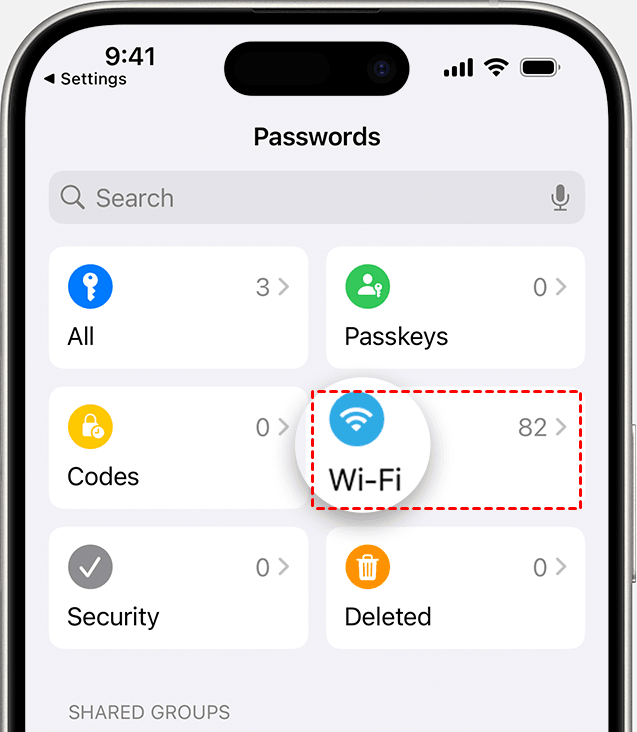
4. Select the network you want to check. View or copy the saved Wi-Fi password.
Option 2: iCloud Keychain
For users with older iOS versions or those who use multiple Apple devices, iCloud Keychain is another convenient way to access saved Wi-Fi passwords. If you have a Mac signed in to the same Apple ID, you can view a saved Wi-Fi password through Keychain Access:
1. Enable iCloud Keychain on your iPhone and Mac.
- On iPhone, go to Settings > [your name] > iCloud > Passwords (or Passwords & Keychain). Turn on Sync this iPhone.
- On Mac, go to Apple menu > System Settings > [your name] > iCloud > Passwords (or Passwords & Keychain). Turn on Sync this Mac.
2. Open Keychain Access on the Mac.
3. Search for the Wi-Fi network name. Double-click the network entry.
4. Check Show Password and authenticate with your Mac password or Touch ID.
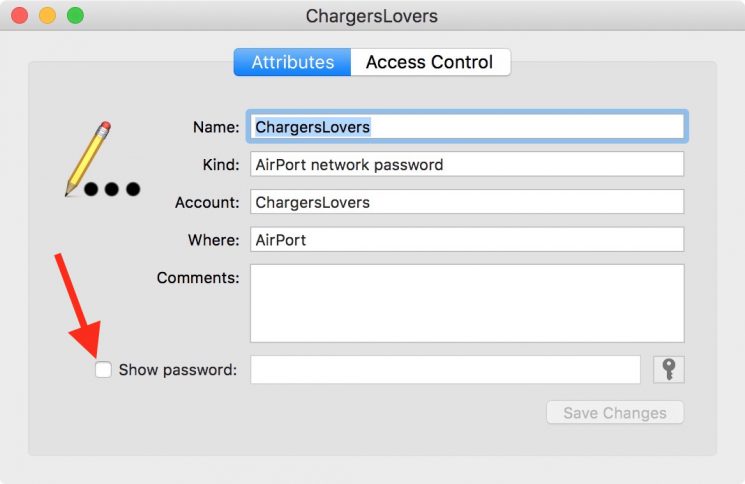
5. The saved Wi-Fi password will be displayed.
Best Third-Party Apps to Find iPhone Wi-Fi Password
If you need more flexibility than the native iPhone options provide, you can try third-party applications.
Option 1: FoneTool Unlocker
FoneTool Unlocker is an iOS management and password recovery tool designed to help users access and manage saved credentials on their Apple devices.
- Key Features:
- ⭐Manage and recover key credentials – Extract and view various sensitive information stored on the iOS device, including saved Wi-Fi passwords and various App account passwords.
- ⭐Remove iOS screen passcode - Erase 4-digit/6-digit passcodes, Touch ID, and Face ID from iPhones, iPads, and iPods.
- ⭐Remove Apple ID without password - Unlink your device from a forgotten Apple ID securely.
- ⭐Bypass Screen Time passcode - Useful for parents who forgot their Screen Time restrictions password.
- ⭐Remove iCloud Activation Lock - Bypass iCloud lock on second-hand or locked devices.
Follow the instructions below to check Wi-Fi passwords on iPhone using FoneTool Unlocker:
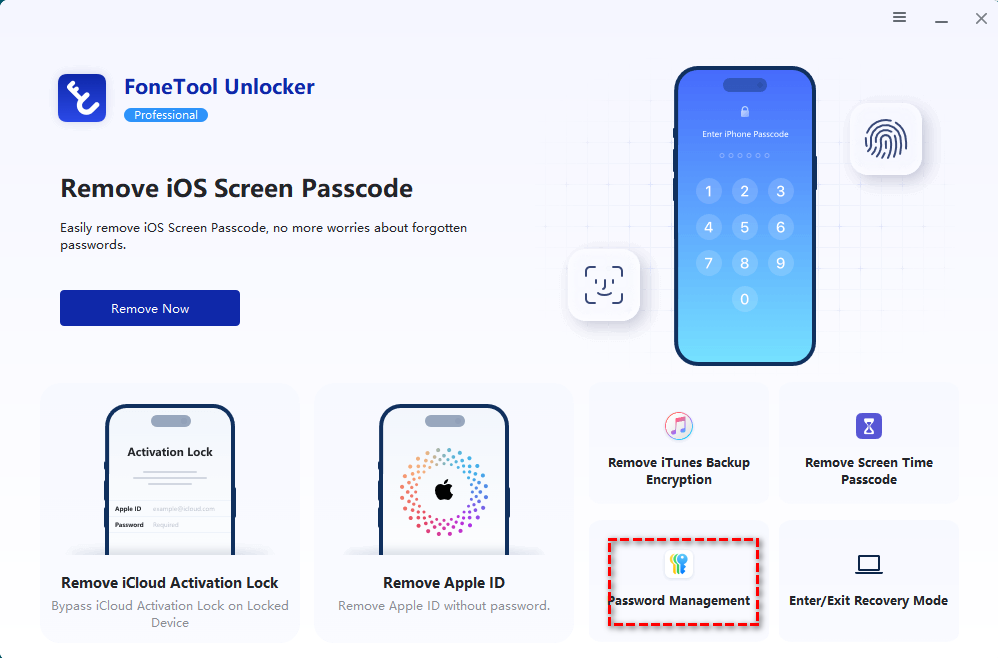
1. Download, install, and launch FoneTool Unlocker on your Windows PC. On the main interface, click Password Management in the bottom-right corner.
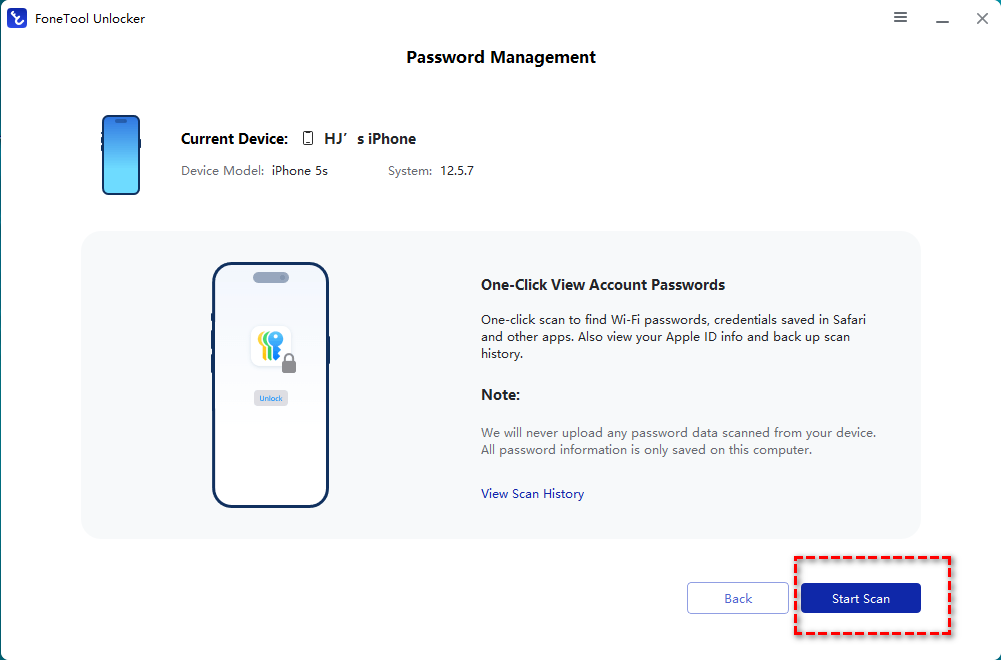
2. In the next window, click Start Scan.
3. Connect your iPhone to the computer using a USB cable, then unlock your iPhone and tap Trust This Computer on your iPhone.
4. Return to FoneTool Unlocker and select Computer is Trusted.
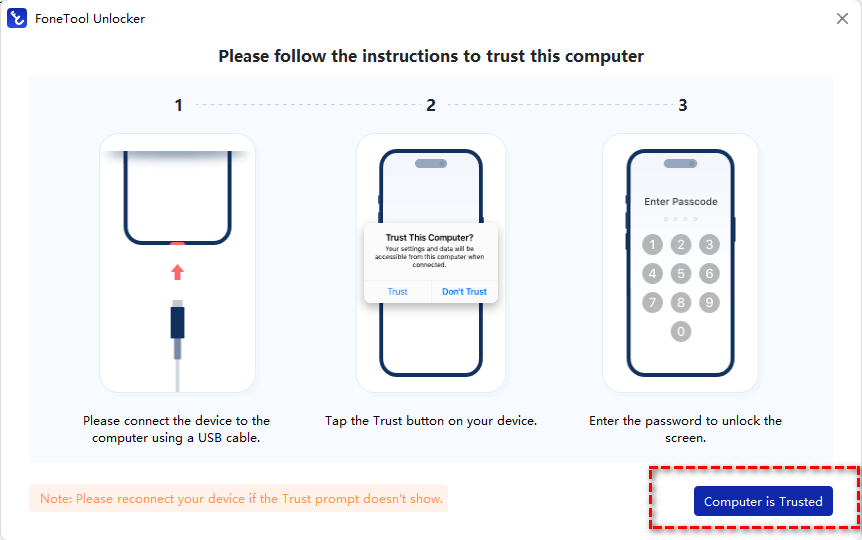
5. Click Continue Scan to start the scanning process. The time this takes depends on how many passwords are saved on your device and usually only lasts a few minutes.
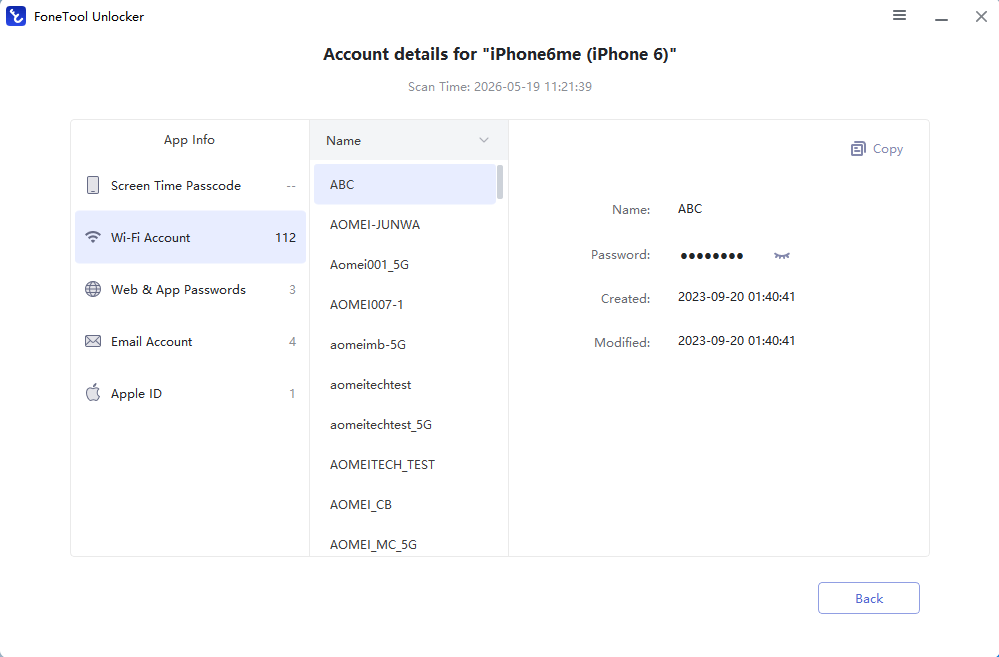
6. After the scan finishes, select View Password. Go to Wi-Fi Account and find the Wi-Fi password you need.
Option 2: PassFab iOS Password Manager
PassFab iOS Password Manager is a desktop-based utility that can scan your iPhone and display saved Wi-Fi passwords along with other stored credentials. It doesn’t hack networks—it only reads data already saved on your device or backups.
1. Go to the official PassFab website and download the iOS Password Manager for Windows or Mac. Install it on your computer and launch the program.
2. Use a USB cable to connect your iPhone to the computer. Unlock your iPhone and tap Trust This Computer if prompted.
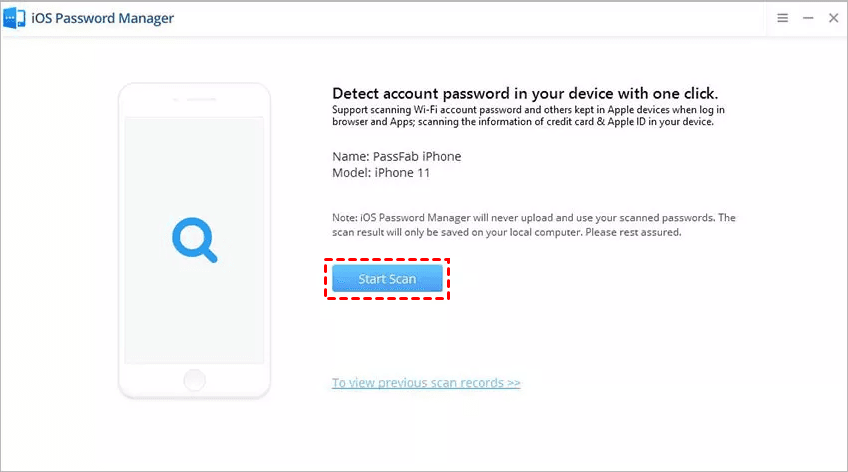
3. If your device gets detected, it will be displayed. Click on your iPhone once it is displayed and then click on Start Scan.
4. Once the scanning process is finished, select Wi-Fi Accounts. You will see a list of saved networks along with their corresponding passwords.
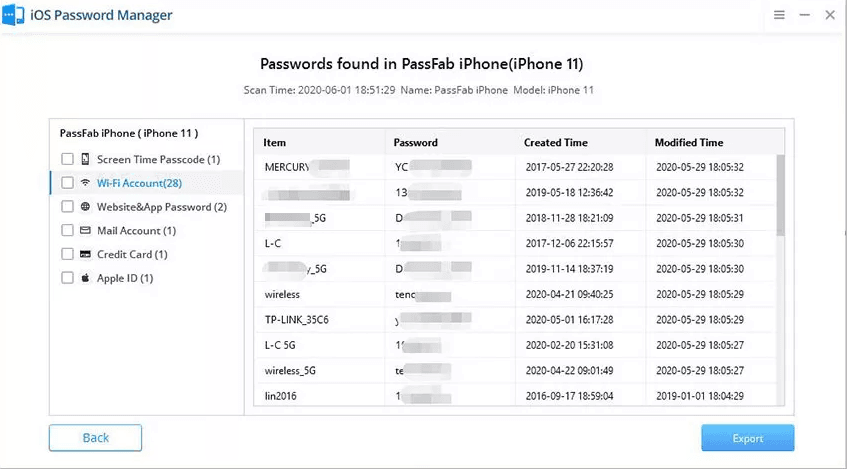
5. (Optional) Click Export to export the results to a CSV file so as to back up your Wi-Fi credentials or transfer them to another device.
Which App Is Best for Finding a Wi-Fi Password on iPhone?
When choosing an app to find Wi-Fi password on iPhone, the “best” method depends on your iOS version, device setup, and whether you simply want to view a password or export it to another device. The following table will help you make a decision:
|
Feature |
Passwords App (iOS 18+) |
iCloud Keychain |
FoneTool Unlocker |
PassFab iOS Password Manager |
|
Type |
Built-in iOS app |
Apple cloud service |
Desktop software |
Desktop software |
|
Primary Use |
View saved Wi-Fi & passwords |
Sync & store passwords across devices |
Remove various locks & manage passwords |
Recover & manage passwords |
|
Wi-Fi Password Access |
Yes |
Yes |
Yes |
Yes |
|
Requires Computer |
No |
Yes (Mac for viewing) |
Yes (Windows PC) |
Yes (Windows PC/Mac) |
|
Requires Internet |
No |
Yes (sync required) |
No (local scan) |
No (local scan) |
|
Jailbreak Needed |
No |
No |
No |
No |
|
Export Passwords |
Limited |
Via Mac Keychain Access |
Yes |
Yes |
|
Best For |
Quick password viewing on iPhone |
Apple ecosystem users |
Password management & removing |
Full password recovery & backup |
Common Problems When Trying to Check Wi-Fi Passwords on iPhone
Even though Apple has made it easier to view saved networks, many users still run into issues when trying to find a Wi-Fi password on iPhone. Here are some common problems and how to fix them:
👉 Face ID, Touch ID, or Passcode Verification Fails
Apple requires authentication before showing saved Wi-Fi passwords. If Face ID or Touch ID fails, you won’t be able to view the password. Common causes include:
- Incorrect passcode entry.
- Face ID not recognizing your face properly.
- Temporary system glitches.
🛠 Solution: Restart your device or reset Face ID/Touch ID settings if the issue persists.
👉 Passwords App Missing or Not Working
On iOS 18 and later, the Passwords app is the main place to view saved Wi-Fi credentials. However, some users may not see it. Possible reasons:
- iOS has not been updated to the required version.
- App is hidden in the App Library.
- Device restrictions (work or school profiles).
🛠 Solution: Search for “Passwords” in Spotlight or reinstall system updates.
👉 Wi-Fi Network Not Saved on iPhone
If the network was never saved, the iPhone cannot retrieve its password. This happens when:
- You joined a network once but did not save credentials.
- The network was entered through a temporary login (like captive portals).
- The device was reset or restored.
🛠 Solution: You will need to ask the network owner for the password or reconnect to save it again.
Verdict
This article introduces the best apps to find Wi-Fi password on iPhone, including Passwords App, iCloud Keychain, FoneTool Unlocker, and PassFab iOS Password Manager. You can choose an appropriate tool depending on your needs.
In addition to viewing passwords on iOS devices, FoneTool Unlocker can help you remove Screen Time passcode without Apple ID. Just give it a shot!
FoneTool Unlocker - 1-Click iPhone Unlock Software
Easily unlock all passcodes and restrictions on your iPhone, iPad, and iPod Touch.
-
 iOS 27 Compatible
 iPhone 17 Supported
100% Secure

Lily Green is dedicated to helping users protect their valuable mobile data and addressing issues that arise on mobile devices. She consistently stays vigilant about the latest trends in technology, guaranteeing that the given information aligns with the ongoing advancements in the field.
Read author info >>



 as a preferred
source on Google
as a preferred
source on Google