Change Apple ID Without Losing Data | Full Guide
Worried about losing data when changing your Apple ID? This guide explains how to switch your Apple ID safely. It covers preparation steps, two main methods, and how using a tool like FoneTool for a full backup can protect all your iPhone/iPad data effortlessly.


Are you asking, “Can I change my Apple ID without losing everything?” You’re not alone. Many users need to switch their Apple ID email but fear losing precious photos, app purchases, messages, and other vital data. The good news is: Yes, you can change it without total loss. However, the process requires careful steps to avoid common pitfalls.
This guide provides clear, actionable methods and a crucial backup strategy to ensure a smooth transition.
What You Might (and Might Not) Lose When Changing Apple ID?
Before you begin, know what’s tied to your Apple ID:
- Will Likely Remain: Content purchased from iTunes/App Store (once you sign back in), iCloud data (if migrated correctly), some settings.
- At Risk/Will Be Removed from Device: Photos, documents, and data stored only in iCloud (if you don't prepare), Apple services subscriptions, iMessage/FaceTime settings, and some app data.
The core challenge is that simply changing the email address associated with your Apple ID is safer than creating a brand new Apple ID. We'll cover both scenarios.
Your Essential First Step-A Complete Backup
This is your safety net. Never skip creating a full backup to your computer before changing your Apple ID.
- Update your device to the latest iOS/iPadOS.
- Sign out of all Apple services on your other devices (like Mac or Apple TV) to prevent sync conflicts.
- Create a full backup. While iCloud is an option, for this critical task, a local backup to your computer is more reliable and comprehensive.
Pro Tip: Use FoneTool for a Worry-Free Backup
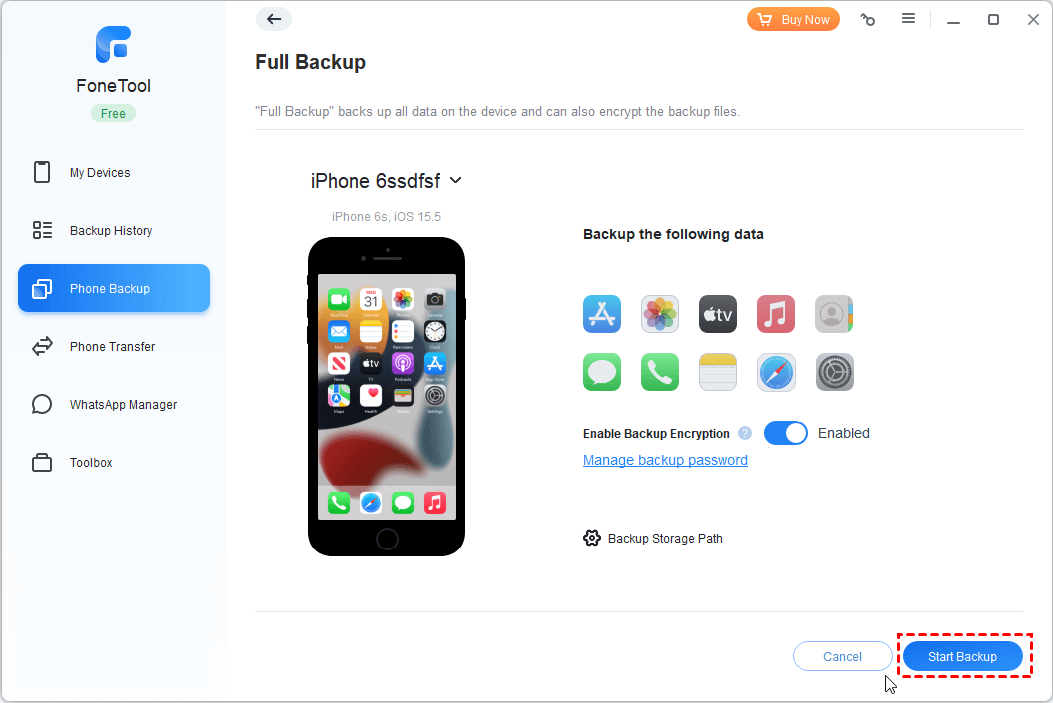
For absolute control and speed, use a dedicated iPhone data manager like FoneTool. It’s perfect for this scenario because it creates a full, readable backup on your PC/Mac outside the Apple ID ecosystem.
✨Why FoneTool for this task? It backs up everything- photos, messages, contacts, app documents, and system settings to your computer. If anything goes wrong during the Apple ID change, you can restore directly from this backup, no iCloud required.
🔍How to use it: Download and install FoneTool on your computer. Connect your iPhone, select “Full Backup”, and click “Start Backup.” It’s significantly faster than iCloud.
Method 1.Change Your Apple ID Email Address[Safest Way]
If you just want to use a different email for login, this is the best path. Your purchases, data, and history remain intact.
Step 1. Go to appleid.apple.com and sign in.
Step 2. In the Account section, find Sign-In and Security.
Step 3. Click Edit next to Apple ID.
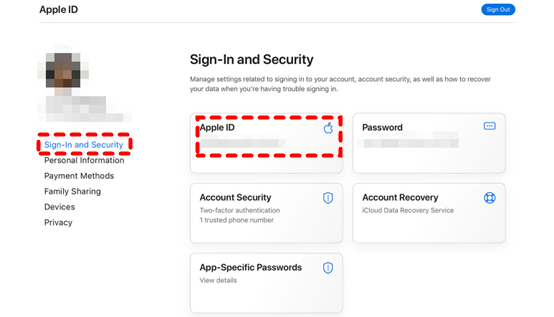
Step 4. Enter the new email address you wish to use.
Step 5. Follow the verification steps sent to both your old and new email.
Step 6. Use the new email address to sign in on all your devices.
Method 2. Switch to a Completely New Apple ID
This is more complex. You essentially leave your old account and start fresh. Your purchased apps/media will remain on the devic,e but will be tied to the old ID for future updates.
Step 1. Backup your device completely (using FoneTool or iTunes).
Step 2. On your iPhone/iPad, go to Settings > [your name] > Sign Out.
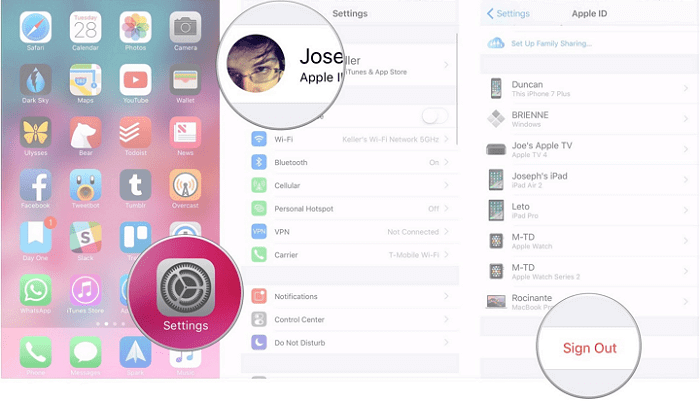
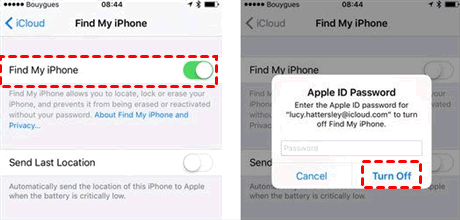
Step 3. Enter your old Apple ID password to turn off Find My and choose what data to keep a copy on your device (this copy is temporary).
Step 4. Restart your device, and go to Settings and sign in at the top with your new Apple ID.
Step 5. You will now have a new, empty iCloud. To restore your personal data (photos, messages, etc.), you would need to use the backup you created in Step 1 via a restore process.
FAQs on Switching Apple ID
Conclusion
Changing your Apple ID doesn’t have to mean losing everything. The key is preparation and the right method. For most, simply changing the associated email address is the safest bet. If you must use a new ID, a comprehensive local backup using a tool like FoneTool is your essential safety net. It provides a fast, full backup outside of iCloud, giving you total control over your data during the transition.
Ready to make the switch safely? Download FoneTool to secure your entire iPhone before you begin, and follow the steps outlined above for a seamless change.
FoneTool Unlocker - 1-Click iPhone Unlock Software
Easily unlock all passcodes and restrictions on your iPhone, iPad, and iPod Touch.
-
 iOS 27 Compatible
 iPhone 17 Supported
100% Secure

Kelsey is an English editor at FoneTool, passionate about helping users solve tech issues. She specializes in iPhone data management, backup, and recovery. In her free time, she enjoys learning IT skills and spending time with loved ones.
Read author info >>



 as a preferred
source on Google
as a preferred
source on Google