How to Factory Reset iPod Touch Without Password | Full Guide
Factory reset iPod touch without password in minutes. Two reliable methods: FoneTool Unlocker or Apple's official recovery mode. Works on all iPod touch models.


You pick up that old iPod touch, and the screen lights up. Then you see the following message: “Please enter a password.” But you have no idea what this means. Maybe it was purchased second-hand, or perhaps you set a password for it years ago but have since forgotten it. Either way, you’re in a difficult situation.
You can still learn how to reset your iPod touch to its factory settings without needing a password—even if you have never done this before. This guide provides several methods for resetting an iPod touch to its original settings without a password, including one that doesn’t require the use of iTunes. Let’s help your device return to normal operation.
Method 1. Factory Reset iPod Touch Without Passwordvia FoneTool Unlocer
If you want to reset your iPod Touch without iTunes, then this tool is the tool for you. It is undeniable that iTunes runs slowly and is also prone to errors during the recovery process. FoneTool Unlocker, on the other hand, provides you with an easier way to factory reset your iPod Touch without a password and without the need for iTunes.
This tool can remove screen passcodes (including 4-digit passcodes, 6-digit passcodes, facial recognition passcodes, and touch recognition passcodes) directly from your computer. It is available on all iPod touch series models, from the fifth generation to the latest seventh generation. And, it does handle situations where you completely forget your password.
✅ No password needed, exactly what you're looking for.
✅ Works when your iPod is disabled after too many wrong attempts.
✅ Bypasses Apple IDlock if you bought a used device.
✅ Clears Screen Time restrictions (when your kid locks you out).
✅ Removes iTunes backup encryption so you can back up again.
✅ Fully support iOS devices, you can also factory reset iPhoneand iPad.
Step 1. Download and install FoneTool Unlocker on a Windows PC.Connect your locked iPod touch to the computer using a USB cable.a
Step 2. Launch FoneTool Unlocker and select "Remove iOS Screen Passcode" from the main menu.

Step 3. Click "Remove Now" and follow the on-screen instructions to put your iPod into Recovery Mode.
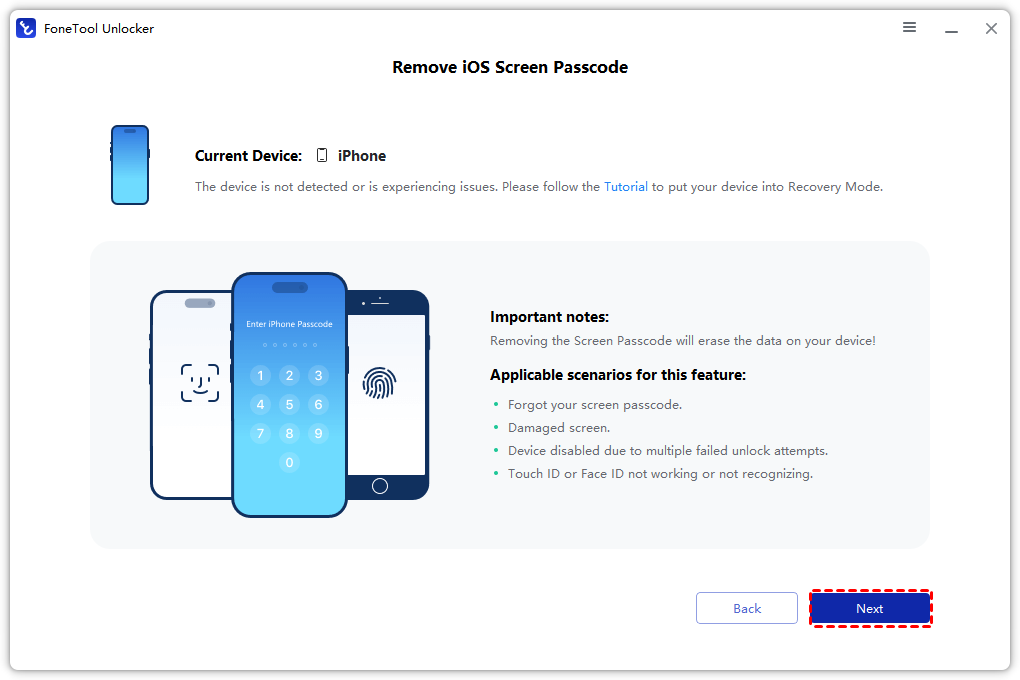
Step 4. Once in Recovery Mode, the software automatically detects your device. Click "Download" to get the latest firmware.
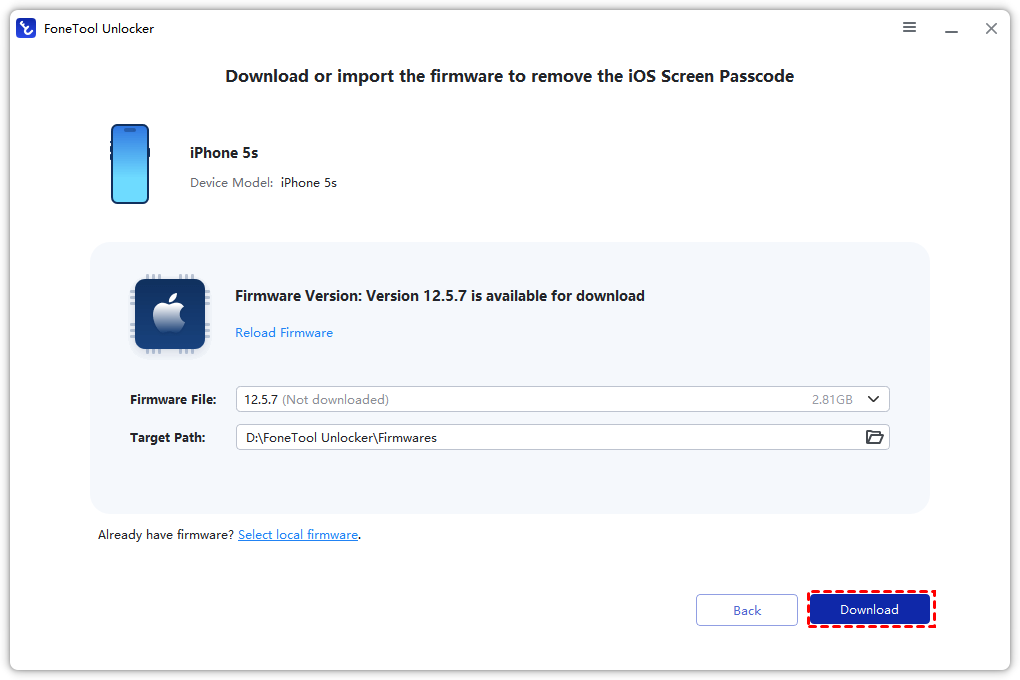
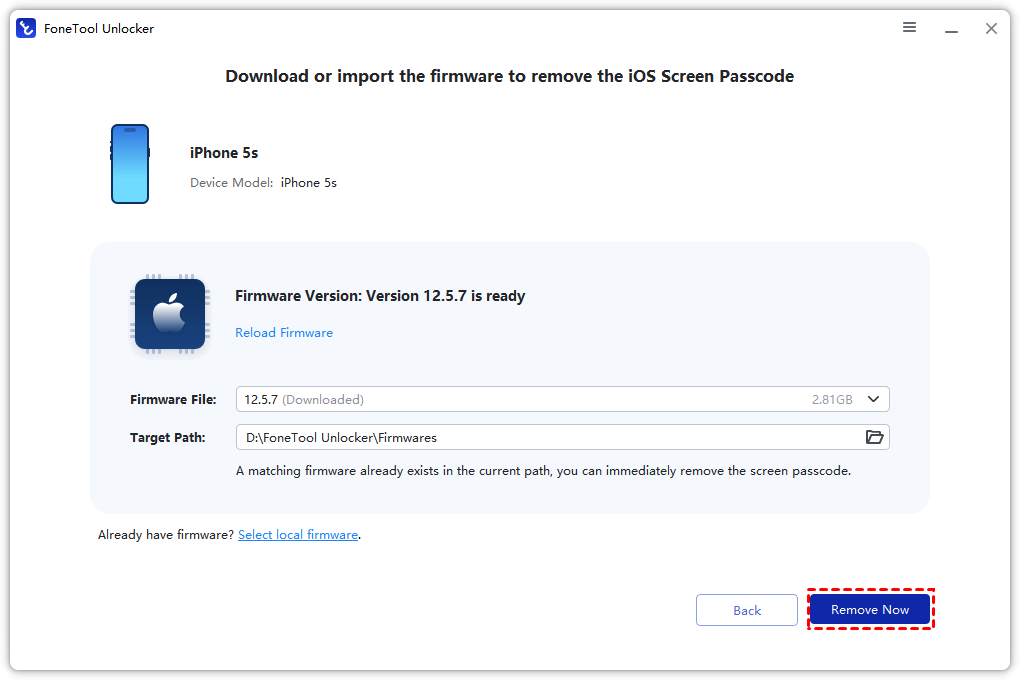
Step 65. After the download finishes, click "Remove Now" and wait a few minutes. Your iPod restarts with no passcode, completely factory reset.
Method 2. Factory Reset iPod Touch Without Password Using Recovery Mode
If you prefer to use the official methods, Apple’s Recovery Mode provides another way to reset your iPod touch to its factory settings . This method requires a computer equipped with Finder (macOS Catalina or later) or the Apple Devices app, as well as iTunes (for Windows or older versions of macOS).
You need to follow the specific steps appropriate for the model of iPod you are using. If these steps are not followed correctly, nothing will work. However, if you carefully follow the instructions below, you will be able to successfully reset your iPod touch without password, even if you have never done this before.
Step 1. Make sure you have a computer
This process requires a Mac or PC. If you're using a PC, it needs Windows 10 or later with iTunes or the Apple Devices app installed. You also need the USB cable that came with your iPod.
Step 2. Turn off your iPod touch
Unplug your iPod from the computer if it's connected. Press and hold the Top button until the power off slider appears. Drag the slider to turn it off. Wait one minute.
Step 3. Put your iPod into recovery mode (model matters)
🔹For iPod touch (7th generation):
Press and hold the Volume Down button while immediately connecting your iPod to the computer. Keep holding the button until the "Connect to Computer" screen appears.
🔹For iPod touch (6th generation and earlier):
Press and hold the Home button while immediately connecting your iPod to the computer. Keep holding until you see the recovery mode screen.
Tip: If you see the passcode screen instead of recovery mode, you let go too early. Turn the iPod off and start again.
Step 4. Restore your iPod touch
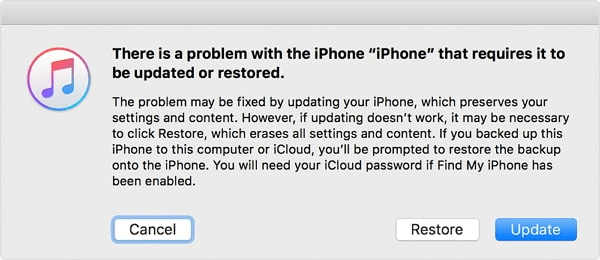
On your computer, locate your iPod in Finder, Apple Devices, or iTunes. When you see the option to Restore or Update, choose Restore. Your computer downloads software for your iPod and begins the restore. This takes a few minutes. When it's done, disconnect your iPod and set it up as new.
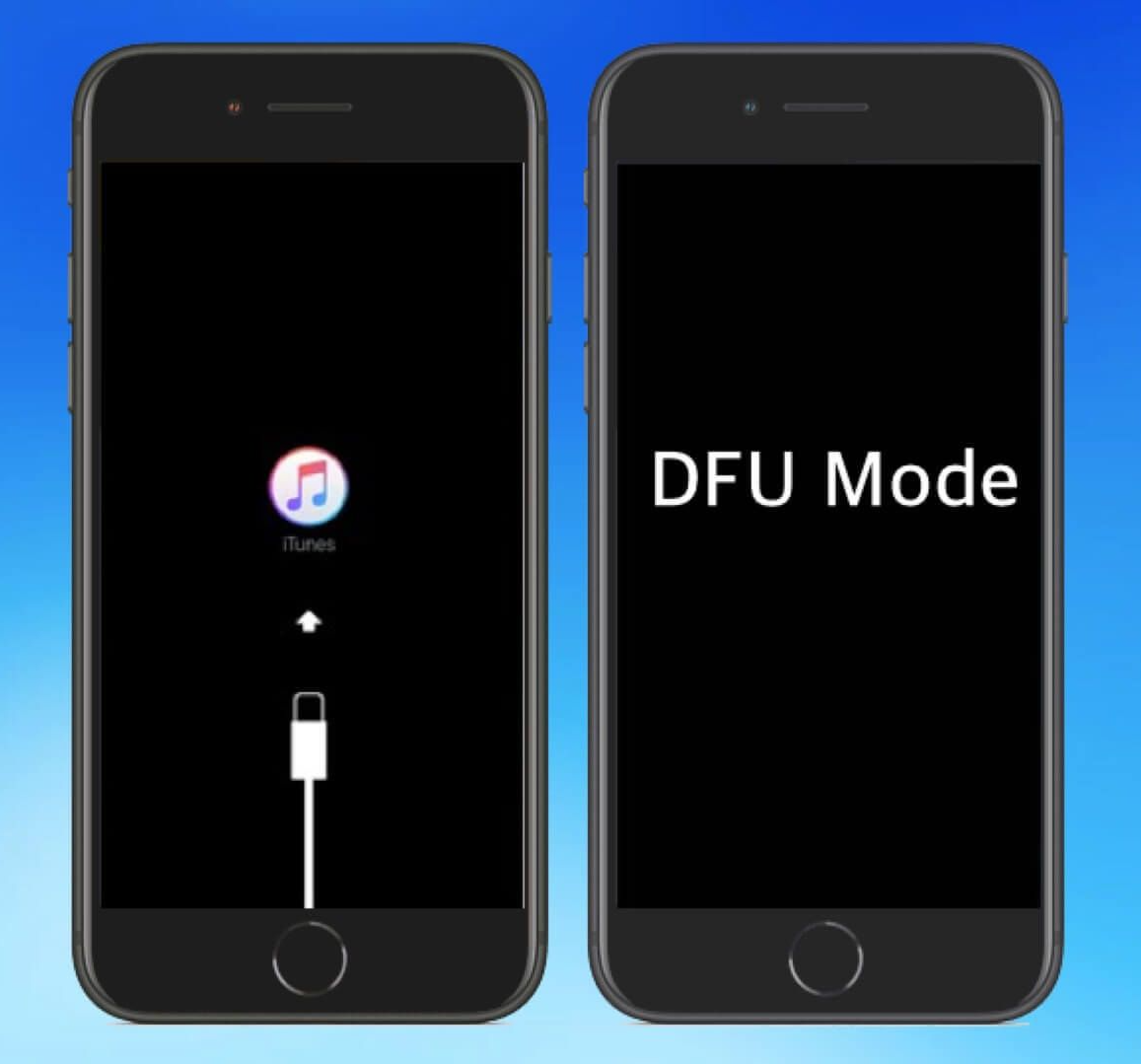
Method 3. Factory Reset iPod Touch Without Password Using DFU Mode
Recovery mode didn't work? DFU (Device Firmware Update) mode goes deeper. It's another way to factory reset iPod touch without passcode when the device is completely unresponsive or stuck in a boot loop.
Step 1. Connect your iPod to the computer and open iTunes/Apple Devices.
Step 2. Press and hold the Top (Power) button for 3 seconds.
Step 3. Keep holding the Top button and also press and hold the Home button (or Volume Down for 7th gen).
Step 4. Hold both buttons for exactly 10 seconds.
Step 5. Release the Top button but keep holding the Home/Volume Down button for another 5 seconds.
Method 4. Factory Reset iPod Touch Without Computer (Using iCloud)
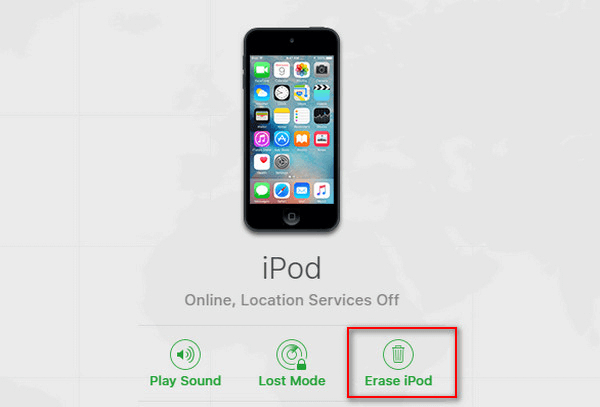
No computer at all? You can still unlock your iPod touch with iCloud (no passcode required), but only if you turned on Find My iPod before you were locked.
Step 1. Go to iCloud.com on any phone, tablet, or borrowed computer.
Step 2. Sign in with your Apple ID and password.
Step 3. Click Find My and select your iPod from the device list.
Step 4. Click Erase iPod. This wipes the device remotely, including the passcode.
FAQs
Yes. Both FoneTool Unlocker and recovery mode work on disabled iPods. The "iPod disabled, connect to iTunes" screen doesn't block either method. So yes, you can factory reset ipod touch without password even after ten failed attempts.
Use the iCloud method above (if Find My was on). Otherwise, you'll need to borrow a computer. There's no way to factory reset ipod touch without password using only the device itself.
No. A standard factory reset removes your passcode and data, but the iPod remains linked to the original Apple ID. When you set it up again, you'll need that Apple ID and password to get past Activation Lock. If you've forgotten those too, you'll need a tool that removes Apple ID as well.
Recovery mode restores the current iOS version. DFU mode is deeper—it lets you install any iOS version and works when recovery mode fails. Try recovery mode first. If your iPod is completely bricked or won't turn on, use DFU mode to factory reset ipod touch without passcode.
Yes. A factory reset wipes everything. If you haven't backed up, your data is gone. This is why backing up regularly matters—and why you should never forget your passcode in the first place.
Yes. That's exactly what FoneTool Unlocker does in Method 1. It's the most reliable way to reset iPod touch without itunes while still removing the passcode completely.
Final Words
Factory reset iPod touch without a password, you have several reliable options. FoneTool Unlock provides the cleanest experience, no iTunes errors, no guesswork, you can reset iPod touch completely. If you prefer the official route, recovery mode via Finder or iTunes is also good, but pay close attention to the button order of your iPod model.
Forgot your password and can't get in? Download FoneTool Unlock and reset your iPod within five minutes.
FoneTool Unlocker - 1-Click iPhone Unlock Software
Easily unlock all passcodes and restrictions on your iPhone, iPad, and iPod Touch.
-
 iOS 27 Compatible
 iPhone 17 Supported
100% Secure

Kelsey is an English editor at FoneTool, passionate about helping users solve tech issues. She specializes in iPhone data management, backup, and recovery. In her free time, she enjoys learning IT skills and spending time with loved ones.
Read author info >>



 as a preferred
source on Google
as a preferred
source on Google