[Easy] How to Remove Apple ID from iPhone without Password
To discover how to remove Apple ID from iPhone without password, this comprehensive guide provides 4 easy ways. Follow the easy guide to delete Apple ID.


How to Remove Apple ID without Password and Factory Reset iPhone
I bought an iPhone on eBay. The seller forgot to delete the Apple ID. Unfortunately, I can't contact the seller because the auction has ended. Now I can't unlock and configure the iPhone. Does anyone have a solution to erase Apple ID without password?
- Question from Reddit
When you buy a second-hand iPhone, you find that the previous user's Apple ID is still logged in, and you don't know the Apple ID password and can't contact the previous owner. This situation is very troublesome.

At this time, you may ask: Is it possible to remove Apple ID from iPhone without password? Don't worry, this post will show you 3 ways to easily delete Apple ID from iPhone without password.
Way 1. Easiest Way to Remove Apple ID from iPhone without Password
One of the fastest and most reliable ways to remove Apple ID from iPhone without password is to use FoneTool Unlocker. This third-party software is designed to bypass Apple ID and unlock your iPhone easily. It provides a user-friendly interface and helps you quickly complete the unlocking process without complicated operations.
Highlights of using FoneTool Unlocker to remove password:► Remove Apple ID/Screen Passcode/iTunes Backup Encryption/remove Screen Time Passcode without password.
► Simple step-by-step instructions, you can use it easily when you first open it.
► Supports the latest iOS versions, including most of iPhone/iPad models.
► Safe, no risk of data loss when you remove Apple ID (If Find My feature is disabled).
Now, you can download FoneTool Unlocker and follow the guide to learn how to remove previous owner Apple ID without password:
Step 1. Launch FoneTool Unlocker > Connect your iOS device to your computer using a USB cable.
Step 2. From the interface, select the "Remove Apple ID" option.
Step 3. Set a backup password as instructed > Make sure you remember this password.
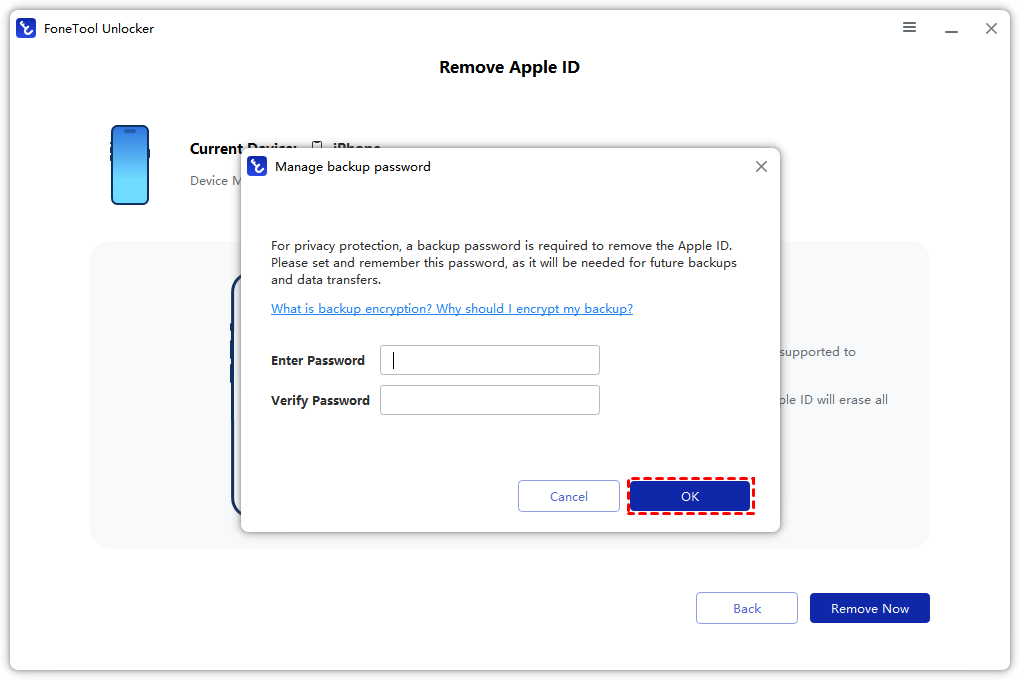
Step 4. Then tap "Remove Now" to unlink the Apple ID.
FoneTool Unlocker will automatically remove your phone’s Apple ID for you. Once done, click “Back to Home Page” to reset or use your device without an Apple ID.
- ★Tips:
- Want to transfer data from your old iPhone to your new iPhone after erasing it? You can learn how to transfer data from iPhone to iPhone in one click!
Way 2. Delete Apple ID from iPhone without Password in iTunes
If you are looking for a free way to remove Apple ID from iPhone without password, iTunes might be the solution. But first, you need to make sure that Find My iPhone is disabled on your device. If you don’t disable this feature, the process won’t work and might cause problems.
Note:
- Disable Find My iPhone before attempting this solution.
- If Find My iPhone is still enabled, you will not be able to proceed with iTunes.
Here are steps to remove Apple ID from iPhone with iTunes:
Step 1. Open iTunes on your computer > Connect your iPhone to the computer with USB cable.
Step 2. Select your device in iTunes > Tap on the Summary tab.
Step 3. Click on the Restore iPhone button > Follow the on-screen prompts to restore your device, which will delete all data, including the Apple ID associated with the device.
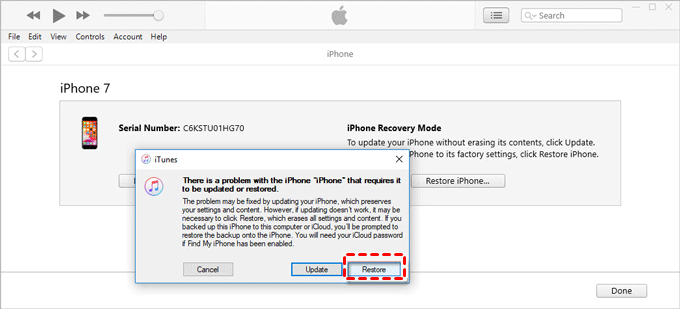
Once the process is complete, your iPhone will be factory reset and your Apple ID will be removed.
Way 3. Erase Apple ID without Password from iTunes & App Store
If you don't want to use a computer to remove the password, you can also delete the Apple ID on your iPhone directly from the App Store. Sometimes you can unlink the Apple ID from your device without a password by deleting the Apple ID signed in to the App Store.
Learn how to delete Apple ID without password on iPhone:
Step 1. Open the App Store on your iPhone.
Step 2. Scroll to the bottom and tap on Sign Out.
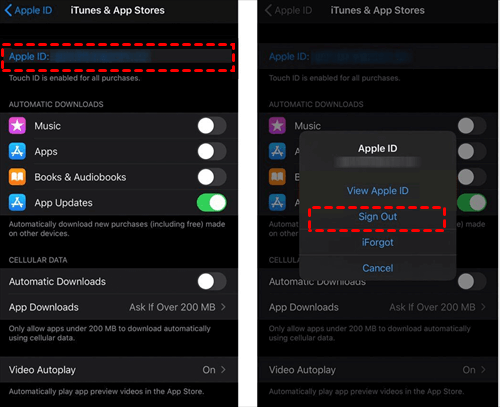
Step 3. It will automatically log out of the previous owner’s Apple ID.
Step 4. After that, you can sign in to iTunes & App Store using an alternate Apple ID or by creating a new Apple ID.
This method may only work if the Apple ID is linked to an App Store account, but it does not completely remove the Apple ID from the iPhone system. To completely remove the Apple ID, other methods may be required.
Way 4. Remove Apple ID without Password via Apple Website
Apple provides an official method to remove the Apple ID from a device through its website, especially when you don't have access to the device's passcode or previous owner. This method requires you to contact Apple Support to prove ownership of your device.
You can view the guide to learn how to delete iCloud account/Apple ID without password:
Step 1. Visit the Apple ID account page: https://appleid.apple.com.
Step 2. Tap the Forgot Apple ID or Password option on screen. It will ask you to enter the email or phone number registered to your Apple ID and enter the CAPTCHA code.
Step 3. When you see a pop-up notification on the iPhone tap Allow > Follow the on-screen prompts to enter the iPhone Passcode.
Step 4. After entering a new Apple ID password > Click Next to confirm.
Step 5. Go to Settings on iPhone > Click on your Apple ID/Name at the top of the screen > Scroll down and click Sign Out.
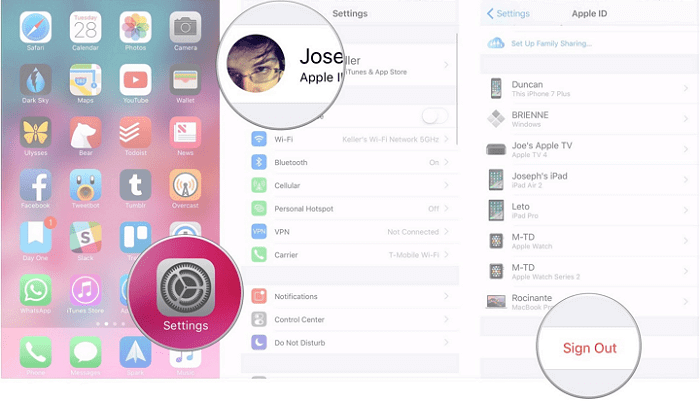
Step 6. iPhone will ask you to enter your Apple ID password. Please enter the new password you just reset and confirm the prompt to sign out of Apple ID from your device.
More Apple ID Management Solutions
Beyond removing an Apple ID from your iPhone, here are other essential guides to help you manage Apple ID across different scenarios.
👉 How to Reset Apple ID Password by Email (Official Method)
Forgot your Apple ID password? Learn how to reset it via email using Apple's iForgot service, with or without a trusted device.
👉 How to Permanently or Temporarily Delete Your Apple ID Account
If you no longer need an Apple ID, this guide shows how to deactivate or delete your account entirely – not just remove it from a device.
👉 How to Set Up iPhone Without Apple ID (Complete Guide)
Setting up a new iPhone? Learn how to skip Apple ID during setup, create a temporary ID, or use FoneTool Unlocker to bypass.
👉 How to Erase iPhone Without Apple ID – 3 Effective Methods
Need to factory reset a locked iPhone? This guide covers iTunes Recovery Mode, iCloud remote erase, and FoneTool Unlocker.
👉 How to Remove Apple ID from iPad Without Password
Same problem on an iPad? Follow this dedicated guide to remove Apple ID from iPad using FoneTool Unlocker, iTunes, or iCloud.
Frequently Asked Questions
If Find My iPhone is on, most methods will erase all data on your device. FoneTool Unlocker can still remove the Apple ID, but it will also erase the iPhone. After removal, you can set up the iPhone as new without the previous Apple ID. Always back up your data first if possible.
Until now, we accept Visa, MasterCard/Euro Card, Discover,American Express, Diner's Club, JCB, and check cards or ATM cards connected with one of the major credit card companies listed above, and Bank/Wire Transfer, Check/Money Order, Fax -Credit Card, Invoice are also supported.
Removing Apple ID from a device just signs out that specific device – you can still use the same Apple ID on other devices. Deleting your Apple ID account permanently erases all data associated with it (iCloud, purchases, contacts) and cannot be undone. Choose carefully based on your needs.
Comparison: 4 Methods to Remove Apple ID from iPhone Without Password
| Method | Best For | Pros | Cons | One-Sentence Summary | Main Feature |
|---|---|---|---|---|---|
| FoneTool Unlocker | Users who want a fast, safe, and high-success-rate solution | No password needed, preserves data if Find My is off, supports latest iOS | Requires Windows PC | The most reliable one-click tool to remove Apple ID without password. | Remove Apple ID / Screen Passcode / Screen Time / iTunes backup encryption |
| iTunes Restore | Users looking for a free method and don't mind data loss | Free, no third-party tools | Erases all data, requires Find My to be disabled, may not fully bypass Activation Lock | Free but destructive – resets iPhone to factory settings. | Full device restore |
| Sign Out from App Store | Partial removal (only App Store account) | No computer needed, simple | Does not fully remove Apple ID from iCloud, Find My remains active | Quick workaround for App Store sign-out, not a complete removal. | Sign out from iTunes & App Store only |
| Apple Website (iForgot) | Users who can reset password via email/phone and then sign out | Official Apple method, no data loss | Requires access to trusted phone number or email, need to know Apple ID | Reset password first, then sign out normally – requires ability to verify identity. | Password reset + manual sign out |
Conclusion
The post shows you how to remove Apple ID from iPhone without password. There are multiple options, and you can choose according to your needs. But FoneTool Unlocker is one of the most reliable and straightforward options to remove Apple ID and unlock iPhone without password. At the same time, this versatile tool can also help you manage your iOS device better, you can also remove iOS screen passcode without password!
FoneTool Unlocker - 1-Click iPhone Unlock Software
Easily unlock all passcodes and restrictions on your iPhone, iPad, and iPod Touch.
-
 iOS 27 Compatible
 iPhone 17 Supported
100% Secure

Clara is an editor of FoneTool, she helps people with issues related to the area of iPhone, including iPhone data backup & restore & transfer & erase and so on. Helping people solute to their problems makes her happy. She loves her family and enjoys going to the movies.
Read author info >>



 as a preferred
source on Google
as a preferred
source on Google