How to Find Apple TV Password: View, Recover, or Reset It Fast
Learn how to find your Apple TV password using a trusted iPhone, iPad, or Mac, or reset them using official methods. Apple passcodes and streaming apps are also included. Keywords: how to


When users search for an “Apple TV password,” they are usually trying to solve a problem quickly, but the term itself can be confusing. It may refer to your Apple ID password used for signing in to Apple services, the Apple TV passcode used for device restrictions and Screen Time settings, or even login credentials for streaming apps like Netflix or Disney+.
In most cases, these passwords are not actually lost. They are often already saved on your iPhone, iPad, or Mac through Apple’s built-in Passwords system or iCloud Keychain. This means you can usually retrieve them in just a few steps without needing to reset anything.
In this guide, we’ll walk you through the fastest ways to find your Apple TV password using Apple’s native tools first. Then we’ll cover reliable recovery methods if the password isn’t available, and finally an optional way to quickly view and manage saved passwords using a dedicated password tool for users who want a faster, more centralized solution.
What Password Do You Actually Need for Apple TV?
Before trying to recover or reset anything, it’s important to understand that “Apple TV password” can refer to different types of credentials and learn Apple TV passcode vs Apple ID password vs Streaming App Passwords. Identifying the correct one will save time and help you choose the right solution.
Apple ID Password (Main Apple TV Login)
The Apple ID password is the most important credential for Apple TV. It is used for:
- Signing in to Apple TV and other Apple services
- Accessing the App Store, iCloud, and subscriptions
- Managing purchases and account settings across Apple devices
This password acts as the central key to the Apple ecosystem. In most cases, when users search for an “Apple TV password,” they are actually referring to their Apple ID password.
Apple TV Passcode (Device Security Code)
The Apple TV passcode is different from your Apple ID password. It is a short security code used directly on the device.
- Typically a 4–6 digit PIN
- Used for Screen Time and parental controls
- Helps protect settings and restrict content access
Unlike the Apple ID password, this passcode is only used locally on the Apple TV device and does not affect your Apple account.
Streaming App Passwords (Netflix, Disney+, etc.)
In addition to Apple credentials, Apple TV also relies on third-party streaming app logins. Separate passwords for apps like Netflix, Disney+, Hulu, and others.
- May be saved in Apple Keychain if syncing is enabled
- Often a source of confusion when users cannot sign in
These passwords are not managed by Apple directly, which is why users frequently forget where they are stored or how they were created.
Quick Ways to Find Your Apple TV Password (Try These First)
If you just need to access your Apple TV again quickly, start with these built-in Apple methods. In most cases, your password is already saved on one of your devices, so you may not need to reset anything.
Check Saved Passwords on iPhone or iPad
Your iPhone or iPad is usually the fastest way to find Apple TV-related passwords because Apple's built-in Passwords system automatically stores all saved website, app, and Apple account credentials linked to your device.
⚠️IMPORTANT NOTE: Passwords are stored in iCloud Keychain, but you cannot open it. It will:
- Sync passwords across iPhone, iPad, and Mac devices automatically.
- Require the same Apple ID and enabled Keychain.
- Be useful when a password exists on another device.
To view passwords, you need to access the built-in Passwords app on iPhone, iPad, and Mac.
Step 1. Open the Settings app on your iPhone or iPad, scroll down, and search Passwords.
Step 2. Click Open Passwords at the bottom and authenticate with Face ID or Touch ID or device passcode.
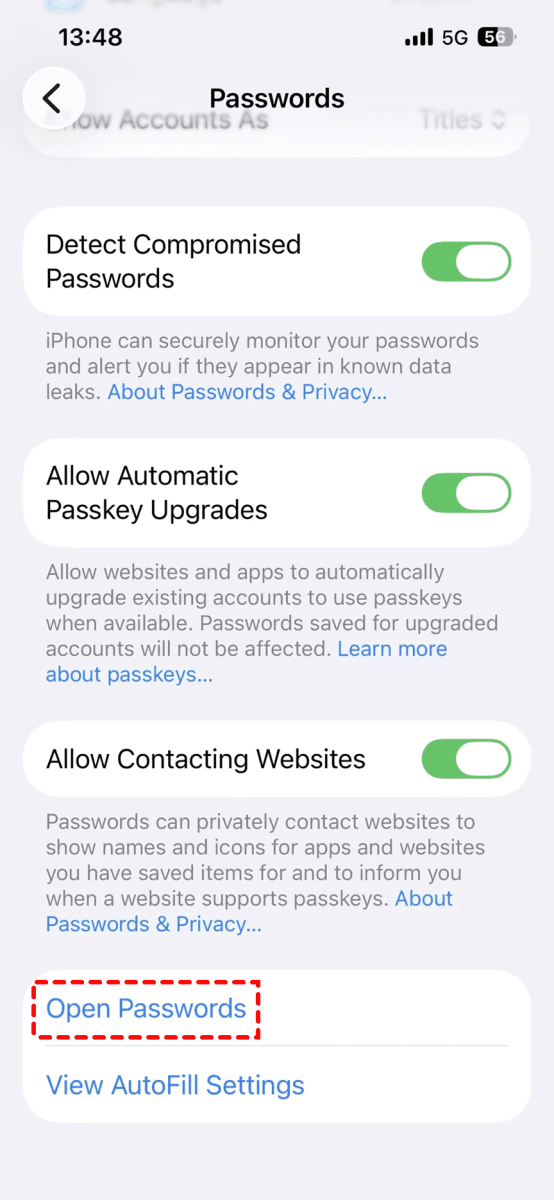
Step 3. Once inside, search keywords like “Apple”, “Apple TV”, streaming app names (Netflix, Disney+), or your email address to quickly locate relevant login credentials. Check the saved credential details.
Check Saved Passwords on Mac
This method is especially useful if you frequently sign in to Apple services or streaming apps on your Mac, as many credentials are synced automatically through iCloud Keychain.
Step 1. Click the Apple menu, then select System Preferences. In the sidebar, scroll down and click Passwords to access all saved login credentials.
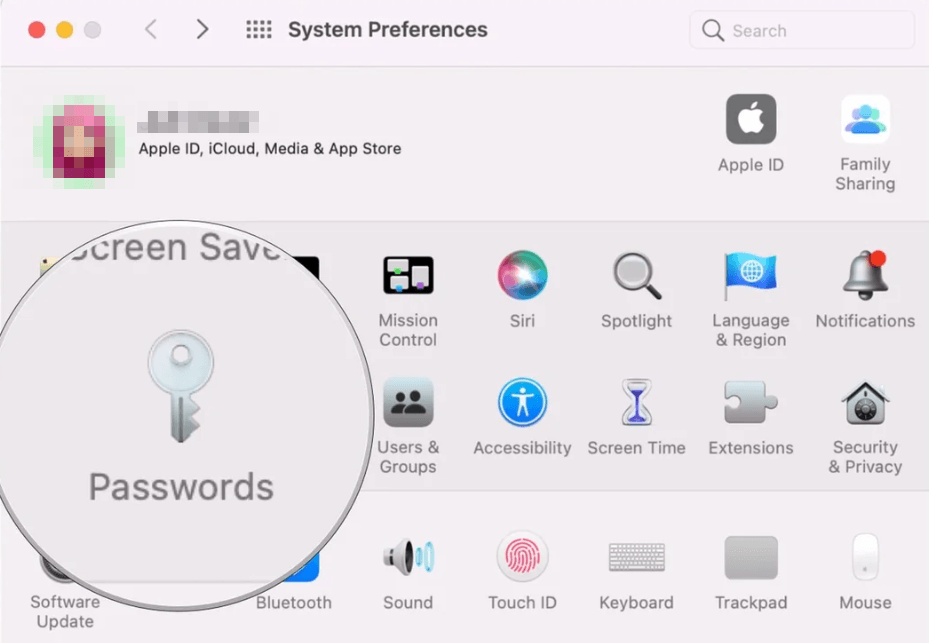
Step 2. Unlock Passwords using your Mac password, Touch ID (if available), or Apple Watch approval.
Step 3. Search your Apple ID or app logins, such as “Apple”, “Apple ID”, Apple TV-related services, or streaming apps like Netflix and Disney+.
Step 4. Check Safari saved passwords (if needed). Some login credentials may also be stored automatically there.
Still Can’t Find Your Apple TV Password? Try FoneTool Unlocker
If you’ve already checked your iPhone, iPad, Mac, but still can’t locate your Apple TV password, it may simply be buried in a long list of saved credentials. In this case, using a more friendly solution - FoneTool Unlocker can help you find it faster.
- Scan your iPhone or iPad for stored credentials and categorize them for easy and quick retrieval.
- View Apple ID, Wi-Fi, app logins, and website passwords in one place. No need to navigate through different entries.
- Especially helpful for managing multiple Apple IDs or many saved accounts.
- Remove screen passcode(4digit/6digit), Touch ID, Face ID, Apple ID, locked iCloud activation, and more when your device is locked.
Step 1. Download, install, and launch FoneTool Unlocker on your Windows PC. On the main interface, click Password Management.

Step 2. Click Start Scan to find Apple ID, email address, etc.
Step 3. For a smooth scan, connect your iPhone, unlock it, tap Trust This Computer, and confirm it's trusted in FoneTool Unlocker.
Step 4. Click Continue Scan and wait for the process to be complete.
Step 5. Click View Password when scan completed successfully.
Step 6. Click Web & App Passwords, Apple ID, or Email Account to find Apple TV password. Or directly search "Apple",“apple.com”, streaming app names like Netflix and Disney+, etc.
If you still can’t find Apple TV password, you can choose to Remove Apple ID to unlock your iOS device and regain access. But this may result in data loss. Back up your important data first.
How to Reset Your Apple TV Password If You Still Can’t Find It
If you still cannot find your Apple TV login, the next step is to reset your Apple ID password. This ensures you can regain access to Apple TV and all related Apple services securely.
Way 1: Reset Apple ID Password on iPhone or iPad
You can reset your Apple ID password directly from a trusted Apple device.
Step 1. Open Settings >tap your Apple ID name >select Sign In& Security.
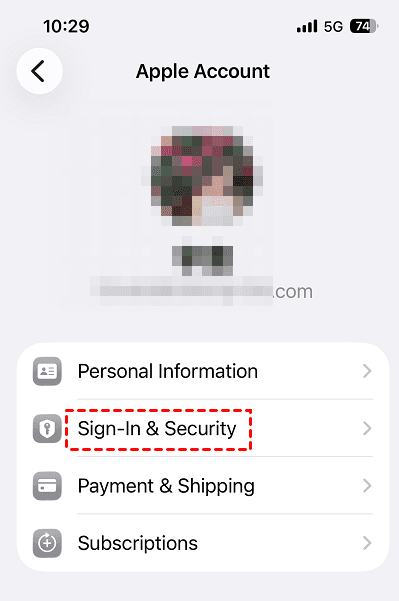
Step 2. Tap Change Password. Enter your device passcode when prompted.
Step 3. Enter a new password and confirm it. Tap Continue. Then, follow the on-screen instructions to continue the reset process.
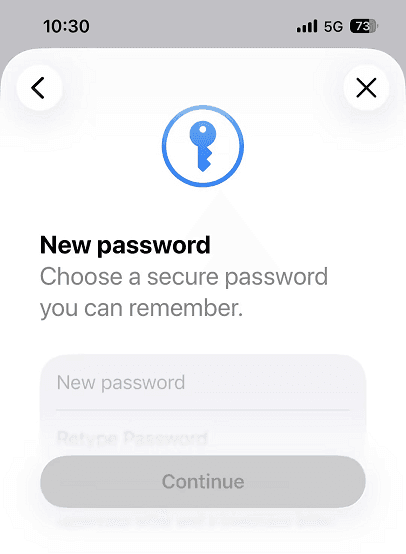
Way 2: Reset Apple ID Password through Account Recovery
If you don’t have access to a trusted device, you can reset your password online.
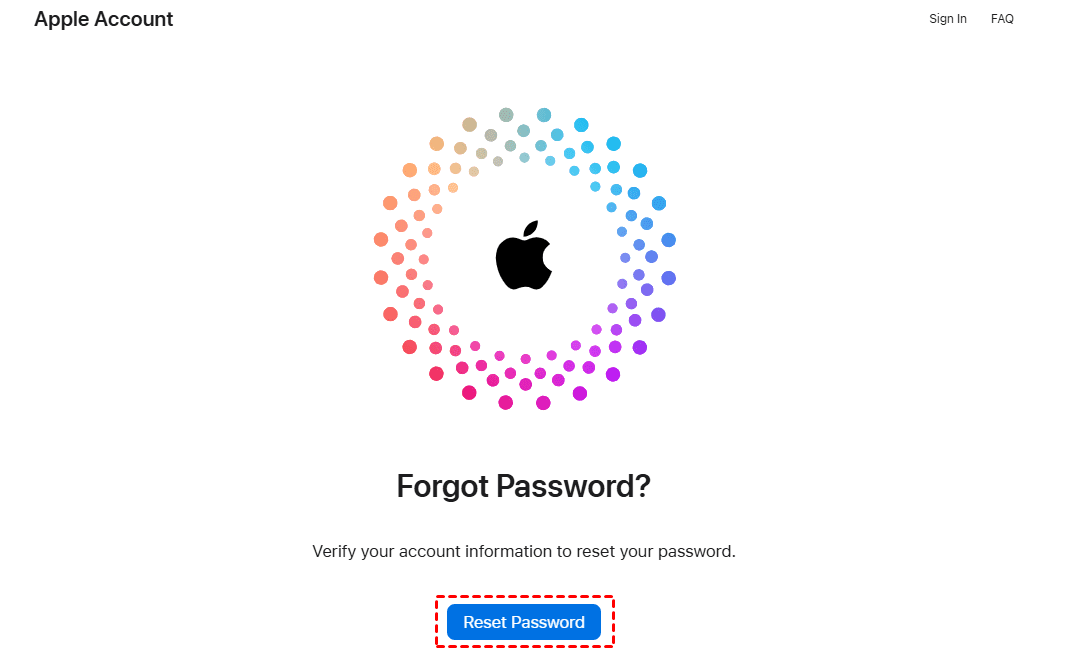
Step 1. Open the official Apple account recovery page (iforgot.apple.com) in your browser. Click Reset Password to start the recovery process.
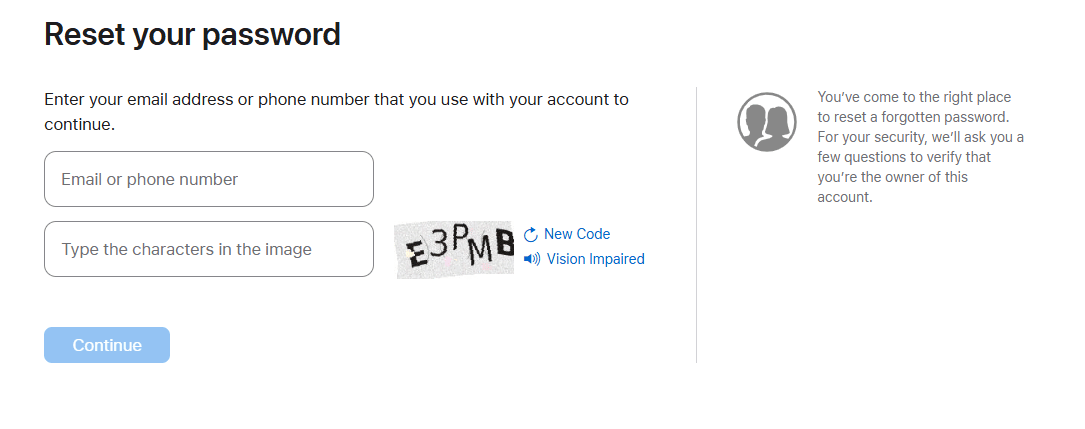
Step 2. Enter your Apple ID email or phone number associated with your Apple ID. Then, click Continue.
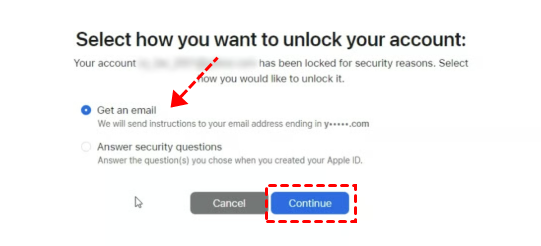
Step 3. Select a way to unlock your account and click Continue. Then, follow the on-screen instructions to recover your Apple TV password.
- Get an email - usually within 72 hours, confirming your request and allowing you to reset it after several days or longer.
- Answer security questions you chose when you created your Apple Account.
Way 3: Reset Password Directly on Apple TV
If you are already on the Apple TV login screen, you can reset your Apple ID password directly without using another device.
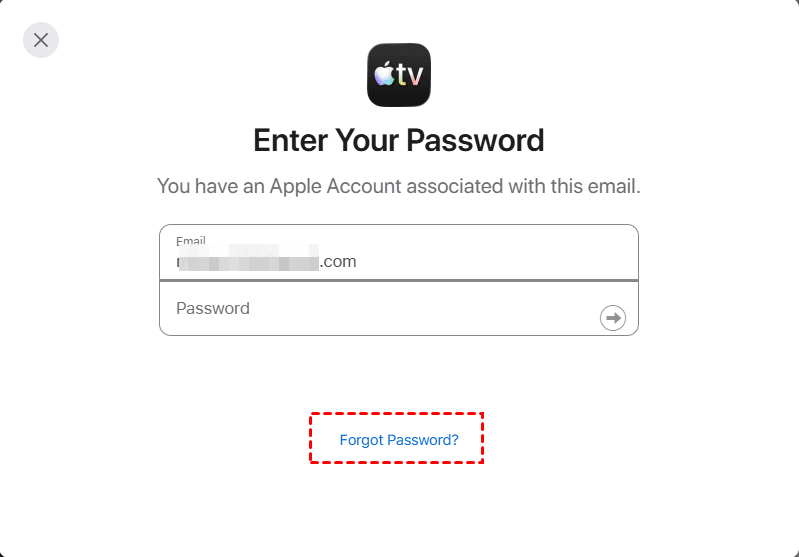
Step 1. Enter your email and click Continue on the Apple TV login screen. Then, select Forgot Password to start the account recovery process.
Step 2. Enter your email address or phone number and follow the instructions. You may be asked to use a trusted device or phone number for identity.
How to Find Streaming App Passwords on Apple TV
Many Apple TV sign-in issues are actually related to third-party streaming apps like Netflix, Disney+, Hulu, or Max. These passwords are separate from your Apple ID, so you’ll need to check or reset them individually.
Use QR Code or Mobile Login Options
Many Apple TV apps now support faster login methods that eliminate the need for typing passwords.
Step 1. Open the streaming app on Apple TV and select the QR code or mobile sign-in option.
Step 2. Scan the QR code using your phone.
Step 3. Confirm the login request on your mobile device to sign in instantly.
Reset Streaming App Passwords
If you cannot find saved credentials, resetting is usually the fastest solution. Open the official login page or app for Netflix, Disney+, Hulu, or the streaming service you use. Here take Netflix as an example.
Step 1. Navigate to your Netflix account. In the Membership and Billing section, click Change password.
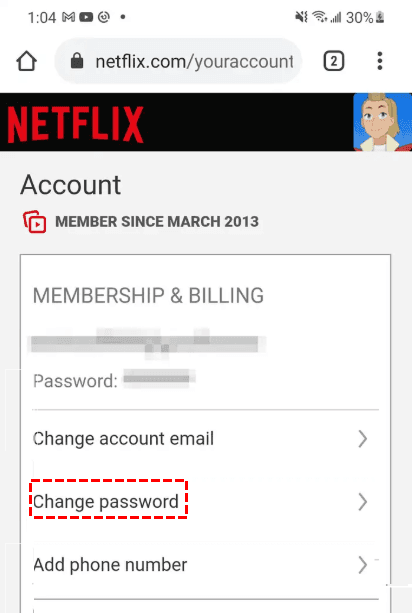
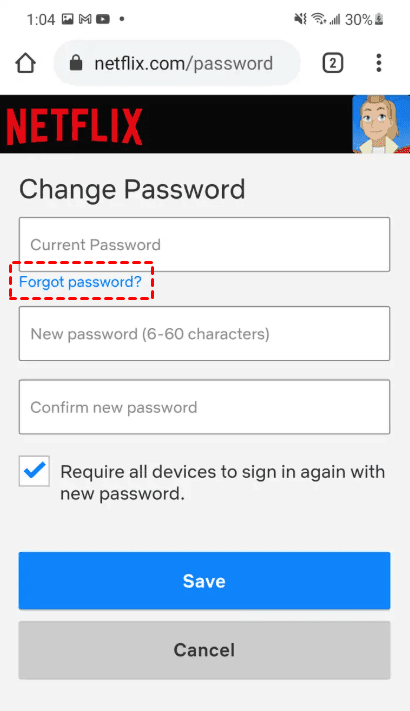
Step 2. On the Change password window, click Forgot Password. Then, enter a new password and confirm it.
How to Find or Reset Apple TV Passcode
If you can’t access your Apple TV because you forgot the passcode, it helps to know that this code is different from your Apple ID password. The Apple TV passcode is used for Screen Time, restrictions, and parental controls, not for signing into your account. Since it is rarely used, many users forget it after setup. In this section, we’ll show you where to check passcode settings and how to reset it if needed.
Check Screen Time Settings
The Apple TV passcode is a device-level security code used for restrictions, not your Apple ID password. You can find the 4-digit/6-digit Apple TV passcode or restriction PIN in settings.
Step 1. From the Apple TV home screen, click the Apple menu and System Settings.
Step 2. Navigate to Screen Time directly. On older tvOS versions, you may need to go to Settings > General >Restrictions.
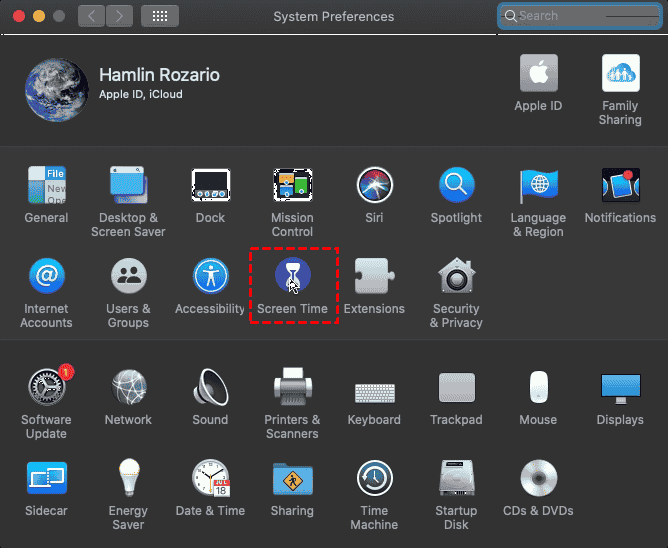
Step 3. Click Screen Time to view Apple TV passcode (4-digit or 6-digit) or restriction PIN.
Reset Forgotten Passcode on Apple TV
If you cannot remember your Apple TV passcode, Apple requires identity verification to reset it.
Step 1. Go to Apple menu > System Settings >Screen Time and select the option to change or turn off the passcode.
Step 2. Click Forgot Passcode? (if available) to start recovery.
Step 3. Enter the Apple ID and password used to set up Screen Time on the device.
Step 4. Verify your identity using a trusted iPhone or iPad, SMS verification code, or Apple ID security prompts.
Step 5. Reset the passcode or device if recovery fails. Just follow the prompts and set it up again to remove the passcode.
Conclusion
How to find my Apple TV passwords? You can find most passwords quickly using your iPhone, iPad, or Mac, since Apple automatically saves and syncs many login credentials across devices. If the password is not available, Apple also provides official reset options through trusted devices or account recovery methods to regain access safely.
For long-term convenience, it’s important to prevent future password issues. Enabling iCloud Keychain ensures your passwords are automatically stored and synced across all Apple devices, while using a password manager helps keep Apple and streaming account logins organized in one place. Tools like FoneTool Unlocker can also help users quickly locate stored credentials when needed, especially when dealing with multiple accounts.
Finally, keeping your recovery information updated, such as your trusted phone number and email address, makes it much easier to recover your Apple ID in the future and helps prevent being locked out during password resets.
FoneTool Unlocker - 1-Click iPhone Unlock Software
Easily unlock all passcodes and restrictions on your iPhone, iPad, and iPod Touch.
-
 iOS 27 Compatible
 iPhone 17 Supported
100% Secure

Ivey is passionate about teaching users how to easily protect mobile device data. With the FoneTool series of iPhone management, unlocking, and repair software, even beginners can perform data backup, iPhone unlocking, and troubleshooting like a pro.
Read author info >>



 as a preferred
source on Google
as a preferred
source on Google