How to Find Network Security Key for iPhone Hotspot (3 Ways)
Can't find the network security key for your iPhone hotspot? This page shows you 3 effective methods – plus recommends the best password management tool for iOS.


When You Need Your iPhone Hotspot Security Key
For most iPhone users, the network security key for a Personal Hotspot is simply the hotspot password that protects your connection from unauthorized access. While you may not need it every day, there are several situations where knowing your iPhone hotspot security key becomes essential.
- Connecting a new device – Laptop, tablet, console, or another phone requires the key to access your hotspot.
- Sharing internet with others – Friends, family, or coworkers need the password to join.
- Reconnecting after a password change – Previously connected devices must re-enter the new key.
- Troubleshooting connection issues – A typo or incorrect key is a common cause of authentication failures.
🌟 To check more scenarios about seeing Wi-Fi password on iPhone, please refer to this complete guide: How to See Wi-Fi Password on iPhone.
How to Find Network Security Key for an iPhone Hotspot
If you need to know where to find network security key on iPhone, check the following three methods.
Method 1: Find iPhone Network Security Key Through Settings
The network security key for an iPhone hotspot is the Wi-Fi password listed directly in your Settings. Follow the steps below to find it:
1. Open the Settings app on your iPhone. Tap Personal Hotspot.
2. Locate the Wi-Fi Password option. The password displayed on this screen is your iPhone hotspot's network security key.
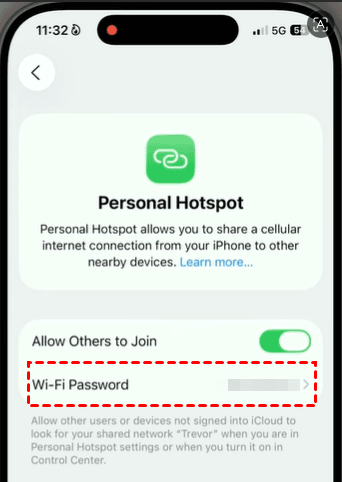
3. (Optional) Tap the password field to change it if it is too difficult to type.
Method 2: Find Hotspot Network Security Key via a Connected Mac
If you have connected your Mac to the iPhone hotspot, you can follow the steps below to find hotspot network security key for iPhone:
👉 Using Keychain Access (All macOS Versions):
1. On your Mac, press Command + Space to open Spotlight Search. Then type Keychain Access and press Enter to launch the Keychain Access application.
2. Search for your iPhone hotspot name (usually your iPhone's name). Double-click the matching network entry.
3. In the network details window, check Show Password.
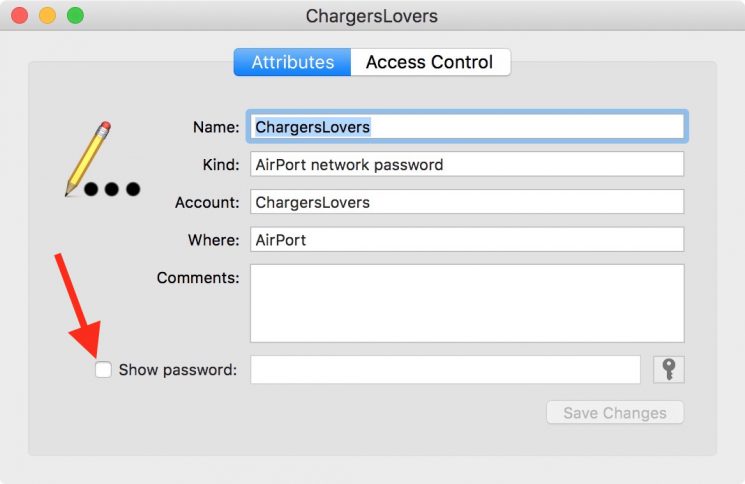
4. Enter your Mac administrator password when prompted.
👉 Via System Settings (Ventura and Newer):
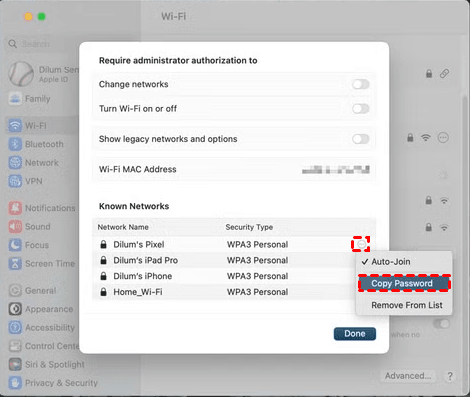
1. Open the Apple menu and select System Settings.
2. Select Wi-Fi on the sidebar and click on the Advanced button at the bottom of the right pane.
3. Under the Known Networks section, select the More (three dots) icon next to your iPhone hotspot network name.
4. Select Copy Password to copy the password to your Mac's clipboard.
Method 3: Find Hotspot Network Security Key on a Connected Windows PC
If you have connected your Windows PC to the iPhone hotspot, you can follow the steps below to find hotspot network security key for iPhone:
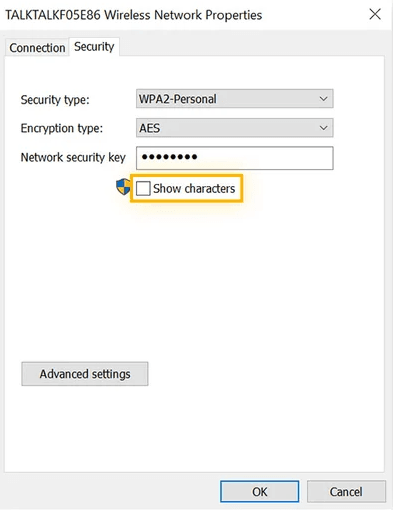
1. In the Windows Start menu, type Network Connections and open it.
2. Double-click your iPhone hotspot network name, then select Wireless Properties in the pop-up dialog.
3. Click the Security tab, then check the box next to Show Characters.
Bonus: Best Password Management Tool for iOS Devices
While Apple's built-in tools make it easy to view saved passwords and hotspot credentials, they may not always provide a complete solution, especially when you need to manage, recover, or export passwords from an iPhone or iPad. In such cases, you’ll need a dedicated password management tool - FoneTool Unlocker.
- Key Features:
- ⭐Recover Lost Credentials – Never lose access to Wi-Fi passwords or app logins again. Extract and view everything stored on your iOS device.
- ⭐Unlock Your Screen – Forgot your passcode? No problem. Remove 4-digit/6-digit codes, Touch ID, or Face ID from any iPhone, iPad, or iPod.
- ⭐Regain Apple ID Access – Unlink your device from a forgotten Apple ID safely and securely.
- ⭐Reset Screen Time – Parents, forget the restrictions password? Bypass Screen Time passcodes easily.
- ⭐Defeat iCloud Lock – Remove Activation Lock on second-hand or locked devices and start fresh.
Follow the instructions below to check various passwords saved on iPhone using FoneTool Unlocker:
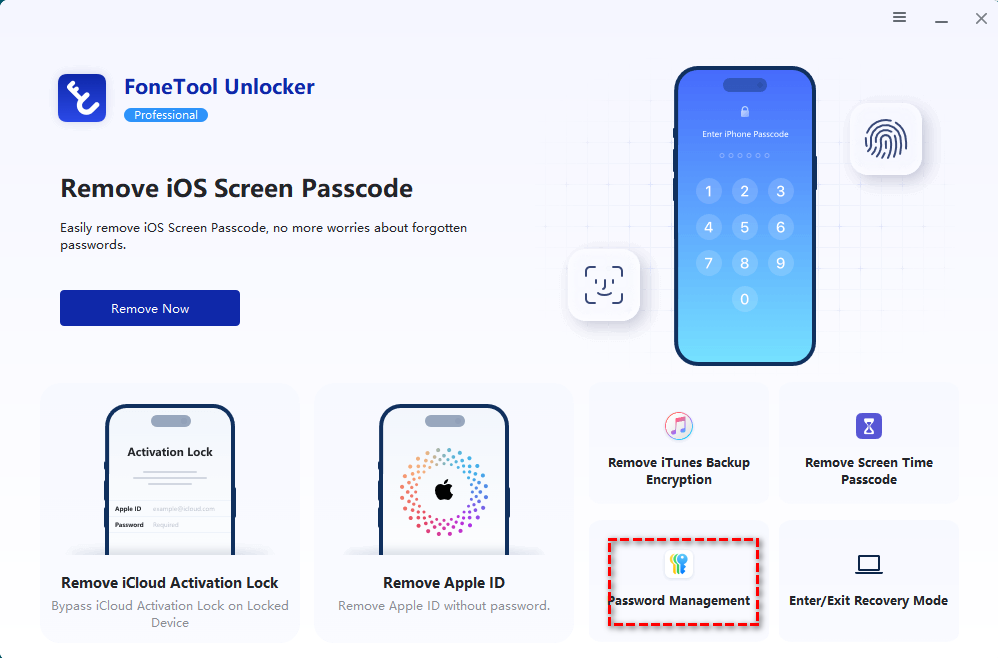
1. Download, install, and launch FoneTool Unlocker on your Windows PC. On the main interface, click Password Management in the bottom-right corner.
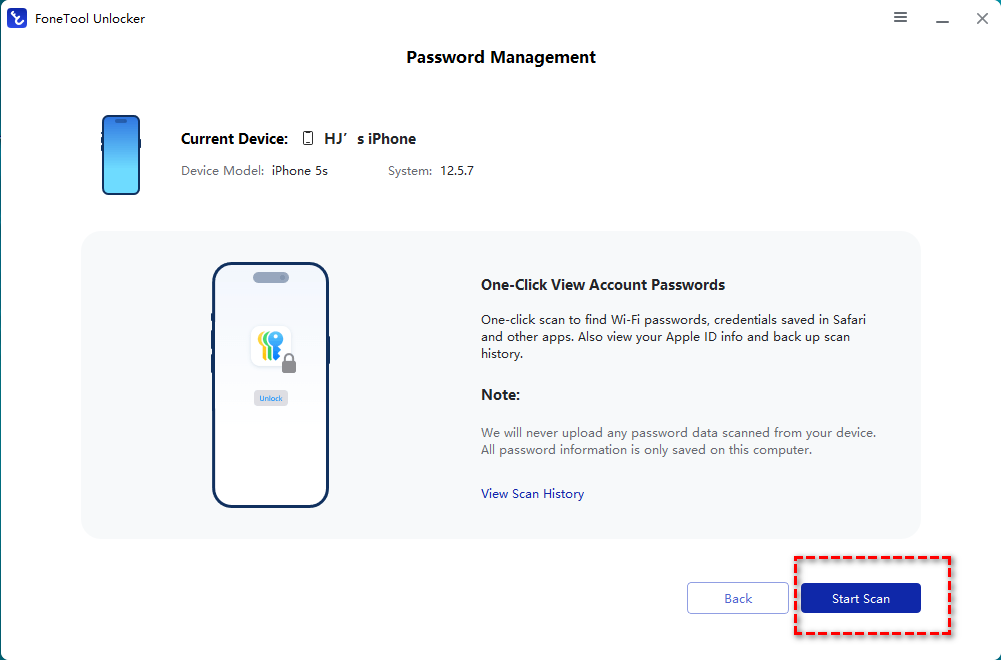
2. In the next window, click Start Scan.
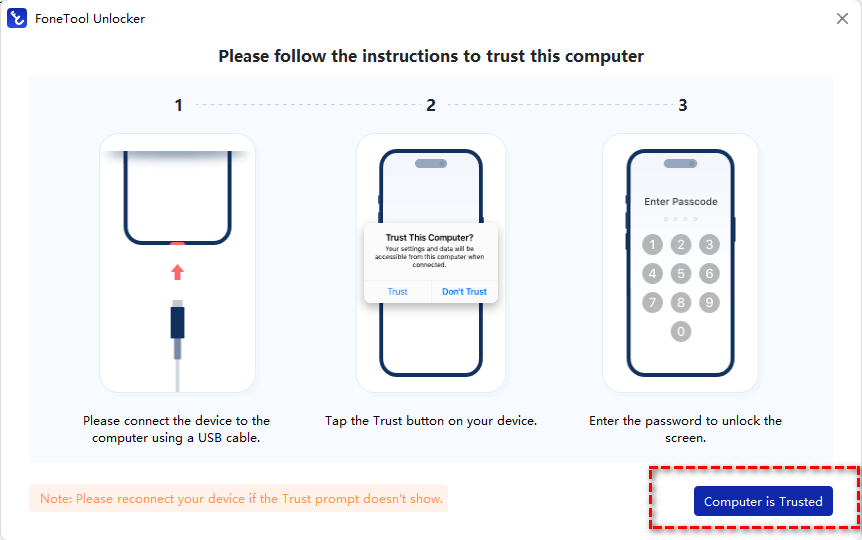
3. Connect your iPhone to the computer using a USB cable, then unlock your iPhone and tap Trust This Computer on your iPhone.
4. Return to FoneTool Unlocker and select Computer is Trusted.
5. Click Continue Scan to start the scanning process. The time this takes depends on how many passwords are saved on your device and usually only lasts a few minutes.
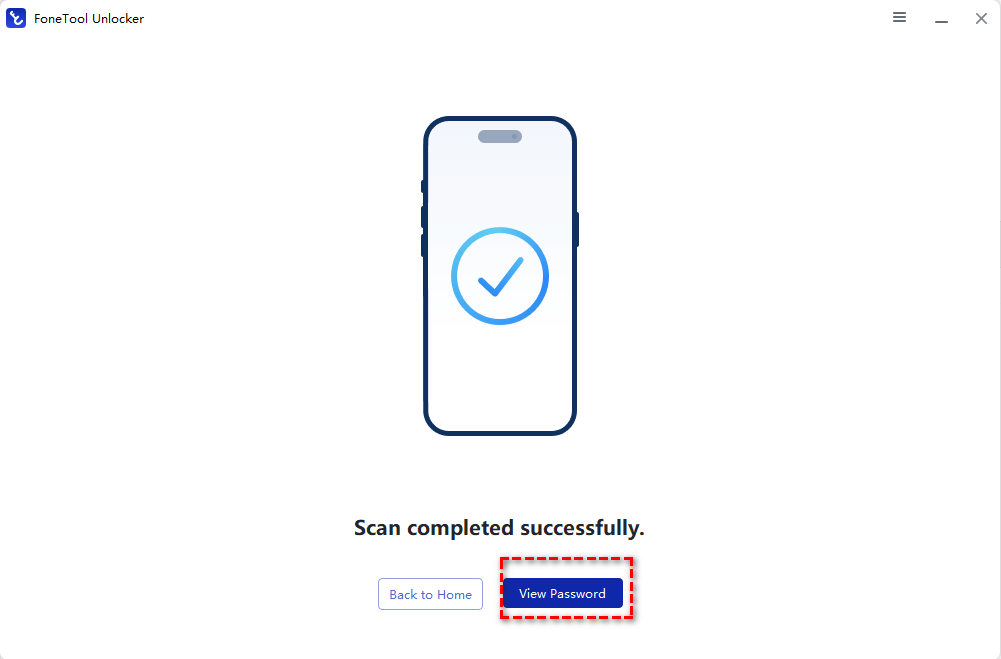
6. After the scan finishes, select View Password to find the password you need.
FAQs about iPhone Network Security Keys
1. What is the network security key for an iPhone hotspot?
The network security key for an iPhone hotspot is the same as the Personal Hotspot Wi-Fi password. Any device that wants to connect to your iPhone's hotspot must enter this password to access the internet through your cellular connection.
2. Is the iPhone hotspot password the same as the Wi-Fi password of my home network?
No. Your iPhone hotspot password is separate from your home Wi-Fi password. It only applies to your iPhone's Personal Hotspot and can be changed independently.
3. Why can't my device connect even with the correct network security key?
Several factors may prevent a connection, including:
- Personal Hotspot being disabled.
- Weak cellular signal or no mobile data.
- Outdated network settings on the connecting device.
- Temporary software glitches on the iPhone or client device.
Try restarting both devices and reconnecting to the hotspot.
4. Does changing my iPhone hotspot password disconnect connected devices?
Yes. Once you change the hotspot password, all currently connected devices will be disconnected and must reconnect using the new network security key.
To Sum Up
Now you know how to find network security key for iPhone hotspot. The most reliable option is to check the Personal Hotspot > Wi-Fi Password section directly on the iPhone. If you’ve already connected devices like a Mac or Windows PC, you may also be able to retrieve the saved password from system settings or network tools.
If you want to manage passwords more efficiently, you can rely on FoneTool Unlocker. It enables you to extract and view various sensitive information stored on the iOS device. You can also use it to unlock iPad without passcode. Try it now to discover more!
FoneTool Unlocker - 1-Click iPhone Unlock Software
Easily unlock all passcodes and restrictions on your iPhone, iPad, and iPod Touch.
-
 iOS 27 Compatible
 iPhone 17 Supported
100% Secure

Lily Green is dedicated to helping users protect their valuable mobile data and addressing issues that arise on mobile devices. She consistently stays vigilant about the latest trends in technology, guaranteeing that the given information aligns with the ongoing advancements in the field.
Read author info >>



 as a preferred
source on Google
as a preferred
source on Google