Forgot Wi-Fi Password on iPhone? Here's How to Retrieve It
Forgot your Wi-Fi password on your iPhone? Don't panic. Learn 4 ways to retrieve it – plus how to reset it if all else fails.


Before Finding Your Wi-Fi Password
If you've forgotten your Wi-Fi password on your iPhone, don't worry—Apple provides several ways to view or recover saved network credentials. However, before you start, it's important to verify a few requirements to ensure the process goes smoothly.
- Check iOS version – Direct viewing requires iOS 16 or later. Older versions need iCloud Keychain on a Mac or router access.
- Prepare authentication – Face ID, Touch ID, or passcode is required for security.
- Confirm network is saved – The password is only available if your iPhone has connected to the network before.
🌟 To check more scenarios about seeing Wi-Fi password on iPhone, please refer to this complete guide: How to See Wi-Fi Password on iPhone.
What Can I Do If I Forgot Wi-Fi Password on iPhone?
If you forget Wi-Fi password on iPhone, try the following ways to retrieve your Wi-Fi password.
Option 1: Check Wi-Fi Password with FoneTool Unlocker (all iOS)
FoneTool Unlocker is a dedicated iOS password management tool that can help you check various sensitive information stored on the device, including saved Wi-Fi passwords, Safari browser and various App account passwords, as well as the Apple ID information currently logged in on the device.
- Key Features:
- ⭐Easily manage and recover key credentials on iOS devices, eliminating the worry of forgotten passwords.
- ⭐Remove all types of screen locks, including 4-digit and 6-digit passcodes, Touch ID, Face ID, and custom alphanumeric codes.
- ⭐Securely delete an Apple ID without a password to unlink your device from a forgotten account.
- ⭐Unlock your Screen Time passcode without any data loss.
- ⭐Fully compatible with all iOS versions and all iPhone models, including the latest releases.
Follow the steps below to check a forgotten Wi-Fi password from a Windows PC:
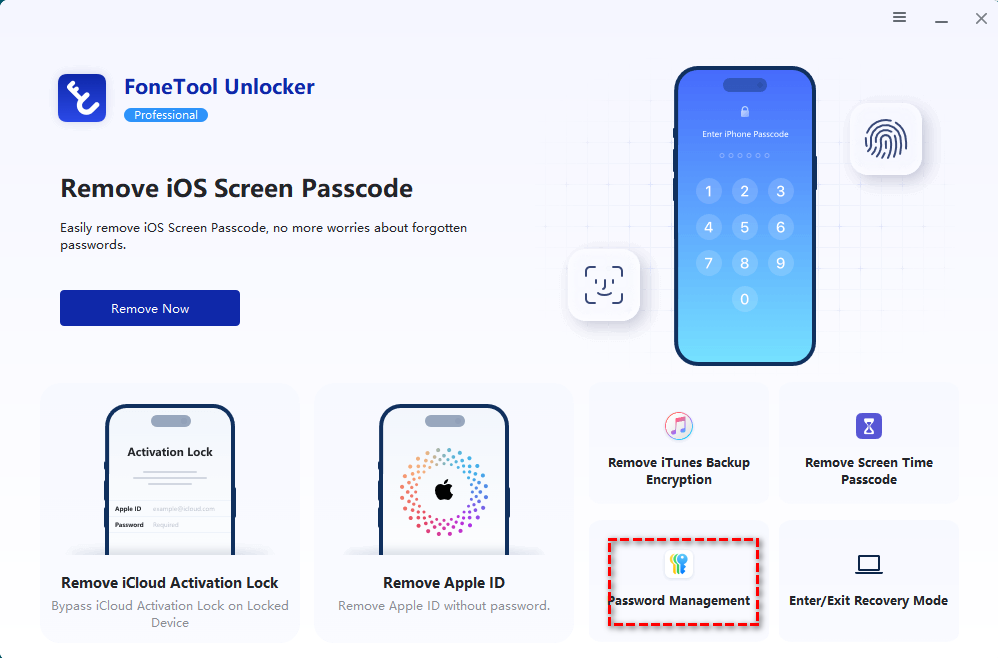
1. Download, install, and launch FoneTool Unlocker on your Windows PC. On the main interface, click Password Management in the bottom-right corner.
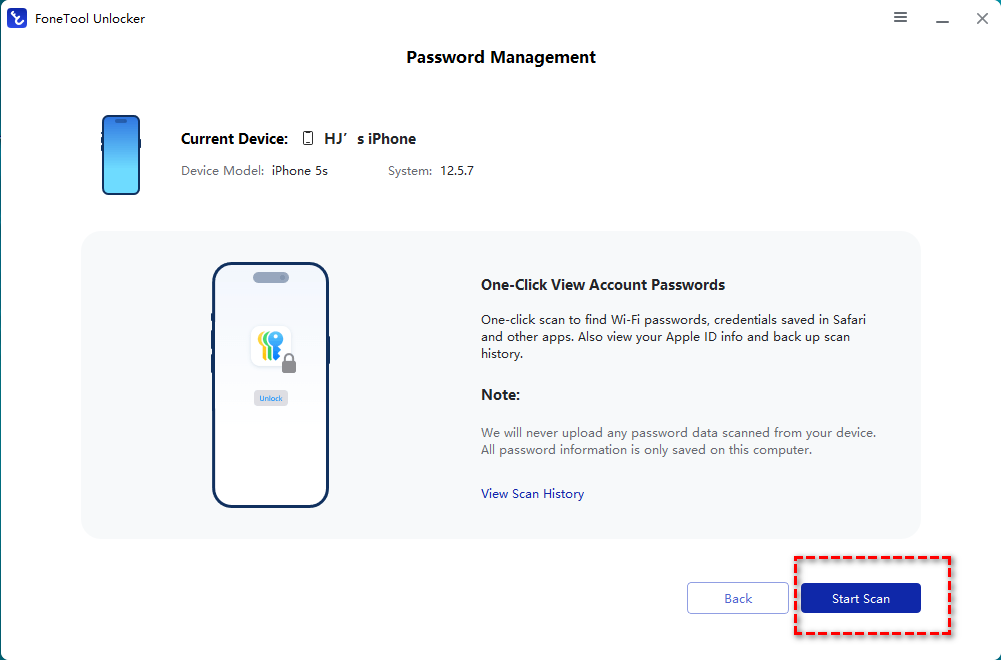
2. In the next window, click the Start Scan button.
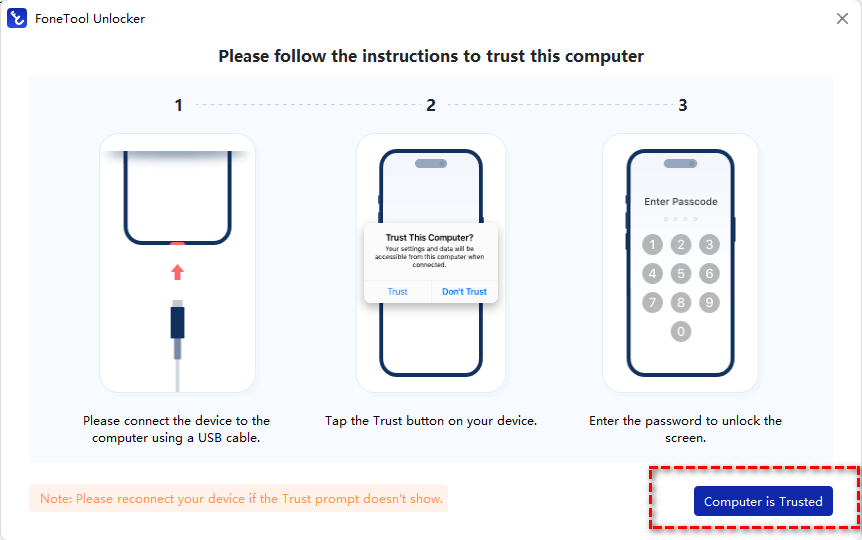
3. Connect your iPhone to the computer using a USB cable, then tap Trust This Computer on your iPhone. Return to FoneTool Unlocker and select Computer is Trusted.
4. Click Continue Scan to begin the scanning process. The time required depends on the number of passwords saved on your device and typically takes just a few minutes.
5. Once the scan is complete, select View Password.
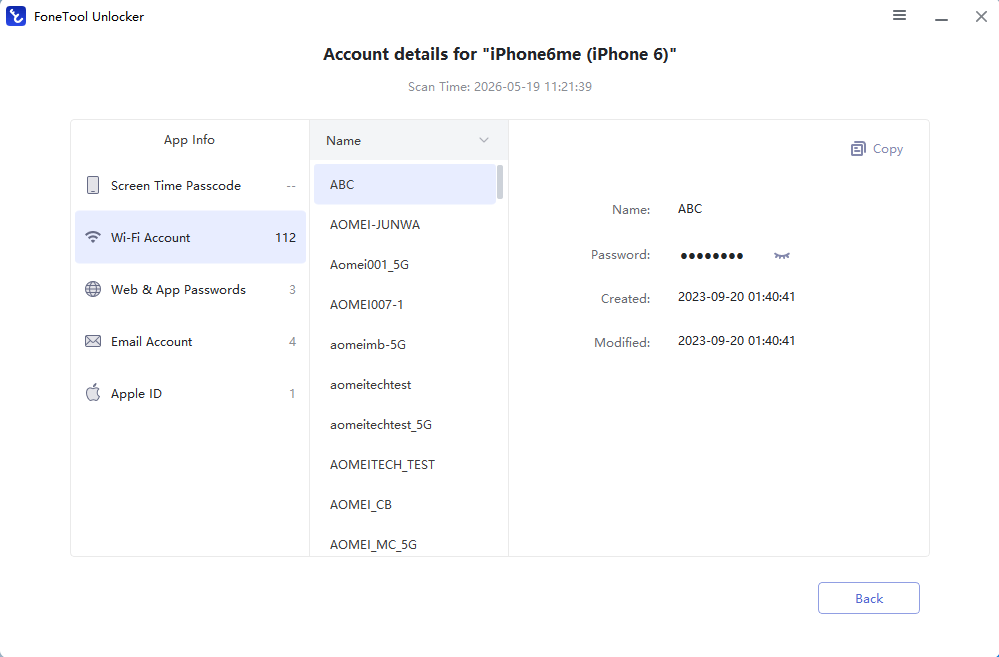
6. Go to Wi-Fi Account and locate the Wi-Fi password you need.
Option 2: Find Wi-Fi Password Using the Passwords App (iOS 18+)
If you're running iOS 18 or later, Apple provides an even more streamlined way to manage and retrieve saved credentials through the built-in Passwords app. Learn how to use iPhone to retrieve Wi-Fi password below:
1. Open the Passwords app on your iPhone. Authenticate using Face ID, Touch ID, or your device passcode.
2. Tap Wi-Fi or use the search bar to find your network name.
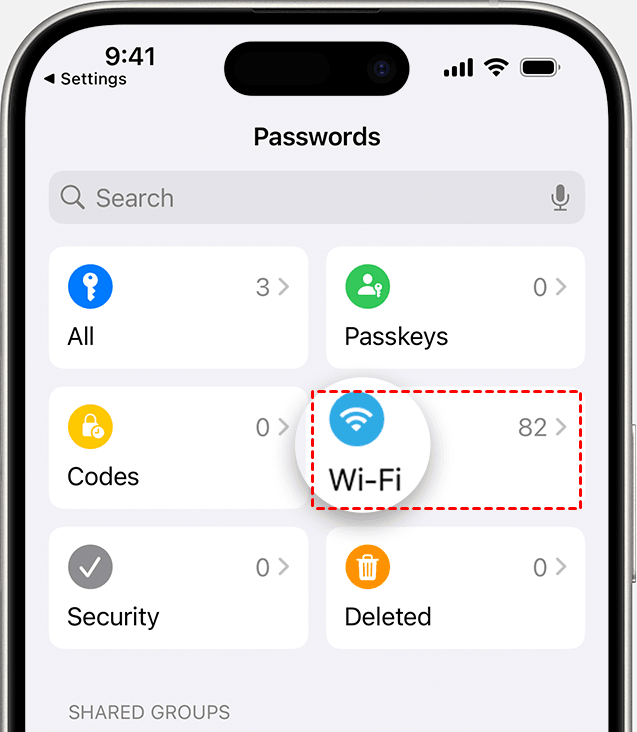
3. Select the desired Wi-Fi network. Tap Password to reveal the saved credentials.
4. Once revealed, you can copy the password or share it with another device when needed.
Option 3: View Wi-Fi Password from Wi-Fi Settings (iOS 16+)
If your iPhone is running iOS 16 or later, the easiest way to recover a forgotten Wi-Fi password is directly through the Wi-Fi settings. Here’s how to find old Wi-Fi password on iPhone from Wi-Fi Settings:
1. Go to your iPhone’s Settings app. Then tab Wi-Fi > Edit.
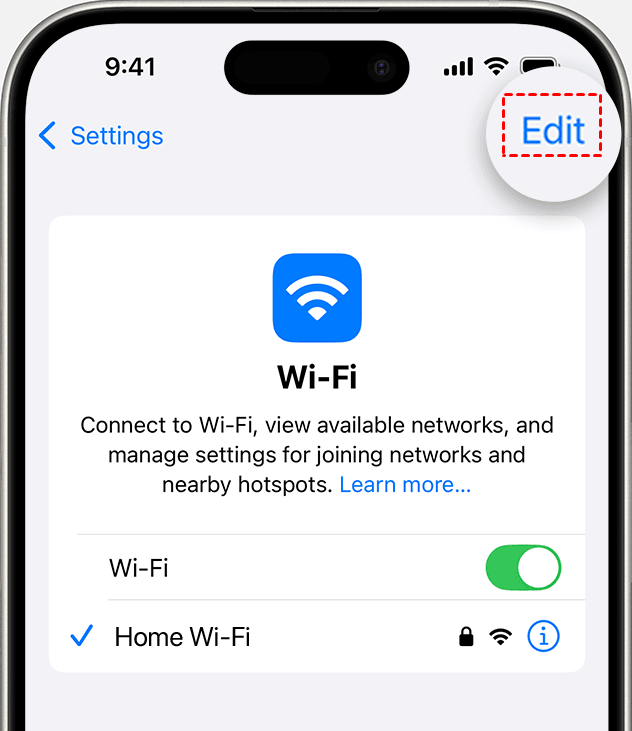
2. Use your passcode, Face ID, or Touch ID to unlock and reveal networks that your device previously joined.
3. Tap the information (i) icon next to the network you want to connect or share.
4. Tap the Password field to reveal it.
Option 4: See Wi-Fi Password via iCloud Keychain (before iOS 16)
If you forgot your Wi-Fi password on iPhone and your device is running an iOS version earlier than 16, you won’t be able to view saved Wi-Fi passwords directly in Settings. However, you can still recover them using iCloud Keychain, Apple’s secure password synchronization system.
✅ Requirements for This Method
- iCloud Keychain must be enabled on both devices.
- Your Mac and iPhone must use the same Apple ID.
- The Wi-Fi network must have been previously saved.
- You must have administrator access on the Mac device.
Now follow the instructions below:
1. On your Mac, press Command + Space to open Spotlight Search. Then type Keychain Access and press Enter to launch the Keychain Access application.
2. In the search bar, type the name of your Wi-Fi network. Double-click the network entry in the results.
3. In the network details window, check the box labeled Show password.
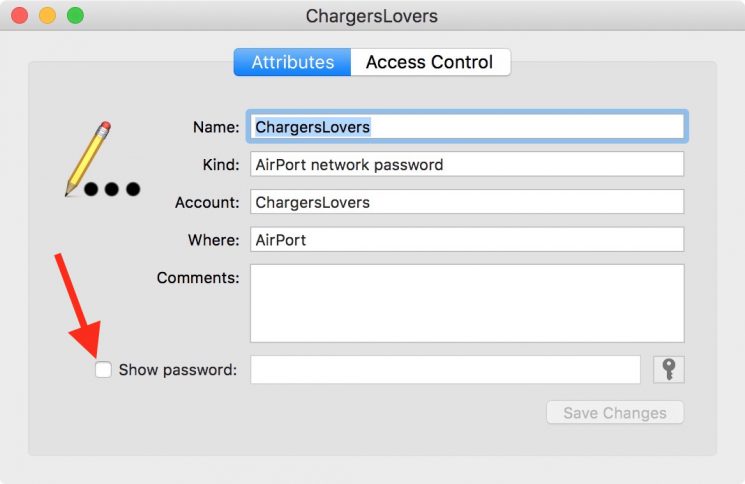
4. Enter your Mac administrator username and password. The Wi-Fi password will be displayed.
Bonus: How to Reset a Wi-Fi Password If You Own the Router
If you forgot your Wi-Fi password on iPhone and cannot recover it using device settings or iCloud Keychain, the most direct solution is to reset or change the password through your router. This option is especially useful if you are the network owner and need to regain full control of your Wi-Fi settings. Follow the steps below to reset a Wi-Fi password:
1. Connect a device to the network (or use an Ethernet cable if available) and open a web browser. Then:
- Enter your router’s IP address (commonly something like 192.168.0.1 or 192.168.1.1).
- Log in using your admin username and password.
2. Once logged in, navigate to the section labeled Wireless Settings, Wi-Fi Settings, or Network Settings. The exact name may vary depending on your router brand.
3. Find the field labeled Wi-Fi Password, Wireless Key, or Security Key, then enter a new, strong password.
4. Save or apply the changes. Wait for the router to restart if required.
5. After updating the password, you’ll need to reconnect all devices.
Tips to Avoid Forgetting Wi-Fi Password on iPhone Again
To avoid running into the same problem again and make future network access much easier, you can develop a few simple habits:
🌟 Enable iCloud Keychain for Automatic Sync
One of the most effective ways to prevent losing Wi-Fi passwords is to turn on iCloud Keychain. This feature securely stores your Wi-Fi credentials and syncs them across all Apple devices using the same Apple ID. To enable it:
- Go to Settings > [your name] > iCloud
- Tap Passwords & Keychain
- Turn on Sync this iPhone
🌟 Save Passwords in a Secure Password Manager
Instead of relying on memory or random notes, use a trusted password manager. These apps store Wi-Fi passwords along with other login details in an encrypted vault. This ensures you can retrieve them anytime, even if you switch devices.
🌟 Label Your Router Information
If you manage your own network, avoid relying solely on the default sticker on your router. Instead:
- Write down your Wi-Fi name (SSID) and password in a secure place
- Store it in a home network document or secure digital note
- Keep it updated whenever you change your password
🌟 Use Apple’s Wi-Fi Sharing Feature
When friends or family need access, use Apple’s built-in Wi-Fi Password Sharing instead of telling them the password manually. This reduces the risk of forgetting or exposing your credentials.
Conclusion
If you forgot Wi-Fi password on iPhone, you can choose a way to retrieve your Wi-Fi password depending on your iOS version.
- With iOS 18, Apple introduced a dedicated Passwords app for centralized access.
- On iOS 16 and later, you can view a Wi-Fi password directly in Settings.
- For older iOS versions or more advanced needs, you can use iCloud Keychain in conjunction with a Mac.
If you're already managing your iPhone from a PC, you can use FoneTool Unlocker to easily view your iPhone Wi-Fi password on PC. What’s more, FoneTool Unlocker allows you to remove Screen Time passcode without Apple ID. Why not give it a shot?
FoneTool Unlocker - 1-Click iPhone Unlock Software
Easily unlock all passcodes and restrictions on your iPhone, iPad, and iPod Touch.
-
 iOS 27 Compatible
 iPhone 17 Supported
100% Secure

Lily Green is dedicated to helping users protect their valuable mobile data and addressing issues that arise on mobile devices. She consistently stays vigilant about the latest trends in technology, guaranteeing that the given information aligns with the ongoing advancements in the field.
Read author info >>



 as a preferred
source on Google
as a preferred
source on Google