Guide: How to Find Wi-Fi Password on iPhone Without Jailbreak
Need to find a Wi-Fi password on your iPhone but don't want to jailbreak? Learn how using built-in iOS features, router settings, and a secure password manager – no hacks required.


Is Jailbreaking Necessary to Access Wi-Fi Passwords?
For many years, users had to rely on jailbreaking to access saved Wi-Fi passwords on an iPhone because iOS did not provide a built-in way to view them. The good news is that jailbreaking is no longer necessary to access Wi-Fi passwords on most modern iPhones. Choosing a non-jailbreak method offers several advantages:
- Maintains your iPhone's security and privacy protections.
- Prevents compatibility issues with future iOS updates.
- Avoids the risk of malware and unauthorized access.
- Keeps your device stable and supported by Apple.
🌟 To check more scenarios about seeing Wi-Fi password on iPhone, please refer to this complete guide: How to See Wi-Fi Password on iPhone.
4 Ways to Find Wi-Fi Password on iPhone Without Jailbreak
In this part, you’ll learn how to see Wi-Fi password on iPhone without jailbreak using four effective methods. Check them one by one.
Solution 1: Find Wi-Fi Password on iPhone Using Wi-Fi Settings (iOS 16+)
If your iPhone is running iOS 16 or later, Apple makes it easy to view the password of a saved Wi-Fi network directly from the Settings app. Learn how to check iPhone Wi-Fi password in detail below:
1. Open the Settings app on your iPhone. Tap Wi-Fi.
2. Find the Wi-Fi network you're currently connected to and tap the Info (i) button next to it.
3. Tap the Password field and authenticate using Face ID, Touch ID, or your device passcode. The Wi-Fi password will be revealed on the screen.
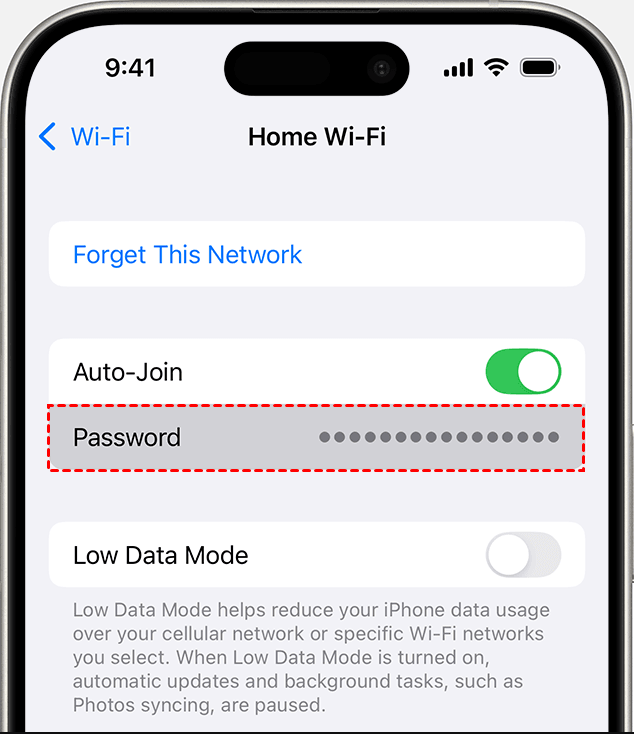
4. (Optional) You can tap Copy to save the password and share it if needed.
Solution 2: Check Wi-Fi Password Through the Passwords App (iOS 18+)
With iOS 18 and later, Apple introduced the dedicated Passwords app, making it even easier to manage saved credentials, including Wi-Fi network passwords. Here’s how to use it:
1. Open the Passwords app on your iPhone. Authenticate using Face ID, Touch ID, or your device passcode.
2. Tap Wi-Fi from the available categories.
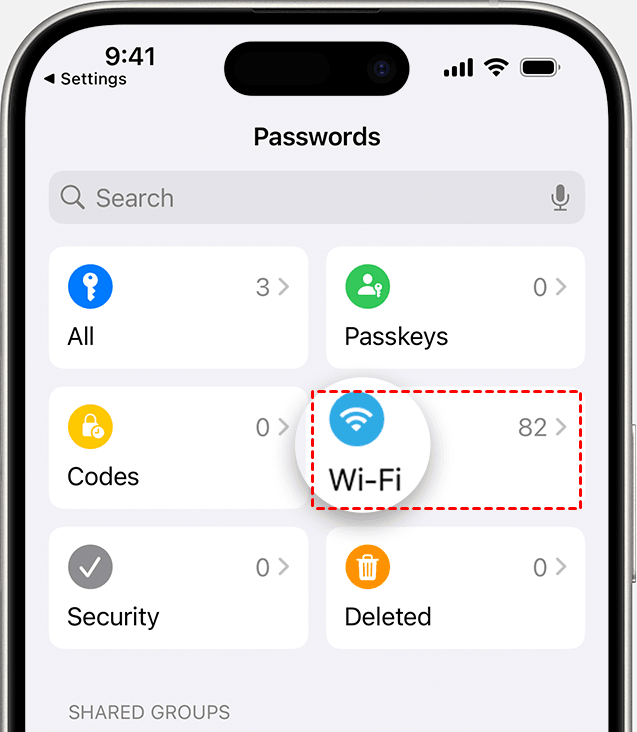
3. Browse the list of saved Wi-Fi networks or use the search bar to find a specific network.
4. Select the network you want to view. Tap the password field if necessary to reveal the saved Wi-Fi password.
Solution 3: See Wi-Fi Password on iPhone in Router Settings
If you can’t view the Wi-Fi password directly on your iPhone, another reliable method is to check it through your router settings. This approach works on any iPhone model and does not require jailbreaking. Learn how to find Wi-Fi password on iPhone step by step below:
1. Navigate to the Settings > Wi-Fi on your iPhone.
2. Tap the (i) icon next to your connected network to check the detailed Wi-Fi information.
3. Scroll down to find Router. Long-press on the IP address next to the router to copy it.
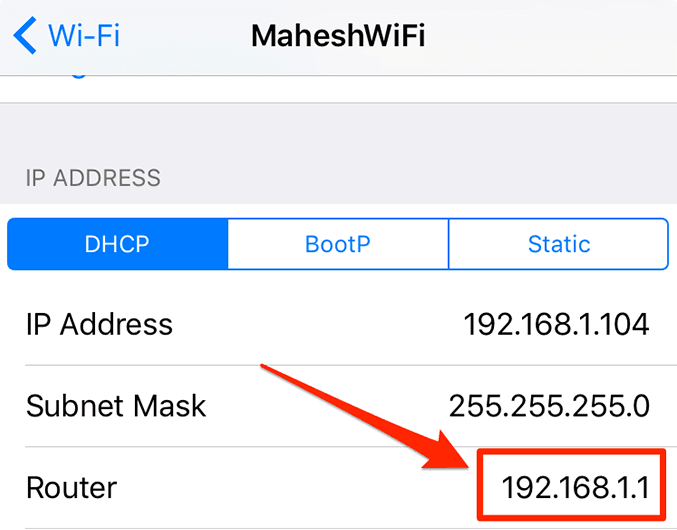
4. Open Safari or another browser on your iPhone and paste the IP address.
5. Sign in using your router admin username and password (often found on the router label or provided by your ISP)
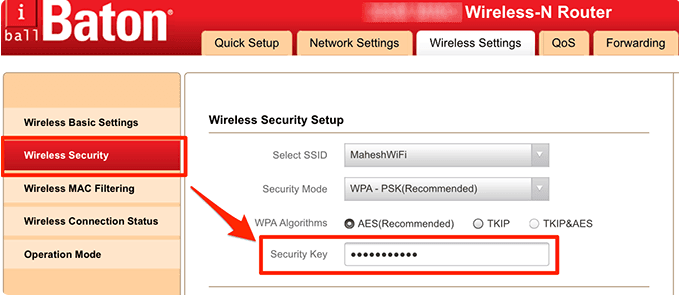
6. Once you’re logged in, find the option that says Wireless Settings and tap on it. This option may be called something else in your router, like Wi-Fi Settings or Security Settings.
7. On the wireless settings page, tap on the option that says Wireless Security. Then find an entry saying Security Key. Tap on this field to reveal the password for your Wi-Fi network.
Solution 4: Check Wi-Fi Password on PC with FoneTool Unlocker
If you want an all-around iOS password management tool, FoneTool Unlocker comes to help. It allows you to scan your iPhone and view saved Wi-Fi passwords on a Windows PC without jailbreaking your device.
- Key Features:
- ⭐Deep scanning of connected iOS devices– Works with all models of iPhones and iPads via computer software.
- ⭐Extraction & viewing of various saved passwords – Recovers and displays Wi-Fi credentials, account passwords from Safari and other apps.
- ⭐Display of Apple ID information – Reveals the Apple ID credentials active on the connected iOS device.
- ⭐Easy-to-use interface suitable for beginners – Designed for simple navigation and operation without technical expertise.
Follow the instructions below to check Wi-Fi password on your computer:
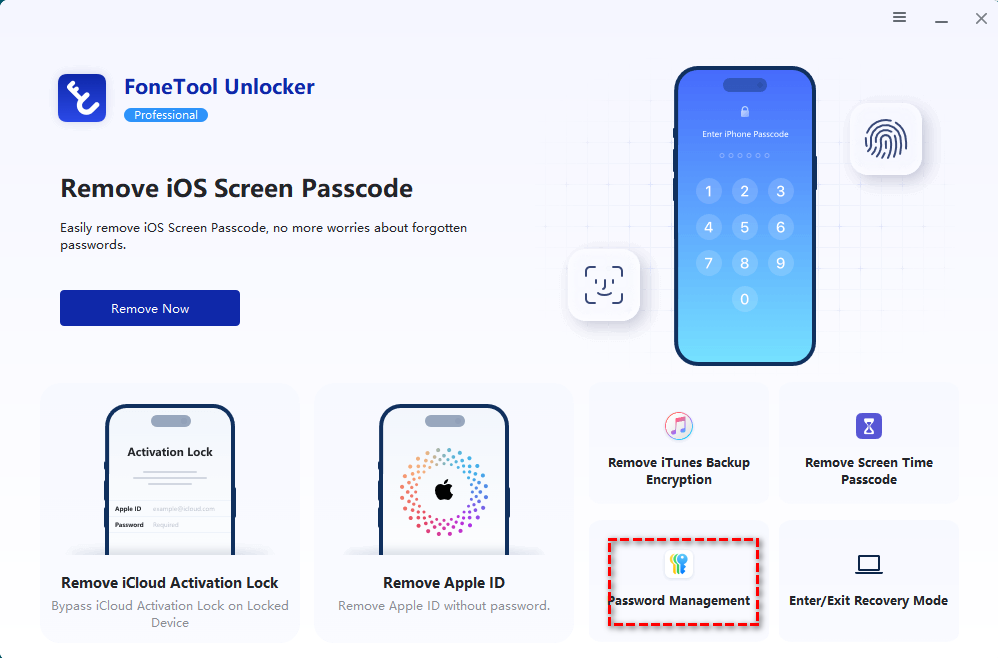
1. Download, install, and launch FoneTool Unlocker on your Windows PC. On the main interface, click Password Management in the bottom-right corner.
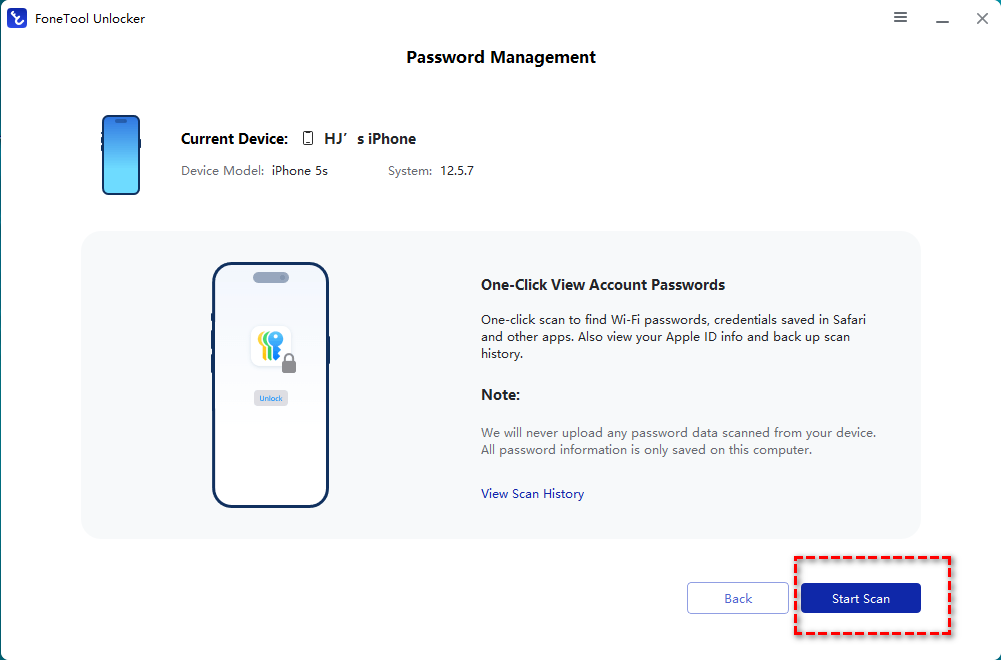
2. In the next window, click Start Scan.
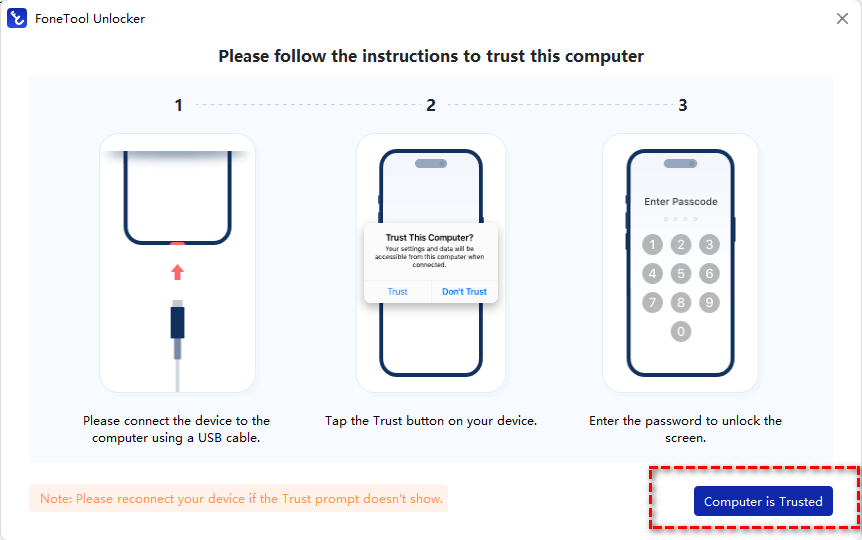
3. Connect your iPhone to the computer using a USB cable, then unlock your iPhone and tap Trust This Computer on your iPhone.
4. Return to FoneTool Unlocker and select Computer is Trusted.
5. Click Continue Scan to start the scanning process. The time this takes depends on how many passwords are saved on your device and usually only lasts a few minutes.
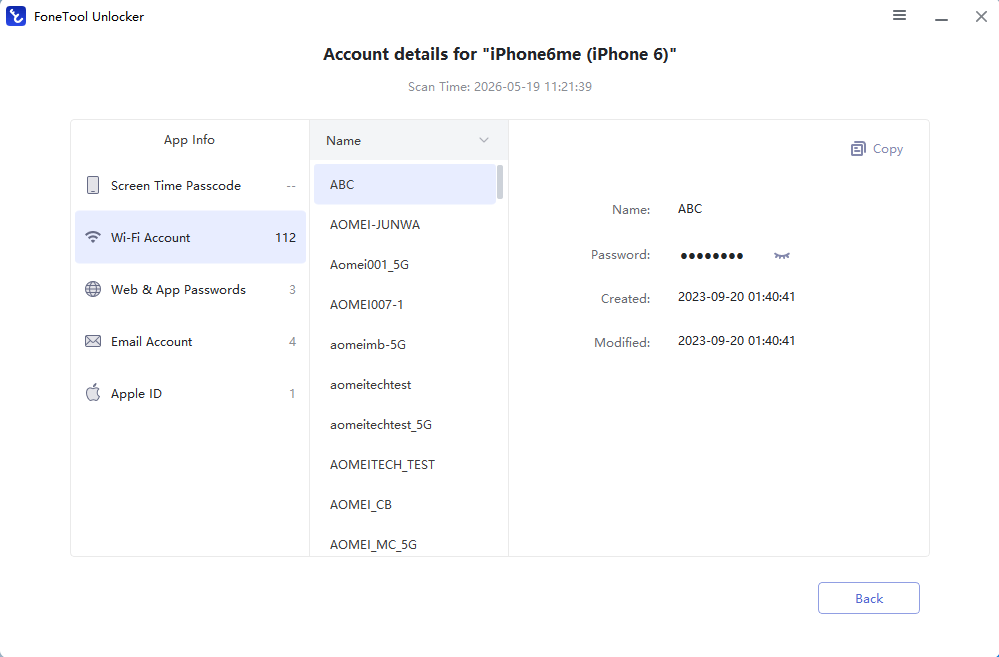
6. After the scan finishes, select View Password. Go to Wi-Fi Account and find the Wi-Fi password you need.
Which Method Is Best to Find Wi-Fi Password on iPhone Without Jailbreak?
The best method depends on your iOS version and situation. The following table compares the four methods:
|
Method |
Requirements |
Difficulty |
View Current Network Password |
View Previously Saved Passwords |
Need a Computer |
Best For |
|
Wi-Fi Settings |
iPhone running iOS 16+ |
Easy |
✅ Yes |
✅ Yes |
❌ No |
Most users who want a quick and secure solution |
|
Passwords App |
iPhone running iOS 18+ |
Easy |
✅ Yes |
✅ Yes |
❌ No |
Users who want to manage all passwords in one place |
|
Router Settings |
Router admin access |
Medium |
✅ Yes |
❌ No |
❌ No |
Users who own or manage the Wi-Fi network |
|
FoneTool Unlocker |
Windows PC and USB connection |
Easy |
✅ Yes |
✅ Yes |
✅ Yes |
Users who need to export, back up, or manage multiple Wi-Fi passwords |
Bonus: How to Share a Wi-Fi Password from iPhone Without Revealing It
Sometimes, you don't need to view the Wi-Fi password at all—you just want to help someone connect to your network. Fortunately, Apple includes a built-in Wi-Fi Password Sharing feature that lets you securely share access without revealing the actual password.
📝 Requirements for Wi-Fi Password Sharing
- Both devices have Wi-Fi and Bluetooth enabled.
- Both devices are running a relatively recent version of iOS, iPadOS, or macOS.
- The Apple ID email address of the recipient is saved in your Contacts, and vice versa.
- Your iPhone is already connected to the Wi-Fi network you want to share.
- The receiving device is within Bluetooth range.
Now follow the steps below to share a Wi-Fi password from iPhone:
1. Unlock both devices and place them near each other.
2. On the receiving device, go to Settings > Wi-Fi and select the Wi-Fi network.
3. A password-sharing prompt will automatically appear on the connected iPhone. Tap Share Password.
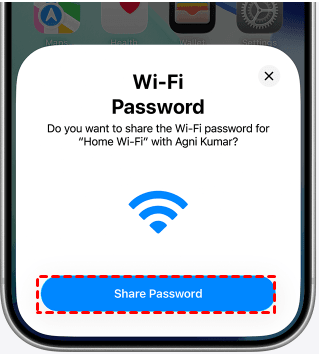
4. Tap Done after the sharing process completes. The receiving device will join the Wi-Fi network without ever displaying the actual password.
Wrapping Things Up
This page shows you how to find Wi-Fi password on iPhone without jailbreaking. For most users, the built-in Wi-Fi Settings (iOS 16+) is the quickest option. On iOS 18 or later, the Passwords app offers a more organized way to view saved credentials. If those aren’t available, check your router settings or use a tool like FoneTool Unlocker.
Besides password management, you can also use FoneTool Unlocker to remove Screen Time passcode without Apple ID. Just give it a shot!
FoneTool Unlocker - 1-Click iPhone Unlock Software
Easily unlock all passcodes and restrictions on your iPhone, iPad, and iPod Touch.
-
 iOS 27 Compatible
 iPhone 17 Supported
100% Secure

Lily Green is dedicated to helping users protect their valuable mobile data and addressing issues that arise on mobile devices. She consistently stays vigilant about the latest trends in technology, guaranteeing that the given information aligns with the ongoing advancements in the field.
Read author info >>



 as a preferred
source on Google
as a preferred
source on Google