How to Remove a Face from Face ID on iPhone | Full Guide
Want to remove a second face from iPhone Face ID? Apple doesn't allow selective removal. This guide covers how to fully reset Face ID and provides solutions for when you're locked out without a passcode, helping you regain control of your device security.


Can You Remove a Second Face from Face ID?
If you’re searching for how to remove a face from Face ID, especially a second person’s face you added, the direct and crucial answer is: No, you cannot selectively remove just one face.
This is a fundamental design of Apple’s Face ID system. Whether you set up one primary face or added another through the “Set Up an Alternate Appearance” option, the iPhone stores this information as a single, secure facial model in its Secure Enclave. There is no menu to view and delete individual faces separately.
Therefore, the only way to remove someone else’s face from Face ID is to perform a complete Face ID reset. This action erases all stored facial data, after which you can set up Face ID again with only your own face.
Method 1. How to Fully Reset Face ID (When You Know Your Passcode)
If you have access to your device's passcode, this is the straightforward method to remove all facial data and start fresh.
Step 1. Open the Settings app on your iPhone.
Step 2. Tap Face ID & Passcode, and enter your device passcode to proceed.
Step 3. Tap Reset Face ID. This action immediately and permanently deletes all enrolled facial data- both primary and alternate.
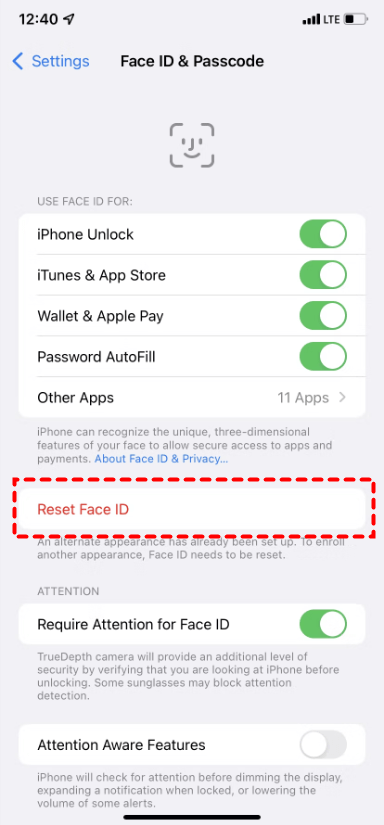
Step 4. Return to the previous screen and tap Set Up Face ID to register only your face.
- Note:✎...
- After resetting, you will need to manually re-enable Face ID for specific functions like iPhone Unlock, Apple Pay, and app logins within the Settings menu.
Method 2. Remove Face ID by Erasing Your iPhone (If You Forgot the Passcode)
When you don’t know the device passcode, you cannot access the Settings. The only official path is a full device erase, which also removes Face ID.
Step 1. Connect your iPhone to a computer and open Finder (macOS) or iTunes (Windows).
Step 2. Force restart your iPhone to enter Recovery Mode (the button sequence varies by model).
Step 3. When prompted on the computer, choose Restore. This installs the latest iOS and completely erases the device and its settings.
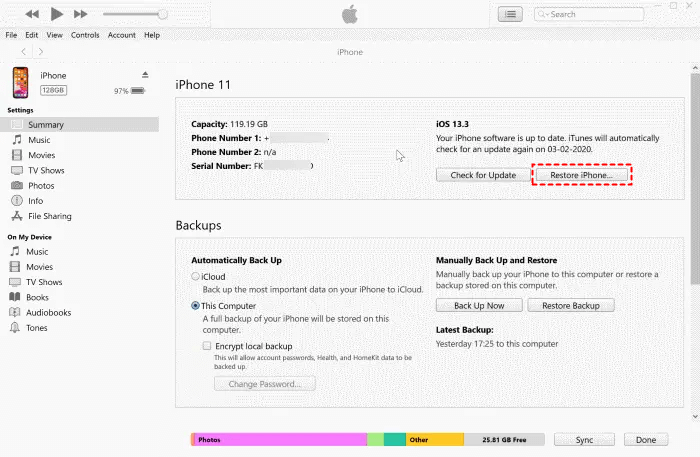
Step 4. Set up your iPhone as new. You can now create a new passcode and set up Face ID from scratch.
Method 3. Use Dedicated Software for a Guided Reset (For Locked Devices)
For a more user-friendly and guided process to remove Face ID without a passcode, professional tools are an effective alternative, especially for managing second-hand or fully locked devices.
We recommend FoneTool Unlocker. It simplifies the technical process of removing a screen lock- the very barrier preventing you from resetting Face ID, with clear, step-by-step instructions.
✅Powerful & Multi-features: Remove Apple ID, screen passcodes, Screen Time passcodes, and iTunes backup encryption without needing the original passwords.
✅Easy to Use: Guided visual process with automatic device detection. No technical skills needed.
✅Fast & Reliable: High success rate across iOS versions. Quick unlock process.
✅Full Support: 24/7 technical support to assist at any step.
Step 1. On PC, download FoneTool Unlocker, launch it, and select the “Remove iOS Screen Passcode” function.

Step 2. Follow the on-screen instructions, click Next, and enter Recovery Mode. The software will detect your device model.
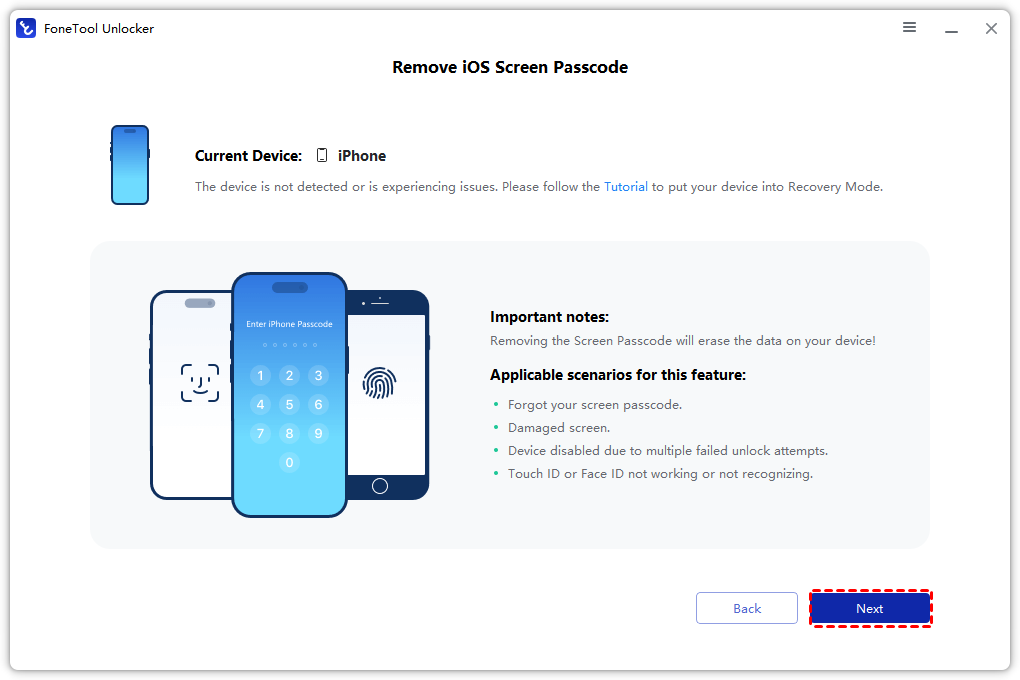
Step 3. Download the firmware package as prompted.
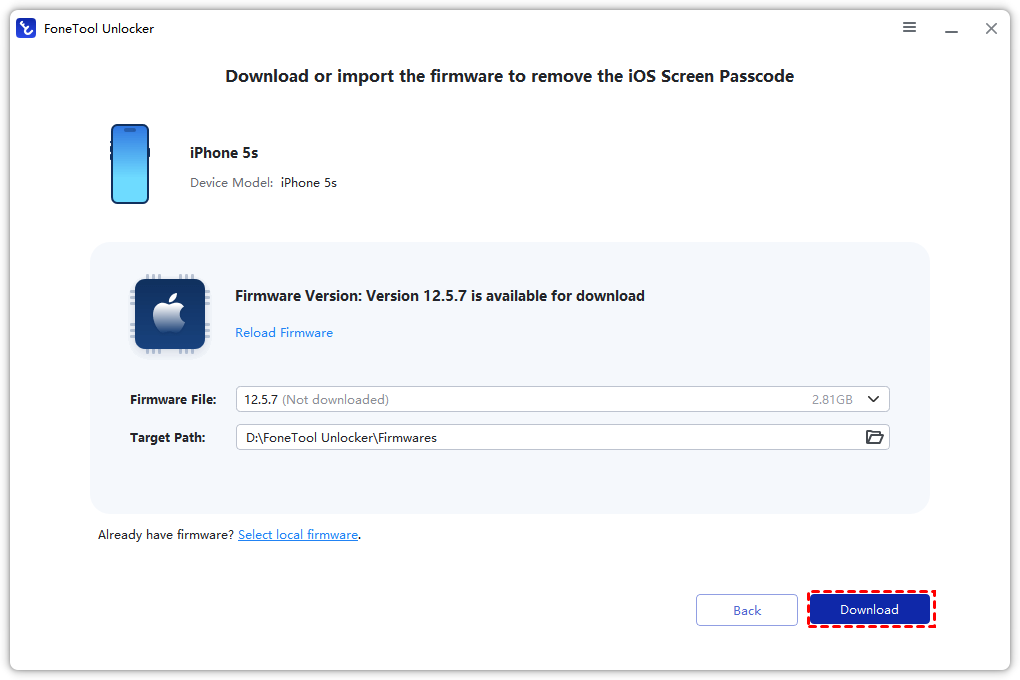
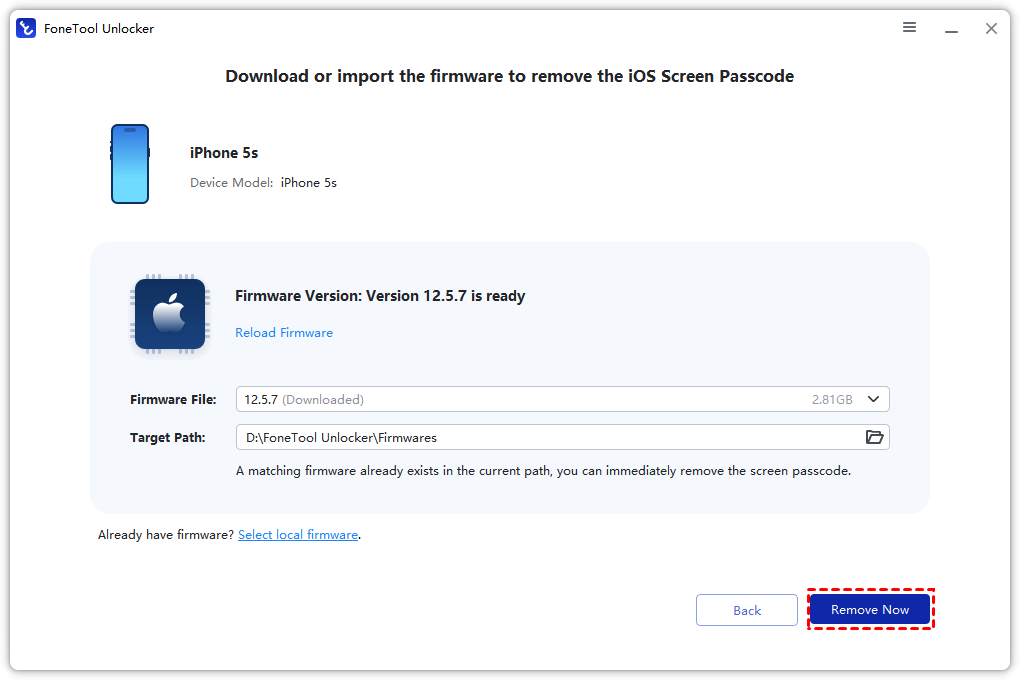
Step 4. Click “Remove Now”.Once complete, you can set up your iPhone and configure a new Face ID.
- ★Important:
- Both Method 2 and 3 perform a complete factory reset, erasing all your data, settings, and Face ID information. Use them only if you have an iPhone backup or have accepted the data loss.
Frequently Asked Questions on Face ID Removal
Summary
To remove a second face from Face ID, you must perform a complete reset. If you know your passcode, go to Settings > Face ID & Passcode > Reset Face ID. If you’re locked out, you must erase the device via a computer or a dedicated tool like FoneTool Unlocker, which provides a streamlined process to remove the passcode lock, allowing you to set up a fresh and secure Face ID.
FoneTool Unlocker - 1-Click iPhone Unlock Software
Easily unlock all passcodes and restrictions on your iPhone, iPad, and iPod Touch.
-
 iOS 27 Compatible
 iPhone 17 Supported
100% Secure

Kelsey is an English editor at FoneTool, passionate about helping users solve tech issues. She specializes in iPhone data management, backup, and recovery. In her free time, she enjoys learning IT skills and spending time with loved ones.
Read author info >>



 as a preferred
source on Google
as a preferred
source on Google