How to Unlock iPad Passcode Without Restore | 3 Key Methods
Locked out of your iPad? This guide clarifies the realistic paths to unlock your device when you've forgotten the passcode. Learn about the conditions, limitations, and steps for solutions that aim to preserve your data.


If you're facing a disabled iPad and searching for a way to unlock your iPad passcode without a restore, you're likely hoping to save your photos, messages, and apps from being erased. The truth is, due to Apple's strong security, a true "unlock" that leaves all data perfectly intact is nearly impossible once the iPad is fully disabled. The passcode is deeply tied to device encryption.
However, your goal is valid. The real question becomes: What is the most straightforward and reliable method to regain use of your iPad? This guide cuts through confusion and presents your practical options in order of simplicity, starting with the most direct solution.

Why a "Simple" iPad Bypass Doesn't Exist?
The iPad passcode is intrinsically tied to the device's hardware encryption. After too many failed attempts, the iPad becomes "disabled." This is a security feature, not a bug. Apple's stance is clear: if you forget the passcode, you must erase the device to remove it.
Therefore, the quest to unlock an iPad without a restore is really about finding methods that either:
- Avoid triggering the erase during the unlock process (rare and conditional).
- Allow you to erase and then restore your data from a backup, effectively returning you to a pre-lockdown state.
Method 1. Unlock iPad Without Passcode & Restore
When you don't have a backup and need a clear and straightforward path to regain a usable iPad, a dedicated tool like FoneTool Unlocker is highly recommended, specifically designed to fix iOS devices locked, and you can unlock your iPad in minutes, even if you forget the passcode.
✅ 1-click remove iOSlocked screen without a password
✅ Intuitive interface with simple operation
✅ Support all iPad/iPhonemodels and the latest iOS version
✅ Supports more lock scenarios, such as removing Apple ID and Screen Time passcode
Step 1. Download and install FoneTool Unlocker on a Windows PC, launch it.
Step 2. Connect your disabled iPad via USB, and select “Remove iOS Screen Passcode”.

Step 3. Follow the on-screen guide to put your iPad into the required mode.
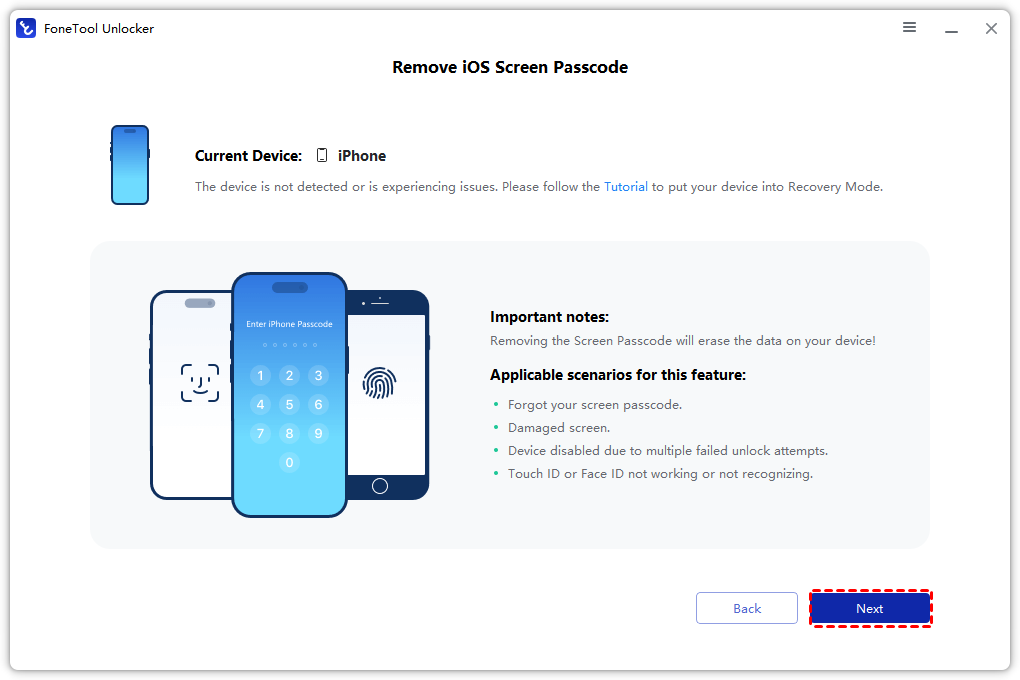
Step 4. The software will fetch the correct firmware. Click “Remove Now” to erase the iPad and remove the passcode with the best iPhone unlock software.
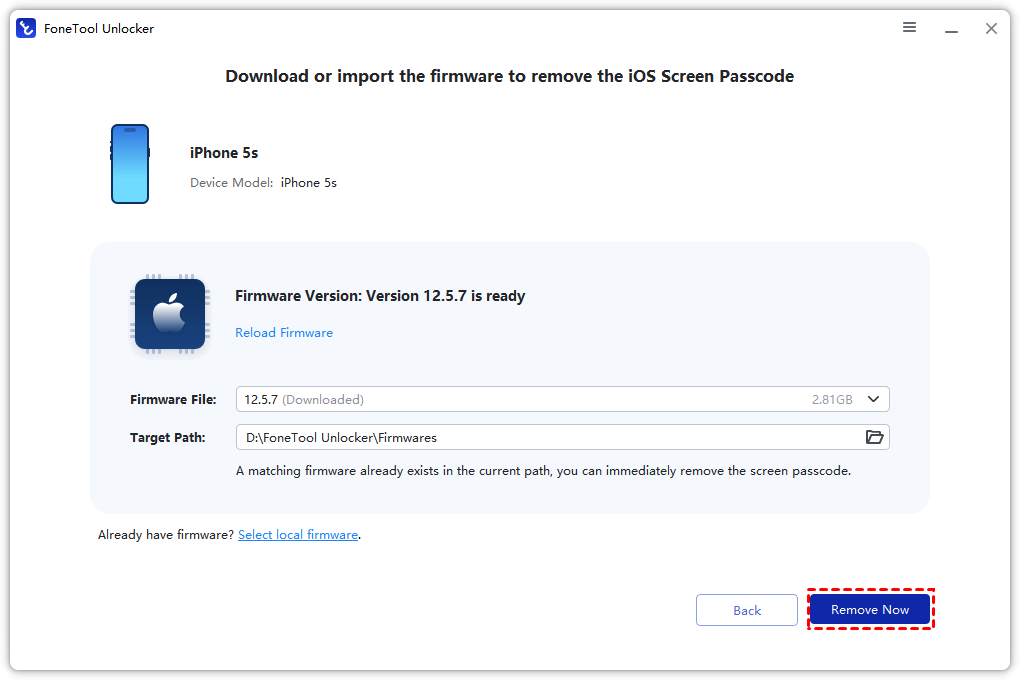
After the iPad restarts, set it up as new.
Method 2. Unlock iPad with iTunes/Finder Recovery Mode
This is Apple's free, official method. It requires a computer. While it always ends in an erase, there is one critical step that represents your only slim chance to avoid data loss: the "Update" option.
Step 1. Connect the iPad to a computer you've synced with before.
Step 2. Open iTunes (Windows/older Mac) or Finder (macOS Catalina+).
Step 3. Force restart the iPad into Recovery Mode (button sequence varies by model).
Step 4. A pop-up will appear. Crucially, select "Update" first. Your computer will try to reinstall iOS without erasing data.
Step 5. If the "Update" succeeds, your iPad may reboot with data intact. If it fails or is unavailable, you must choose "Restore", which performs a full erase.
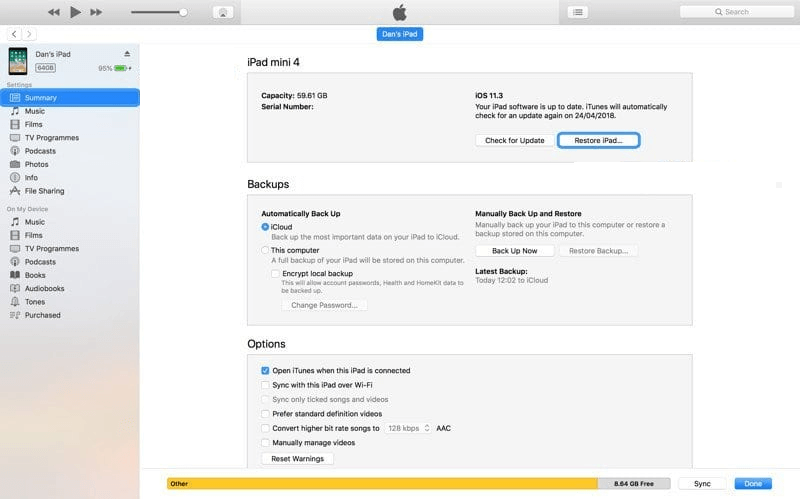
📝Important: The "Update" option often fails on disabled devices, but it is the only official attempt to unlock an iPad without a full data erase and must be tried.
Method 3. Erase iPad via iCloud Find My (Only if Pre-Enabled)
This method requires that "Find My iPad" was enabled before the lockout. It allows remote erasure.
Step 1. Go to icloud.com/find on another device, log in with the iPad's Apple ID.
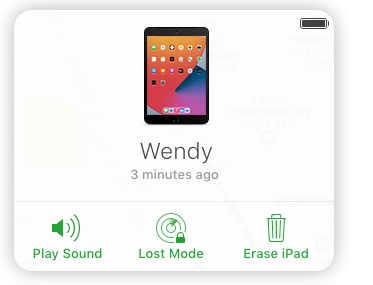
Step 2. Select your iPad from "All Devices".
Step 3. Click "Erase iPad". This will wipe it, including the passcode.
Step 4. After erasure, you can set up the iPad. Without a backup, you will set it up as new.
Frequently Asked Questionson Unlocking iPad
Summary
To unlock an iPad passcode without a restore in the traditional sense is challenging due to Apple's security. Your most practical path is to use the most efficient method to regain access. For a straightforward, guided experience, FoneTool Unlocker is a strong recommendation. For a free, manual approach with a slim chance to save data, try the iTunes/Finder "Update" method first. This situation underscores the critical importance of maintaining a recent backup to prevent permanent data loss.
FoneTool Unlocker - 1-Click iPhone Unlock Software
Easily unlock all passcodes and restrictions on your iPhone, iPad, and iPod Touch.
-
 iOS 27 Compatible
 iPhone 17 Supported
100% Secure

Kelsey is an English editor at FoneTool, passionate about helping users solve tech issues. She specializes in iPhone data management, backup, and recovery. In her free time, she enjoys learning IT skills and spending time with loved ones.
Read author info >>



 as a preferred
source on Google
as a preferred
source on Google