Remove Apple ID from iPad Without Password - 3 Easy Ways
How to remove Apple ID from iPad without password? Here‘re 3 ways: FoneTool Unlocker (no data loss), iTunes (requires passcode), and iCloud (remote removal). Works on all iPadOS versions.


Why You Need to Remove Apple ID from iPad?
When you purchase a new iPad, you might want to give away or sell your old one, or perhaps you wish to sign in with a different account to link new device data. Long-term account usage can sometimes lead to forgetting your Apple ID password. In this case, you may need a more effective method to quickly remove the Apple ID and use your device freely. Now we will explore how to remove an Apple ID from an iPad, whether you have the password or not.
What to Know Before Removing Apple ID from iPad
Before removing your Apple ID from iPad with or without the password, you should understand these important consequences:
- Service Disruption: You'll lose access to iCloud, App Store purchases, and email services
- Data Loss: All iCloud-synced data (photos, notes, contacts) will become inaccessible
- Backup Stopped: iCloud backups and cross-device syncing will immediately cease
- Find My Impact: If "Find My iPad" is enabled, most removal methods will erase all device data
⚠️ Important: If giving the device to someone else, ensure they understand these limitations.
Method 1. Remove Apple ID from iPad Without Password [Recommended]
FoneTool Unlock provides the most reliable solution for removing Apple ID without requiring the password, offering complete data protection when Find My is disabled.
- Features:
- ·Remove Apple ID without entering any password
- · Preserves all device data if Find My is disabled
- · Secure process protects against data leakage
- · Also remove iOS screen passcodes, Screen Time restrictions and iTunes backup encryption
- · Supports latest iOS versions and devices
Steps to Remove Apple ID with FoneTool Unlocker
Step 1. Install FoneTool Unlocker > Connect iPad via USB > Tap Trust when prompted.
Step 2. Launch the program > Select Remove Apple ID.
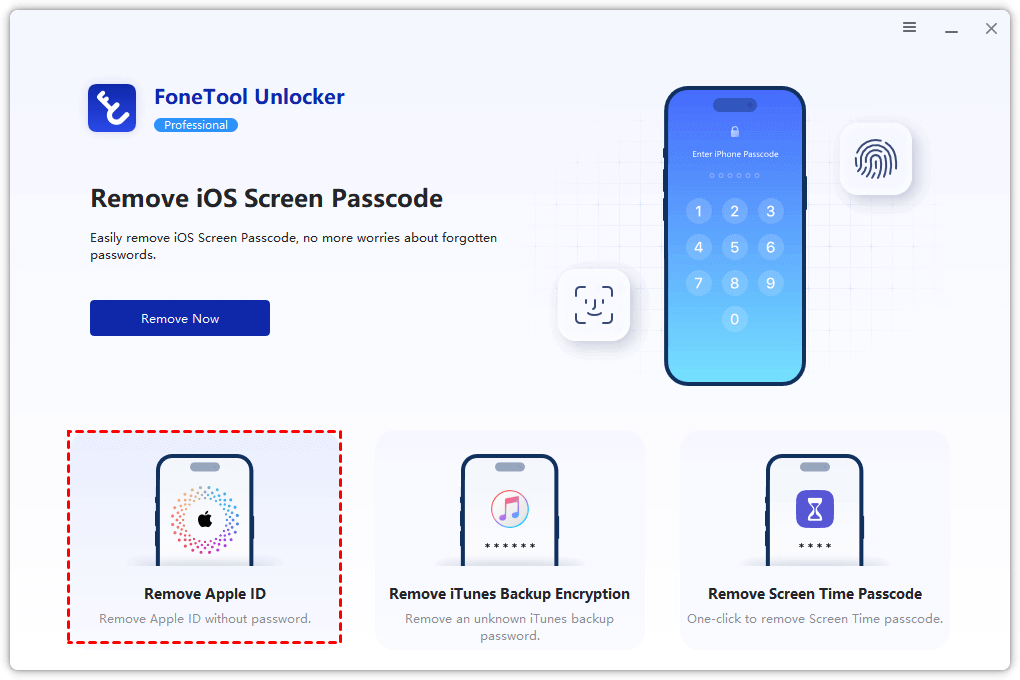
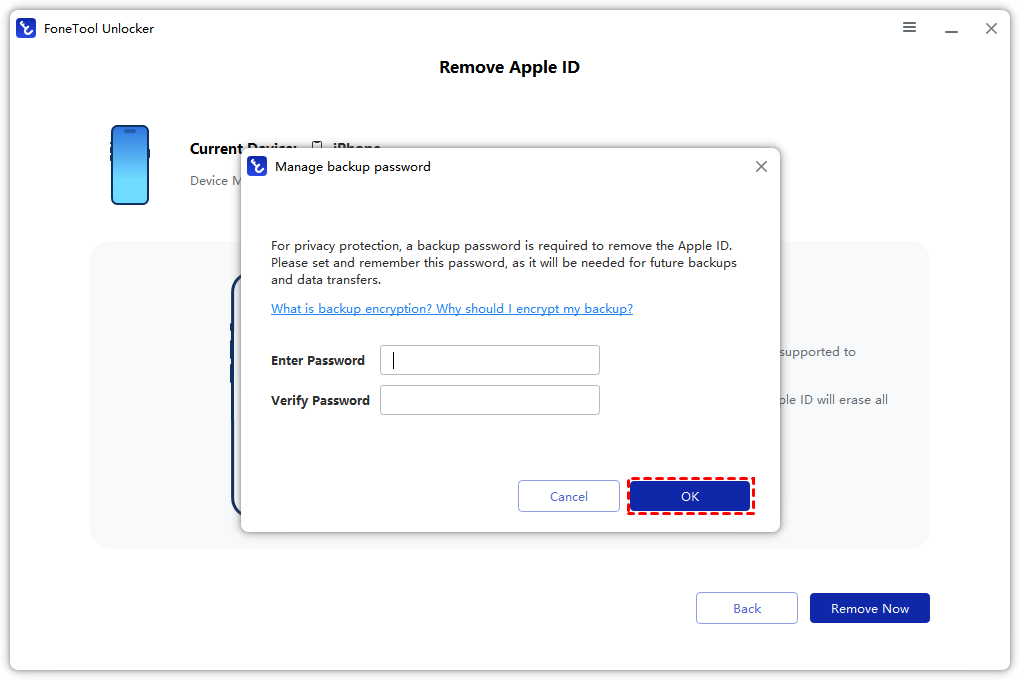
Step 3. Set and remember a backup password as instructed.
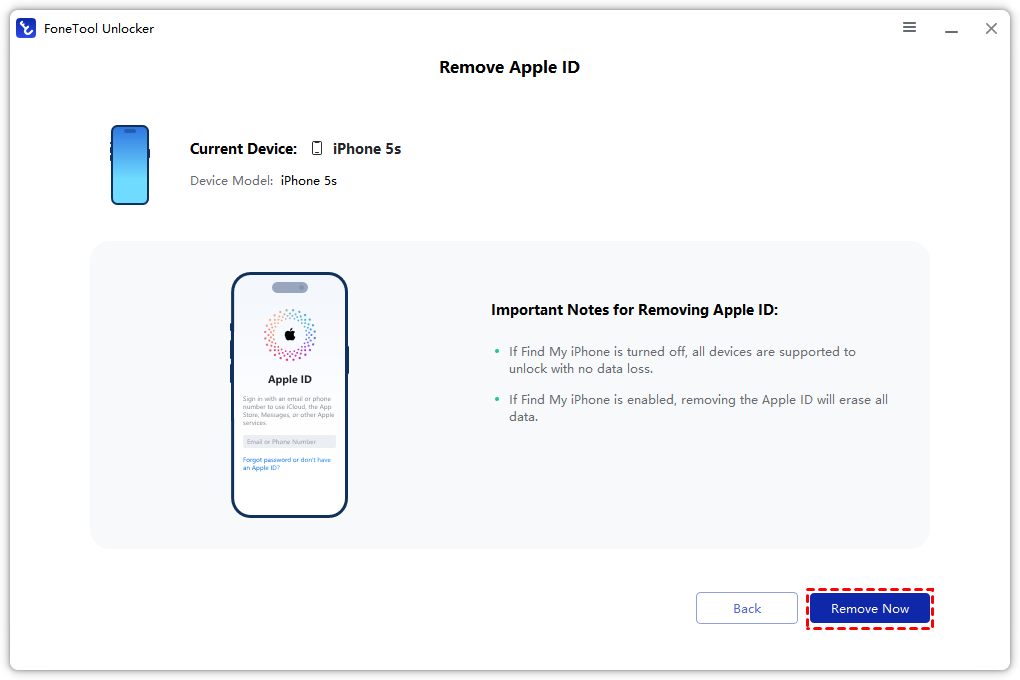
Step 4. Click Remove Now to unlink your Apple ID from the device.
Method 2. Remove Previous Owner's Apple ID via iTunes
This method works when "Find My iPad" is already disabled, using iTunes to restore the device and remove the associated Apple ID.
Step 1. Download the latest iTunes on your PC > Connect iPad via USB > Trust the computer.
Step 2. Click the device icon in iTunes > Select Restore iPad.
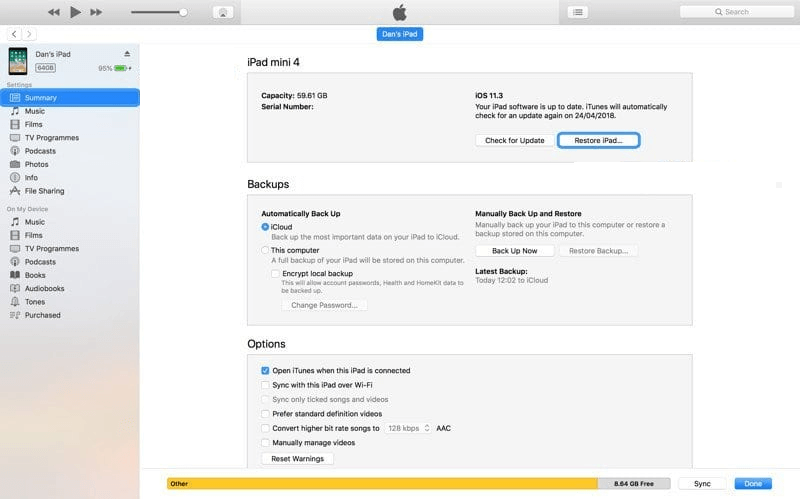
Step 3. Wait for restoration to complete (iPad will restart automatically).
Step 4. Follow setup instructions > Choose Unlock with Passcode when prompted.
Step 5. Enter screen passcode > Setup as new device.
Method 3. Remove Apple ID Remotely Without Computer
If you know the previous owner, they can remove the device from their account remotely via iCloud.com. Here’s a quick guide for the previous owner to remove their Apple ID from the iPad using the web:
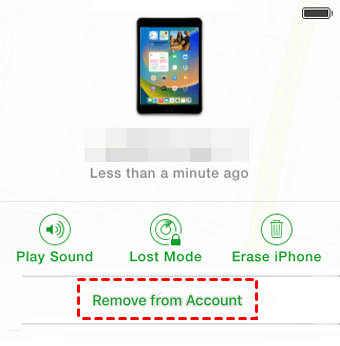
Step 1. Visit iCloud.com > Sign in with the associated Apple ID.
Step 2. Select Find My > Click All Devices > Choose the iPad.
Step 3. Click Remove from Account > Confirm by selecting Remove.
FAQs on How to Remove Existing Apple ID from iPad
Conclusion
This guide provides three effective methods to remove Apple ID from iPad without password. FoneTool Unlocker stands out as the optimal solution, especially when Find My is disabled, as it can preserve your data. When Find My is enabled, all methods will erase device content, so choose the approach that best fits your situation and data preservation needs.
FoneTool Unlocker - 1-Click iPhone Unlock Software
Easily unlock all passcodes and restrictions on your iPhone, iPad, and iPod Touch.
-
 iOS 27 Compatible
 iPhone 17 Supported
100% Secure

Kelsey is an English editor at FoneTool, passionate about helping users solve tech issues. She specializes in iPhone data management, backup, and recovery. In her free time, she enjoys learning IT skills and spending time with loved ones.
Read author info >>



 as a preferred
source on Google
as a preferred
source on Google