How to Unlock iPad with Broken Screen | A Complete Guide
This guide explains how to unlock an iPad with a broken screen. Solutions include using USB accessories, iCloud remote erase, and computer recovery methods.


To unlock an iPad with a broken screen, your options depend on whether the screen is partially responsive or completely black. You can use an external keyboard or mouse, erase via iCloud, or use specialized software if the touch still works partially. This guide explains every method in detail.
What's Possible with a Broken Screen?
A broken iPad screen creates a unique challenge: you need to bypass both physical damage and digital security. The right solution depends entirely on how your screen is broken.
|
Screen Condition |
Primary Challenge |
Recommended First Step |
|
Cracked but responsive |
Touch input is erratic or uncalibrated. |
Connect a USB mouse or keyboard to navigate. |
|
Black screen/fully unresponsive |
No visual feedback or touch input. |
iCloud Erase (if Find My is ON) or professional repair. |
|
Display is visible but touch is dead |
You can see but cannot interact. |
Connect a mouse or use Recovery Mode with a computer. |
Method 1. Easily Unlock Broken iPad without Passcode
For complex scenarios like a forgotten passcode combined with a partially responsive screen, or when the iPad cannot trust a computer—standard methods hit a limit. This is where dedicated software like FoneTool Unlocker becomes essential.
FoneTool Unlocker is a professional tool designed to bypass iOS locks directly from a computer. It is particularly valuable when physical damage prevents normal interaction, offering a guided, technical solution to regain access where other methods fail.
- ★Key Highlights of FoneTool Unlocker:
- Unlocks iPad without relying on the broken touch screen.
- Simple, step-by-step instructions run entirely on your computer.
- Can help remove Apple ID locks post-erase (requires proof of ownership).
- Supports a wide range of iPad models and iOS versions.
- Also removes Screen Time restrictions and iTunes backup encryption.
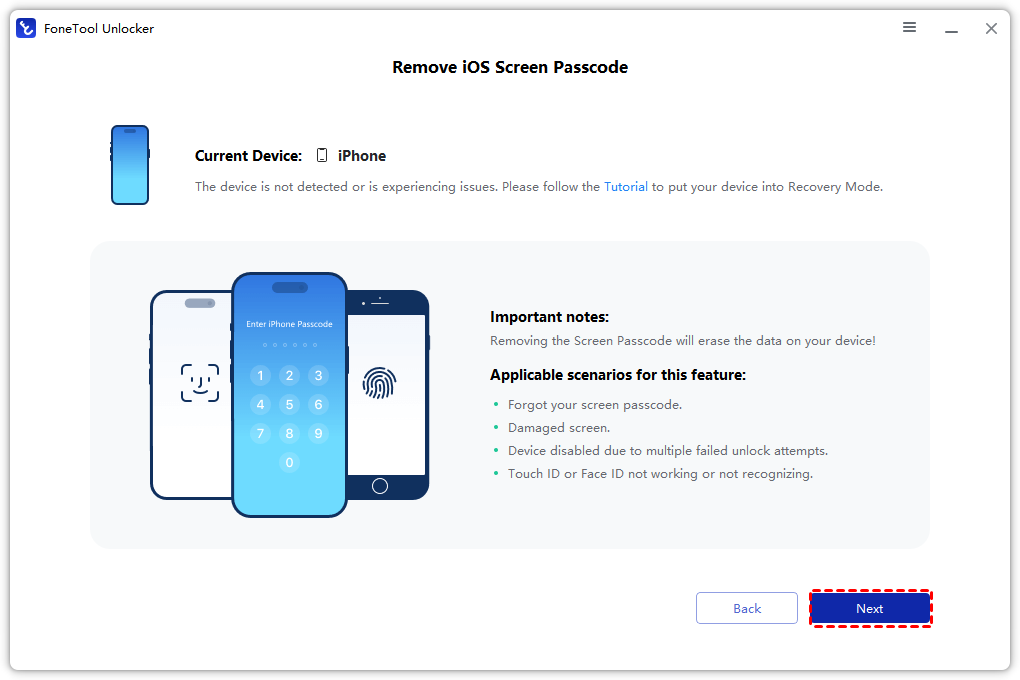
Step 1. Download and launch FoneTool Unlocker on a Windows PC, and connect your locked iPad via USB cable.
Step 2. Select the “Remove iOS Screen Passcode” function.

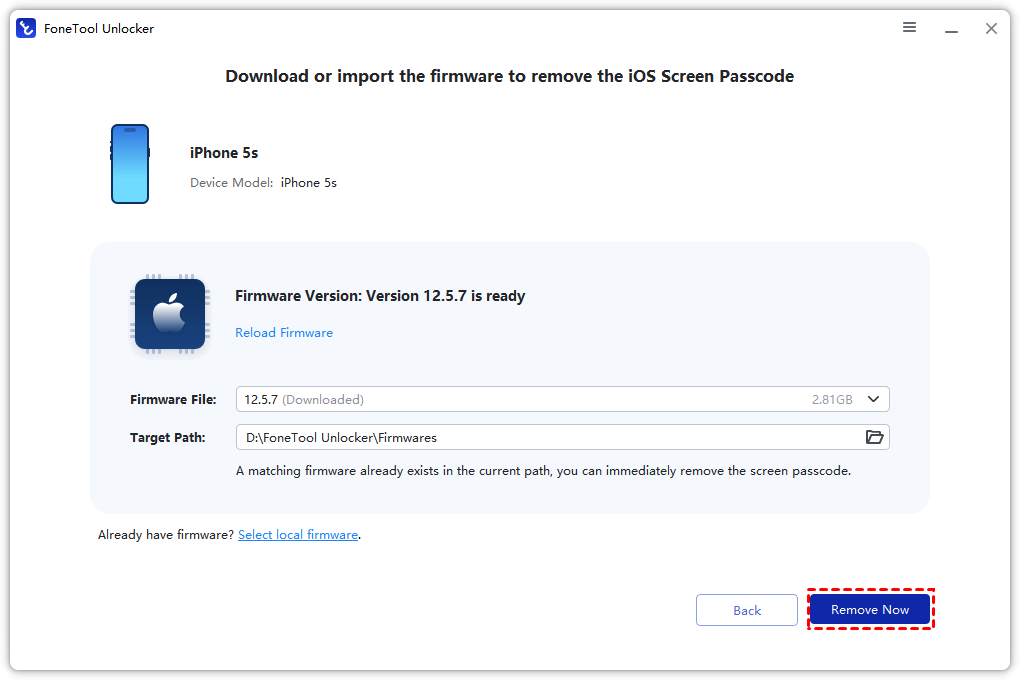
Step 3. Follow the on-screen instructions; you need to download the hardware, and the software will be provided according to your iPad model.
Step 4. Click the “Remove Now” button to unlock iPad with broken screen.
Method 2. Unlock Broken iPad with External Accessories
If your iPad powers on but the touchscreen is damaged, connecting a USB mouse or keyboard can bypass the need for touch input. This works on iPads with USB-C or a compatible Lightning adapter.
🔹Navigate with a USB Mouse:
Step 1. Connect a standard USB mouse to your iPad using the correct adapter.
Step 2. The cursor will appear on screen. Use it to click the passcode numbers or navigate.
Step 3. To erase the iPad, click to Settings > General > Transfer or Reset iPad.
🔹Use a USB Keyboard:
Step 1. Connect a USB keyboard. On the lock screen, press any key to activate the passcode field.
Step 2. Type your numeric passcode using the keyboard’s number pad and press Enter.
Method 3. Erase iPad Remotely via iCloud (Find My)
If the screen is completely dead but “Find My iPad”was enabled, this is the best solution. It works remotely and does not require the iPad to be responsive.
Step 1. On another device, visit icloud.com/find.
Step 2. Sign in with the Apple ID linked to the broken iPad.
Step 3. Select your iPad from “All Devices”.
Step 4. Click “Erase iPad”to remotely wipe the device and its passcode.
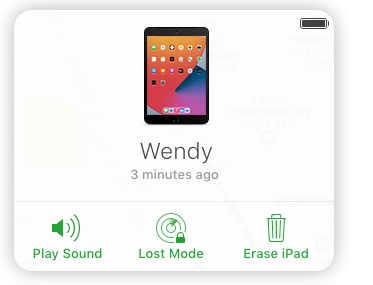
Step 5. After erasure, you can set it up again.
- Note:✎...
- Activation Lock remains, requiring the original Apple ID.
Method 4. Use Recovery Mode with a Computer
When accessories fail and “Find My”is off, Apple’s Recovery Mode is the universal method to restore a locked iPad, though it erases all data.
Step 1. Connect the iPad to a Mac or PC.
Step 2. Force restart to enter Recovery Mode:
- iPad with Home button: Hold Home + Top buttons.
- iPad without Home button: Press and release Volume Up, then Volume Down, then hold the Top button.
Step 3. On the computer, select “Restore” (not “Update”) to reinstall iPadOS.
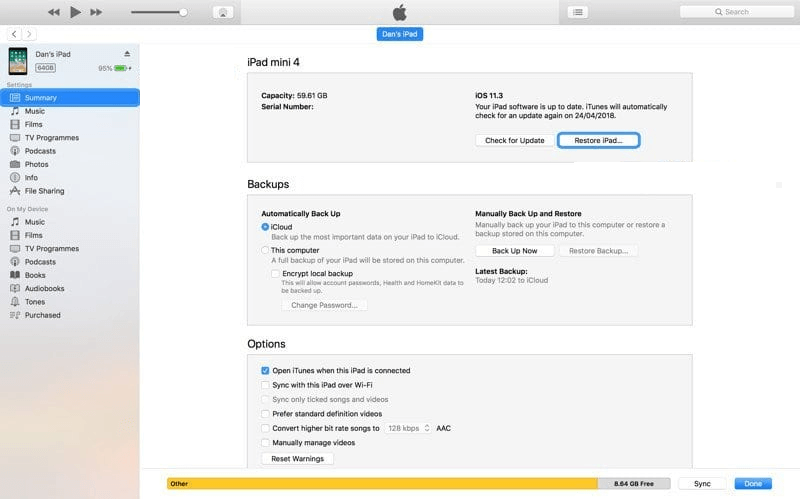
Step 4. After restoration, set up the device. The original Apple ID is needed if Activation Lock is on.
FAQs on Unlocking Broken iPad
Summary
Unlocking an iPad with a broken screen requires choosing the right tool for the damage level. Try a USB mouse or keyboard for partial responsiveness, iCloud erase for a dead screen with “Find My” on, and Recovery Mode as a universal reset. For the toughest cases involving forgotten passcodes and screen damage, a professional tool like FoneTool Unlocker provides a critical software-based solution. Ultimately, for continued use, screen replacement is the definitive fix.
FoneTool Unlocker - 1-Click iPhone Unlock Software
Easily unlock all passcodes and restrictions on your iPhone, iPad, and iPod Touch.
-
 iOS 27 Compatible
 iPhone 17 Supported
100% Secure

Kelsey is an English editor at FoneTool, passionate about helping users solve tech issues. She specializes in iPhone data management, backup, and recovery. In her free time, she enjoys learning IT skills and spending time with loved ones.
Read author info >>



 as a preferred
source on Google
as a preferred
source on Google