How to Retrieve iCloud Email Password (Even If You Forgot It)
This article describes how to retrieve iCloud email password even if you forget it with built-in Apple Passwords app, dedicated password manager - FoneTool Unlocker. Or consider resetting your password.


Forgot your iCloud email password? This can happen after switching to a new device, not using your account for a while, or simply forgetting your login credentials. Since your iCloud email password is linked to your Apple Account, losing access can prevent you from using iCloud Mail and other Apple services.
The good news is that you can often regain access quickly. If your password is saved on a trusted iPhone, iPad, or Mac, you may be able to view it. Otherwise, you'll need to reset your Apple Account password. This guide explains how to retrieve or reset your iCloud email password in different situations, including locked accounts and unavailable trusted devices.
Can You Retrieve an Existing iCloud Email Password?
Many users searching for how to retrieve an iCloud email password expect to see their current password immediately. However, whether this is possible depends on where the password is stored and whether you have access to a trusted Apple device. In some cases, you can view a saved password; in others, you'll need to reset it and create a new one.
When Is Your iCloud Password Saved?
If you previously saved your Apple account credentials on your iPhone, iPad, or Mac, you can view them using Apple's Passwords feature. This is the easiest method to recover an existing iCloud email password without changing it.
To access a saved password, you'll need:
- A trusted Apple device that is already signed in
- Access to Face ID, Touch ID, or the device passcode
- The password must already be saved in Apple's Passwords app or iCloud Keychain.
But if the password was never saved or synced, it won't appear in Passwords settings. Keep in mind that not all Apple Account passwords are stored or viewed.
When to Reset iCloud Email Password?
Apple prioritizes account security and privacy, so it does not provide a way to reveal your current password from your Apple Account settings. If the password isn't saved on a trusted device, there is no official method to recover the exact password you previously used.
In this situation, resetting your Apple Account password is usually the only option. Once you verify your identity through a trusted device, trusted phone number, or Apple's account recovery process, you can create a new password and regain access to iCloud Mail and other Apple services.
How to Retrieve iCloud Email Password on iPhone or iPad
If you're using an iPhone or iPad, there are 3 useful ways to regain access to your iCloud email account. You may be able to view a saved password through Apple's Passwords, dedicated password manager, or reset Apple Account password directly from your trusted device if you no longer remember it.
Way 1: Check Saved Passwords in the Passwords App
If your iCloud email password was previously saved in Apple's Passwords app or synced through iCloud Keychain, you may be able to view it without resetting passwords.
Step 1. Open Settings on your iPhone or iPad. Then, search for the Passwords app.

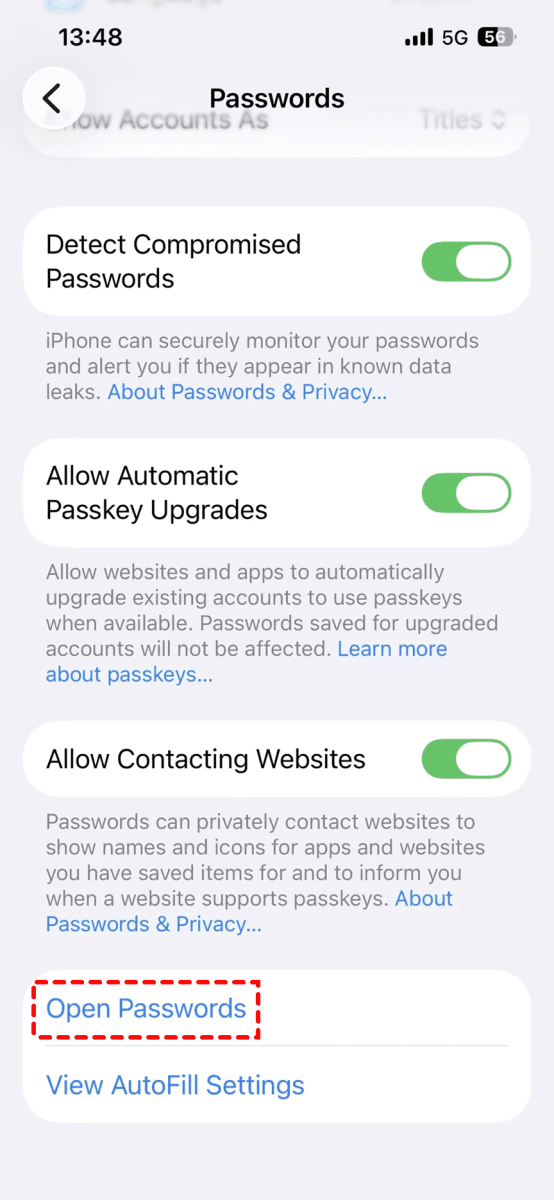
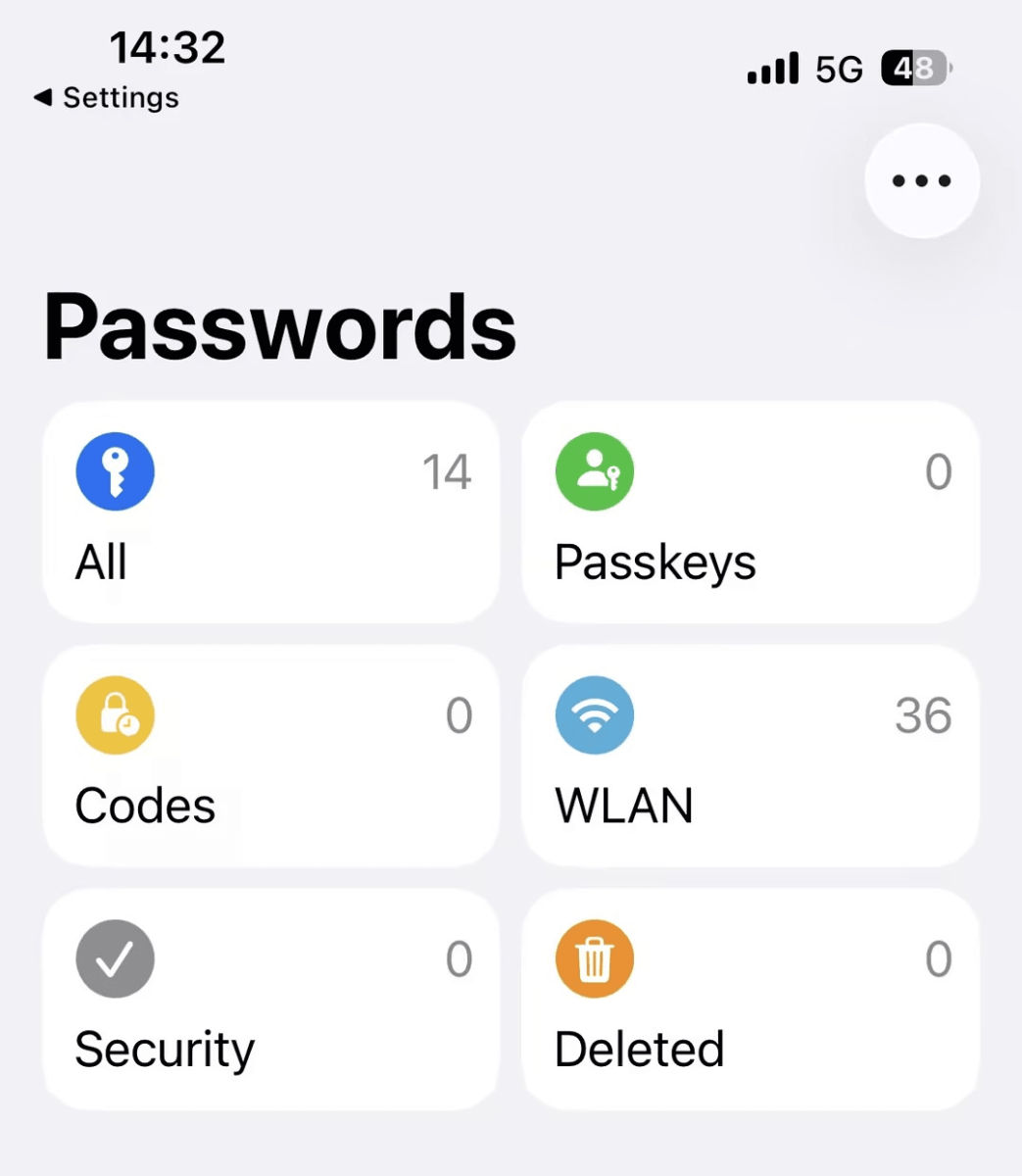
Step 2. Scroll to the bottom, tap "Open Passwords", then authenticate with Face ID, Touch ID, or a password.
Step 3. Search for your Apple Account email address and tap it to view the password.
Way 2: Scan and Retrieve Saved Passwords in a Dedicated Tool
FoneTool Unlocker is a core data recovery and viewing tool. It integrates a Password Management feature that can deeply scan your iOS devices (iPhone, iPad) and extract and view Apple ID information currently logged in on the device.
You can also use it to check Wi-Fi passwords, Safari browserand appsaccount credentials, and back up scan history. Even if you can’t find saved passwords, it still allows you to remove Apple ID, locked iCloud, screen passcode, etc., ensuring your iOS device is always accessible.
Step 1. Download, install, and launch FoneTool Unlocker on your Windows PC. On the main interface, click Password Management.

Step 2. Click Start Scan to find Wi-Fi passwords, credentials saved in Safari and other apps, check Apple ID info, and back up scan history.
Step 3. For a smooth scan, connect your iPhone, unlock it, tap Trust This Computer, and confirm it's trusted in FoneTool Unlocker.
Step 4. Click Continue Scan and wait for the process to be complete.
Step 5. Then, click View Password to check all passwords and credentials it finds.
Step 6. Click Email account or Apple ID to find iCloud email password on iPhone or iPad. Or directly search for the email address.
Way 3: Reset Your Apple ID Password from Settings
If you can't view the existing password, resetting your Apple Account password is the fastest method to regain access. You must perform a reset on a trusted device (iPhone, iPad) and know the device passcode.
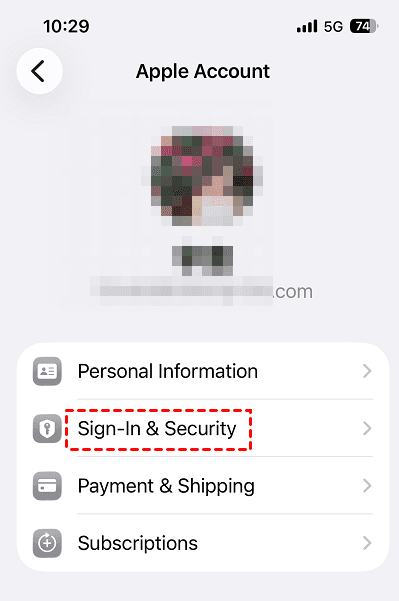
Step 1. Open the Settings app. Tap your Apple ID name at the top of the screen and select Sign-In & Security.
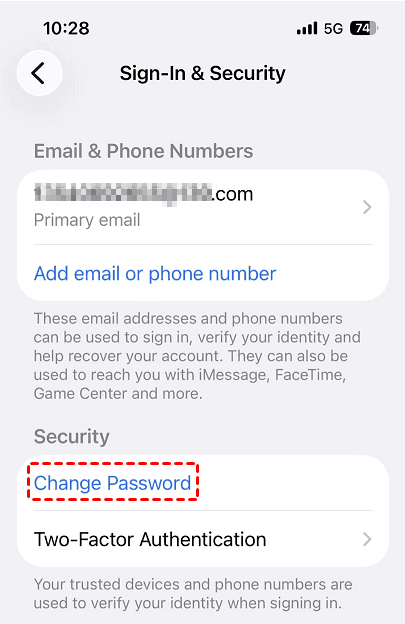
Step 2. Tap Change Password. Enter your device passcode when prompted.
Step 3. Enter a new password and confirm it. Then, tap Continue to save the new password.
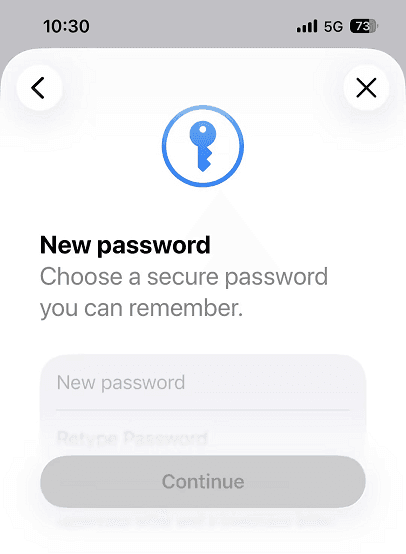
After resetting the password, use the new credentials to sign in to iCloud Mail and other Apple services.
How to Retrieve iCloud Email Password on Mac
If you're using a Mac, you can either check whether your iCloud email (Apple Account) password is already saved on the device or reset it directly through macOS settings. This makes Mac one of the most convenient methods to recover account access without using extra tools or devices.
Way 1: View Saved Passwords using Passwords App
If your Apple Account credentials were saved previously, you may be able to view them directly on your Mac.
Step 1. Open the Passwords app on Mac and authenticate using Touch ID or your administrator password. Or go to System Settings > Passwords, depending on your macOS version.
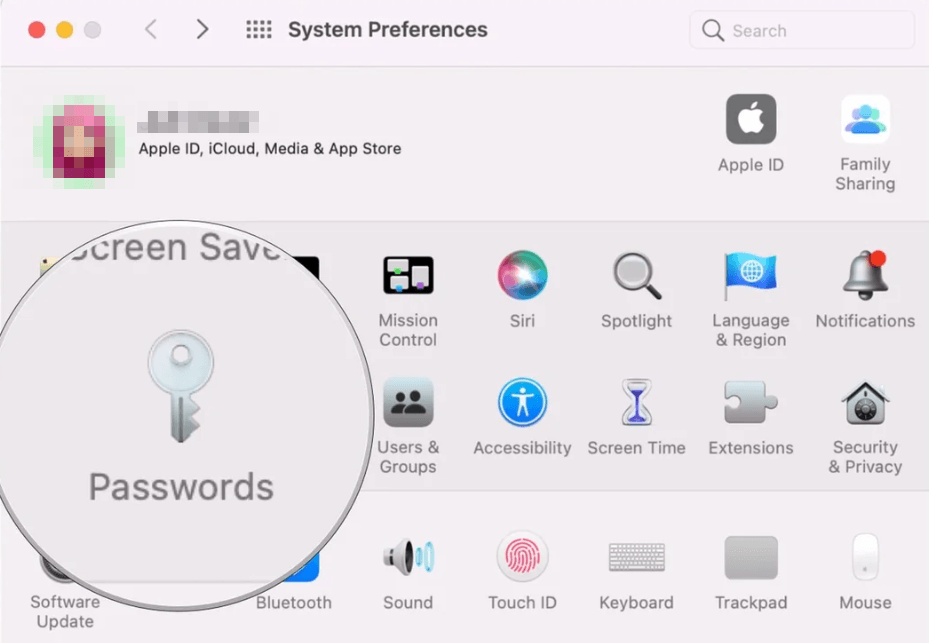
Step 2. Search for your Apple Account email address or “Apple” and click the matching entry to view saved login, if available.
If no Apple Account entry appears, it means the password was not saved in iCloud Keychain or Passwords, and you will need to reset it instead.
Way 2: Reset Apple ID Password on Mac
If you cannot find a saved password, you can reset your Apple Account password directly from your Mac.
Step 1. Open System Settings and click your Apple Account (your name) at the top.
Step 2. Go to Sign-In & Security and click Change Password. Enter your Mac administrator password when prompted.
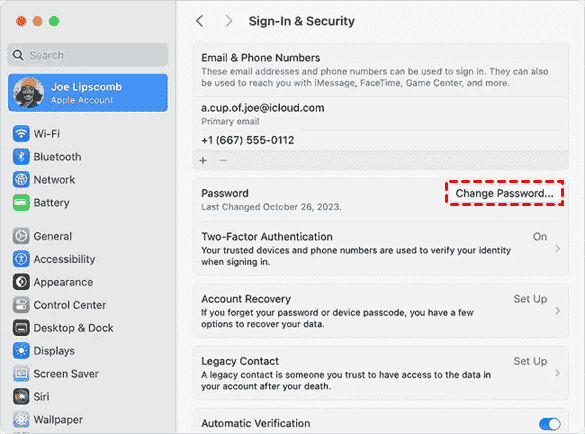
Step 3. Follow the on-screen verification steps to create a new password and sign in to iCloud Mail again.
How to Recover iCloud Email Password without a Trusted Device
If you don’t have access to a trusted device, you can still recover your iCloud email password by using Apple’s official account recovery options. Or directly contact Apple support for additional help.
Way 1: Recover iCloud Email Password using Account Recovery
Step 1. Visit Apple’s official account recovery page (iforgot.apple.com)and click Reset Password.
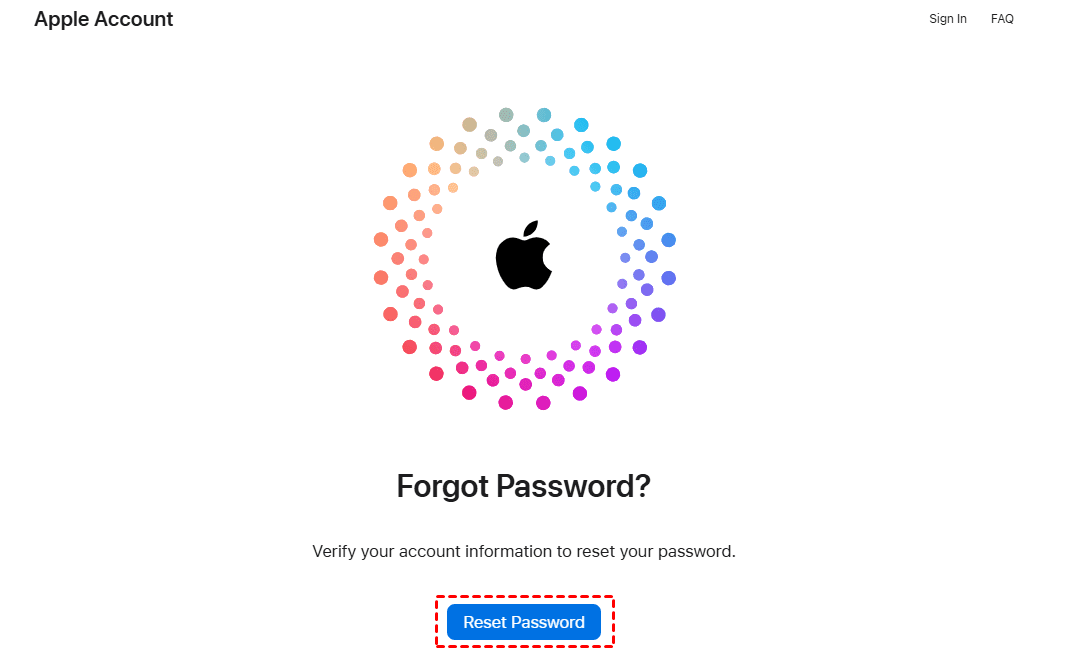
Step 2. Enter your email address or phone number and click Continue.
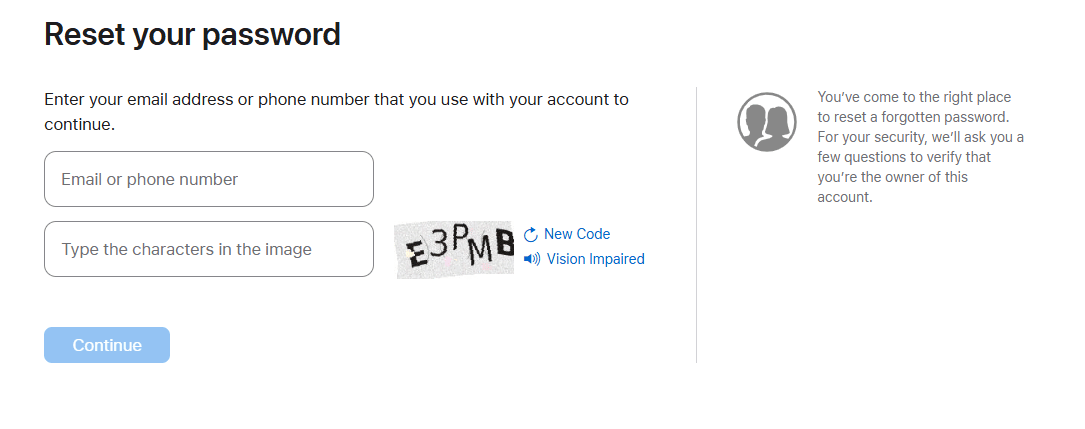
Step 3. Follow the on-screen instructions. You may be asked to answer security questions or confirm account details.
Wait for Apple to process your request. This may take from a few hours to several days depending on your account status and verification method.
Way 2: Contact Apple Support for Additional Help
If you forget both your iCloud email password and the verification details linked to your Apple Account, recovery becomes more challenging. You can only contact support.
- Support may help in situations where you cannot access your account through standard recovery methods.
- You may be guided through additional identity verification steps depending on your account status.
📌Required account information:
- Apple Account email address
- Trusted phone number (if available)
- Any previous device or billing information linked to the account
Providing accurate details can help speed up the verification process and improve your chances of regaining access.
Conclusion
How to retrieve iCloud email password? In most cases, the safest method is using Apple’s built-in Passwords app or dedicated tool. If your password is saved on a trusted iPhone, iPad, or Mac, you may be able to view it directly. Otherwise, you can only reset the password from Settings and the account recovery process.
FoneTool Unlocker - 1-Click iPhone Unlock Software
Easily unlock all passcodes and restrictions on your iPhone, iPad, and iPod Touch.
-
 iOS 27 Compatible
 iPhone 17 Supported
100% Secure

Ivey is passionate about teaching users how to easily protect mobile device data. With the FoneTool series of iPhone management, unlocking, and repair software, even beginners can perform data backup, iPhone unlocking, and troubleshooting like a pro.
Read author info >>



 as a preferred
source on Google
as a preferred
source on Google