How to Sign Into Apple ID Without Phone Number - Full Guide
Locked out of your Apple ID because you lost your phone number? This guide provides clear steps for account recovery and solutions for related device access issues.


If you can't access your trusted phone number, you can still sign into your Apple ID using backup methods like account recovery, email verification, or security questions. This guide covers both official Apple recovery steps and solutions for when you're locked out of a device.
Why You Might Need to Sign In Without Your Phone?
Apple uses two-factor authentication (2FA) for security, requiring a verification code from a trusted device or phone number. Losing access to that number due to a lost phone, changed carrier, or travel can lock you out. This table outlines your main options:
|
If you... |
Try this first |
What you need to know |
|
Remember password but lost 2FA code. |
Apple Account Recovery (iforgot.apple.com). |
Use your backup email or security questions. Process takes time. |
|
Have another Apple device (Mac/iPad) signed in. |
Get a verification code from that device. |
Quickest method if available. |
|
Need to update your trusted number. |
Update in Apple ID settings (when logged in). |
Prevents future lockouts. Do this as soon as you regain access. |
|
Locked out of the device itself (forgotten passcode). |
Use device unlock software (e.g., FoneTool Unlocker). |
Must regain device access before fixing Apple ID on it. |
Method 1. Official Account Recovery via iforgot.apple.com
This is Apple's primary recovery path when you lose all trusted devices and numbers.
Step 1. Go to iforgot.apple.com in any web browser.
Step 2. Enter your Apple ID (email address) and click Continue.
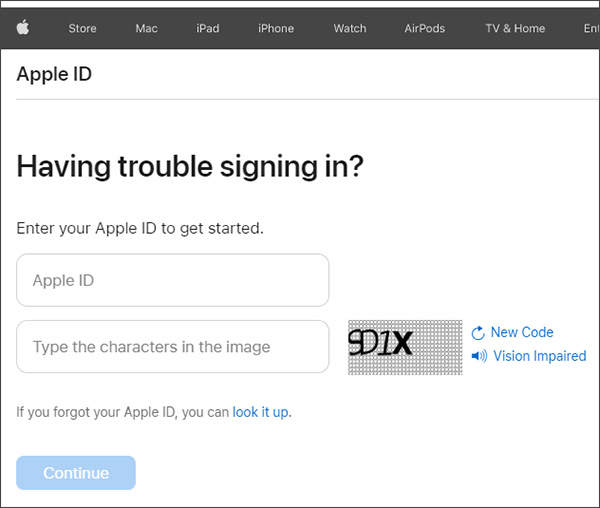
Step 3. Select the option "I need to reset my password" or "Can't access your trusted devices?"
Step 4. You will be guided through account recovery. Options may include:
- Receiving instructions at your account rescue email address.
- Answering your pre-set security questions.
Step 5. Follow the prompts. Apple states this process can take a few days to weeks for security verification.
Step 6. Once verified, you can reset your password and regain access. Immediately add a new trusted phone number in your account settings.
Method 2. Get a Code from Another Apple Device
If you have another Apple device (Mac, iPad, older iPhone) already signed into the same Apple ID, it can display verification codes.
💻On a Mac (macOS Ventura or later):
Step 1. Go to System Settings > [Your Name] at the top.
Step 2. Click Password & Security.
Step 3. Click Get Verification Code.
📱On an iPhone, iPad, or iPod touch:
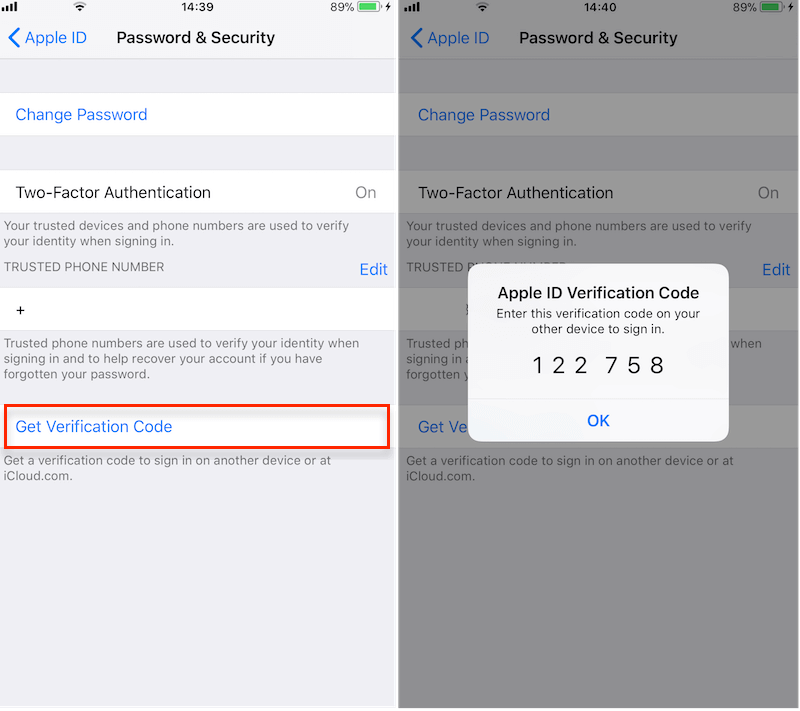
Step 1. Go to Settings > [Your Name].
Step 2. Tap Password & Security.
Step 3. Tap Get Verification Code.
Method 3. When You're Locked Out of Your Device - FoneTool Unlocker
Sometimes, the problem isn't just with the Apple account, but because you forgot your password and thus can't get into your iPhone or iPad itself. If you can't get into the device, you can't access the settings to update your contact number or authenticate with the device.
Fortunately, there is a professional iOS unlocker - FoneTool Unlocker, designed to help you remove various locks and regain access to your locked iOS device, which is the first and most critical step in resolving AppleID-related issues on your device.
✅ Unlock Screen Passcode: Removes forgotten passcodeson disabled iPhones and iPads.
✅ Remove Apple ID & Activation Lock: Can help remove an Apple ID from a device when you have proof of ownership but not the password.
✅ Guided Process: Simple step-by-step instructions via a computer.
✅ High Compatibility: Works with a wide range of iOS/iPadOS versions.
Step 1. Download and install FoneTool Unlocker on a Windows computer.
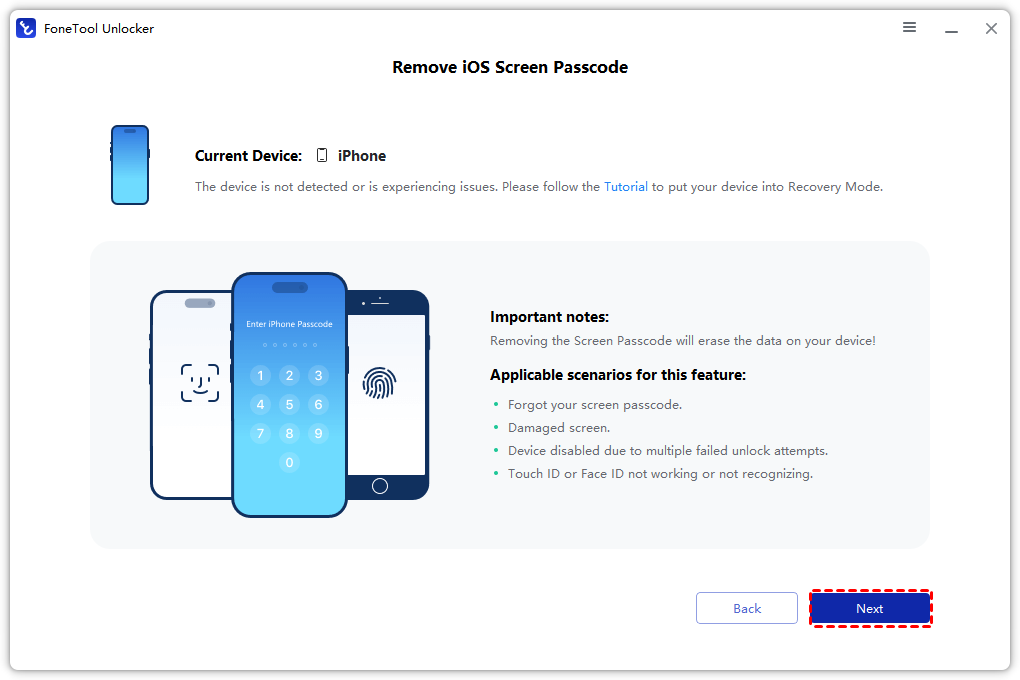
Step 2. Connect your locked iPhone/iPad via USB, select "Remove iOS Screen Passcode".

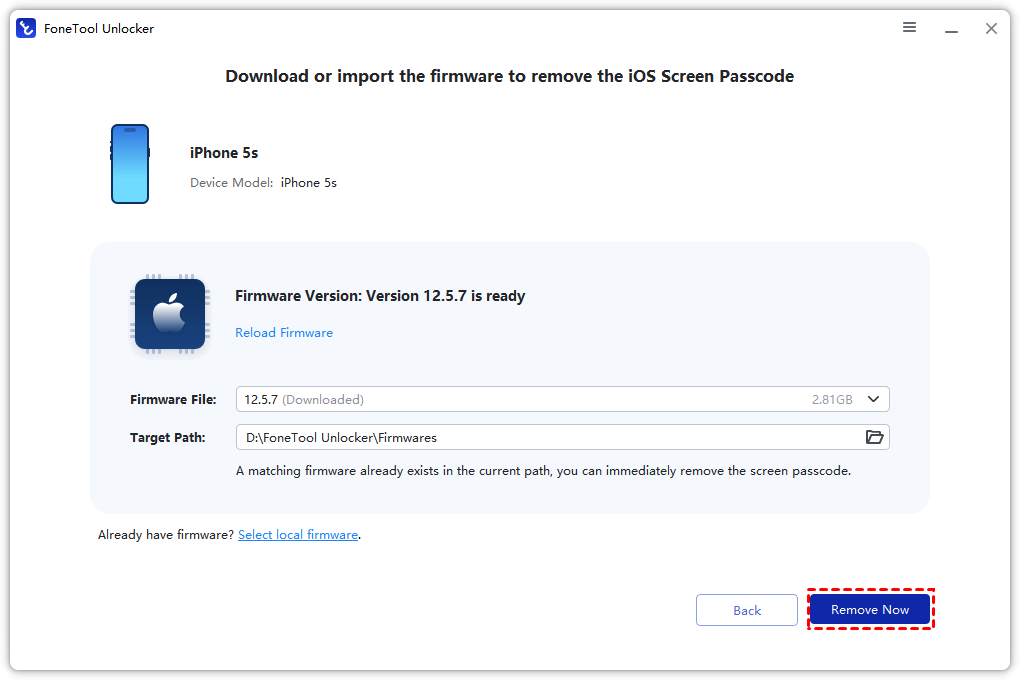
Step 3. Follow the on-screen instructions to put iPhone into Recovery Mode and download the firmware.
Step 4. Click “Remove Now” to unlock your iOS devices without passcode.
Frequently Asked Questions
Summary
Signing into your Apple ID without your trusted phone number is possible through official account recovery or by using a verification code from another signed-in device. The key is to have set up backup methods in advance. If being locked out of your iOS device is compounding the problem, using a tool like FoneTool Unlocker to regain device access can be an essential first step. Proactively managing your trusted contacts and devices is the best defense against future lockouts.
FoneTool Unlocker - 1-Click iPhone Unlock Software
Easily unlock all passcodes and restrictions on your iPhone, iPad, and iPod Touch.
-
 iOS 27 Compatible
 iPhone 17 Supported
100% Secure

Kelsey is an English editor at FoneTool, passionate about helping users solve tech issues. She specializes in iPhone data management, backup, and recovery. In her free time, she enjoys learning IT skills and spending time with loved ones.
Read author info >>



 as a preferred
source on Google
as a preferred
source on Google