Why Is My Apple ID Greyed Out? Reasons & Solutions
If your Apple ID is greyed out, don't panic. This issue is often caused by Screen Time restrictions. Our guide covers quick fixes like toggling settings, plus solutions for forgotten passwords and last-resort tools.


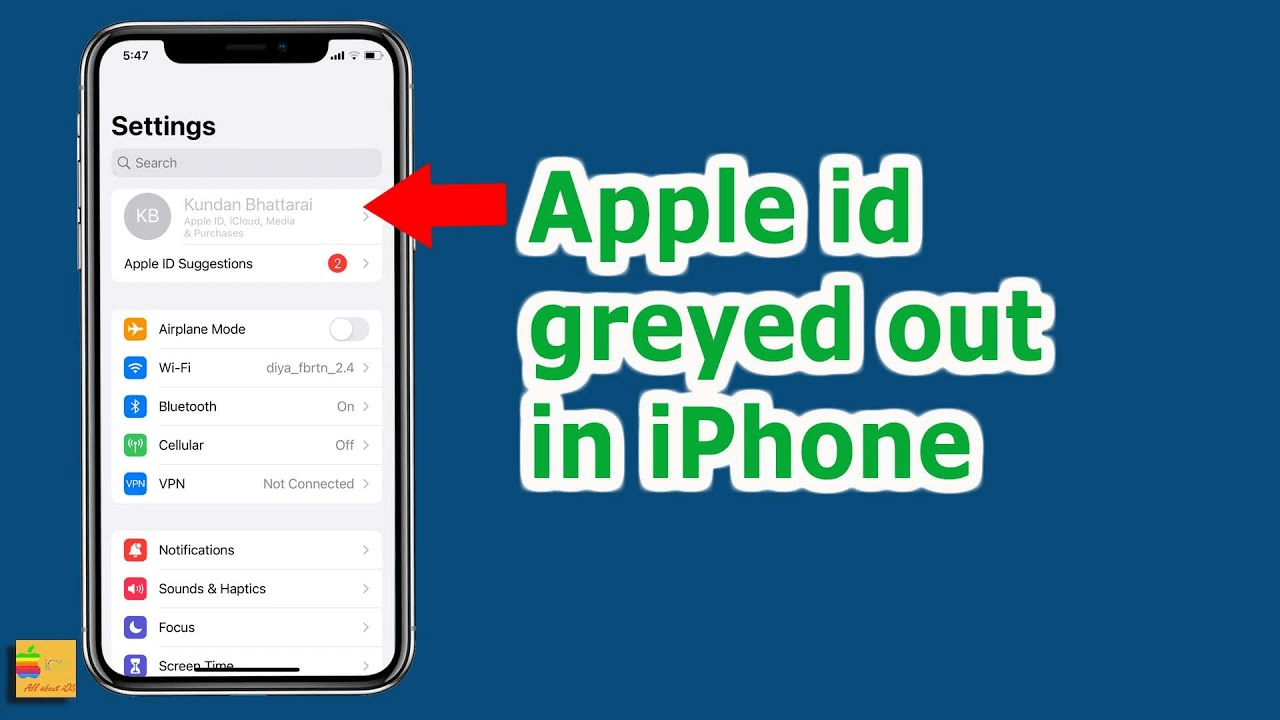
Discovering that your Apple ID is greyed out in your iPhone's Settings is frustrating. You can't sign out, change account details, or manage subscriptions. This guide explains why this happens and provides clear, actionable solutions to fix it. We'll start with the most common, simple fixes and progress to more advanced options, ensuring you can regain full access to your Apple ID.
Why Is Apple ID Greyed Out?
When your Apple ID is greyed out, it means the option is disabled by a system restriction. The single most common cause is a feature within Screen Time called Content & Privacy Restrictions. This feature is designed to prevent unauthorized account changes, especially for children in Family Sharing groups. However, if you've set it up for yourself and forgotten, it can lock you out of your own account settings.
Other potential causes include network issues preventing account verification, a forgotten Screen Time passcode, or, in rare cases, a managed device profile from an employer or school.
How to Fix a Greyed-Out Apple ID: Step-by-Step Methods
Follow these methods in order, starting with the simplest and most likely solution.
Method 1. Disable Screen Time Restrictions
This resolves the issue for over 80% of users. The goal is to find and toggle the specific restriction that's blocking you.
Step 1. Open Settings on your iPhone or iPad, tap Screen Time.
Step 2. Tap Content & Privacy Restrictions. You may need to enter your Screen Time passcode.
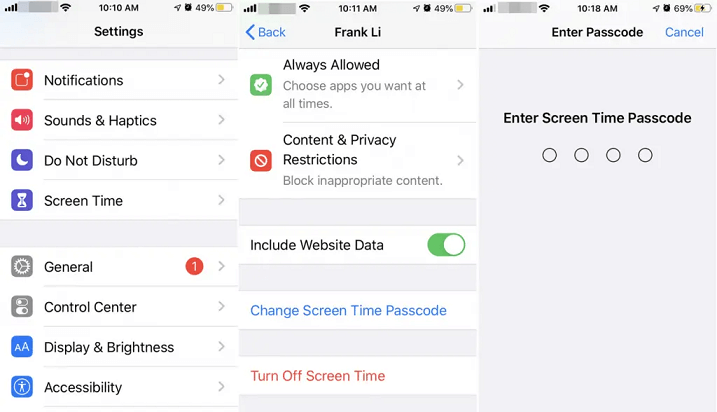
Step 3. If the toggle at the top is GREEN (ON), this is almost certainly your problem.
Step 4. Scroll down to the ALLOW CHANGES section, and tap Account Changes.
Step 5. Select Allow and enter your Screen Time passcode if prompted.
Step 6. Exit Settings and re-open it. Your Apple ID at the top should now be selectable.
📝Note: If you are a child in a Family Sharing group, the Screen Time passcode is controlled by the parent/guardian's device. You will need to ask them to enter the passcode on your device or adjust the settings from their own device.
Method 2. Reset or Turn Off Screen Time Passcode
If you've forgotten your Screen Time passcode, you can't adjust the restrictions. Removing the passcode clears all restrictions.
Step 1. Go to Settings > Screen Time on your iOS devices.
Step 2. Scroll to the very bottom and tap Change Screen Time Passcode.
Step 3. Tap Turn Off Screen Time Passcode.
Step 4. You will need to enter the old passcode to turn it off. If you don't know it, see the note below.
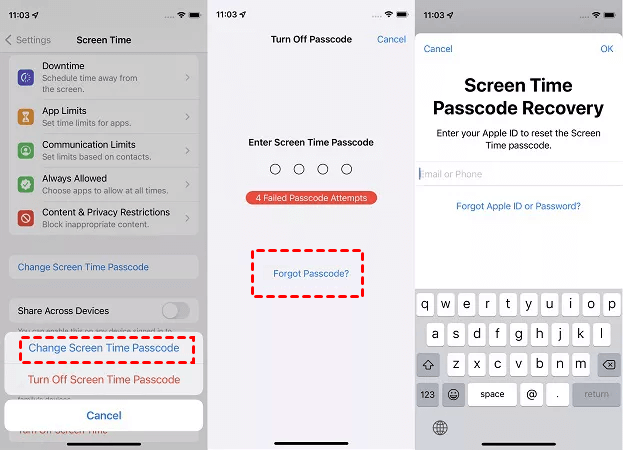
Step 5. Once the passcode is off, all Content & Privacy Restrictions will be disabled, which should fix the greyed-out Apple ID.
Method 3. Check for and Remove MDM Profiles
For managed devices (e.g., from work or school), an admin profile is in control.
Step 1. On your iPhone or iPad, open Settings > General.
Step 2. Scroll down and look for VPN & Device Management or Profiles & Device Management.
Step 3. If you see a profile listed (e.g., from your company), tap it.
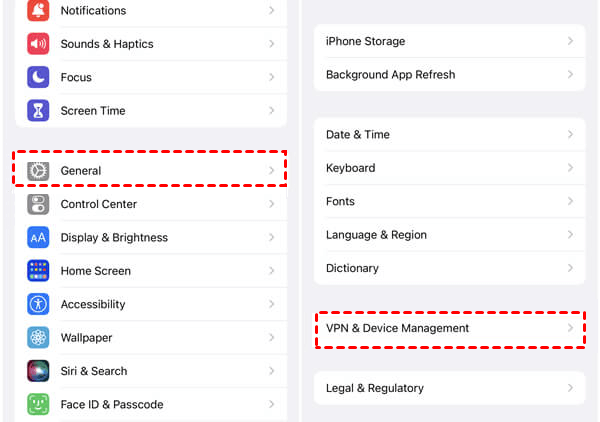
Step 4. You may see a Remove Management option. Tapping it may require an administrative password from your IT department.
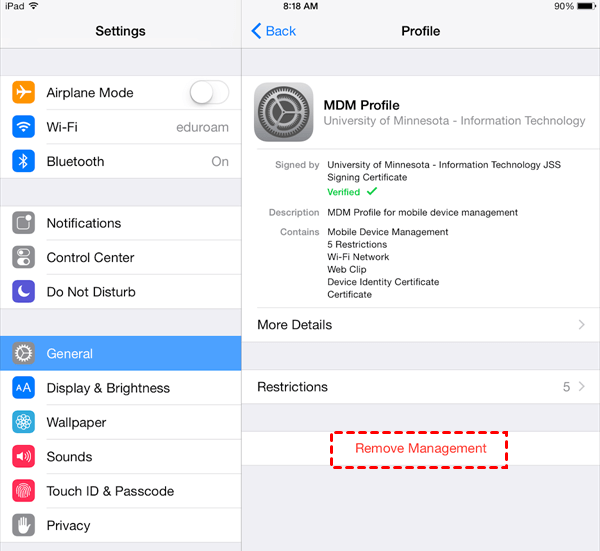
Step 5. If you cannot remove it yourself, you must contact your organization's IT support. Explain that the profile is causing your Apple ID to be greyed out, preventing you from using personal account features.
Method 4. Remove Locked Apple ID with FoneTool Unlocker
For the most stubborn casessuch as when you've purchased a second-hand iPhone with a previous owner's Apple ID greyed out and stuck, or you are locked out due to forgotten passwords and no recovery options- a professional tool is the definitive solution.
We recommend FoneTool Unlocker. This software is specifically designed to remove Apple ID and Activation Lock without needing the previous password, making it the ultimate tool to bypass a greyed-out Apple ID that cannot be resolved through standard settings.
- ★Highlights:
- ✅Powerful iOS Unlocker: Easily unlock the forgotten password iOS screen, as well as locked Apple ID, Screen Time, and more.
- ✅High Success Rate: Effectively removes Apple ID from devices even when the account is greyed out or inaccessible.
- ✅Simple Process: A user-friendly, guided three-step process (Connect, Download, Remove) makes it accessible for non-technical users.
- ✅Broad Compatibility: Works with a wide range of iOS versions and iPhone models, including older devices where this issue is common.
Step 1. On a Windows PC, download and install FoneTool Unlocker, and connect your iPhone to the computer using a USB cable.
Step 2. Launch the software and select the "Remove Apple ID" mode.
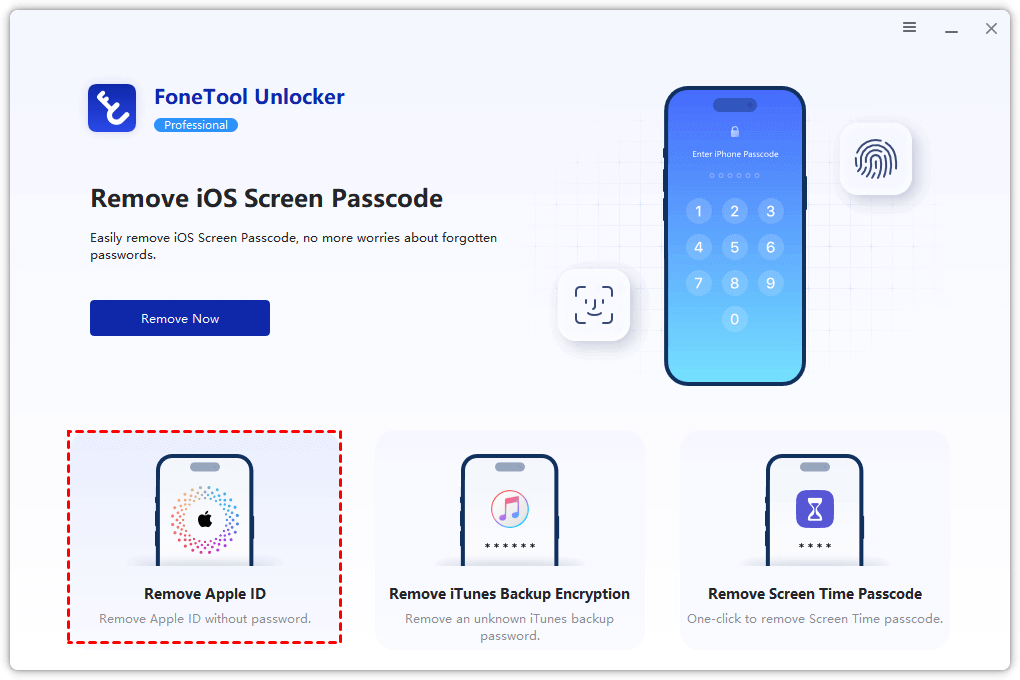
Step 3. Follow the on-screen instructions to put your iPhone into Recovery Mode. The software will provide clear button-press guides.
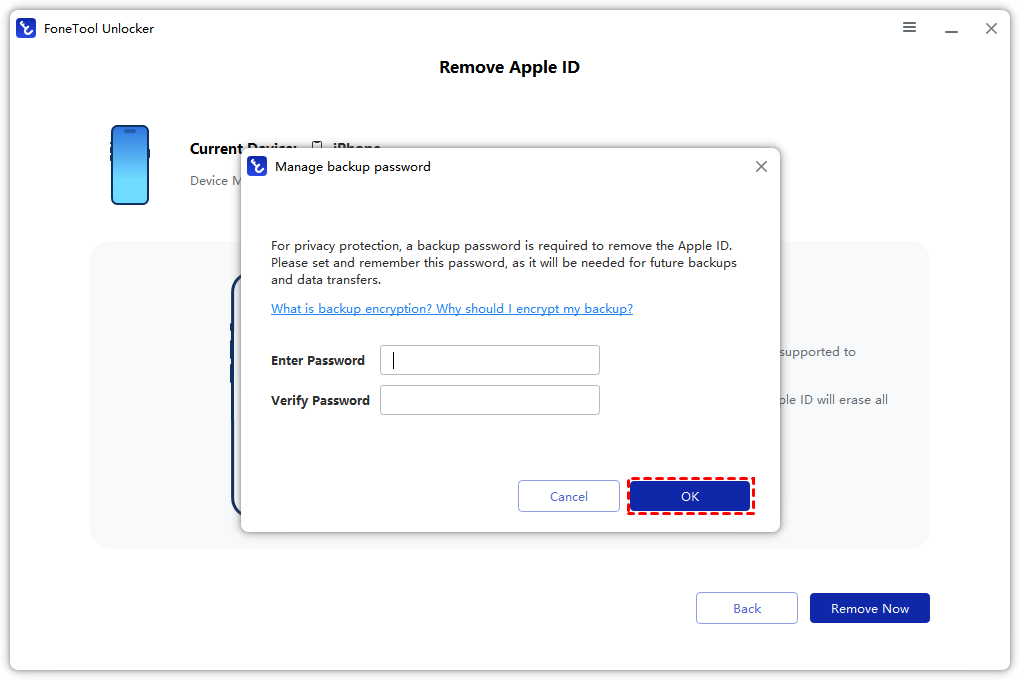
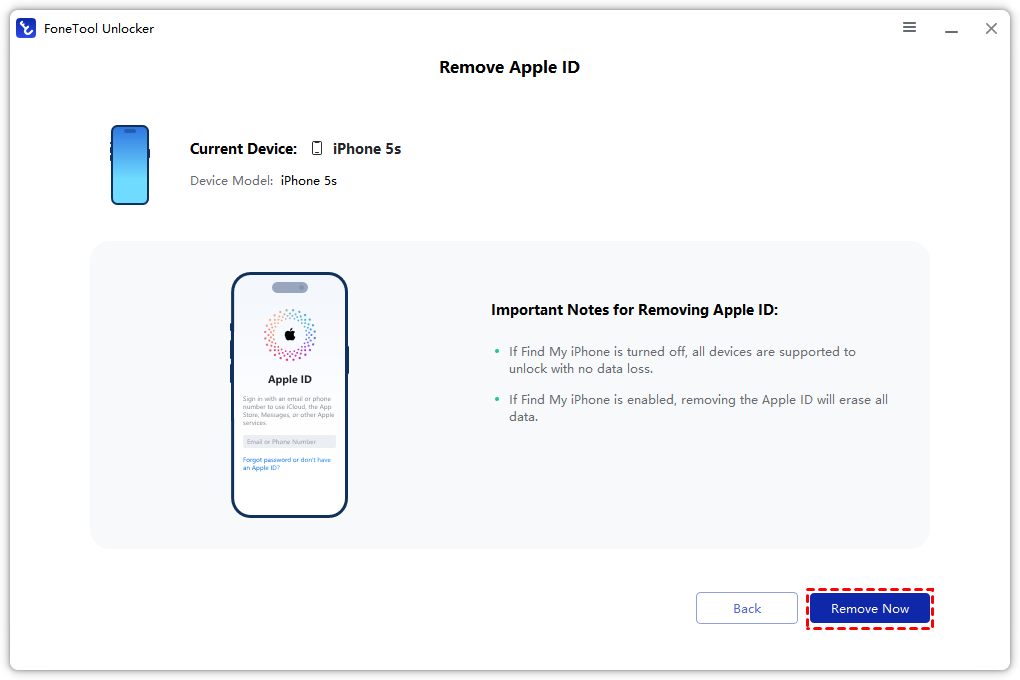
Step 4. Download the necessary firmware package for your device. Click the "Remove Now" button. The tool will now erase the Apple ID and Activation Lock from your device.
Frequently Asked Questions (FAQ)
Final Words
In summary, a greyed-out Apple ID is most commonly a simple software restriction, often rooted in Screen Time settings. For most users, the fix is quick and found within your iPhone's own options. In more complex cases, such as with forgotten passwords or second-hand devices, professional tools like FoneTool Unlocker offer a reliable solution, with the distinct potential to remove the Apple ID without data loss if "Find My" is disabled.
FoneTool Unlocker - 1-Click iPhone Unlock Software
Easily unlock all passcodes and restrictions on your iPhone, iPad, and iPod Touch.
-
 iOS 27 Compatible
 iPhone 17 Supported
100% Secure

Kelsey is an English editor at FoneTool, passionate about helping users solve tech issues. She specializes in iPhone data management, backup, and recovery. In her free time, she enjoys learning IT skills and spending time with loved ones.
Read author info >>



 as a preferred
source on Google
as a preferred
source on Google