Downloading Messages from iCloud Stuck? 7 Fixes (2026)
Staring at "Downloading Messages from iCloud stuck" for hours? This guide helps you tell slow from stuck, then walks through 7 fixes in the right order, so you don't reset a download that was actually working.


You see it on your screen: "Downloading Messages from iCloud". And it just… sits there. The progress bar doesn't move. Old messages are still missing. You have no idea if it's actually working or completely frozen.
Let's figure that out. This guide helps you answer two questions: First, how to tell if it's just slow or genuinely stuck. Second, if it's stuck, what order to try things in so you don't make it worse.
This guide is for new devices, restored devices, or anytime you've changed your iCloud sync settings and need to pull your message history down to this device. If your problem is that new messages aren't staying consistent across devices, that's a different issue - head over to the iMessage sync paused guide instead.
Here's a quick table to help you figure out which situation you're in:
| 👁🗨 What you see | 💡 What it usually means | 🚀 Start with |
|---|---|---|
| Conversations and attachments are slowly appearing | Download is still working, just slow | Give it power, Wi-Fi, and time |
| Text shows up, but old photos and videos won't open | Attachments are still processing in the background | Check your local storage |
| Absolutely nothing changes for a long period | The local process might be stuck | Restart and sync again |
| Only this one device won't finish | Device settings or local storage is the issue | Compare accounts and Messages settings |
| Multiple iCloud services are failing at once | Network, account, or Apple server issue | Start with general diagnostics |
First, Check: Is It Really Stuck, or Just Slow?
Use this when: You just started seeing "Downloading Messages from iCloud" and you're not sure if you should wait or start troubleshooting.
Your message archive isn't one simple file. It can include text, photos, videos, voice messages, links, documents, and indexing data. So text often shows up before attachments. That's normal, not broken.
Here's what to do:
Step 1. Take note of the current time and how much free storage your device has.
Step 2. Open a few old conversations and note which attachments are still missing. Meanwhile, keep your device plugged into power and connected to stable Wi-Fi without interrupting - a large archive can take hours or even days.
Step 3. Come back a few hours later and check: Did storage use change? Did new conversations appear? Can you open any attachments now?
This step sounds basic, but a lot of people mess this up by jumping in too fast. They start poking around before the download even has a chance, and end up making things worse. Only start troubleshooting if absolutely nothing has changedor if an error keeps popping up.
Fix 1: Connect Your Device to a Stable Network
🎯 Use this when: You just set up a new device or restored one, and the download just started.
This is the lowest-risk thing you can do but it's also the most overlooked. Your device might not even have the conditions it needs to finish.
Here's how:
Step 1. Plug it into a charger and join a stable private Wi-Fi network (not a public hotspot). iCloud sync needs a reliable connection.
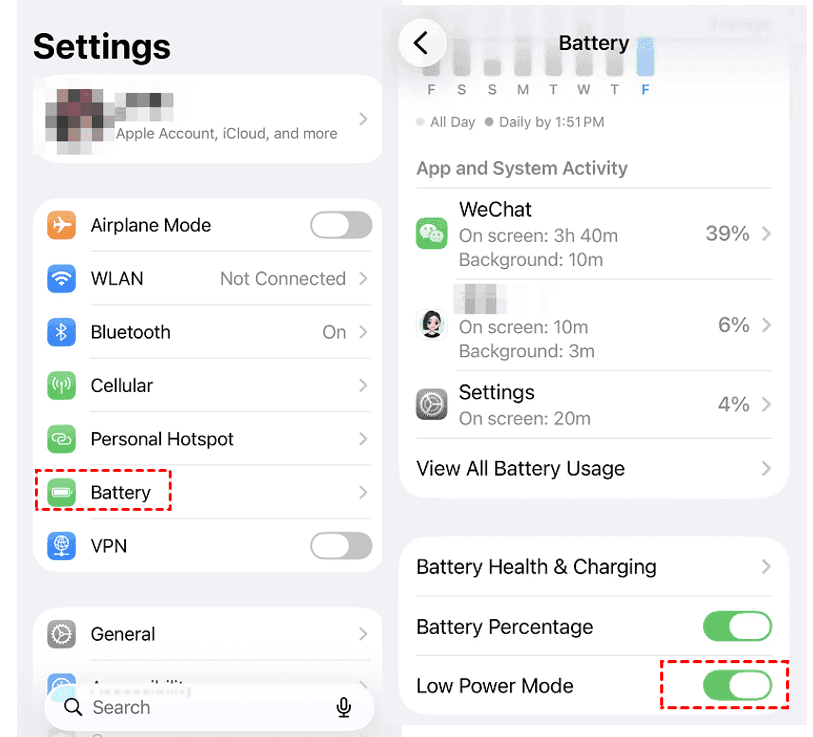
Step 2. On your iPhone or iPad, go Settings > Battery > Low Power Mode and toggle it off temporarily.
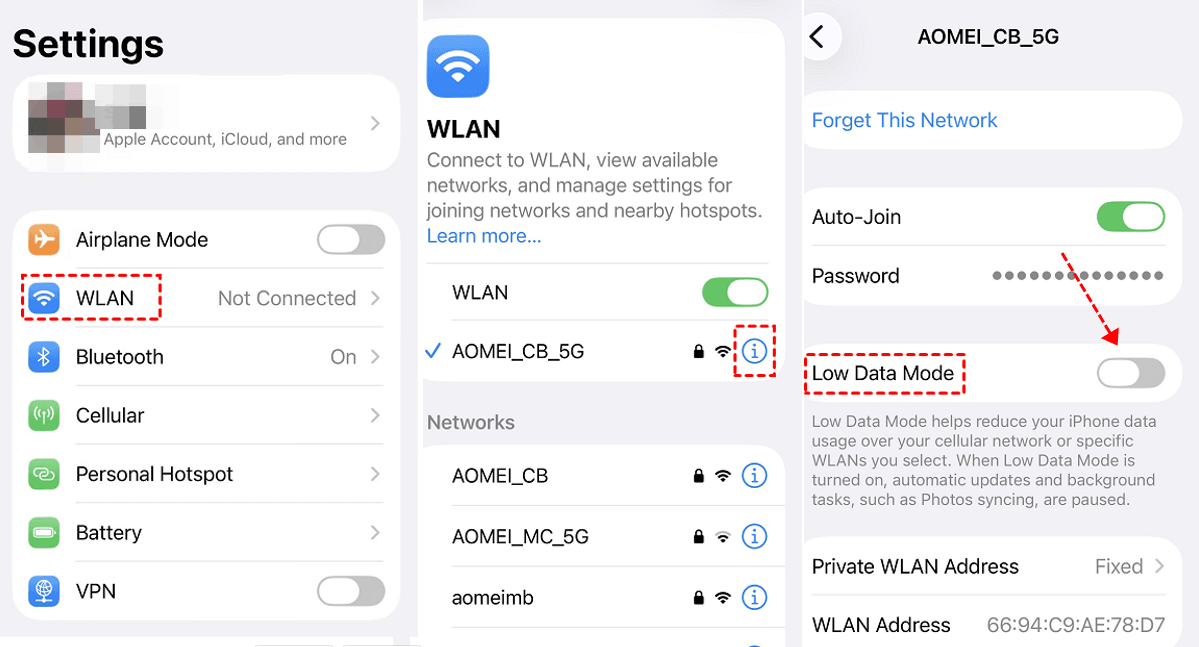
Step 3. Go to Settings > WLAN/WiFi, tap the Info icon next to your network, and turn off Low Data Mode if it's on - this ensures your download isn't throttled.
Step 4. Avoid switching networks or restarting the device repeatedly. Just leave it alone and let it process.
This fixes a lot of interrupted background tasks. But if your storage is full or you're using the wrong account, this won't help. So keep reading.
Fix 2: Check Local Storage and iCloud Space
🎯 Use this when: Text shows up, but attachments never arrive or you notice your device is almost full.
Downloading needs local space. iCloud space and device space are two separate things. Having plenty of iCloud storage doesn't help if your phone is full.
Here's how:
Step 1. Go to Settings > General > iPhone Storage (or iPad Storage) and check how much free space you have and how much Messages is using.
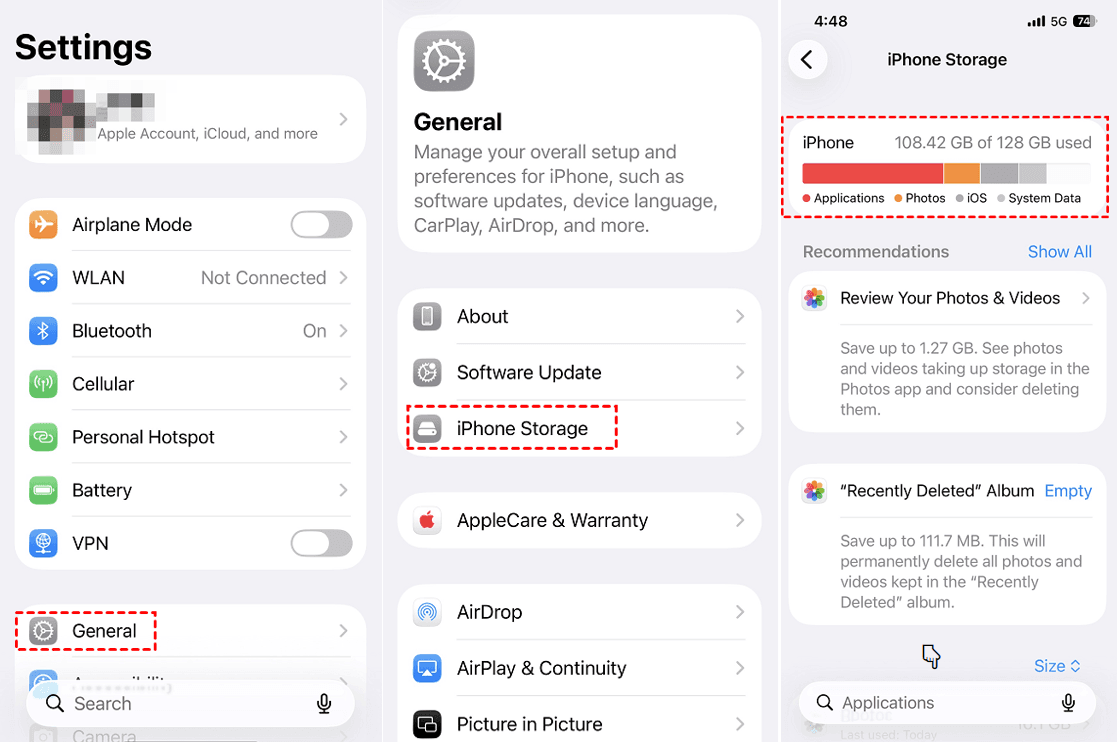
Step 2. If space is tight, start by clearing things you can easily get back, such as unused apps, temporary media, things already backed up elsewhere. Don't start deleting message threads yet.
Step 3. Check and free up your iCloud storage as well. Apple only provides 5GB of free space, which can fill up quickly.
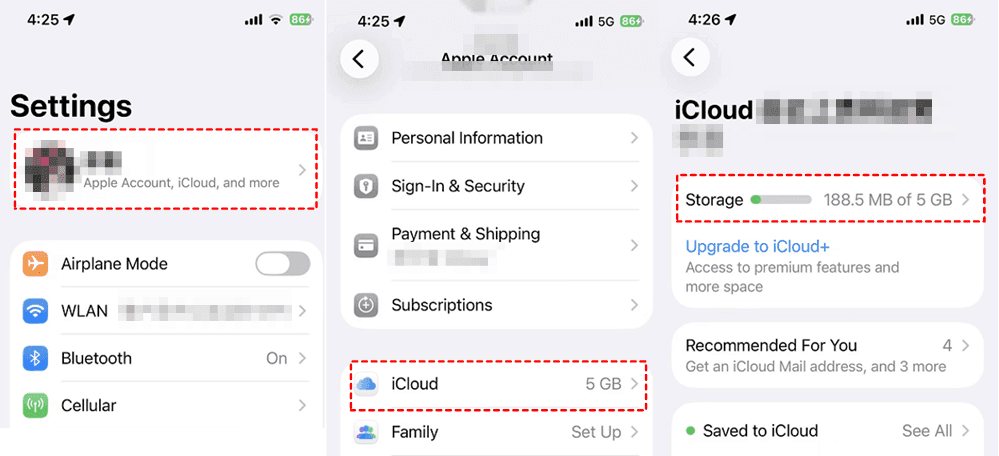
After clearing space, reconnect to power and Wi-Fi and see if the download picks up.
Fix 3: Check Apple Services and Account Alerts
🎯 Use this when: Multiple iCloud features are acting up, or Settings keeps asking you to "complete account setup".
Sometimes the problem isn't your device at all - it's on Apple's side. Before you spend time on other fixes, check Apple System Status first.
Here's how:
Step 1. Check Apple System Status if iCloud or iMessage shows yellow or red, wait for Apple to resolve it.
Step 2. If not working, open Settings and look for any red badges or alerts near your Apple ID. Complete any authentication or account confirmation requests that pop up.
Step 3. Confirm you're signed in with the correct Apple ID.
This step is easy to skip, but a lot of people waste hours troubleshooting their own device when the problem was at Apple's end all along. Rule out external factors first.
Fix 4: Restart and Sync Again
🎯 Use this when: You've confirmed power, network, storage, and account are all fine but the download still isn't moving.
what about? A restart clears out temporary glitches. Then, manually triggering iCloud Messages sync gives the download a fresh push without resetting your entire iCloud connection.
Here's how:
Step 1. Close the Messages app (just swipe it away normally). Restart your iPhone, iPad, or Mac. This simple step often gets syncing started back up again.
Step 2. Reconnect to power and Wi-Fi. Go to Settings > [your name] > iCloud > Messages (if you don't see Messages, tap "See All" next to "Saved to iCloud").
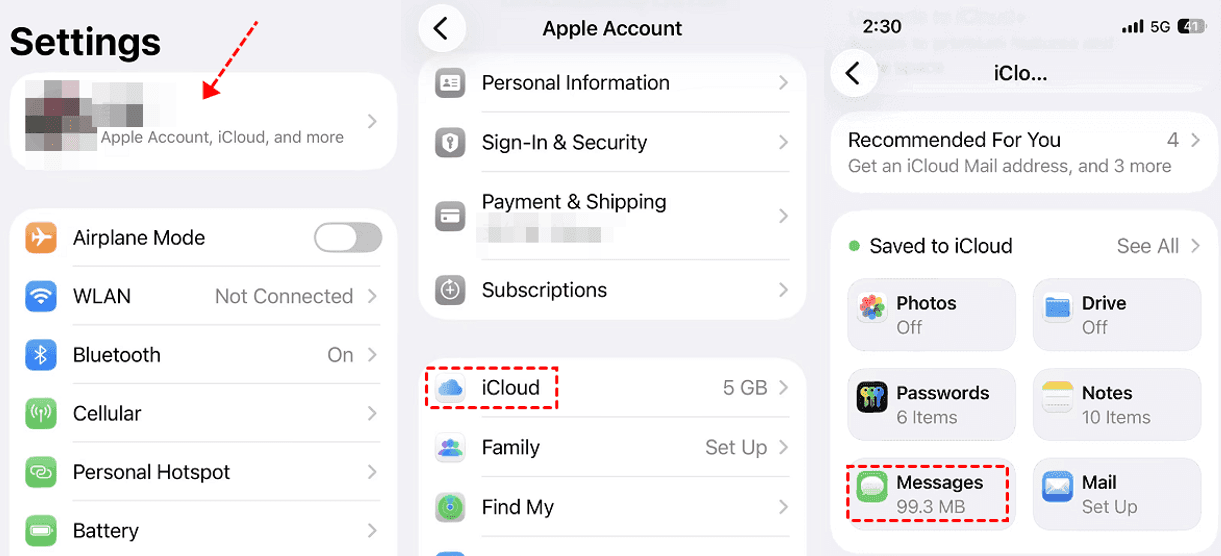
Step 3. If you see a "Sync Now" button, tap it.
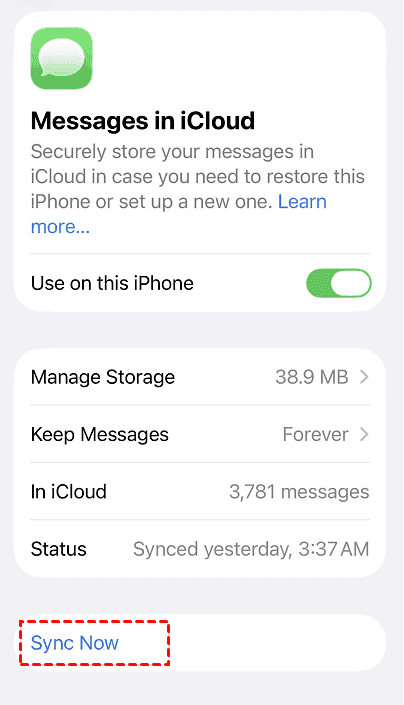
Just leave it alone and check back later. A restart can clear a stuck local process. But if the download keeps stopping at the exact same point, it's not just "stuck" - move on to the next fixes.
Fix 5: Confirm the Same Account Is Used for iCloud and Messages
🎯 Use this when: The device shows an account mismatch, or only some conversations show up.
Your message history is tied to your Apple ID. If your iCloud account and your iMessage "Send & Receive" settings don't match, you'll get the wrong history or only part of it.
Here's how:
Step 1. Open Settings > [your name] > iCloud > Messages. Then, tap Send & Receive and confirm the Apple ID email and phone number are correct.
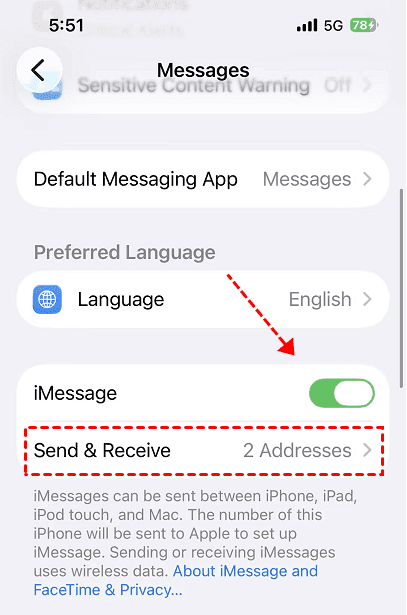
Step 2. Compare these settings with a device that does have the full history. If you find a mismatch, correct it and tap Sync Now again.
Step 3. On a Mac, check the iMessage account in Messages settings.
Getting the account right is required for the correct history to show up. One more thing: don't casually change phone numbers and emails in Send & Receive - conversations can split across different identities.
Fix 6: Re-enable Messages in iCloud
🎯 Use this when: You've tried all the lower-risk fixes above, only this one device is still stuck, and your account is healthy.
This one comes with a cost - it might trigger a fresh download, which means waiting all over again. So back up whatever messages you already have on this device before you do it (try reliable software - FoneTool below).
Here's how:
Step 1. On your iPhone, go to Settings > [your name] > iCloud > Messages.
Step 2. Turn off Use on this iPhone. If you want to keep all messages on your iPhone, click Disable and Download Messages.
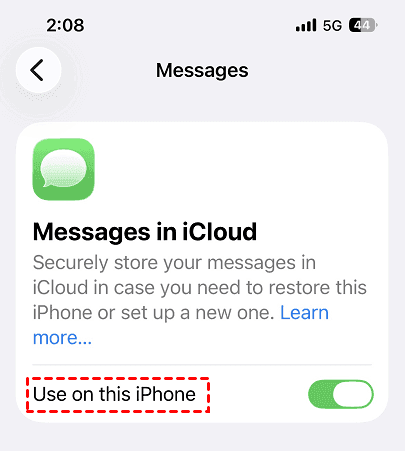
Step 3. Wait 10-30 seconds and turn Use on this iPhone back on.
Step 4. Connect to power and Wi-Fi and let it restart the process. You may also see a "Sync Now" button appear, tap it.
This can refresh a broken local connection. But the downside is that it may trigger another long download, so, again, back up your existing messages first. Only use this as a later step, not your first move.
Fix 7: Update iOS or Contact Apple Support
🎯 Use this when: You've tried everything above, your settings are correct, storage is fine, no outages but it still won't finish.
At this point, it could be an iOS bug or something on Apple's side of your account that only they can see. System updates fix software issues; Apple Support handles account-side problems. Make sure you have a current backup before you start- if not, do it now.
Here's how:
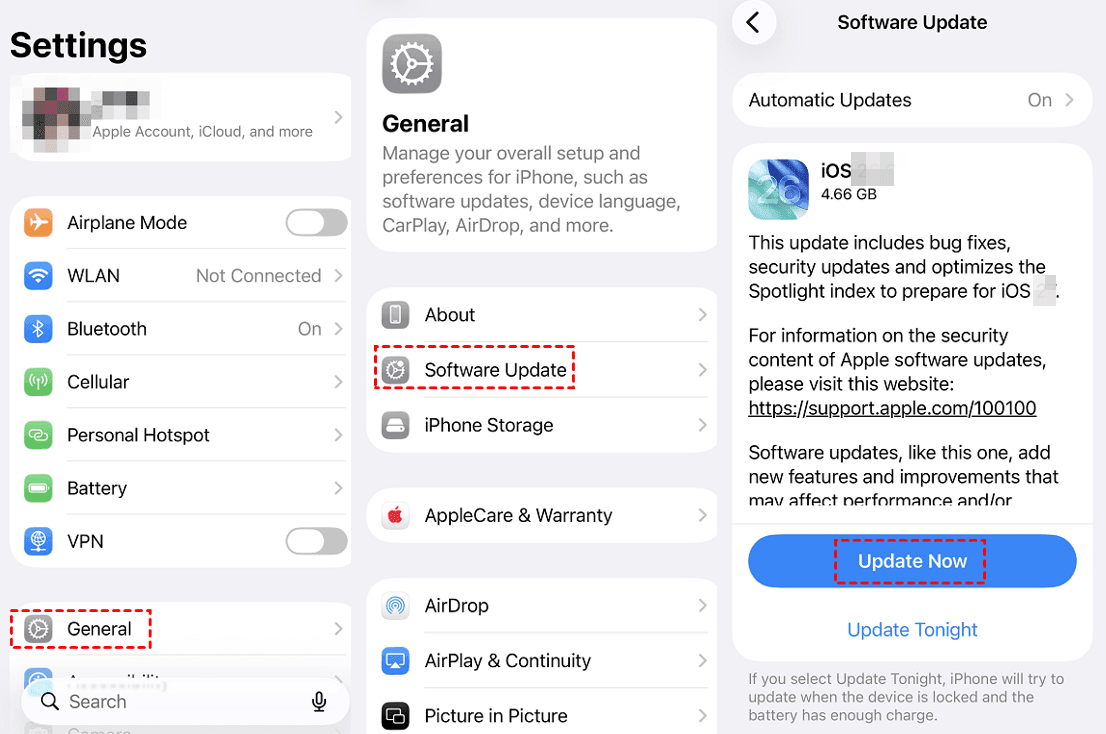
Step 1. Install the latest compatible iOS, iPadOS, or macOS update:
👉 On iPhone or iPad:
-
Open Settings > General > Software Update. If an update is available, tap Update Now or Download and Install.
-
If prompted, enter your passcode and agree to the terms.
-
Keep your device plugged in and connected to Wi-Fi during the download and installation.
👉 On Mac:
-
From the Apple menu, choose System Settings > General > Software Update. If an update is available, click Update Now.
-
Keep your Mac plugged in (if laptop) and let it restart when prompted.
❓ If you can't update wirelessly:
Connect your device to a computer and use Finder (on macOS Catalina or later) or iTunes (on Windows or older macOS) to check for and install updates.
Step 2. Restart your device and try the download again under stable conditions.
Step 3. If it still fails, contact Apple Support - provide a screenshot of the status in Settings > [your name] > iCloud > Messages and list the fixes you've already tried.
An update can fix software compatibility issues. But if the problem is on Apple's account side, you're not going to fix it by repeating local resets - get them involved.
What Does "Disable and Download Messages" Mean?
This option turns off Messages in iCloud on this device, while requesting that cloud-stored messages download locally. You'll keep the content, but sync stops.
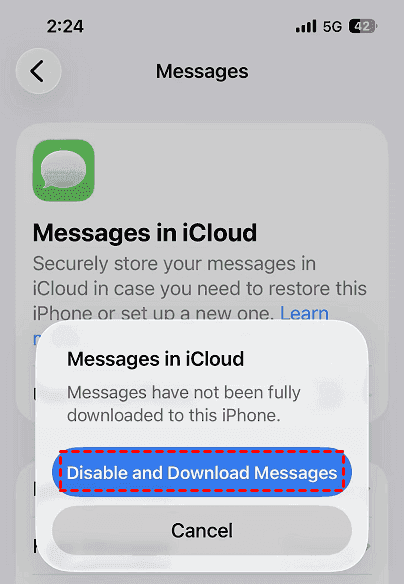
Before you choose this:
-
Make sure the device has enough local storage.
-
Keep it powered and online - a large archive can take time.
-
Understand that cancelling midway may leave only part of the history.
-
Don't erase the device while the download is incomplete.
-
Back up your important existing content first (try FoneTool below).
This isn't a magic repair button. If the real problem is a network outage, account mismatch, or full storage, disabling sync won't bypass those limits.
What If Message Attachments Still Don't Download?
Attachments are usually slower than text - often much slower.
- First, check your local storage. Then, open a few different old conversations. If just a couple of images are missing, that's a different issue than if your whole media library is empty.
- If thumbnails are there but full files aren't, keep the device on a stable network and leave a few conversations open.
- If nothing improves after the general download resumes, update your device and tell Apple Support exactly what you're seeing.
And don't repeatedly delete and re-create conversations as a test - with Messages in iCloud enabled, deletions sync across all your devices.
Comparison Table to Downloading Messages from iCloud Stuck Error
| ⚡ Fix | 🛡️ Risk | 🎯 Best for | ⚠️ Main limitation |
|---|---|---|---|
| Fix 1: Give it power and network | Very low | Large archive that's still changing | Requires patience |
| Fix 2: Check storage | Low | Attachments won't download | Need to be careful what you delete |
| Fix 3: Check services and alerts | Very low | Multiple services failing or account prompts | May require waiting on Apple |
| Fix 4: Restart + Sync Now | Very low | Local process looks frozen | Won't fix account mismatch |
| Fix 5: Confirm account details | Low | Only partial history downloaded | Changing identity settings needs care |
| Fix 6: Re-enable sync | Medium | One device connection is stuck | May trigger another long download |
| Fix 7: Update or contact support | Very low to medium | Persistent failure, unknown cause | May not give immediate results |
Back Up Messages with a Third‑Party Tool
Some fixes above are safe to try without any preparation. But turning Messages in iCloud off and back on carries a small risk - you could lose messages already on your device if something goes wrong.
That's why it's worth backing up your existing messages before you go there.
FoneTool lets you selectively back up iPhone messages to a computer, external drive, USB drive, NAS, etc. Pick specific conversations, preview them, and save them locally - no iCloud, no Wi‑Fi required. It also supports full backups, encryption, and more.
Here's how to use it for messages:
Step 1. Download and install FoneTool on your Windows computer, then connect your iPhone with a USB cable and tap Trust to authenrize your computer.
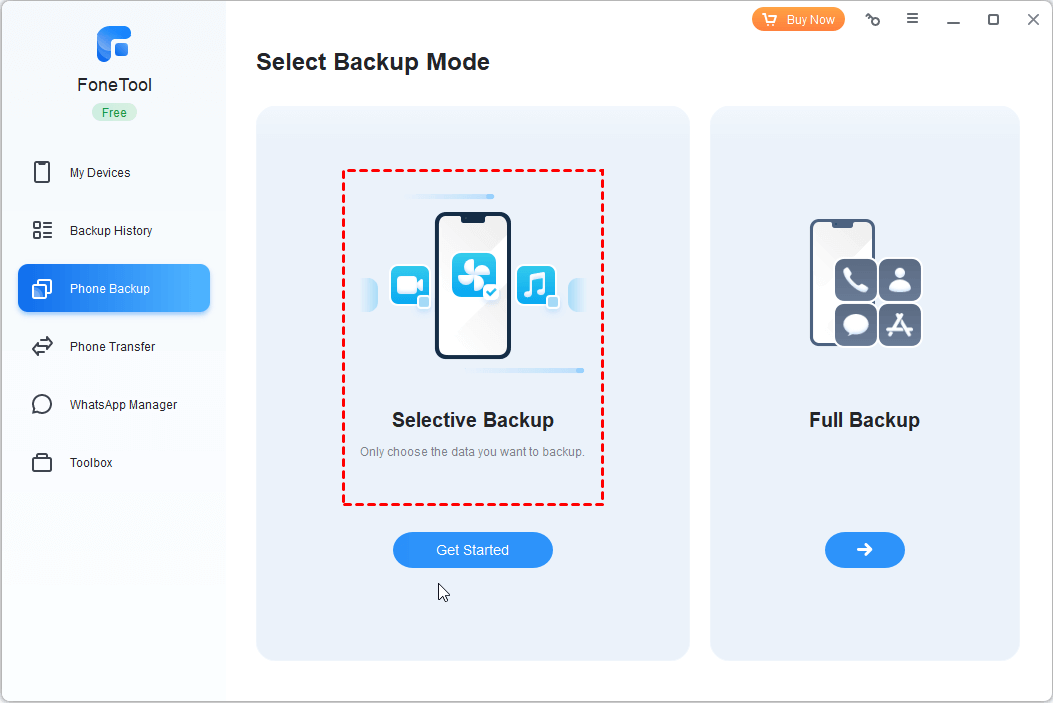
Step 2. Open FoneTool, click Phone Backup in the left panel. Then, select Selective Backup and click Get Started.
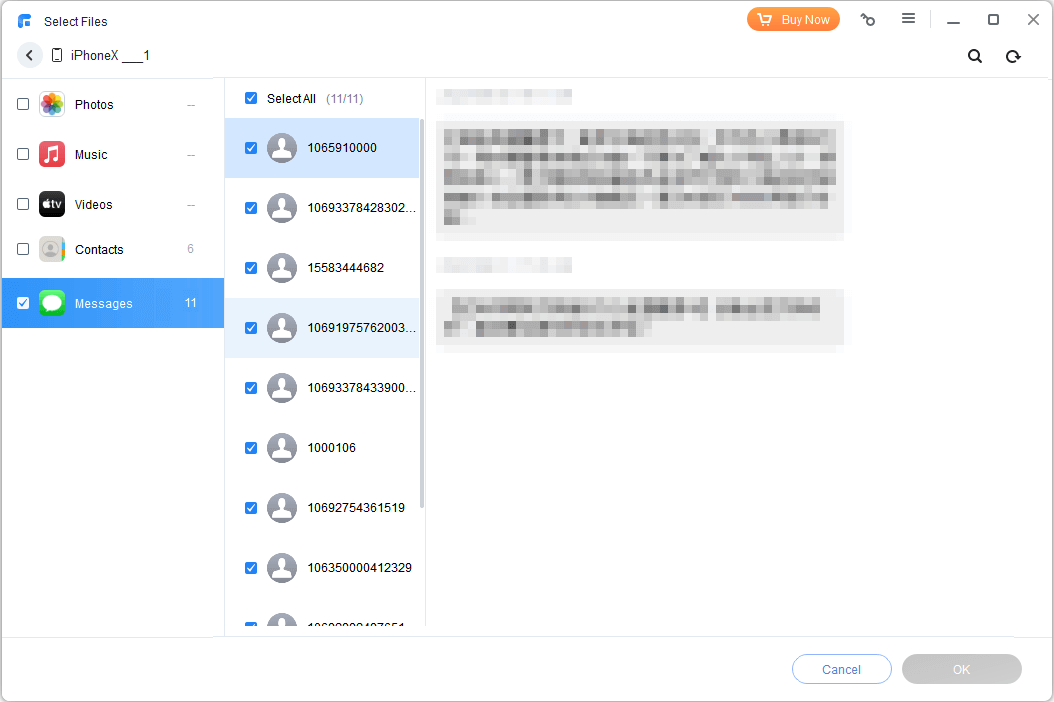
Step 3. Check the Messages icon to preview and choose specific conversations you want to back up. Click OK to confirm.
Step 4. Click Backup Storage Path to choose a destination folder. It can be a folder on your computer, external drive, NAS, etc.
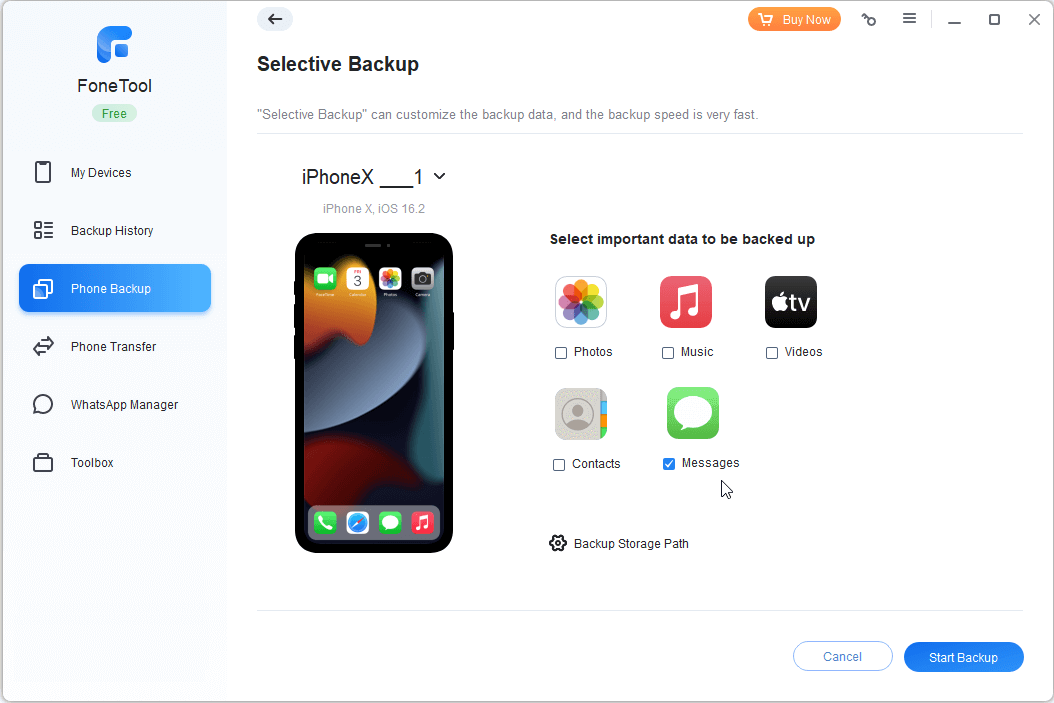
Step 5. At last, click Start Backup and wait it to finish.
Once the backup is complete, you can view the backed‑up messages anytime from the "My Backups" section. If you ever need to restore them to any iOS device, FoneTool supports that too.
Conclusion
When "Downloading Messages from iCloud" gets stuck, your first move is to check if it's actually moving - is storage changing? Are new conversations appearing? If anything is happening, it's just working slowly. Give it power, network, and time, and don't mess with it.
If it's truly stopped, work through the fixes in order: storage > service status > restart > account > re-enable sync. Before re-enabling sync, back up whatever messages are already on the device (the FoneTool section above shows you how). And if all else fails, let Apple Support check the account side.
Most of the time, it's slow - not broken. Don't panic, follow the order, and you'll probably get it sorted.
FAQs
1. How long does downloading messages from iCloud take?
There's no set time. Years of conversations and lots of attachments take longer than a small text-only history. If things are changing, it's still working.
2. Can I stop downloading messages from iCloud?
You can change the Messages in iCloud setting but read the prompt carefully. Cancelling partway might leave only some of the history on your device.
3. Why did my messages come back, but not the photos?
Text arrives before large attachments that's normal. Check storage, power, Wi-Fi, and see if attachments are slowly appearing.
4. What does "Disable and Download Messages" do?
It turns off cloud sync on this device and pulls a local copy of your cloud messages. Needs enough space and time to complete.
5. Do messages need local storage to download?
Yes. Cloud space isn't the same as device space - attachments and indexes need room on your phone.
6. Will restarting the download create duplicate messages?
It should reconcile the same cloud history. But if your Send & Receive settings are inconsistent, conversations might show up separately. So double-check account settings first.
FoneTool - All-in-one iPhone Data Manager
Transfer, backup and manage data on iPhone, iPad and iPod touch in an easy way.
-
 iOS 27 Compatible
 iPhone 17 Supported
Windows 11/10/8/8.1/7

100% Secure

Ivey is passionate about teaching users how to easily protect mobile device data. With the FoneTool series of iPhone management, unlocking, and repair software, even beginners can perform data backup, iPhone unlocking, and troubleshooting like a pro.
Read author info >>



 as a preferred
source on Google
as a preferred
source on Google