Easily Transfer Photos from iPhone to iPad without iCloud
This post shows you how to transfer photos from iPhone to iPad without iCloud. It discover other easy ways to move photos from iPhone to iPad without iCloud.


Is There a Way to Transfer iPhone Data without iCloud?
Looking to transfer photos from your iPhone to your iPad without using iCloud? You can efficiently move your pictures using a direct computer transfer tool, wireless AirDrop, or a wired iTunes/Finder sync, each method balancing speed, convenience, and control.
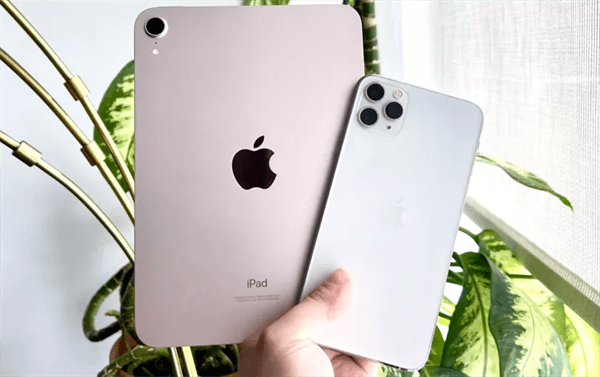
While iCloud Photo Library is seamless, its 5GB free storage limit, reliance on a stable internet connection, and privacy considerations lead many to seek alternatives. Fortunately, Apple's ecosystem and third-party tools offer several effective solutions for offline photo transfer.
This guide provides a detailed, step-by-step walkthrough of the three most reliable methods, helping you choose the best one for your needs.
| Method | Key Advantage | Speed | Major Consideration |
| FoneTool | High-speed, selective transfer with preview and format conversion. | ⚡⚡⚡⚡⚡ | Requires a Windows PC and software installation. |
| AirDrop | Ultra-convenient, direct device-to-device transfer with no cables. | ⚡⚡⚡ | Requires Bluetooth/Wi-Fi and devices to be within ~9 meters (30 feet). |
| iTunes | Official, complete syncing of your photo library. | ⚡⚡ | Overwrites existing photos on the target iPad. |
Method 1. [Easiest] Move Photos from iPhone to iPad with FoneTool
FoneTool is an efficient iPhone data transfer tool that can transfer photos, videos and other data between two iOS devices without iCloud. It supports transferring various image formats, including .jpg .png .gif .heic .bmp .jpeg .arw, etc. And if you find that you can't open HEIC files, the tool can also help you convert HEIC to JPG/JPEG/PNG for free.
 More features of FoneTool:
♦ 100% safe and reliable iPhone/iPad offline transfer solution.
♦ Fast transfer speed, move thousands of photos in minutes.
♦ Preview and select specific photos or albums to transfer.
♦ Maintain quality, no compression or quality loss.
♦ Transfer all data from one iPhone to another in one click.
♦ Support the latest iPhone and all iOS versions.
Now, you can download FoneTool and follow the guide to learn how to download iPhone photos to iPad with FoneTool.
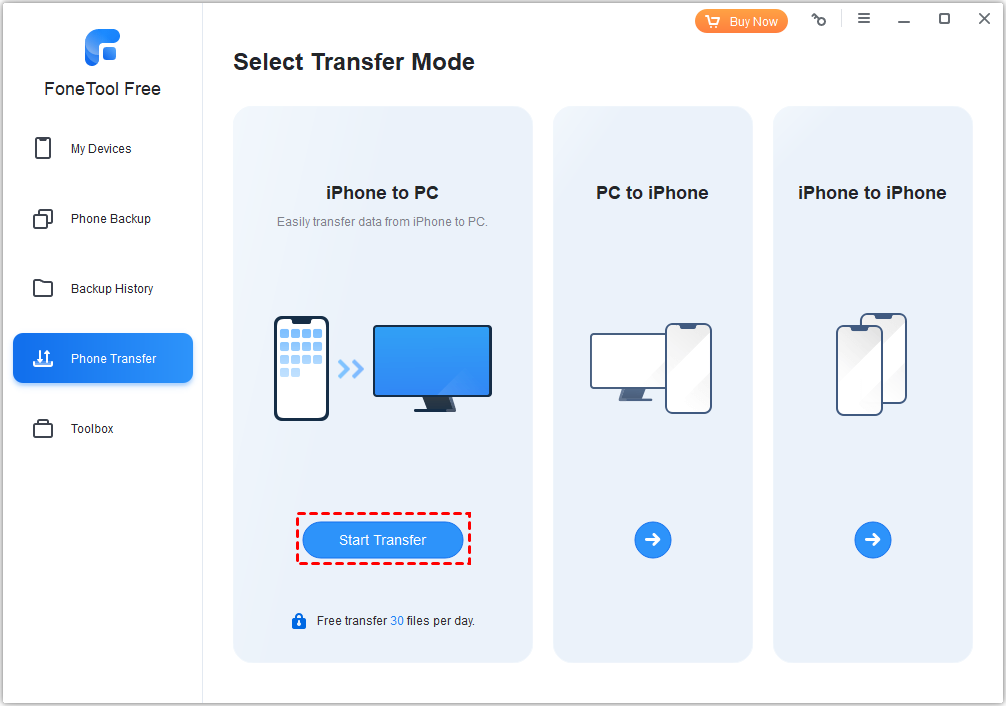
Step 1. Run FoneTool > Connect your iPhone to your PC with USB cable > Tap the Phone Transfer from the left panel > Choose iPhone to PC > Tap Start Transfer.
- ★Tip:
- If you want to backup photos from iPhone without iCloud, you can go to Phone Backup from the left panel.
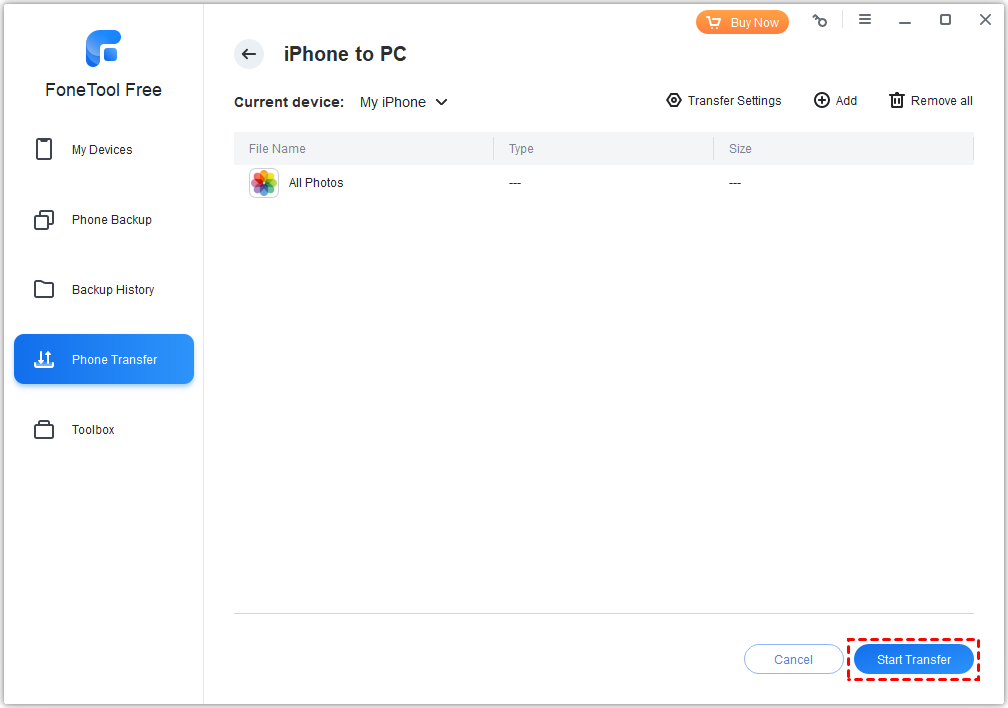
Step 2. Click the + icon > Preview and select the pictures you want to transfer > Click OK to continue.

Step 3. Tap Transfer Settings to decide a storage path on your computer > Then click Start Transfer to begin.
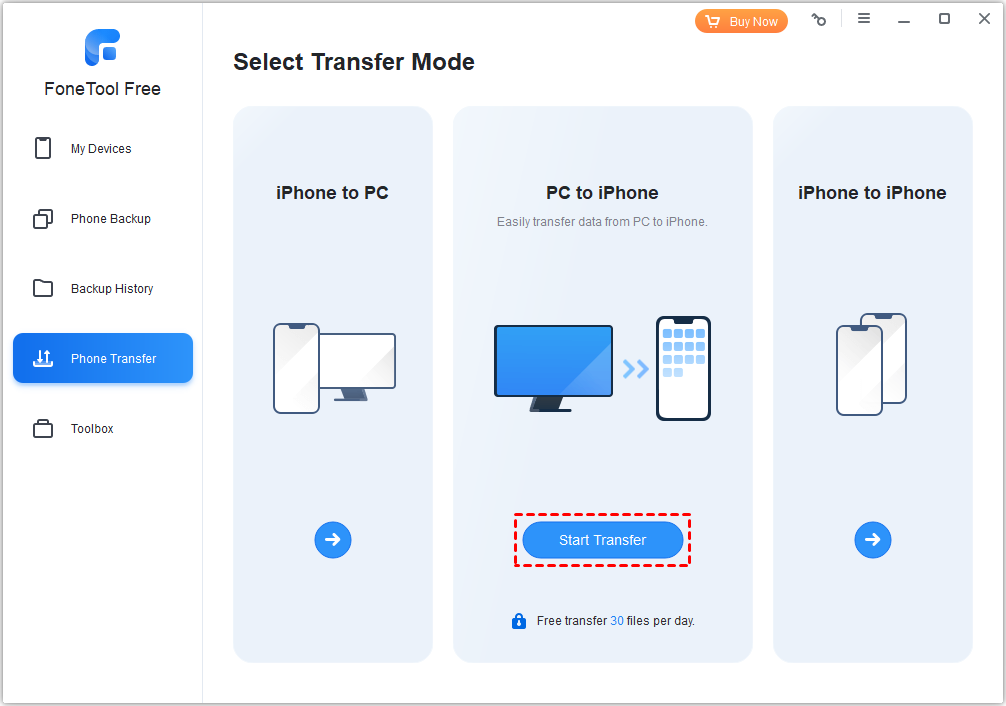
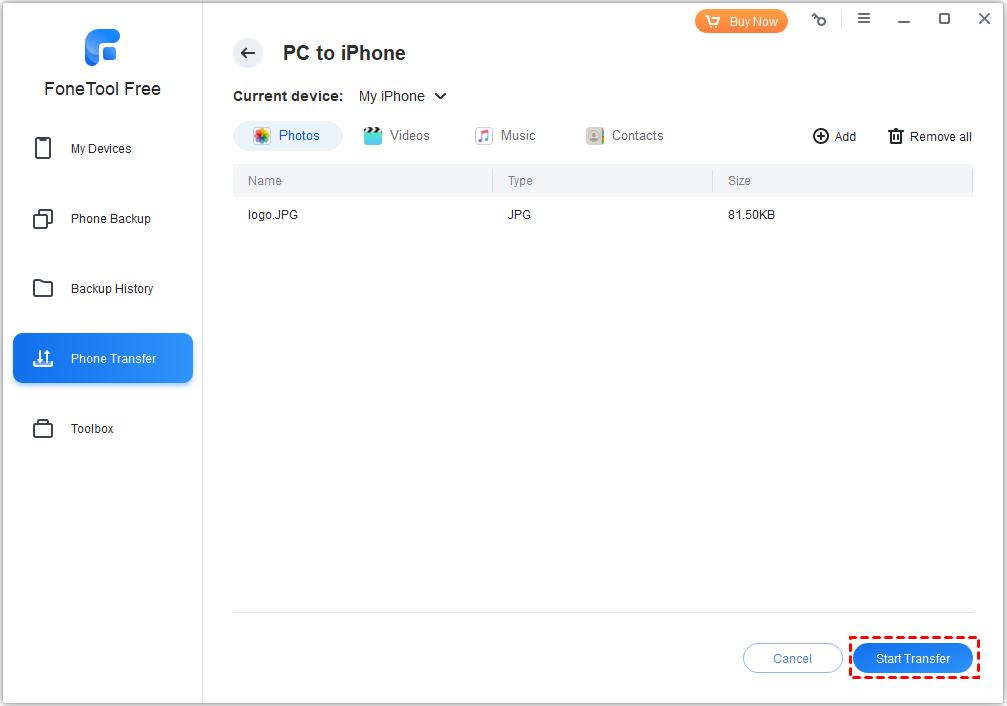
Step 4. After that, unplug the iPhone and plug your iPad to the PC > Move to Phone Transfer > This time, choose PC to iPhone > Tap Start Transfer.
Step 5. Click the folder icon > Locate and choose photos that you transferred from your iPhone > Then click Start Transfer to send iPhone photos to iPad quickly.
- ★Tip:
-
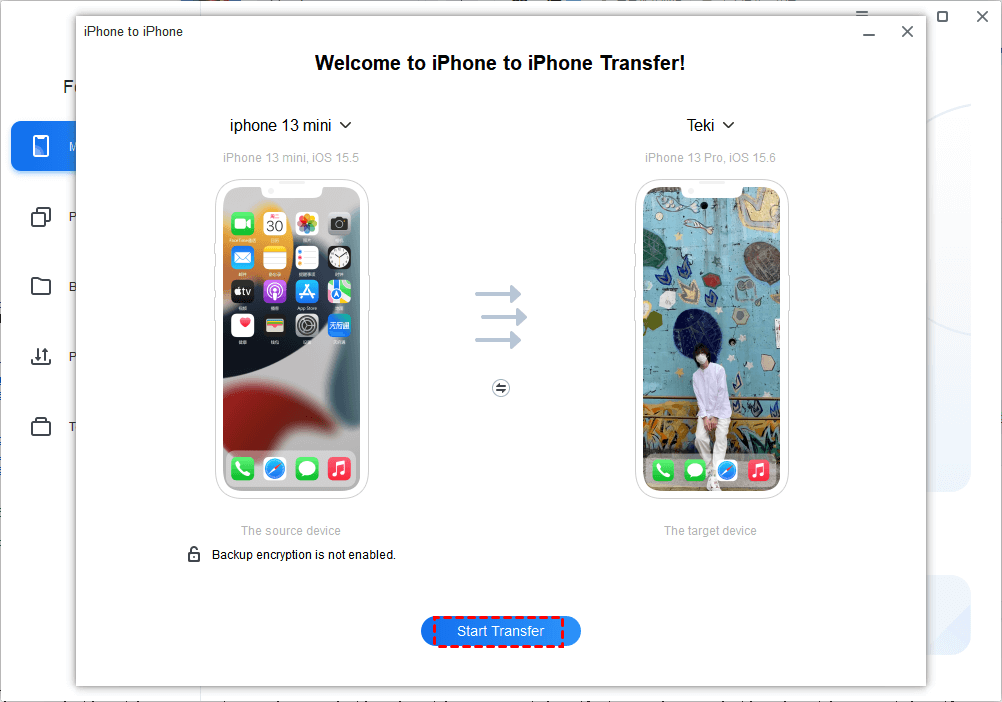
By the way, FoneTool supports you transfer iPhone to iPhone without iCloud. With 1-click, you can move everything from iPhone to iPhone, or iPad to iPad.
Method 2. AirDrop Pictures from iPhone to iPad Wirelessly
AirDrop is Apple's built-in wireless sharing feature. After ensure Wi-Fi and Bluetooth, it can quickly transfer photos and other files between iOS and macOS devices. It's great when you need to transfer a small number of photos.
Here is the guide to AirDrop iPhone photos to iPad.
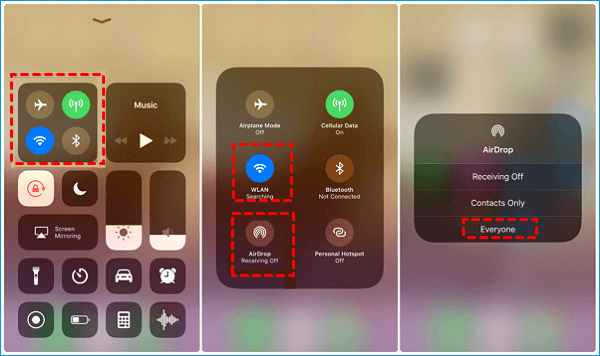
Step 1. On both iPhone and iPad, move to Control Center > Turn on Bluetooth, Wi-Fi, and AirDrop (select Everyone).
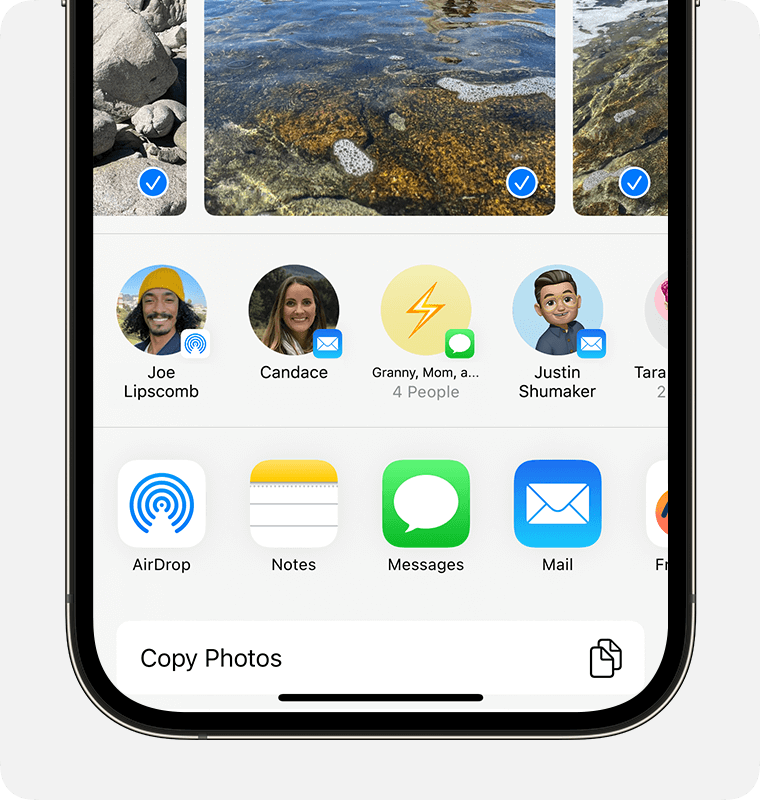
Step 2. Go to Photos app > Select the images you want to transfer to iPad > Click the Share button > Choose AirDrop and choose your target iPad.
Step 3. On your iPad, tap Accept to save these photos from iPhone.
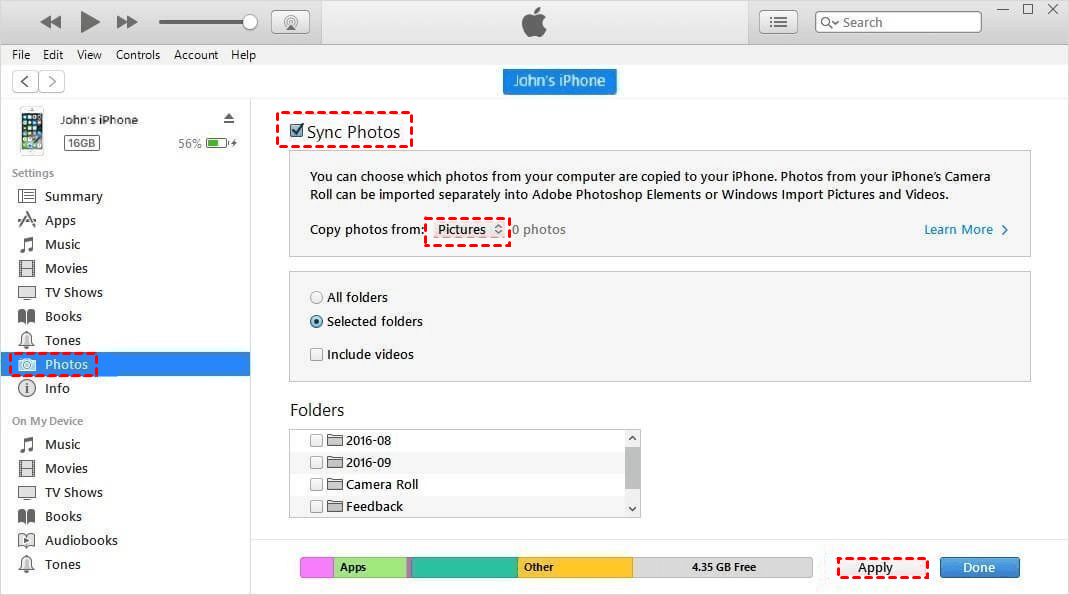
Method 3. Sync Photos from iPhone to iPad with iTunes
In addition, iTunes is Apple's traditional way of syncing data between devices. This allows you to sync your entire photo library to your iPad. However, this process will overwrite the existing photos on your iPad, so you'd better backup photos from iPad before syncing.
Check the steps below to learn how to copy photos from iPhone to iPad via iTunes.
Step 1. Install the latest iTunes on the PC > Connect your iPhone to the computer.
Step 2. Navigate to File > Add to Library to import the photos from your iPhone into iTunes.
Step 3. Then unplug your iPhone and connect your iPad to the computer.
Step 4. In iTunes, click the iPad icon > Select Photos and enable photo syncing by checking the Sync Photos option.
Step 5. Finally, click Apply to sync iPhone photos to your iPad.
Frequently Asked Questions on iPhone to iPad Transferring
Conclusion
That’s all about how to transfer photos from iPhone to iPad without iCloud. There are 3 different methods provided in the content above, each of which can meet different needs, so choose the method that works best for you. You can rely on FoneTool for fast and secure transfers, use AirDrop for wireless convenience, or use iTunes to sync your entire gallery.
FoneTool - All-in-one iPhone Data Manager
Transfer, backup and manage data on iPhone, iPad and iPod touch in an easy way.
-
 iOS 27 Compatible
 iPhone 17 Supported
Windows 11/10/8/8.1/7

100% Secure

Kelsey is an English editor at FoneTool, passionate about helping users solve tech issues. She specializes in iPhone data management, backup, and recovery. In her free time, she enjoys learning IT skills and spending time with loved ones.
Read author info >>



 as a preferred
source on Google
as a preferred
source on Google