How to Fix iPad Attempting Data Recovery Issue: 100% Useful
What should you do when iPad stuck in attempting data recovery? All things are listed here and you can also use the professional tool to help you easily get your iPad data back.


What does iPad attempting data recovery mean?
Seeing the "attempting data recovery" message on your iPad after an iOS update can be worrying, especially when the process gets stuck or fails. This comprehensive guide explains what this error means and provides proven solutions to recover your data and get your iPad working again.
Understanding the "Attempting Data Recovery" Message
This screen typically appears when iTunes encounters update errors on your iPad. While the process should complete automatically in most cases, sometimes it gets stuck or fails, leaving your device inaccessible.
Common scenarios include:
- Successful recovery followed by normal restart
- iPad stuck on recovery screen indefinitely
- "Data recovery failed" error message
Fix iPad stuck in attempting data recovery after iOS update
When your iPad is trapped in the recovery loop, a force restart often resolves the issue.
Force Restart Methods by iPad Model
Here are the steps to force restart an iPad:
For iPads with Face ID (iPad 2018, iPad Pro models):
Step 1. Quickly press and release the Volume Up button.
Step 2. Quickly press and release the Volume Down button.
Step 3. Press and hold the Top button until the Apple logo appears.
For iPads with Home Button (iPad Air and older models):
Step 1. Press and hold both the Home and Top buttons simultaneously.
Step 2. Continue holding for 10+ seconds until Apple logo appears.

Recover iPad data when iPad attempts data recovery fails
If the recovery process fails, FoneTool provides a reliable way to retrieve your important data directly from the iPad.
- Highlights:
- Comprehensive recovery: Retrieve photos, contacts, messages, videos, and more
- Multiple file formats: Supports MP3, JPG, PNG, MP4, MOV, CSV, VCF files
- Selective restoration: Preview and choose specific files to recover
- Fast processing: Quick scanning and recovery saves time
- Wide compatibility: Works with all iPad models including latest versions
Now you can download FoneTool on your Windows PC and learn from the detailed steps to get how to do when your iPad attempting data recovery failed.
Step 1. Connect your iPad to computer via USB > Launch FoneTool > Go to Toolbox > Choose iOS Data Recovery.
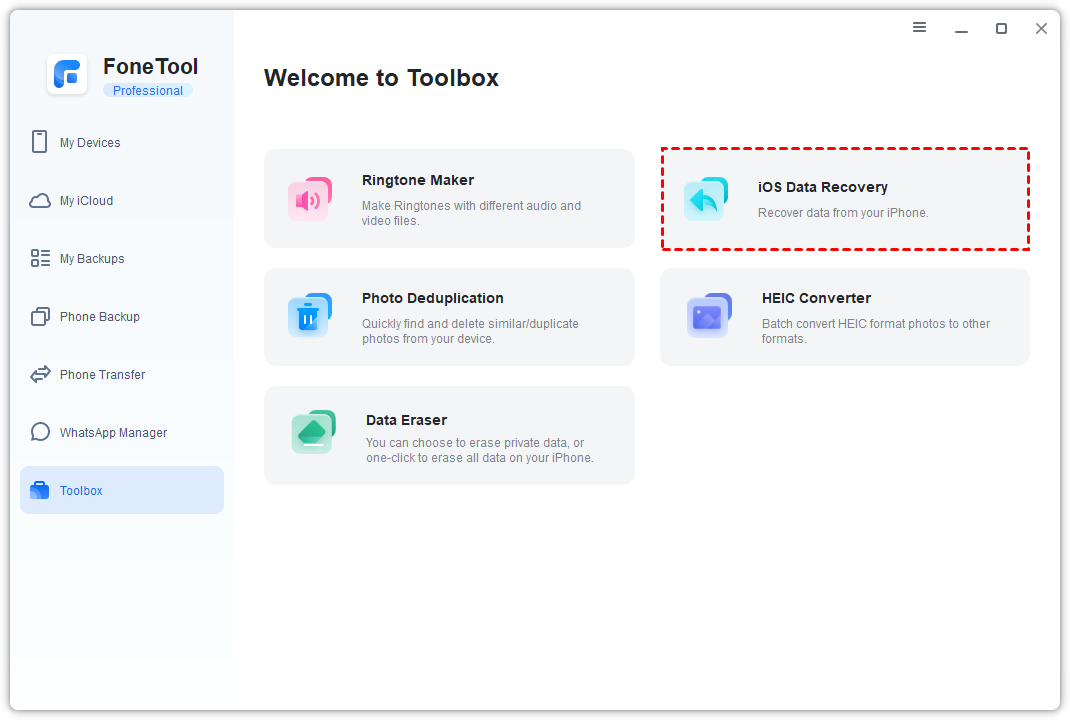
Step 2. Choose file types to recover (photos, contacts, etc.) > Click Start Scan.
Step 3. Preview recoverable files > Select desired items > Click Recover to PC.
Step 4. And then go to Phone Transfer > Select PC to iPhone > Choose recovered files > Transfer to your repaired iPad.
- ★Tip:
- If you need to access iPhone files on your PC, you can also use iPhone to PC to get your iPhone files on the computer.
Conclusion
When faced with iPad data recovery problems, start with a force restart to break the recovery loop. If that doesn't work or the recovery fails, FoneTool offers the most reliable solution to rescue your valuable data directly from the device. The software's ability to preview and selectively recover files ensures you retrieve exactly what matters most.
Facing iPad data recovery issues? Download FoneTool today to quickly recover your important photos, contacts, and files when system recovery fails, ensuring your data remains safe through any update problems.
FoneTool - All-in-one iPhone Data Manager
Transfer, backup and manage data on iPhone, iPad and iPod touch in an easy way.
-
 iOS 27 Compatible
 iPhone 17 Supported
Windows 11/10/8/8.1/7

100% Secure

Kelsey is an English editor at FoneTool, passionate about helping users solve tech issues. She specializes in iPhone data management, backup, and recovery. In her free time, she enjoys learning IT skills and spending time with loved ones.
Read author info >>



 as a preferred
source on Google
as a preferred
source on Google