Effortless Android-to-Android Transfer: AirDroid Magic!
Explore how AirDroid simplifies moving data between Android devices seamlessly, ensuring hassle-free migration! Or you can use FoneTool mentioned in bonus part to finish the Android-to-Android transfer.


AirDroid stands as a pivotal tool for users seeking efficient data migration between Android devices. Its prowess lies in simplifying what can often be a cumbersome process. AirDroid empowers users by streamlining the transfer of data, spanning from contacts to multimedia files, eliminating the complexities often associated with device migration.

How to set up AirDroid Android to Android transfer
The initial setup of AirDroid is fundamental to its efficacy. Begin by downloading the AirDroid app from the Google Play Store. Once installed, the user-friendly interface guides you through the setup process. A crucial step involves the synchronization of devices and granting necessary permissions. AirDroid's intuitive layout simplifies the setup, ensuring a smooth initiation to the data transfer journey.
Exploring AirDroid's key features for device migration
AirDroid unveils a plethora of features, each designed meticulously to facilitate the migration process. From 'Remote Control' enabling device management to 'File Transfer' for seamless sharing of data, AirDroid's functionalities expand beyond conventional data transfer apps. Additionally, the 'Find Phone' feature adds a layer of security by allowing users to locate their devices remotely.
Step-by-step guide: Finish AirDroid Android to Android transfer
The transfer process with AirDroid is an amalgamation of simplicity and precision. After successful setup, users can navigate to the 'Transfer' section, where a selection of data types awaits. Select the desired files or categories for transfer and initiate the process. AirDroid ensures a secure and swift transfer, keeping data integrity intact throughout the migration.
Troubleshooting tips and FAQs for AirDroid transfer
Can AirDroid transfer all types of data between Android devices?
AirDroid supports various data types, including contacts, messages, photos, videos, apps, and documents for seamless transfer between Android devices.
Is AirDroid a secure method for transferring sensitive information?
AirDroid ensures secure data transfer using encryption protocols, safeguarding sensitive information during the transfer process.
Does AirDroid require an internet connection for device migration?
Yes, AirDroid typically requires an active internet connection on both devices to facilitate the transfer.
Can AirDroid transfer apps and app data between Android phones?
Yes, AirDroid can transfer apps and their associated data from one Android device to another.
Are there limitations to the file size or types that AirDroid can transfer?
AirDroid might have limitations on file size, and certain file types might not be supported for transfer due to compatibility reasons.
Can AirDroid transfer contacts and call logs between Android devices?
AirDroid can transfer contacts, call logs, and other essential data between Android devices effortlessly.
What is the speed of data transfer using AirDroid?
The transfer speed using AirDroid varies depending on factors like file size, network stability, and device compatibility.
Are there steps to troubleshoot common issues during Android device migration?
Yes, AirDroid provides troubleshooting steps for common issues such as connectivity problems or file transfer failures.
How do I initiate the data transfer process using AirDroid?
To start, install AirDroid on both devices, follow the setup instructions, then select the files or data for transfer within the app.
If you need an AirDroid alternative to finish Android data transfer, FoneTool is a good choice.
Bonus: A better AirDroid alternative to finish Android data migration
AirDrop, an inbuilt wireless transmission tool in Apple devices, facilitates seamless file sharing among iOS gadgets. FoneTool for Android, similar to AirDrop, enables sharing contacts, media, and more between Android and iOS, like Google Pixel and iPhones, sans internet.
Compatible with diverse Android and iOS devices—Pixel, Samsung, various iPhone models, iPads, including the latest iOS 26 and Android 14 - this app facilitates easy cross-platform sharing, like airdropping from iPhone to Samsung.
Here are the steps for wireless transfer:
Step 1: Download FoneTool on your Android devices. Allow Wi-Fi usage in the app—no need to connect to a Wi-Fi network.
Step 2: Launch FoneTool, go to Connect Device > Choose Connect to Android > Click another device to establish a connection.
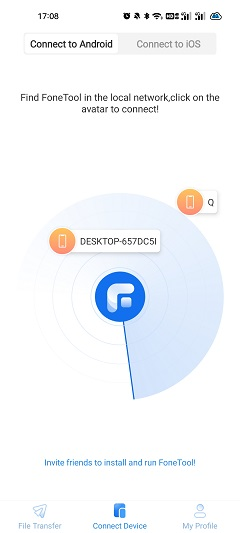
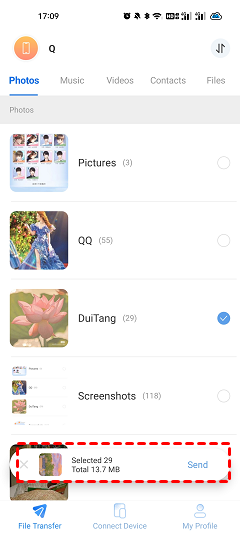
Step 3: Go to File Transfer on source device > Choose data you need to airdrop > Click Send to continue > Tap Confirm on your target device to receive the files.
Step 4: Upon completion, access Transfer Records to view moved data.
Conclusion
This comprehensive guide delves into the intricacies of AirDroid, elucidating its functionality and capabilities and how to finish Airdroid Android to Android transfer. From setup to troubleshooting, AirDroid emerges as a reliable ally, simplifying the intricate task of Android-to-Android data transfer.
If you need a better AirDroid alternative, you can choose the handy FoneTool to help you finish the process. With its powerful feature, you can easily airdrop data between Android and iOS devices like iPhone to Pixel.
FoneTool - All-in-one iPhone Data Manager
Transfer, backup and manage data on iPhone, iPad and iPod touch in an easy way.
-
 iOS 26 Compatible
 iPhone 15 Supported
Windows 11/10/8/8.1/7

100% Secure

Kathy is an editor of FoneTool, who prefers to help more users address a series of iOS-related problems. She likes traveling and being close to nature makes her relax. She is also keen to engage in social activities and spend much free time with her friends.
Read author info >>