How to Transfer MP4 to iPhone: 3 Free & Easy Methods (2026)
Learn how to transfer MP4 to iPhone from any computer with this 2025 guide. Compare FoneTool (fastest), iTunes, and Finder methods - including pros, cons, and step-by-step instructions for each approach.


Can You Save MP4 Videos to iPhone?
Have wonderful MP4 videos or movies stored on your computer that you want to watch on your iPhone? The answer is yes, you can save MP4 to iPhone! This guide provides 3 reliable methods to sync MP4 files between iPhone and PC/Mac, especially useful when transferring large video files. Choose the approach that best fits your needs.
1. How to transfer MP4 to iPhone without iTunes from PC [Quick & Free]
FoneTool provides the fastest, most flexible solution for transferring MP4 files to iPhone without iTunes limitations or quality loss.
Fast & Easy iPhone Data Transfer Software
- No quality compression - Maintains original video quality
- Fast transfer speeds - Moves 46 GB of MP4 files in ~39 minutes
- No data overwriting - Preserves existing iPhone content
- User-friendly interface - Simple clicks to complete transfers
- Wide format support - Compatible with MP4, MOV, M4V, and more
- Universal compatibility - Works with all iPhone models including iPhone 17/iOS 26
Windows 11/10/8/8.1/7

100% Secure
Now you can click the button to download and install FoneTool to efficiently import MP4 to iPhone.
Step 1. Connect iPhone to computer via USB > Tap Trust when prompted > Open FoneTool > Select Phone Transfer > PC to iPhone > Get Started.
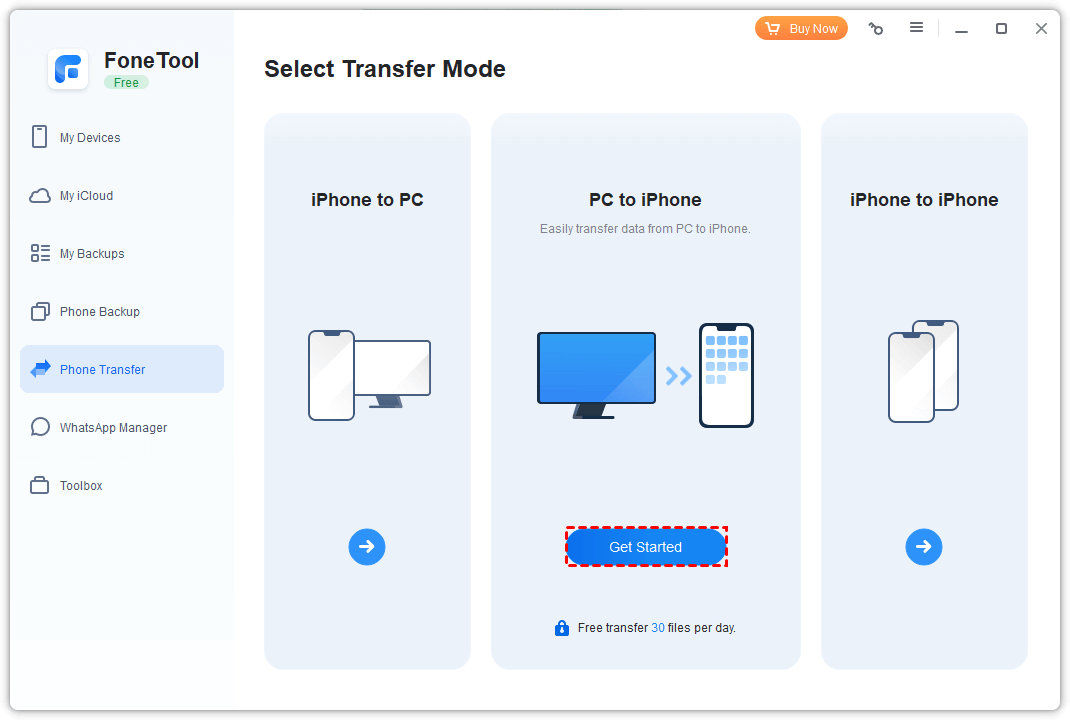
Step 2. Click Videos icon > Select target MP4 files or drag-and-drop into the transfer window.
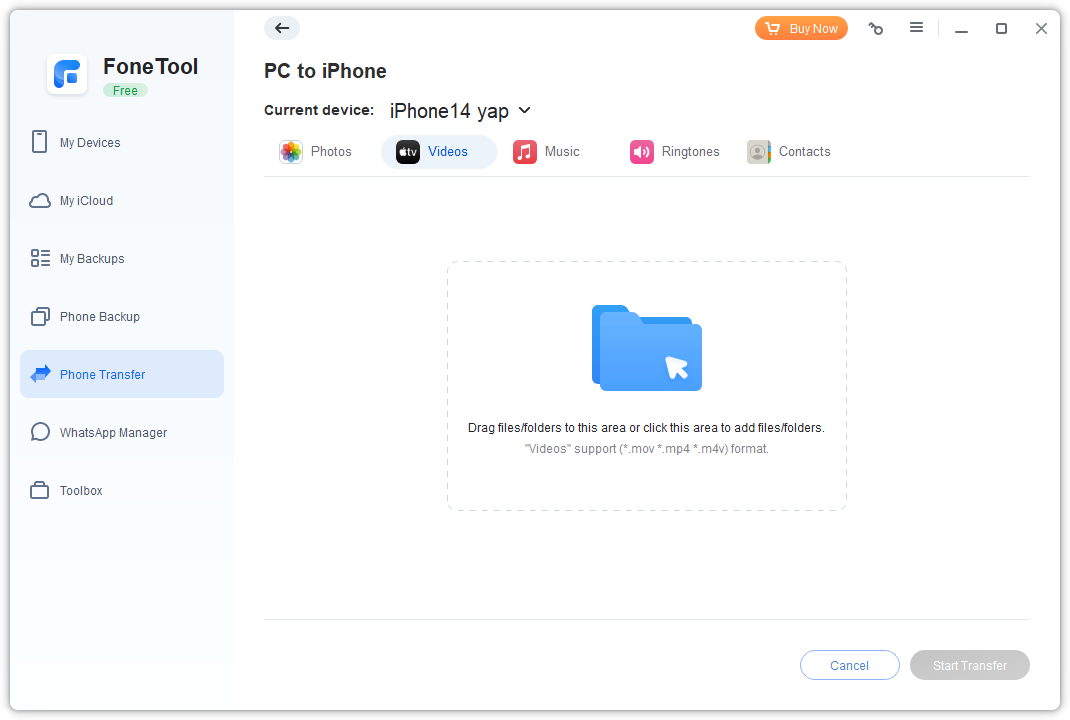
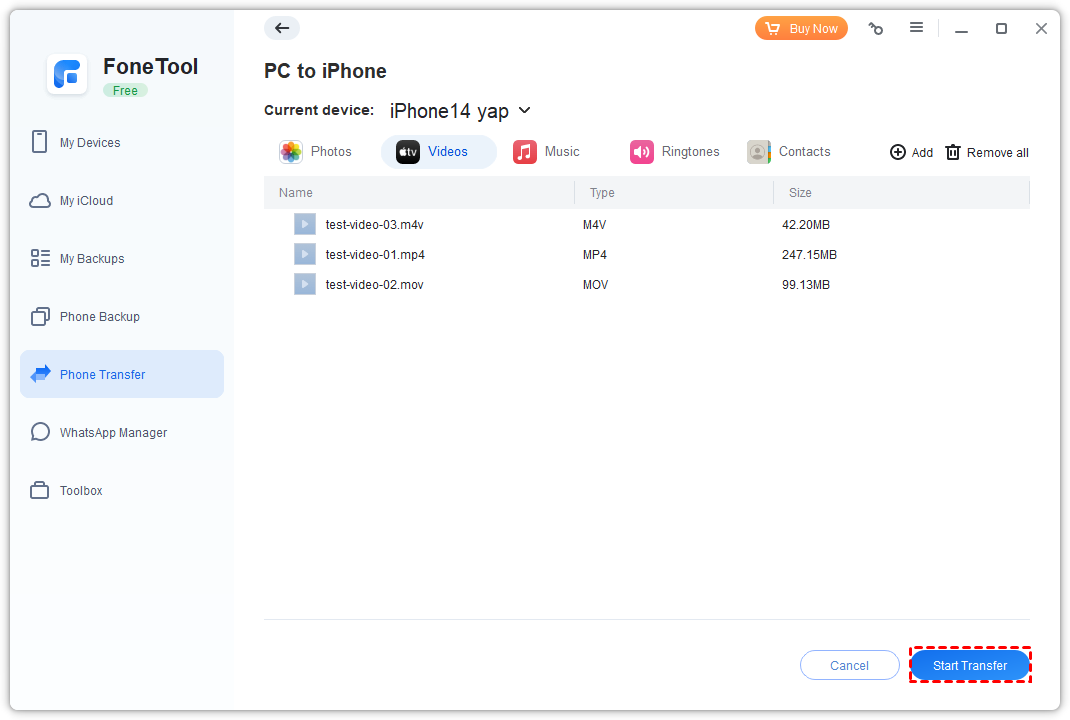
Step 3. Review selection > Click Start Transfer to add MP4 to iPhone camera roll.
- Tip:
- If you need to transfer videos from iPhone to PC, you can also go to Phone Transfer > Choose iPhone to PC to transfer the files as you like.
2. How to transfer MP4 from PC to iPhone with iTunes
iTunes provides traditional MP4 transfer capability but may overwrite existing data and has interface limitations for large file transfers.
📝 Notes:
-
Works on Windows PC and macOS Mojave or earlier
-
iTunes erases current iPhone data during sync - backup iPhone data first
-
For macOS Catalina or later, use Method 3 (Finder)
Here are steps:
Step 1. Download the latest iTunes > Connect iPhone via USB cable.
Step 2. Launch iTunes > Click Files > Add File to Library > Select MP4 files > Open.
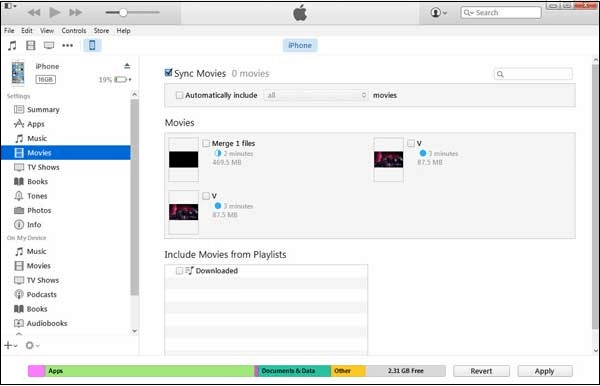
Step 3. Click device icon > Select Movies under Settings > Sync Movies > Choose files > Apply.
3. How to save MP4 to iPhone camera roll from Mac with Finder
Mac users with macOS Catalina or later can use Finder for wired MP4 transfers, though it also overwrites existing iPhone data.
Step 1. Update Finder via App Store > Connect iPhone to Mac > Launch Finder.
Step 2. Select your device > Choose Movies > Check Sync movies onto [your iPhone name].
Step 3. Click Sync > Confirm when prompted.
FAQs about iPhone media transfer
Conclusion
These three methods provide comprehensive solutions for how to transfer MP4 to iPhone from both PC and Mac. For transferring large quantities of high-quality MP4 files, FoneTool offers the best combination of speed, reliability, and data preservation.
If choosing iTunes or Finder, remember to backup your iPhone data first, as both methods overwrite existing content during synchronization. Select the method that aligns with your technical comfort level and transfer requirements for optimal results.
FoneTool - All-in-one iPhone Data Manager
Transfer, backup and manage data on iPhone, iPad and iPod touch in an easy way.
-
 iOS 27 Compatible
 iPhone 17 Supported
Windows 11/10/8/8.1/7

100% Secure

Kelsey is an English editor at FoneTool, passionate about helping users solve tech issues. She specializes in iPhone data management, backup, and recovery. In her free time, she enjoys learning IT skills and spending time with loved ones.
Read author info >>



 as a preferred
source on Google
as a preferred
source on Google