Transfer Video from iPhone to USB - 4 Fast Ways [2026 Guide]
How to transfer video from iPhone to USB? This 2025 guide covers 4 methods: FoneTool (fastest), Photos app, File Explorer & AirDrop (Mac). Complete with speed comparisons.


Why Transfer Videos from iPhone to USB?
To free up valuable storage space on your iPhone, learning how to transfer videos from iPhone to USB stick provides an effective solution. After moving your videos to external storage, you can safely delete them from your device while maintaining access to your important footage. This guide presents the top methods for transferring videos to USB without compromising quality.
| Method | Ease of Use | Transfer Speed | Requirements | Best For |
|
FoneTool (Windows) |
Easy | Fast | USB cable; No internet; No size limits | Large file transfers |
|
Photos App (Windows/Mac) |
Moderate | Moderate | USB cable; Limited large file support | Small video transfers |
|
File Explorer (Windows) |
Moderate | Slow | USB cable; Speed varies by file size | Basic file transfer |
|
AirDrop (Mac) |
Easy | Moderate | Wi-Fi & Bluetooth; Same network | Quick transfers to Mac |
Way 1. How to Send Video from iPhone to USB Stick Quickly
For the fastest and most efficient video transfer from iPhone to USB, FoneTool provides the optimal solution. This professional iPhone file transfer tool supports rapid movement of multiple videos while preserving original quality.
- Transfer unlimited files between iPhone and USB
- Move large/long videos without compression or deletion
- Preview and transfer photos, videos, music, contacts, etc
- Fully/selectively transfer videos in all formats
- Compatible with all iOS devices and latest versions
Windows 11/10/8/8.1/7

100% Secure
If you encounter an iPhone unrecognized error when connecting your device, FoneTool also offers comprehensive troubleshooting solutions to resolve connection issues quickly
How to transfer video from iPhone to USB stick:
Step 1. Connect iPhone to computer > Unlock iPhone and allow device access.
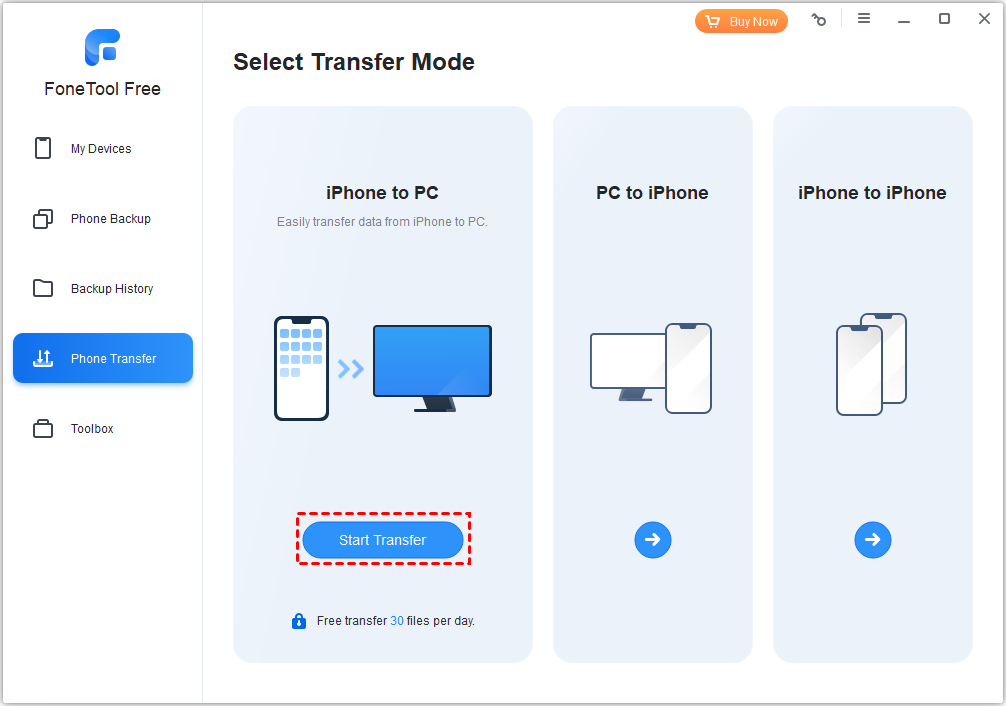
Step 2. Launch FoneTool > Phone Transfer > iPhone to PC > Get Started.
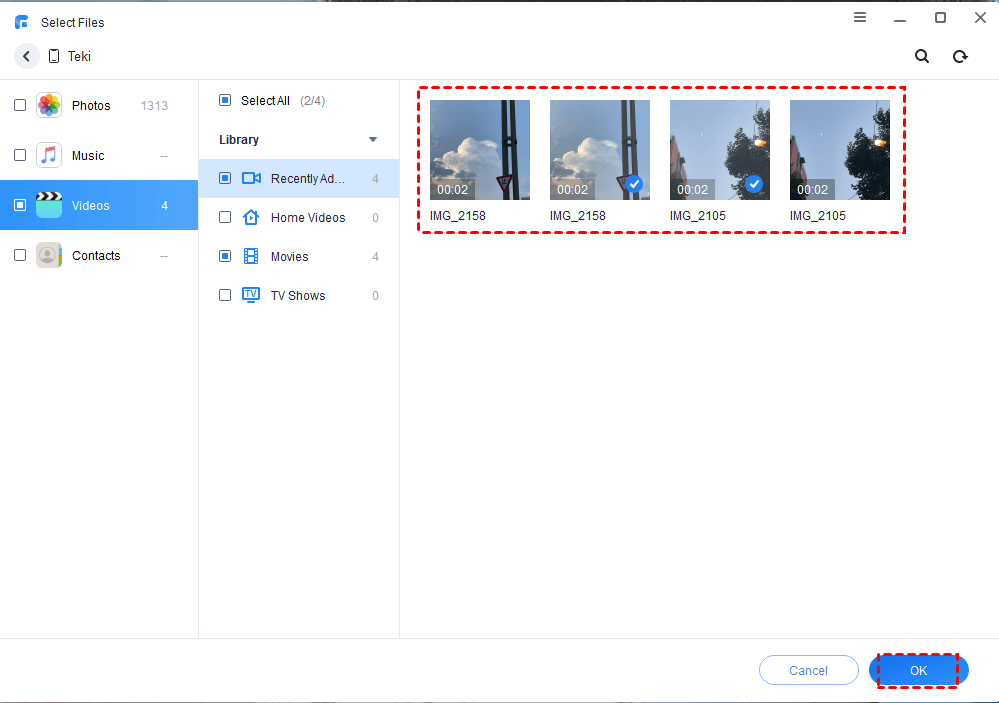
Step 3. Click + icon > Select videos to transfer > Click OK.
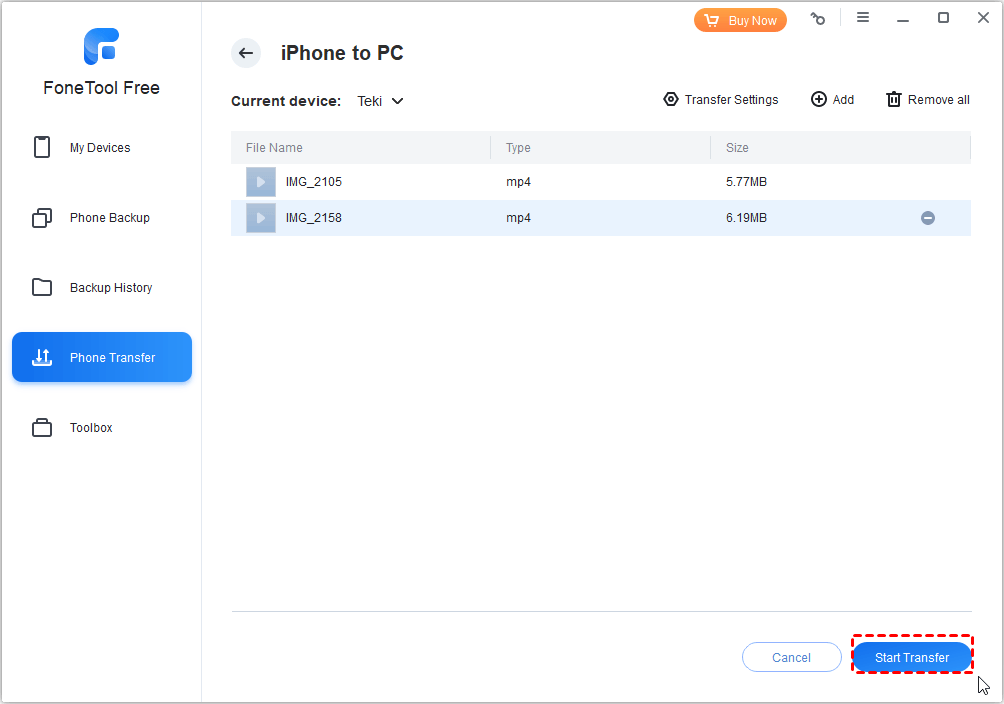
Step 4. In Transfer Settings, choose USB storage path > Start Transfer.
Way 2. How to Download Video from iPhone to USB by Photos App
Windows users can utilize the built-in Photos app for straightforward video transfers to USB, ideal for smaller files without third-party software. Steps to save video from iPhone to USB flash drive.
Step 1. Connect iPhone to computer > Open Photos app > Enter passcode > Tap Trust.
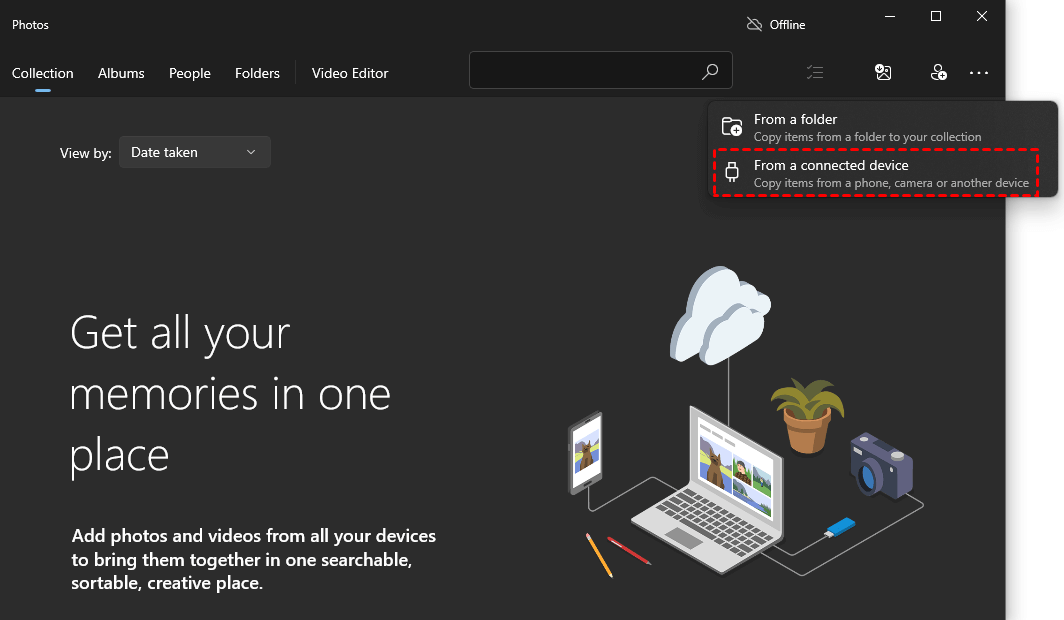
Step 2. Click Import > Select From a connected device.
Step 3. Access Import Settings > Choose USB as destination > Click Done to confirm.
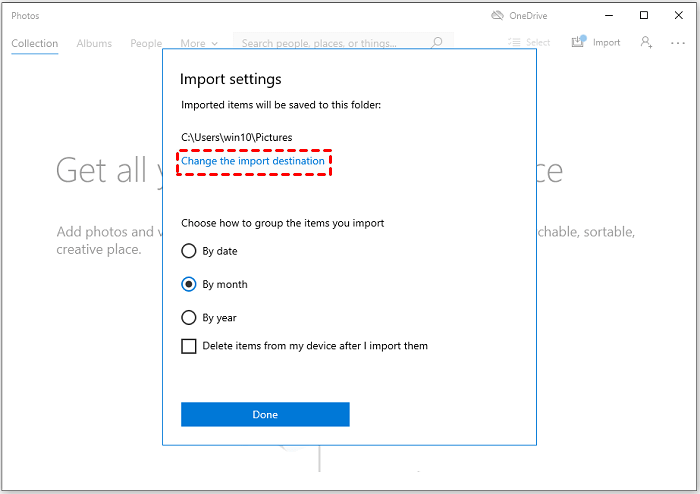
Step 4. Click Import Selected to send iPhone videos to USB.
Way 3. How to Save iPhone Video to USB Flash Drive via File Explorer
File Explorer provides direct access to iPhone video files for manual transfer to USB drives on Windows PCs.
📝 Notes on using File Explorer:
- Requires iPhone unlock and "Trust This Computer" authorization
- Transfer speed may decrease with large video files
- Videos may require manual identification in DCIM folder
How to download video from phone to USB:
Step 1. Connect iPhone to PC via USB > Unlock iPhone > Tap Trust.
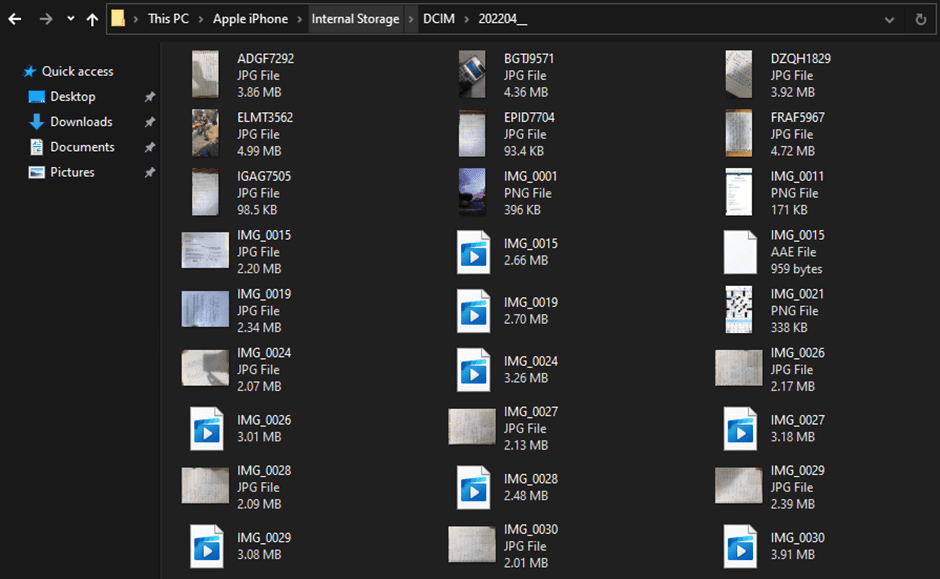
Step 2. Open File Explorer > This PC > Select Apple iPhone.
Step 3. Locate the DCIM folder > Select video files > Copy to USB drive.
Way 4. How to Move Videos from iPhone to USB on Mac
Mac users can wirelessly transfer videos from iPhone to Mac via AirDrop, then move them to USB storage. Follow the guide to learn how to save iPhone videos to USB.
Step 1. On Mac: Open Finder > Select AirDrop in sidebar.
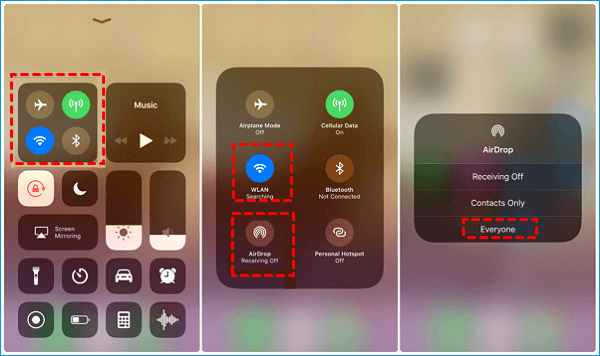
Step 2. On iPhone: Access Control Center > Enable AirDrop.
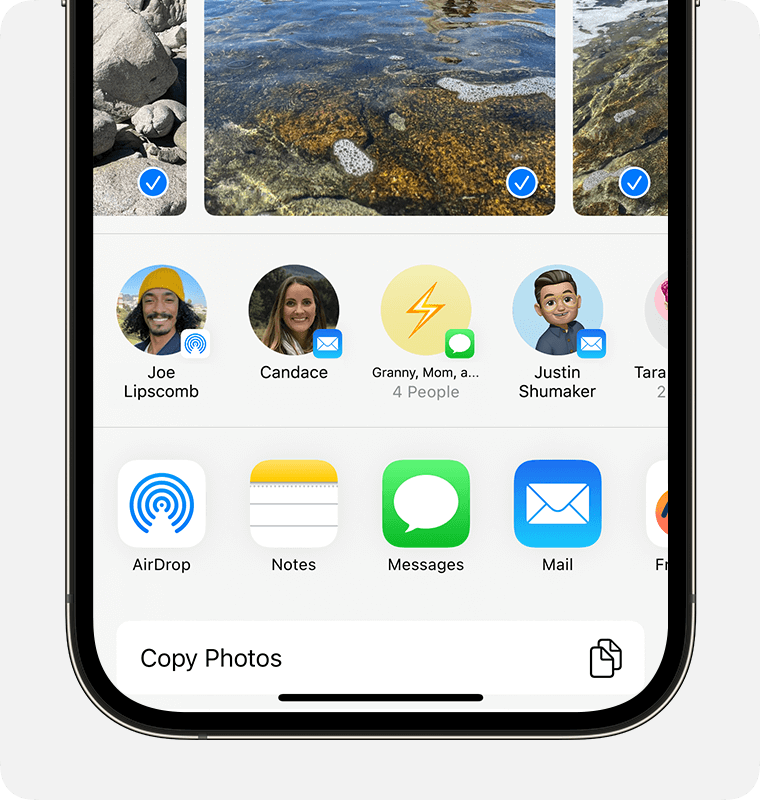
Step 3. Open Photos app > Select videos > Tap the Share icon.
Step 4. Choose your Mac from the AirDrop menu > Files save to the Downloads folder.
Step 5. Connect USB drive > Move videos from Downloads to USB storage.
FAQs on iPhone Videos Transfer
Conclusion
This guide demonstrates four effective methods for transferring videos from iPhone to USB storage. Whether you choose built-in options or professional software, each approach helps free up iPhone storage space. For optimal speed, reliability, and ease of use, especially with large video files - FoneTool stands out as the superior choice for managing your video transfer needs to external storage.
FoneTool - All-in-one iPhone Data Manager
Transfer, backup and manage data on iPhone, iPad and iPod touch in an easy way.
-
 iOS 27 Compatible
 iPhone 17 Supported
Windows 11/10/8/8.1/7

100% Secure

Kelsey is an English editor at FoneTool, passionate about helping users solve tech issues. She specializes in iPhone data management, backup, and recovery. In her free time, she enjoys learning IT skills and spending time with loved ones.
Read author info >>



 as a preferred
source on Google
as a preferred
source on Google