How to Remote Android to Android: Full Guide
This passage delves into the intricacies of remote connectivity between Android devices, encompassing setup procedures, troubleshooting tips, and the benefits of establishing these connections. And you can also use FoneTool to finish the Android-to-Android transfer.


Introduction to Remote Android to Android Connectivity
Remote Android connectivity introduces a realm of possibilities, allowing users to access, control, and manage their devices from afar. It revolutionizes device interaction, providing convenience and efficiency.
Exploring Remote Access Apps for Android Devices
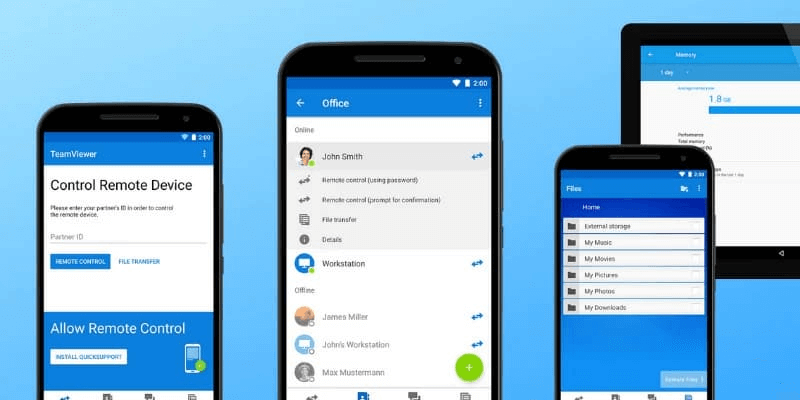
Various cutting-edge applications facilitate remote access on Android devices. From TeamViewer's versatile functionalities to the user-friendly interface of AnyDesk, these apps offer diverse features for seamless device control.
Setting Up Remote Android to Android Devices
Configuring remote access involves installing and setting up the chosen app. Users grant necessary permissions, ensuring secure and authorized access. This process ensures the establishment of a robust connection for remote management.
Initiating Remote Control Between Android Devices
Once set up, initiating remote control is a straightforward process. Users log into the app, select the target device, and establish a connection. This step paves the way for efficient device control from another location.
Troubleshooting Tips for Android to Android Remote Access
Occasional technical hiccups may arise during remote connectivity. Understanding common issues like network connectivity or app-specific glitches equips users to troubleshoot effectively. These tips ensure seamless remote Android interactions.
How does remote Android-to-Android connectivity work?
Remote Android connectivity operates through specialized applications that establish a connection between two devices, enabling one to control the other from a distance.
Which apps facilitate remote access between Android devices?
Notable apps like TeamViewer, AnyDesk, and VNC Viewer are popular for facilitating remote access and control between Android devices.
What steps are involved in setting up remote access on Android gadgets?
Setting up remote access typically involves installing a remote access app on both devices, granting necessary permissions, and establishing a secure connection between them.
Can I control one Android device from another remotely?
Yes, remote access applications allow users to control one Android device from another, enabling actions like viewing screens, transferring files, or executing commands.
What are the troubleshooting methods for issues in remote Android connections?
Troubleshooting involves checking network connections, updating the app, ensuring device compatibility, and verifying permissions to resolve issues with remote Android connections.
Is remote access secure between Android devices?
Remote access apps employ encryption and security measures to ensure data protection, providing a secure environment for remote interactions.
Which Android versions support seamless remote interactions?
Most recent Android versions support remote interactions; however, optimal performance may vary based on app compatibility and device specifications.
How can I remotely transfer files between Android devices?
Using remote access apps like TeamViewer or AnyDesk, users can transfer files between Android devices by initiating file transfer commands within the app interface.
Are there limitations to remote control functionalities on Android?
Remote control functionalities might be restricted by device settings, app limitations, or network issues, impacting the scope of control between devices.
What are the benefits of establishing remote connections between Android devices?
Remote connections offer benefits like troubleshooting device issues remotely, accessing files or apps from a distance, and managing devices efficiently without physical presence.
This comprehensive guide unravels the intricacies of remote desktop Android to Android, empowering users to harness the full potential of remote access applications for efficient device management.
Bonus: How to transfer from Android to Android
For an efficient Android-to-Android data transfer without Wi-Fi or cellular data, the FoneTool is a versatile tool. Compatible with a wide range of devices, including Huawei, Xiaomi, Samsung, Pixel, and iPhone models from 4 to 15, along with iPads and iPod Touch, it offers a hassle-free transfer experience.
Follow these steps to initiate the transfer:
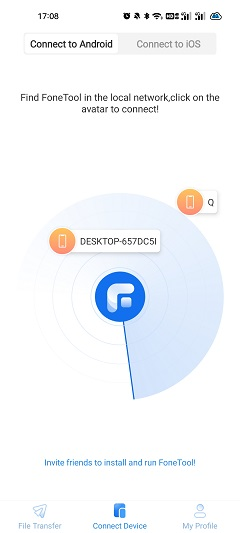
Step 1. Open FoneTool on both devices and enable WLAN usage without connecting to any network.
Step 2. Navigate to "Connect to Android" on one device and select the name of the other device to establish a connection.
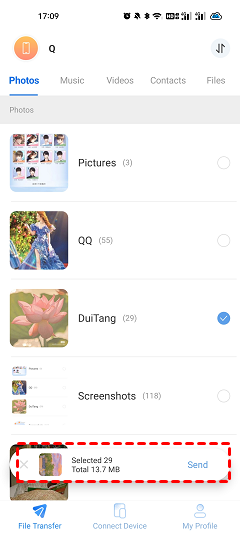
Step 3. On your source device, access "File Transfer," select the desired data, and tap "Send." On your target device, confirm the receipt of the files prompted on the screen.
- Tips:
 With this powerful app, you can easily sync contacts, photos, videos, music or other files from Android to Android.
- You can use this tool to finish the iPhone to Pixel transfer.
Conclusion
This comprehensive guide explores the realm of remote Android to Android connectivity, unveiling various facets from app exploration to troubleshooting. It elaborates on how remote connectivity functions, recommended apps, setup procedures, troubleshooting tips, security aspects, and the benefits of establishing these connections.
Additionally, it highlights the versatility of FoneTool for efficient data transfer between diverse Android devices, enhancing the understanding and utilization of "remote android to android" connections for seamless device management.
FoneTool - All-in-one iPhone Data Manager
Transfer, backup and manage data on iPhone, iPad and iPod touch in an easy way.
-
 iOS 26 Compatible
 iPhone 15 Supported
Windows 11/10/8/8.1/7

100% Secure

Kathy is an editor of FoneTool, who prefers to help more users address a series of iOS-related problems. She likes traveling and being close to nature makes her relax. She is also keen to engage in social activities and spend much free time with her friends.
Read author info >>