Transfer Contacts from iPhone to Computer - 5 Free & Easy Ways
Transfer contacts from iPhone to computer easily. This guide covers 5 free methods to export, sync, or backup iPhone contacts to your PC or Mac. Step-by-step instructions included for each option.


Can I Export my iPhone Contacts without iCloud?
Of course. Whether you're switching devices, creating backups, or simply organizing your contact list, this guide covers 5 effective methods on how to transfer contacts from iPhone to computer for free. The comparison table below helps you choose the best approach for your situation.
| Method | Speed | Internet Required | Advantages | Best For |
|---|---|---|---|---|
| FoneTool | Fast | No | One-click transfer, preview contacts, no data loss | Quick full backups |
| iCloud | Moderate | Yes | Automatic wireless sync | Cross-device sync |
| iTunes | Moderate | No | Offline functionality | iTunes users |
| Slow | Yes | Simple for individual contacts | Sharing few contacts | |
| AirDrop | Fast | No | Instant wireless transfer | Mac + iPhone users |
Now let's explore each method in detail to help you export contacts from iPhone to PC efficiently.
Way 1. [Easy & Fast] Transfer Contacts from iPhone to PC with FoneTool
FoneTool provides the fastest and most reliable way to transfer contacts from iPhone to computer with complete control over the process.
- Selective transfer: Preview and choose specific contacts
- Lightning fast: Transfers 100+ contacts in seconds
- No limits: Move unlimited contacts in one click
- Multiple formats: Export to CSV or vCard
- Offline operation: USB connection ensures stable transfer
- Multiple file types: Transfer photos, music, videos, messages, etc
Windows 11/10/8/8.1/7

100% Secure
Now, you can download FoneTool and follow the below guide to transfer contacts from iPhone to computer.
Step 1. Open FoneTool and connect your iPhone via USB cable > Tap Trust on your iPhone.
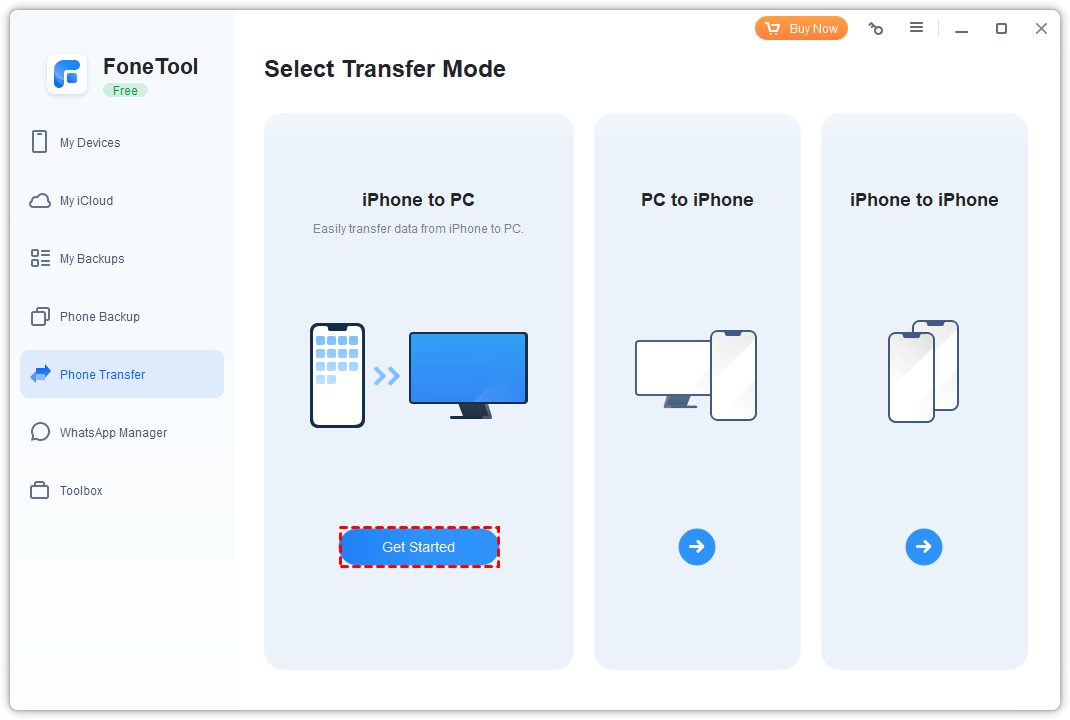
Step 2. Select Phone Transfer > iPhone to PC > Get Started.
- ★Tip:
- If you want to transfer files from PC to iPhone without iTunes/iCloud, you can go choose the PC to iPhone option on the page.
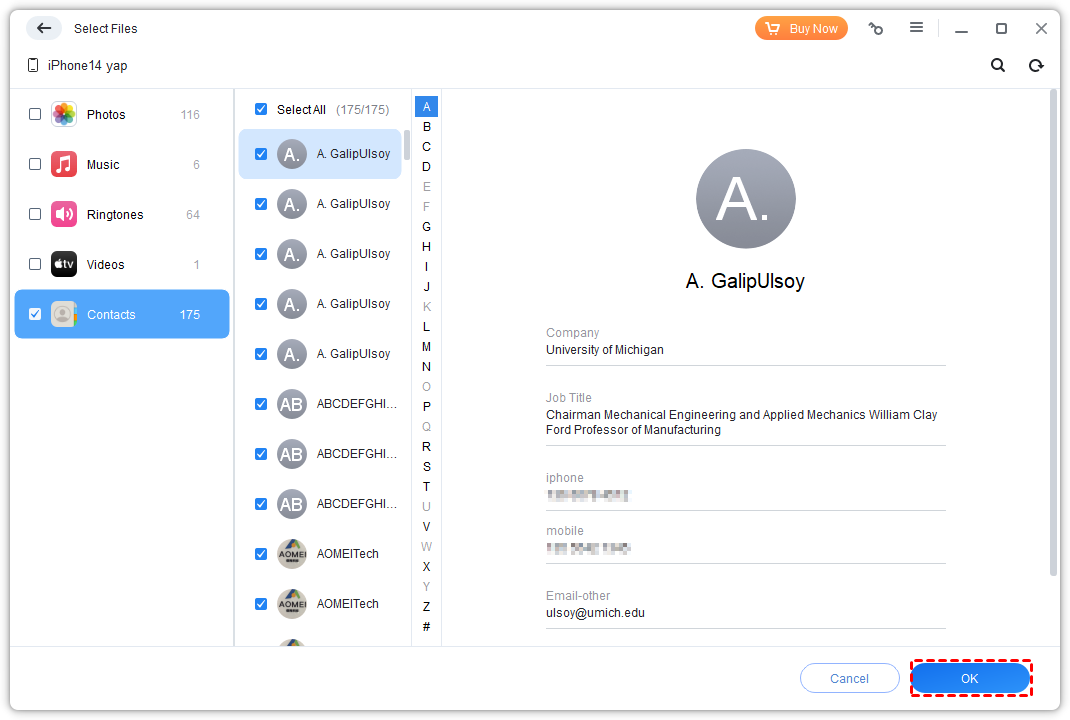
Step 3. Preview and select specific contacts or Select All > Click OK.
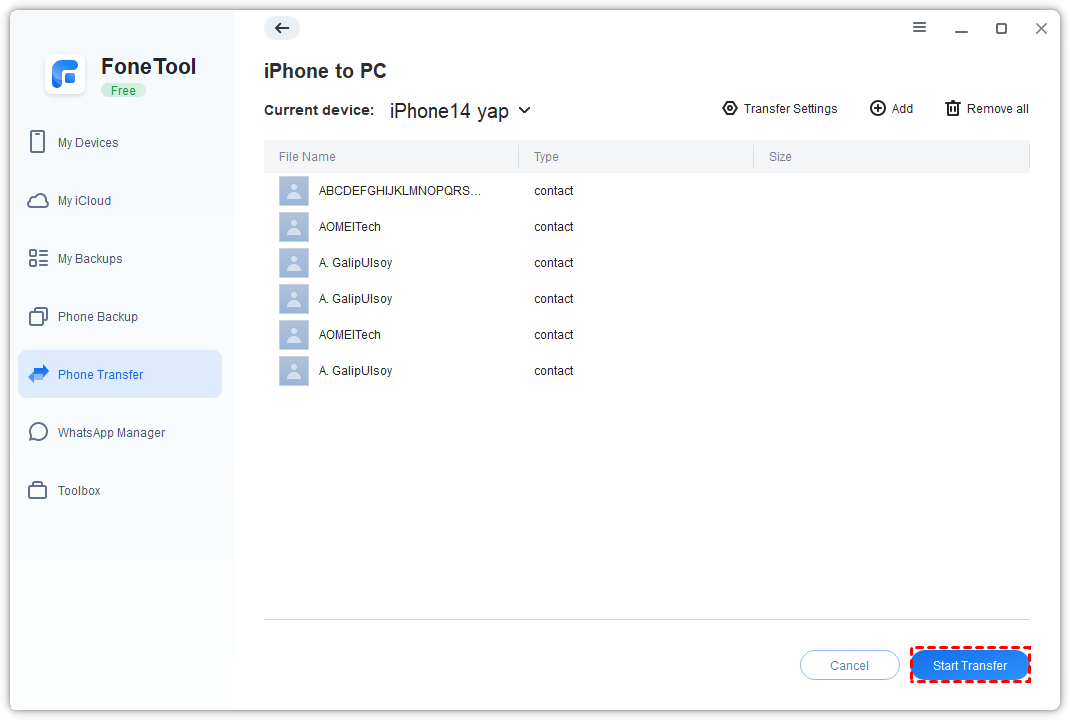
Step 4. Set the storage location and click Start Transfer.
- ★Tip:
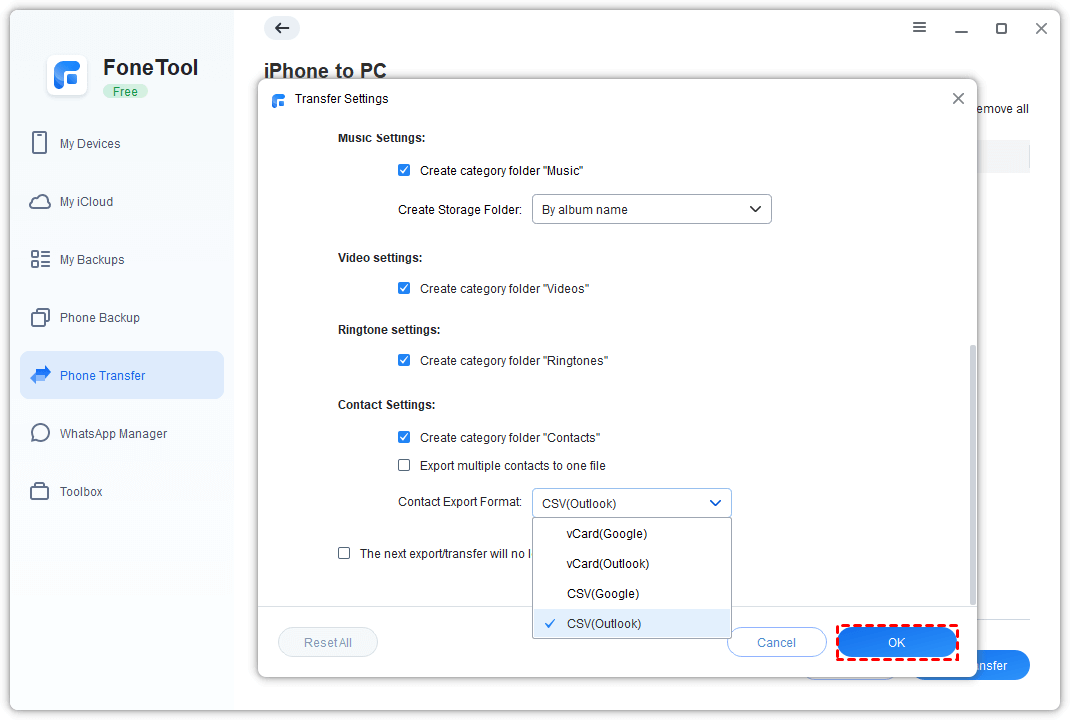
- You can choose to export iPhone contacts to CSV/vCard as you like from the Transfer Settings > Contact Settings. When you switch to a new iPhone, you can import CSV contacts to iPhone with FoneTool directly.
Way 2. Sync Contacts from iPhone to Computer via iCloud
iCloud automatically syncs your contacts across devices, making them accessible on your computer. Follow the steps below to learn how to download contacts from iPhone to computer.
Notes:
- Requires an active internet connection.
- Limited free storage space (5GB).
- Changes made to contacts on your iPhone will be reflected in the synced version.
Before starting: Ensure contacts sync is enabled on iPhone (Settings > [Your Name] > iCloud > Contacts).
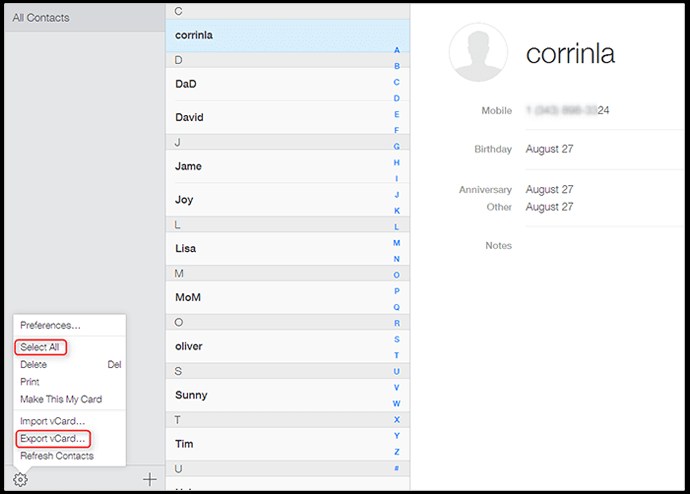
Step 1. On your computer, visit iCloud.com and sign in with your Apple ID.
Step 2. Click Contacts icon to view all synced contacts.
Step 3. Click Settings button > Select All > Export vCard.
- ★Tip:
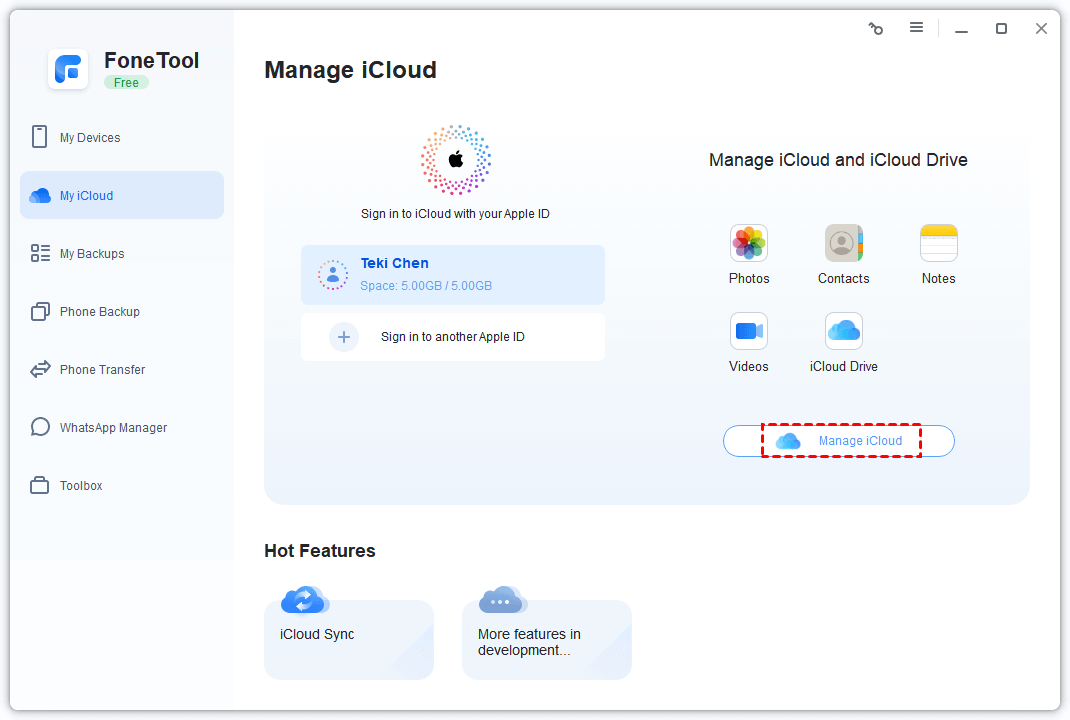
- By the way, FoneTool provides a smarter way to manage iCloud contacts or other data easily. You can download, upload, and delete iCloud data; the speed is faster than iCloud’s web.
Way 3. Move Contacts to Computer from iPhone by iTunes
iTunes provides offline contact synchronization for users comfortable with the platform. Here is the guide to show you how to move contacts from iPhone to computer:
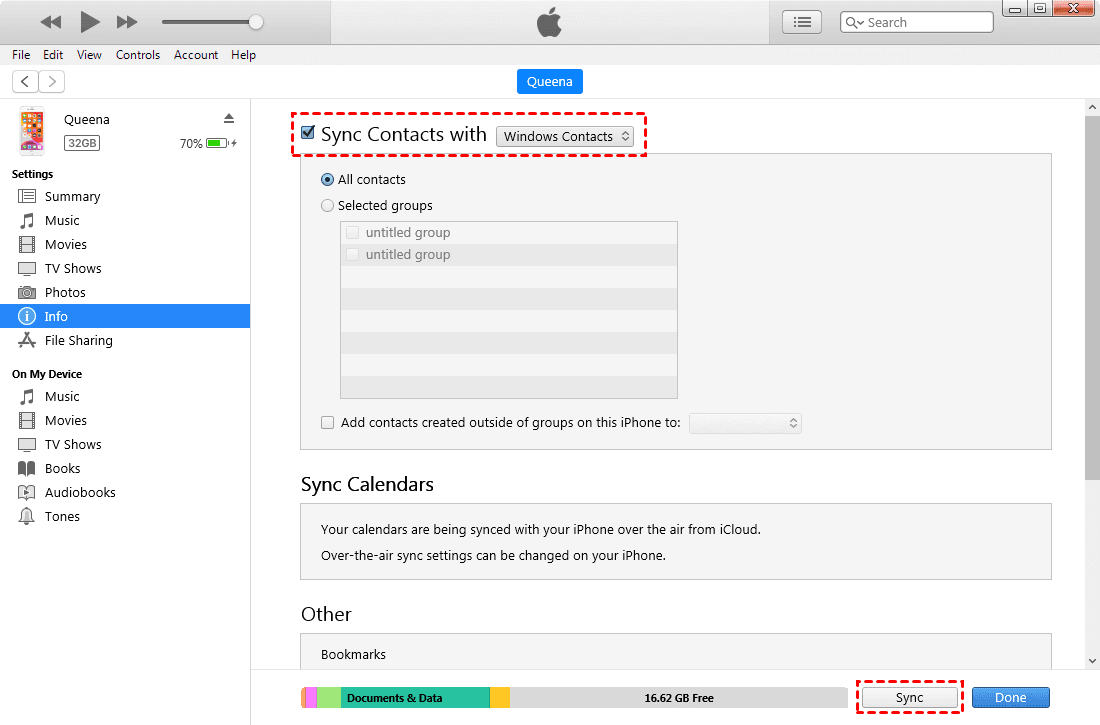
Step 1. Download and launch the latest iTunes on your PC > Connect your iPhone to your computer.
Step 2. Choose the Device tab > Select Info.
Step 3. Check the Sync Contacts with option > Tap on the desired option to continue.
Step 4. Tap on the All Contacts > Sync to export contacts from iPhone.
Way 4. Send Contacts from iPhone to Computer via Email
Perfect for sharing a few contacts quickly via email attachment. Please refer to the following steps to transfer your contact data via email with an active Internet connection. The transferred data will be presented in vCard (VCF) format.
Step 1. Open Contacts app on your iPhone > Choose the contact you want to transfer.
Step 2. Tap Share Contact option > Choose Mail.
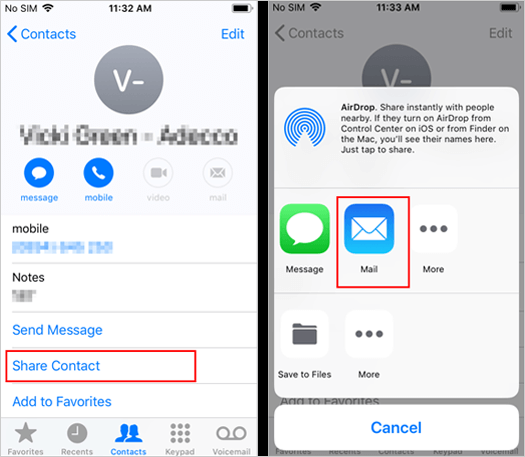
Step 3. Email to yourself > Open on computer and download .vcf file.
Way 5. Transfer iPhone Contacts to Computer with AirDrop
For Apple ecosystem users, AirDrop provides wireless contact sharing. Make sure both devices are in proximity, then learn how to save contacts from iPhone to PC.
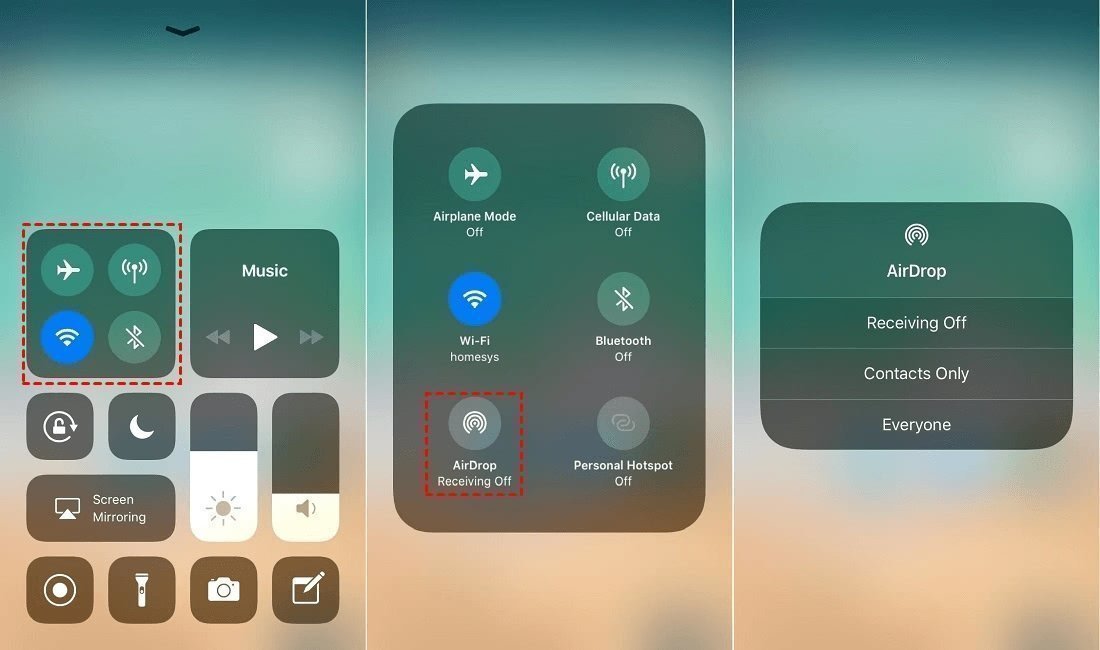
Step 1. Enable AirDrop on both devices: Swipe down Control Center on iPhone > AirDrop > Everyone.
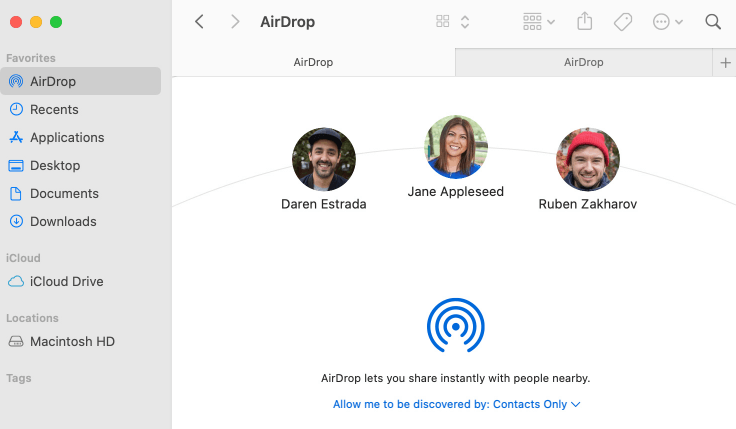
Step 2. On your Mac, open Finder > AirDrop > Everyone.
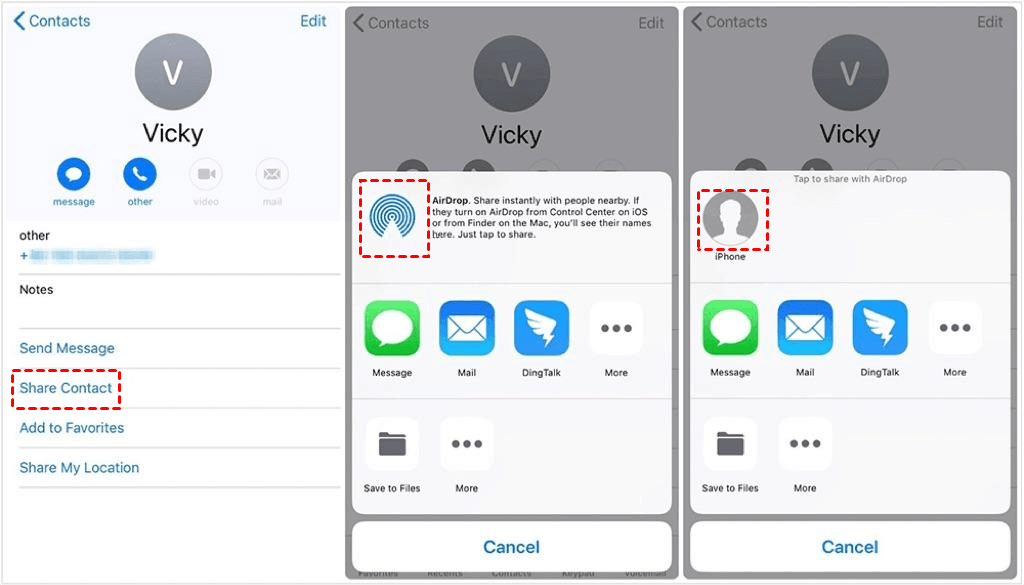
Step 3. In the Contacts app, select contacts > Share Contact > Choose your Mac.
Step 4. Click Accept on Mac to receive contacts.
Conclusion
Each contact transfer method serves different needs: FoneTool excels for complete backups and selective transfers, iCloud works well for ongoing synchronization, while email and AirDrop handle quick sharing of individual contacts. For most users, FoneTool provides the optimal balance of speed, control, and reliability without internet dependency.
Hopefully you can choose the method that best suits your needs to complete the transfer of contacts.
FAQs on iPhone to Computer Contacts Transfer
FoneTool - All-in-one iPhone Data Manager
Transfer, backup and manage data on iPhone, iPad and iPod touch in an easy way.
-
 iOS 27 Compatible
 iPhone 17 Supported
Windows 11/10/8/8.1/7

100% Secure

Kelsey is an English editor at FoneTool, passionate about helping users solve tech issues. She specializes in iPhone data management, backup, and recovery. In her free time, she enjoys learning IT skills and spending time with loved ones.
Read author info >>



 as a preferred
source on Google
as a preferred
source on Google