Transfer Files from iPhone to PC Without iTunes: 5 Fast Ways
How to transfer files from iPhone to PC without iTunes? This guide covers 5 proven methods: FoneTool (fastest), File Explorer, Bluetooth, iCloud & Google Drive. Complete instructions included.


How to transfer files from iPhone to PC without iTunes?
I filmed 10 or more scenes with FilmicPRO today and want to edit them on my work PC. I can’t install iTunes on my PC as I don’t have rights to install it. Is there a way to transfer these files from filmicPro or from the files app on the iPhone to my PC?
- Question from Reddit
Why Transfer Files from iPhone to PC Without iTunes?
Important files on your iPhone, such as photos, videos, contacts, and messages, are vital for editing, viewing, or sharing. Transferring them to a Windows computer is often necessary. While iTunes is the official sync software, its illogical interface, unstable transfer process, and frequent errors like iTunes error 8003 often cause user frustration.
So, can you transfer files from iPhone to Windows without iTunes? Absolutely! This guide provides the most suitable methods.
| Method | Connection | Storage Limitation | Large File Transfer | Effectiveness |
| FoneTool | Wired | No Limitation | Super-Fast | High - 3 Steps |
| File Explorer | Wired | No Limitation | Medium | Medium - Choose Files from Different Folders |
| Bluetooth | Wireless | No Limitation | Slow | Low - Limited File Formats/Number |
| iCloud | Wireless | 5 GB for free | Depends on Internet | Medium - Manually upload and download |
| Google Drive | Wireless | 15 GB for free | Depends on Internet | Medium - Manually upload and download |
Option 1. Transfer Files from iPhone to PC via FoneTool (Free & Fast)
You may ask: “how do I open iPhone files on my PC?”, FoneTool is a powerful iPhone data transfer solution designed for simplicity and speed.
Powerful iPhone/iPad Data Transfer software
- Wide File Support: Transfer photos, videos, contacts, messages, and more.
- Extremely Fast: Move 100+ full-resolution photos in under a minute.
- Selective Backup: Choose only the files you need to transfer.
- Secure USB Connection: Ensures a stable and safe transfer process.
- Flexible Storage: Save files directly to your PC or an external drive.
- Full Compatibility: Supports all iPhone models and the latest iOS versions.
Windows 11/10/8/8.1/7

100% Secure
Follow this simple 3-step process to move your files using FoneTool.
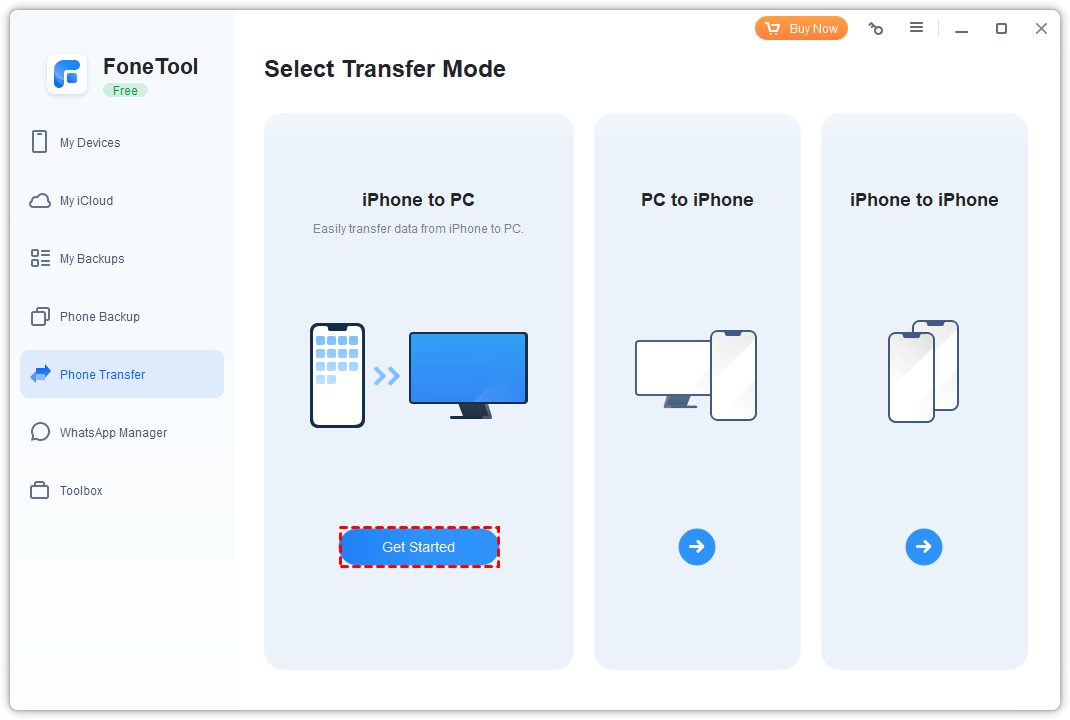
Step 1. Connect your iPhone via USB. Open FoneTool, go to Phone Transfer > iPhone to PC, and click Get Started.
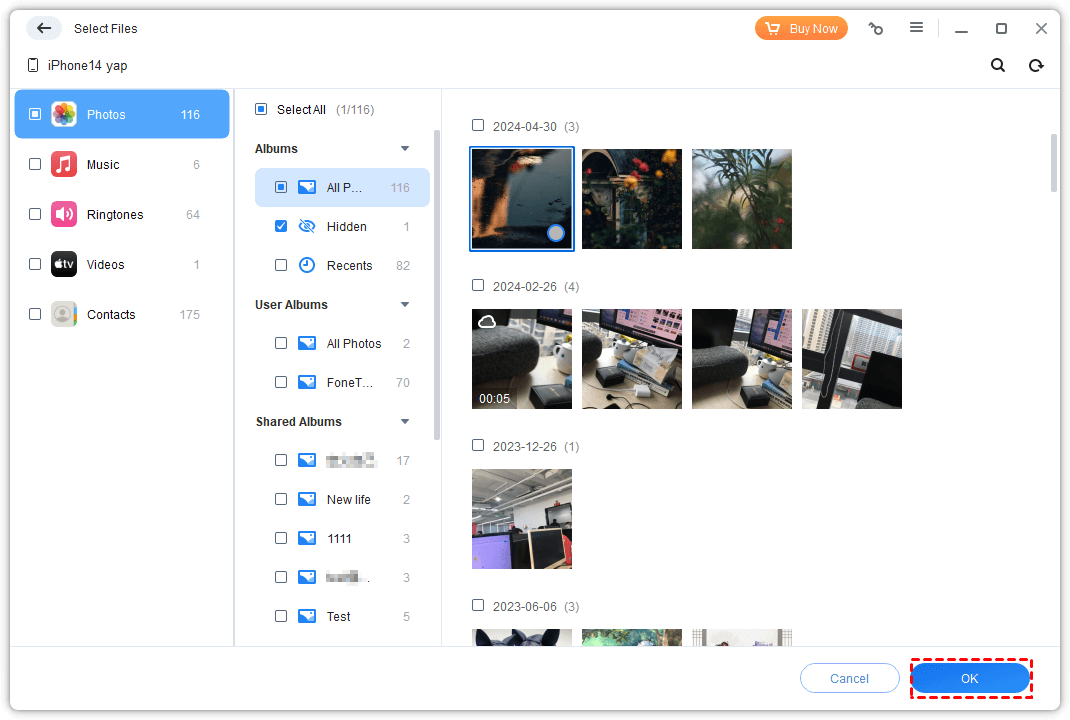
Step 2. Choose file categories and select the specific items. Click OK.
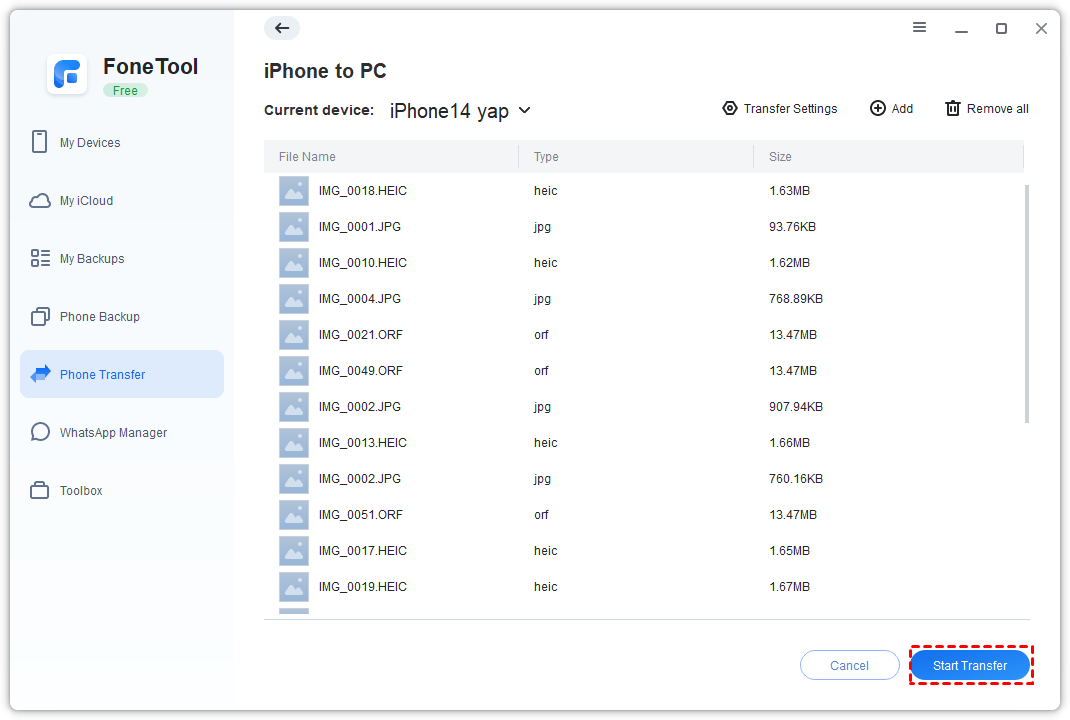
Step 3. Click Start Transfer to begin moving your files.
Option 2. Access iPhone Files on PC Using File Explorer
Windows File Explorer offers a built-in, wired method to transfer photos and videos without extra software.
Step 1. Connect your iPhone to your PC with a USB cable.
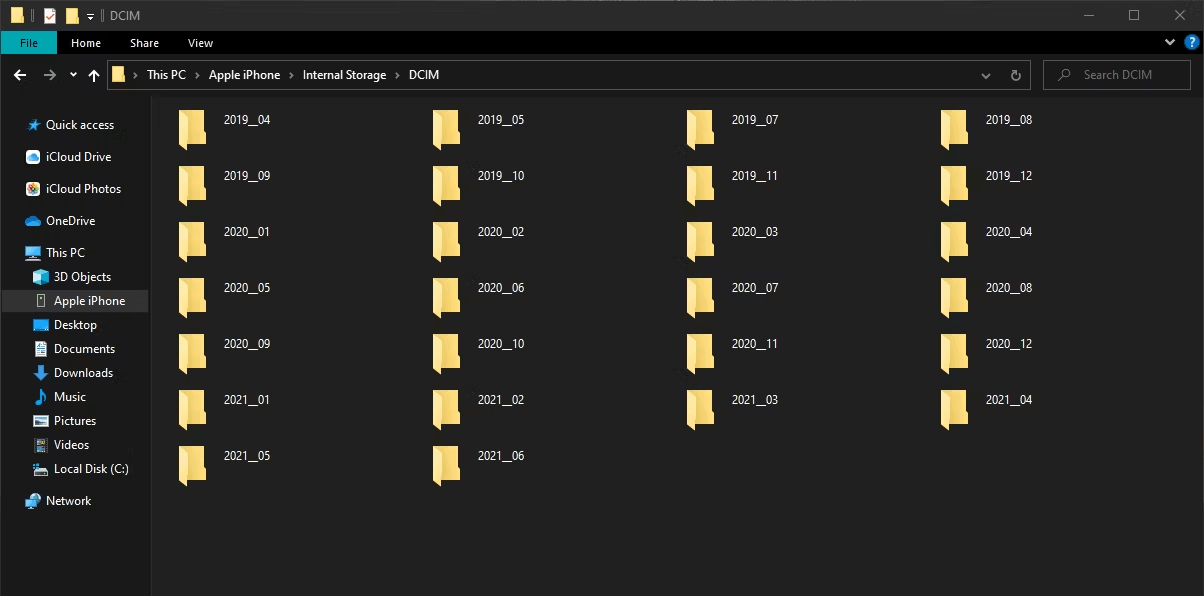
Step 2. Open This PC and find your iPhone listed as a device.
Step 3. Open the device, go to Internal Storage > DCIM, select your files, and drag them to your PC.
Option 3. Wireless File Transfer from iPhone to PC via Bluetooth
How do I transfer files from iPhone to computer directly? Bluetooth provides a direct wireless connection for transferring files, though it has limitations in speed and file type support.
Step 1. On your PC, turn on Bluetooth and make it discoverable.
Step 2. On your iPhone, go to Settings > Bluetooth and turn it on.
Step 3. Tap your PC's name on the iPhone's Bluetooth list and confirm pairing.
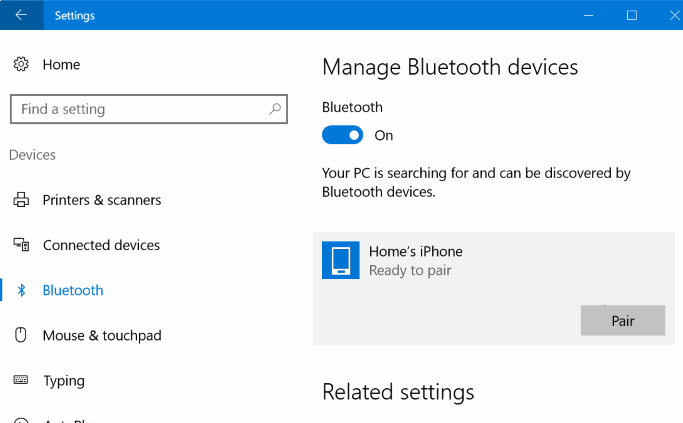
Step 4. Use your PC's Bluetooth file transfer utility to share iPhone files to PC wirelessly.
Option 4. Wirelessly Transfer Files from iPhone to PC Using iCloud
If you use iCloud, you can download your already-uploaded data to your PC. To get multiple files at a super-fast speed, FoneTool mentioned in Part 2 is helpful.
Part 1. How to download iCloud files to PC via iCloud.com
Step 1. Go to Cloud.com on your PC and log in.
Step 2. Click the app icon for the data you want (e.g., Photos).
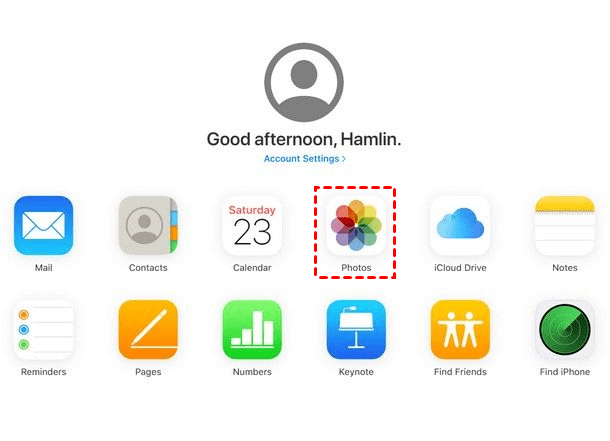
Step 3. Select the files and click the download icon.
Part 2. How to move iCloud data to PC professional iCloud manager
FoneTool also serves as a powerful desktop client for iCloud, offering faster downloads.
- Highlights:
- · Directly manage and download photos, videos, and iCloud Drive files.
- · Bulk download 100+ photos in 2 minutes
- . Uses Apple's two-factor authentication for security
Steps to Download from iCloud via FoneToo
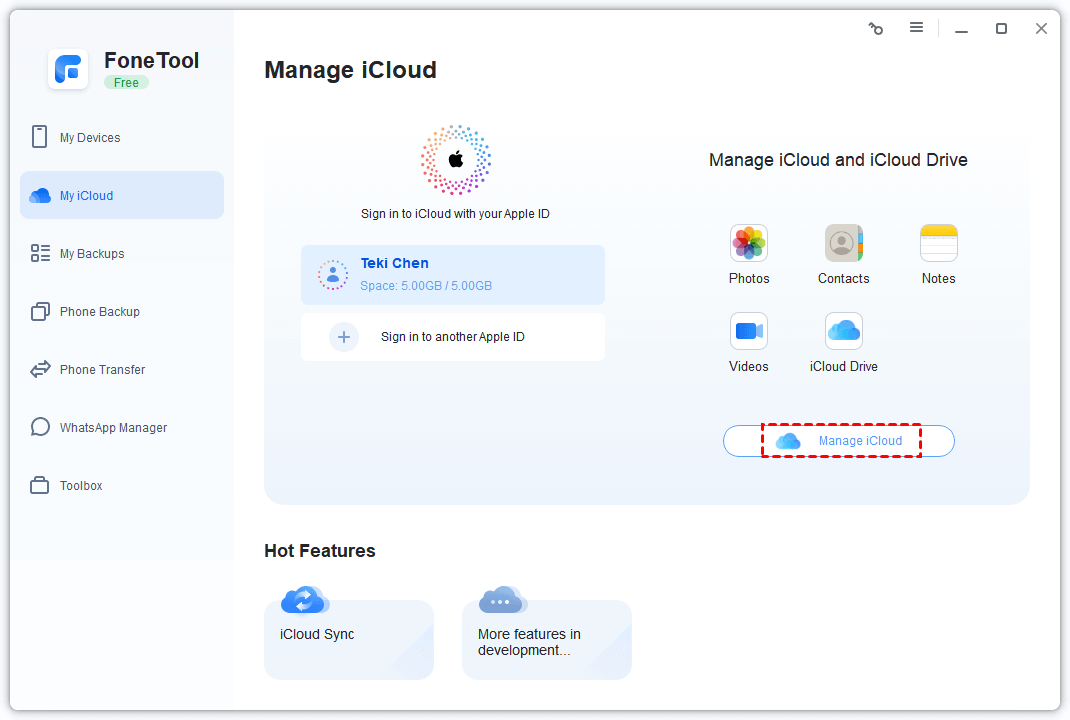
Step 1. Launch FoneTool > Go to My iCloud, sign in, and click Manage iCloud.
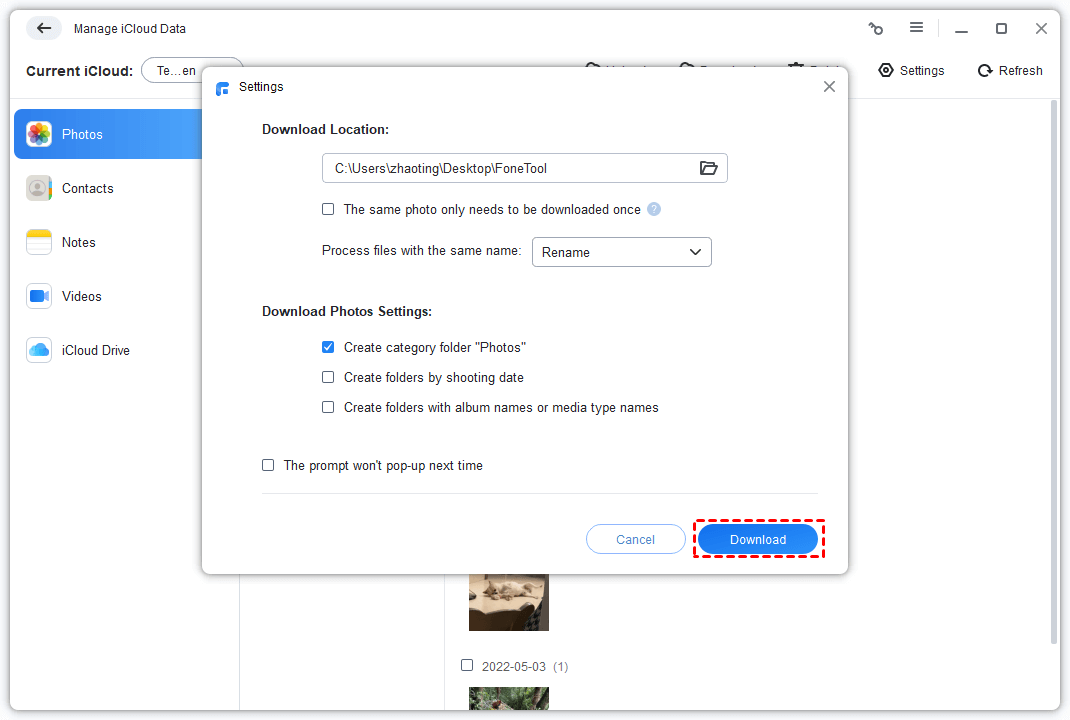
Step 2. Choose a data category, select files, and click Download.
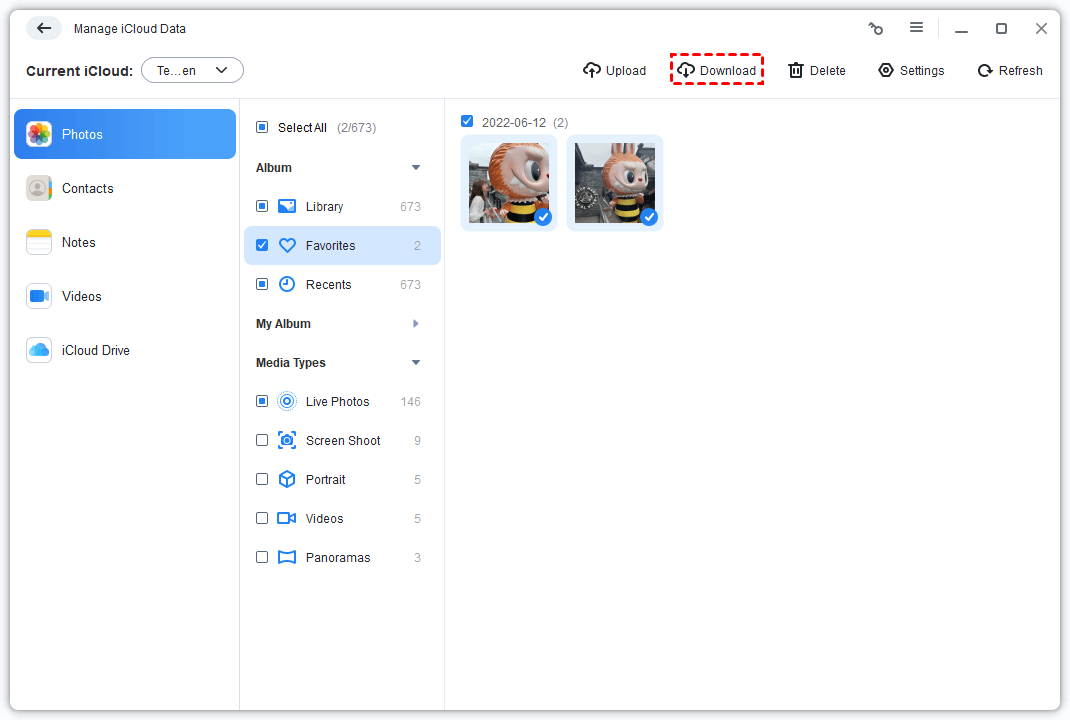
Step 3. Choose a destination folder and click Download.
Option 5. Transfer Files from iPhone to Windows via Google Drive
Google Drive is another cloud-based alternative for wireless file transfer without a USB cable.
Step 1. On your iPhone, open Google Drive and tap the + icon. Select Upload and choose files from your iPhone.
Step 2. On your PC, go to drive.google.com and sign in.
Step 3. Find the uploaded files and download them to your computer.
FAQs on iPhone to PC Files Transfer
Conclusion
This guide has shown you five effective ways to transfer data from iPhone to PC without iTunes.
-
For a fast, reliable transfer without internet, FoneTool is the recommended solution.
-
For wireless convenience, using Bluetooth, iCloud, or Google Drive are all feasible options.
FoneTool - All-in-one iPhone Data Manager
Transfer, backup and manage data on iPhone, iPad and iPod touch in an easy way.
-
 iOS 27 Compatible
 iPhone 17 Supported
Windows 11/10/8/8.1/7

100% Secure

Kelsey is an English editor at FoneTool, passionate about helping users solve tech issues. She specializes in iPhone data management, backup, and recovery. In her free time, she enjoys learning IT skills and spending time with loved ones.
Read author info >>



 as a preferred
source on Google
as a preferred
source on Google