Liquid Detected in Lightning Connector? 8 Methods to Fix It
This guide explains the "Liquid Detected in Lightning Connector" alert on iPhones. It provides step-by-step drying instructions, software fixes, and how FoneTool Repair can resolve system-related false warnings.


If your iPhone suddenly displays a "Liquid Detected in Lightning Connector" alert, it can be a frustrating experience, especially when you're certain your device hasn't been exposed to moisture. This safety feature, designed to protect your iPhone from water damage, can sometimes be triggered by humidity, debris, or software glitches. This comprehensive guide will help you understand why this happens and provide step-by-step solutions to resolve the issue quickly and safely.
What Is the Liquid Detection Alert?
iPhones (XS, XR, and later models) contain built-in liquid detection technology that monitors the Lightning or USB-C connector for moisture. When liquid is detected, your iPhone will display a warning and temporarily disable charging to prevent potential damage to the device's internal components.
While this feature is valuable for protecting your device, it can sometimes produce false alarms due to:
- High humidity or condensation from environmental changes
- Dust, lint, or debris accumulated in the charging port
- Software glitches or bugs in the operating system
- Damaged or faulty charging cables
Effective Methods to Fix Liquid Detection Alerts
Now that you understand why this alert appears, let's explore practical steps to resolve it safely and effectively, starting with immediate actions and progressing to more advanced solutions if needed.
Immediate Actions to Take
When you first see the liquid detection alert, follow these crucial steps:
- Immediately disconnect any cable or accessory from your iPhone
- Power off your device to prevent potential short circuits
- Tap your iPhone gently against your palm with the connector facing down to remove excess liquid
- Leave your iPhone in a dry, well-ventilated area for at least 30 minutes before attempting to charge again
Method 1. Thorough Drying Process
If the alert persists after initial drying attempts:
Step 1. Ensure your iPhone and cable are completely dry - visually inspect both the port and cable ends.

Step 2. Place your iPhone in a dry area with airflow for up to 24 hours if needed.
Step 3. Try charging again periodically throughout the drying process.
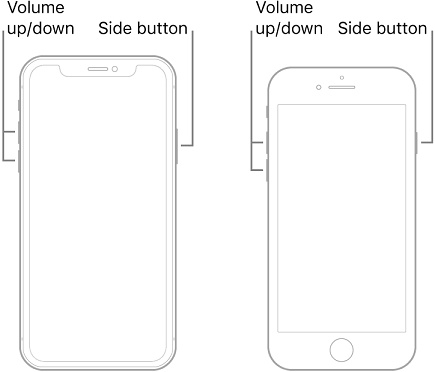
Method 2. Force Restart Your iPhone
A simple force restart can resolve software glitches that may be causing false liquid detection alerts:
- For iPhone 8 or later & iPad with Face ID: Quickly press and release the Volume Up button, then the Volume Down button, then press and hold the Side button until the Apple logo appears
- For iPhone 7/7 Plus: Press and hold both the Side and Volume Down buttons until the Apple logo appears
- For iPhone 6s and earlier: Hold both the Home button and the Top (or Side) button until the Apple logo appears
Method 3. Check Cable and Accessories
Sometimes the issue lies with your charging accessories:
Step 1. Try a different Lightning or USB-C cable to see if the alert persists.
Step 2. Inspect your current cable for any signs of damage or corrosion.
Step 3. Test with a different power adapter to eliminate it as the source of the problem.
Method 4 .Update Your iOS Software
Software bugs can sometimes cause false liquid detection alerts:
Step 1. Go to Settings > General > Software Update.
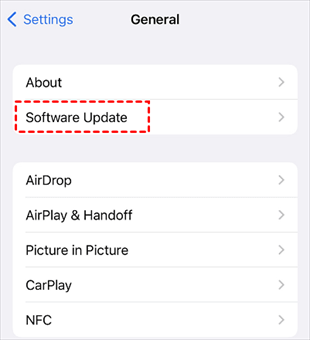
Step 2. If an update is available, tap "Download and Install".
Step 3. After installation, check if the liquid detection issue is resolved.
Method 5.Wireless Charging as an Alternative
If your iPhone supports wireless charging (iPhone 8 and later), you can bypass the port issue entirely:
Step 1. Ensure the back of your iPhone is dry.
Step 2. Place your iPhone on a Qi-certified wireless charger.
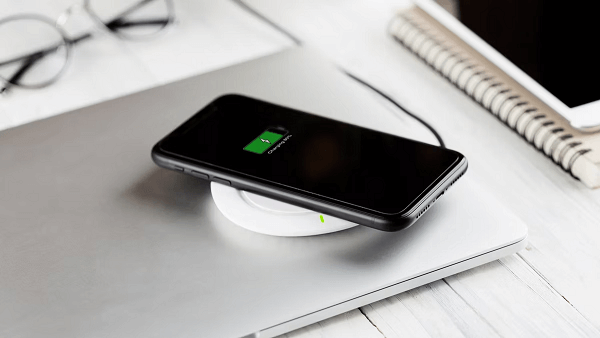
Step 3. Check that charging begins - successful wireless charging confirms the issue is isolated to the physical port.
Method 6. Use FoneTool Repair for System Issues
If you've tried all previous methods and your iPhone still shows false liquid detection alerts, the problem might be deeper iOS system errors. FoneTool Repair is a specialized tool that can fix such system-level problems causing false alerts.
This powerful iOS system repair tool is the best way to fix iOS/iPadOS issues without data loss
Steps to Use FoneTool Repair for Liquid Detection Issues:
Step 1. Download and install FoneTool Repair from the official website to your Windows computer.
Step 2. Connect your iPhone to the computer using a USB cable, and select "iOS System Repair" from the main interface.

Step 3. Choose repair mode - Standard Mode for data retention or Deep Mode for stubborn issues.

Step 4. Download the recommended firmware package when prompted.
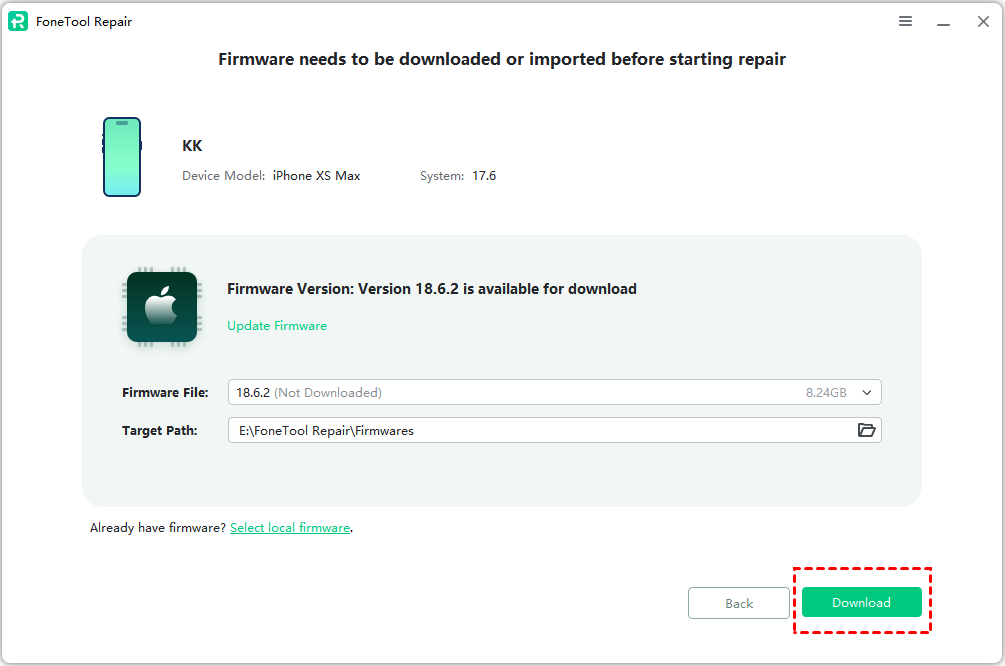
Step 5. Click "Start Repair" to begin fixing the system issues.

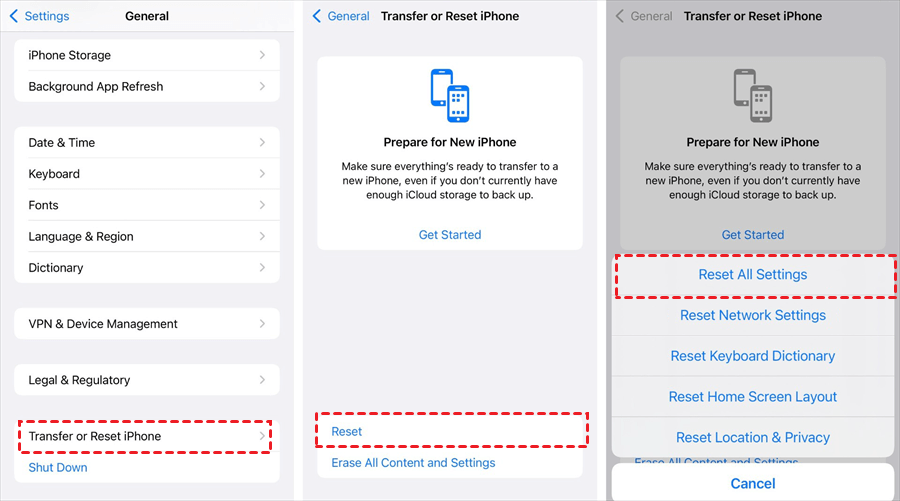
Method 7. Reset All Settings
If the issue persists, resetting your iPhone's settings can help without erasing your data:
Step 1. Go to Settings > General > Transfer or Reset iPhone.
Step 2. Tap "Reset" and select "Reset All Settings".
Step 3. Enter your passcode when prompted and confirm your selection.
Method 8. Contact Apple Support
If none of the above solutions work, you may have a hardware issue that requires professional attention:
Step 1. Contact Apple Support via their website or the Apple Support app.
Step 2. Schedule an appointment at your nearest Apple Store or authorized service provider.
Step 3. Describe your issue in detail, mentioning all troubleshooting steps you've already tried.
Frequently Asked Questions (FAQ)
Final Words
The "Liquid Detected in Lightning Connector" alert typically resolves with proper drying and basic troubleshooting. Start with cable checks and force restart, then progress to iOS updates if needed. For persistent software-related alerts, FoneTool Repair offers effective system-level solutions. When hardware issues are suspected, contact Apple Support for professional service.
Fixes 160+ iOS/iPadOS issues, boot loops, crashes, failed updates, with no data loss.
-
 iOS 27 Compatible
 iPhone 17 Supported
100% Secure

Kelsey is an English editor at FoneTool, passionate about helping users solve tech issues. She specializes in iPhone data management, backup, and recovery. In her free time, she enjoys learning IT skills and spending time with loved ones.
Read author info >>



 as a preferred
source on Google
as a preferred
source on Google