iPhone Internet Slow? 10 Proven Solutions to Speed It Up
iPhone internet slow? This guide explains common causes like network issues, iOS bugs, or storage problems. Get step-by-step fixes for Wi-Fi and cellular data, plus FAQs and advanced solutions.


A slow internet connection on your iPhone can disrupt everything from streaming to browsing. If your iPhone's internet is slow, you're not alone. This common issue stems from various causes, including network glitches, software bugs, or device-specific problems. This guide covers 10 proven solutions to restore your iPhone's speed, from simple tweaks to advanced repairs.
Why Is Your iPhone Internet So Slow?
Understanding the root cause helps you apply the right fix. Here are common reasons for sluggish speeds:
- Network Congestion: Weak Wi-Fi signals, router issues, or cellular tower overload
- iOS Bugs: Software updates (e.g., iOS 26) can introduce connectivity bugs
- Storage Overload: Less than 1 GB of free space may slow performance
- Background Apps: Apps consuming data in the background
- Outdated Settings: Old carrier or network configurations
- VPN Interference: Active VPNs can throttle speeds
10 Proven Fixes for Slow iPhone Internet
Now that we understand the potential causes, let's dive into practical solutions. These methods are organized from simple, quick fixes to more advanced troubleshooting techniques to help you resolve your slow iPhone internet issues effectively .You can also jump to the ultimate method to fix iPhone network issues in one click to avoid wasting time.
Fix 1. Restart Your iPhone and Router
This basic troubleshooting step can resolve many temporary network glitches and software conflicts that cause slow internet speeds on your iPhone. A simple restart clears cached data and re-establishes fresh connections to networks.
Step 1. Hold the Side + Volume buttons, then slide to power off. Wait 30 seconds and restart.
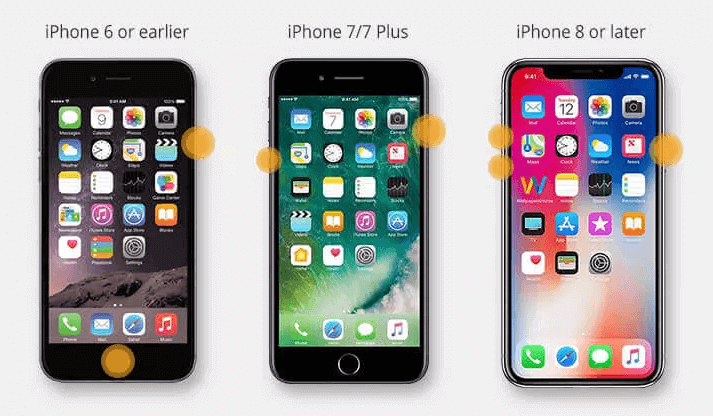
Step 2. Unplug your router for 30 seconds, then plug it back in.
- ★Tip:
- Make it a habit to restart your iPhone weekly to prevent performance issues and maintain optimal internet speed.
Fix 2. Check Your Wi-Fi Signal and Band
Weak Wi-Fi signals or congested network bands are common culprits behind slow iPhone internet. The 2.4 GHz band offers wider coverage but slower speeds, while 5 GHz provides faster connections with shorter range.
Step 1. Go to Settings > Wi-Fi and ensure you're connected to a 5 GHz band (faster but shorter range) .
Step 2. Move closer to your router or avoid peak usage times.
Fix 3. Update iOS and Carrier Settings
Apple regularly releases iOS updates that include critical bug fixes for connectivity issues that may be causing your slow iPhone internet. Similarly, carrier updates optimize your iPhone's compatibility with your mobile network.
Step 1. Navigate to Settings > General > Software Update and install any updates.
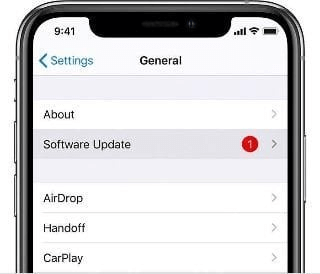
Step 2.Go to Settings > General > About to install carrier updates if prompted.
- ★Tip:
- Enable automatic updates in Settings > General > Software Update > Automatic Updates to ensure you never miss important connectivity fixes.
Fix 4. Reset Network Settings
This powerful solution clears all corrupted network configurations that could be contributing to your slow iPhone internet, without deleting your personal data, photos, or apps.
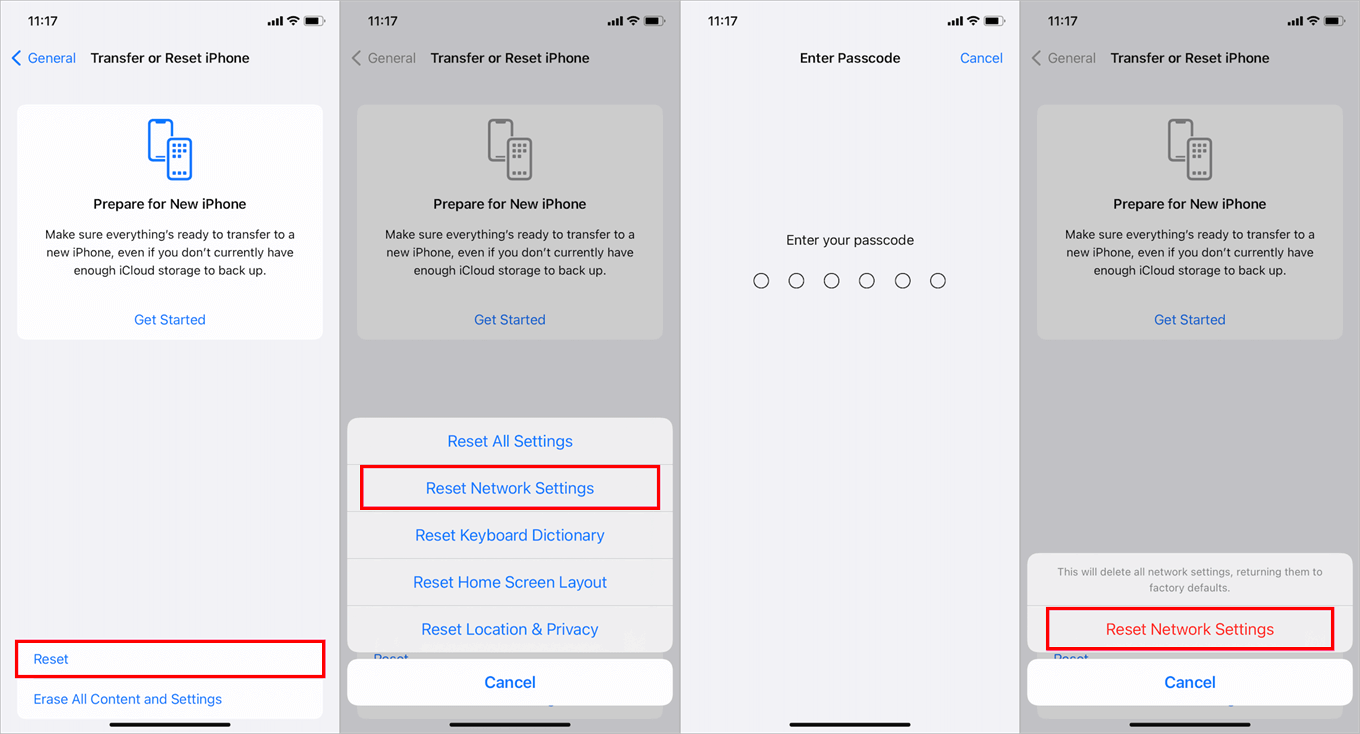
Step 1. Open Settings > General > Transfer or Reset iPhone.
Step 2. Tap Reset > Reset Network Settings and confirm.
Fix 5. Free Up Storage Space
When your iPhone storage is nearly full, it can significantly impact system performance and contribute to slow internet speeds. Manage your iPhone storage space (at least 1GB of free space) in the following ways to ensure your iPhone runs smoothly and maintains good online performance.
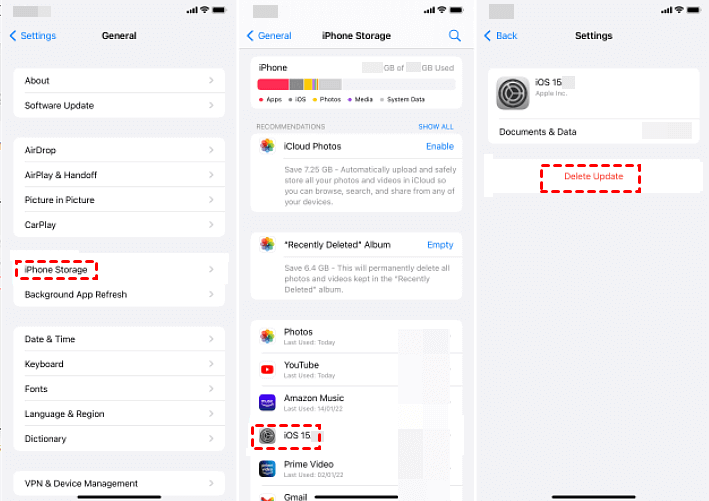
Step 1. Go to Settings > General > [Device] Storage.
Step 2. Delete unused apps or offload large files (e.g., videos) .
Fix 6. Disable Background App Refresh
Background App Refresh allows apps to update content even when you're not actively using them, which can consume significant data and contribute to slow iPhone internet performance.
Step 1. Navigate to Settings > General > Background App Refresh.
Step 2. Switch it off entirely or for non-essential apps.
- ★Tip:
- You can selectively disable Background App Refresh for data-heavy apps like social media while keeping it enabled for essential apps like email.
Fix 7. Turn Off VPN and RCS Messaging
While VPNs provide privacy benefits, they often route your connection through distant servers, which can dramatically slow down your iPhone's internet speed. Similarly, RCS messaging can sometimes conflict with network protocols.
Step 1. Go to Settings > General > VPN & Device Management and delete VPN profiles.
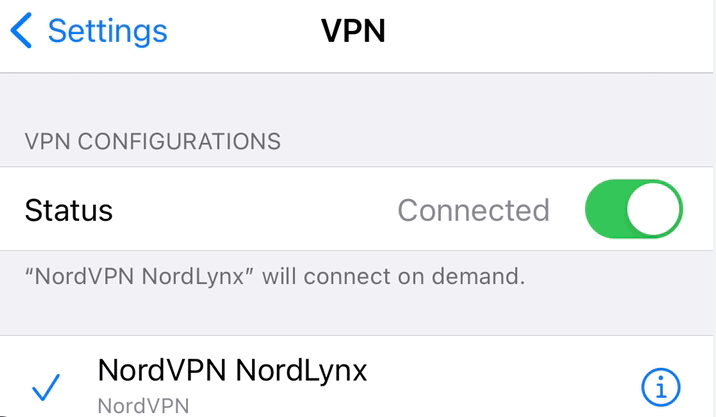
Step 2. Disable RCS via Settings > Apps > Messages > RCS Messaging.
Fix 8. Switch to LTE (4G)
While 5G promises faster speeds, coverage can be inconsistent, and your iPhone might struggle to maintain a stable connection in areas with weak 5G signals, resulting in slow internet.
Step 1. Open Settings > Cellular > Primary > Voice & Data.
Step 2. Select LTE instead of 5G Auto.
Fix 9. Forget and Rejoin Wi-Fi Networks
This simple but effective method can resolve slow iPhone internet issues caused by corrupted connection data or authentication problems with your Wi-Fi network.
Step 1. Go to Settings > Wi-Fi, tap the ⓘ next to your network, and select Forget This Network.
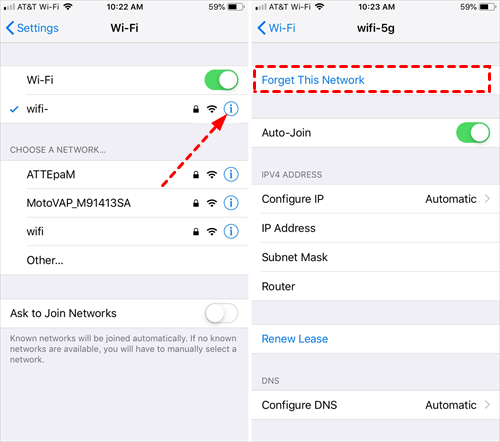
Step 2. Reconnect by re-entering the password.
- ★Tip:
- If you continue experiencing slow internet after rejoining, consider resetting your router to its factory settings as the issue might be with the network itself.
Fix 10. Advanced iOS System Repair with FoneTool
When all standard fixes fail to resolve your slow iPhone internet issues, the problem may lie deeper within the iOS system itself. FoneTool Repair provides a professional solution for persistent system-level issues that ordinary troubleshooting can't fix. This powerful tool goes beyond basic fixes to address the root causes of performance problems.
This powerful iOS system repair tool is the best way to fix iOS/iPadOS issues without data loss
Step 1. Download FoneTool Repair on a Windows PC from their official website.
Step 2. Connect your iPhone via USB cable and launch FoneTool Repair, tap iOS System Repair.

Step 3. Select Standard Mode to preserve your data while fixing system issues.

Step 4. Follow the intuitive on-screen instructions to download necessary firmware.
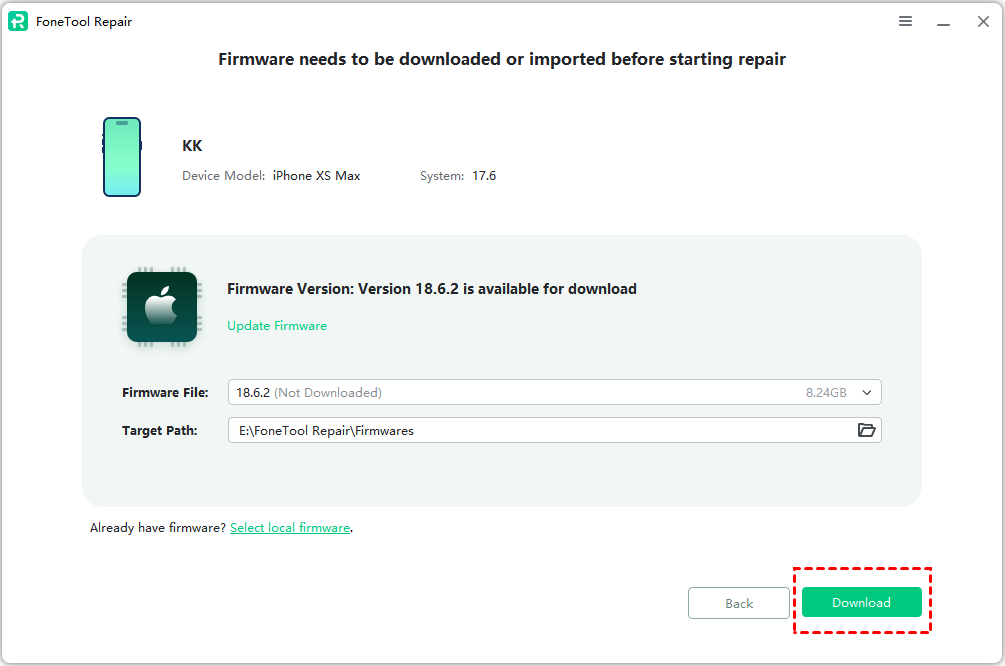
Step 5. Click Start Repair to initiate the repair process and wait for completion.

Frequently Asked Questions on iPhone Internet Issue
Conclusion
A slow iPhone internet connection is usually fixable with the right approach. Begin with basic steps, such as restarting your device, updating iOS, or verifying your Wi-Fi connection. If problems persist, consider escalating to more advanced solutions, such as network resets or specialized tools like FoneTool Repair, for system-level issues. For more iPhone optimization tips and tools, visit the FoneTool website. With these proven methods, you can enjoy faster browsing, smoother streaming, and better overall performance on your iPhone.
Fixes 160+ iOS/iPadOS issues, boot loops, crashes, failed updates, with no data loss.
-
 iOS 27 Compatible
 iPhone 17 Supported
100% Secure

Kelsey is an English editor at FoneTool, passionate about helping users solve tech issues. She specializes in iPhone data management, backup, and recovery. In her free time, she enjoys learning IT skills and spending time with loved ones.
Read author info >>



 as a preferred
source on Google
as a preferred
source on Google