TikTok Keeps Crashing? 10 Proven Fixes to Try Now
TikTok crashing on your phone? Learn the reasons behind the crashes and effective solutions. From clearing cache and updating the app to checking server status and advanced troubleshooting, we help you fix TikTok for good.


It's incredibly frustrating when you're enjoying TikTok videos and the app suddenly crashes. This common problem affects both Android and iPhone users, disrupting your scrolling experience. If TikTok keeps crashing on your device, this comprehensive guide will help you understand why and provide proven solutions to fix it.
Why Does TikTok Keep Crashing?
Before diving into solutions, it's helpful to understand what causes TikTok to crash. The app can malfunction due to various issues, and identifying the root cause makes fixing it easier.
- Corrupted cache data. Temporary files stored by the app can become corrupted over time, leading to performance issues and crashes.
- Outdated app version. Using an older version of TikTok that contains bugs or isn't optimized for your device can cause instability.
- Insufficient storage space. When your device runs low on storage, apps like TikTok can crash as they lack resources to function properly.
- Network connectivity problems. A weak or unstable internet connection can prevent TikTok from loading content properly, leading to freezes and crashes.
- Software conflicts. Issues with your device's operating system or conflicts with other apps can disrupt TikTok's performance.
- Server-side issues. Sometimes the problem isn't with your device but with TikTok's servers being down or experiencing high traffic.
10 Effective Solutions to Stop TikTok From Crashing
Try these solutions in order, starting with the simplest fixes before moving to more advanced troubleshooting methods.
Fix 1. Restart Your Device
A simple restart resolves many temporary software glitches that cause TikTok app crashes.
Step 1. Press and hold the power button until the power menu appears.
Step 2. Select "Restart" or "Reboot" from the options.
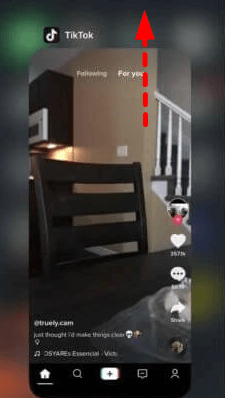
Step 3. Wait for your device to power back on completely.
Step 4. Open TikTok and check if the crashing has stopped.
Fix 2. Check TikTok Server Status
Before troubleshooting your device, verify if the problem is on TikTok's end with this TikTok server status check.
Step 1. Visit Downdetector's TikTok status page.
Step 2. Check TikTok's official social media accounts for outage reports.
Step 3. Ask friends if they're experiencing similar issues.
Step 4. Wait for TikTok to resolve server-side problems if detected.
Fix 3. Update TikTok App
Using an outdated app version often causes TikTok crashes after update due to unresolved bugs.
Step 1. Open Google Play Store (Android) or App Store (iPhone).
Step 2. Search for "TikTok" in the search bar.
Step 3. Tap "Update" if available.
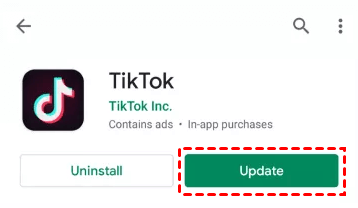
Step 4. Launch the updated app and check for improvements.
Fix 4.Clear TikTok Cache
Corrupted cache data can cause TikTok performance issues and frequent crashes.
Step 1. Go to your phone's Settings > Apps > TikTok.
Step 2. Tap "Storage" or "Storage & Cache".
Step 3. Select "Clear Cache".
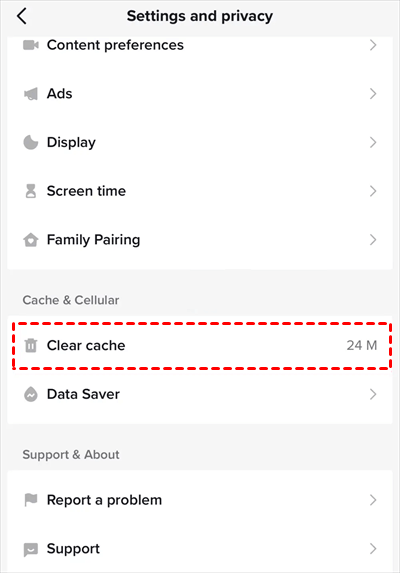
Step 4. Force stop the app and relaunch it.
Fix 5. Reinstall TikTok
A fresh installation resolves problems caused by corrupted app files when TikTok keeps closing.
Step 1. Press and hold the TikTok app icon on your home screen.
Step 2. Select "Uninstall" or "Remove App".
Step 3. Visit your device's app store to reinstall TikTok.
Step 4. Log in to your account and check if the crashing persists.
Fix 6. Update Device Operating System
System updates include performance improvements that fix app compatibility issues.
Step 1. Go to Settings > System > System Update (Android) or Settings > General > Software Update (iPhone).
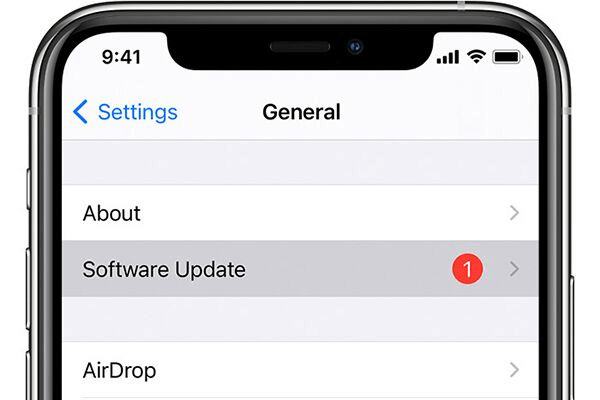
Step 2. Download and install any available updates.
Step 3. Restart your device after installation.
Step 4. Test TikTok for crashing issues.
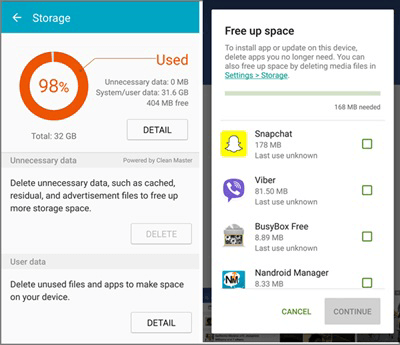
Fix 7. Free Up Storage Space
Insufficient storage is a common cause of TikTok app crashes and performance issues.
Step 1. Check storage in Settings > Storage.
Step 2. Delete unused apps, photos, and files.
Step 3. Clear cache for other apps.
Step 4. Maintain at least 1-2GB of free space.
Fix 8. Update Android System WebView
Android users should ensure this critical system component is updated to prevent TikTok crashing on Android.
Step 1. Open Google Play Store.
Step 2. Search for "Android System WebView".
Step 3. Tap "Update" if available.
Step 4. Restart your device after updating.
Fix 9. Reset Network Settings
Network configuration issues can cause TikTok connection problems and instability.
Step 1. Navigate to Settings > System > Reset Options.
Step 2. Select "Reset Wi-Fi, mobile & Bluetooth".
Step 3. Confirm the reset action.
Step 4. Reconnect to your Wi-Fi networks.
Fix 10. Repair iOS System with FoneTool
For iPhone users with persistent TikTok crashing on iPhone issues, FoneTool Repair addresses deeper iOS system issues causing app instability and performance problems.
This powerful iOS system repair tool is the best way to fix iOS/iPadOS issues without data loss
Step 1. Download and install FoneTool Repair on your Windows PC, and connect your iPhone via USB cable.
Step 2. Launch the application and tap "iOS System Repair" > "Start Repair".

Step 3. Select "Standard Mode"to fix TikTok not working on iPhone withou data loss.

Step 4. Follow on-screen instructions to download firmware.
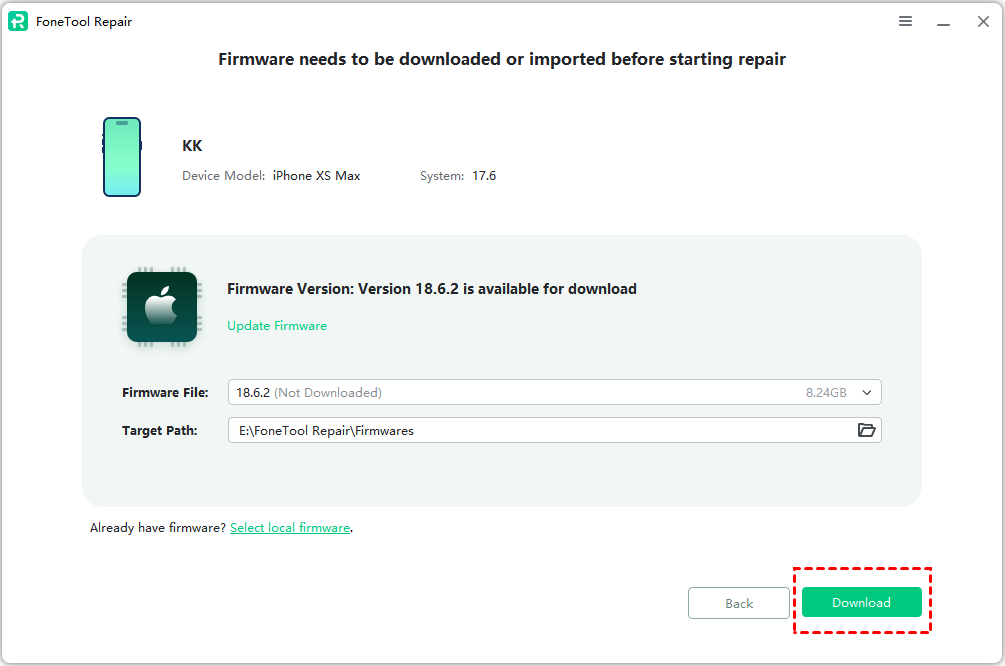
Step 5. Click "Start Repair" to begin the system repair process.

Frequently Asked Questions
Conclusion
When TikTok keeps crashing, follow this systematic approach for effective solutions. Start with basic troubleshooting like restarting your device and updating the app. If problems persist, advance to clearing cache or reinstalling TikTok. For iPhone users experiencing persistent crashes, FoneTool Repair effectively resolves deeper iOS system issues. These proven methods will restore TikTok's stability and let you return to seamless scrolling.
Fixes 160+ iOS/iPadOS issues, boot loops, crashes, failed updates, with no data loss.
-
 iOS 27 Compatible
 iPhone 17 Supported
100% Secure

Kelsey is an English editor at FoneTool, passionate about helping users solve tech issues. She specializes in iPhone data management, backup, and recovery. In her free time, she enjoys learning IT skills and spending time with loved ones.
Read author info >>



 as a preferred
source on Google
as a preferred
source on Google