iPhone Black Screen Spinning Wheel? Full Fix Guide
Is your iPhone frozen on a black screen with a spinning wheel? This common issue, often caused by software glitches or failed updates, can be fixed. Learn 6 effective methods here.


Is your iPhone frozen on a black screen with a spinning wheel? This frustrating issue, sometimes called the "spinning wheel of death," often occurs after a software update, during a restart, or seemingly out of nowhere. Your screen goes black, and a persistent loading icon spins, leaving your device unusable.
Don't panic. In most cases, this is a software problem that can be resolved. This guide will walk you through the most effective solutions, from simple steps you can try immediately to more advanced repairs.
How to Fix iPhone Black Screen Spinning Wheel
Seeing that endless spinning wheel can make you feel helpless, but there is a clear path to recovery. The key is to start with the simplest, least invasive solutions and work your way up. The following table will help you quickly choose the right starting point based on your priority, whether it's saving data or finding the fastest fix.
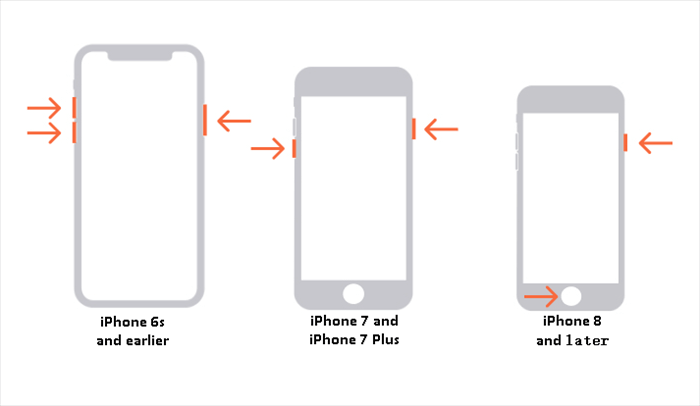
Method 1. Force Restart Your iPhone
This is the first and most important step. A force restart clears the device's memory and can fix minor software glitches without affecting your data.
- For iPhone 8, iPhone SE (2nd/3rd gen), and later: Quickly press and release the Volume Up button, then the Volume Down button. Immediately press and hold the Side button until you see the Apple logo (can take up to 20 seconds).
- For iPhone 7 and 7 Plus: Press and hold both the Side button and the Volume Down button until the Apple logo appears.
- For iPhone 6s, iPhone SE (1st gen), and earlier: Press and hold both the Home button and the Top (or Side) button until the Apple logo appears.
Method 2. Charge Your iPhone and Let It Cool
A depleted battery can prevent a successful boot. Connect your iPhone to its original charger and a power outlet for at least 30 minutes. If the device feels hot, unplug it and let it cool down completely in a well-ventilated area before trying to restart it.

Method 3. Repair iOS System with FoneTool Repair
When a force restart doesn't work and you want to avoid a full factory reset that erases all data, a professional iOS system repair tool is the best solution. FoneTool Repair is designed specifically for this type of deep software issue, offering a smarter alternative to risky manual restores.
This powerful iOS system repair tool is the best way to fix iOS/iPadOS issues without data loss
Step 1. Download and install FoneTool Repair, connect your iPhone (which is stuck on the black screen) to the computer.
Step 2. Launch the tool and select the "iOS System Repair" function.

Step 3. The software will detect your device mode, and select the "Standard Mode" to protect your data.

Step 4. Follow the instructions to download the necessary firmware package.
Step 5. Click "Start Repair" and wait for the process to complete. Your iPhone should restart normally.

Method 4. Update or Restore via iTunes/Finder
If the issue started during an update, your computer might help complete the process.
Step 1. Connect your iPhone to a computer (use a Mac with Finder or a PC with iTunes).
Step 2. Perform a force restart (as in Method 1) but keep holding the buttons until you see the "Connect to iTunes" or cable icon on the screen (Recovery Mode).
- ★Tip:
- You can use FoneTool Repair to exit or enter DFU mode and recovery mode with one click to get rid of complex keystrokes.
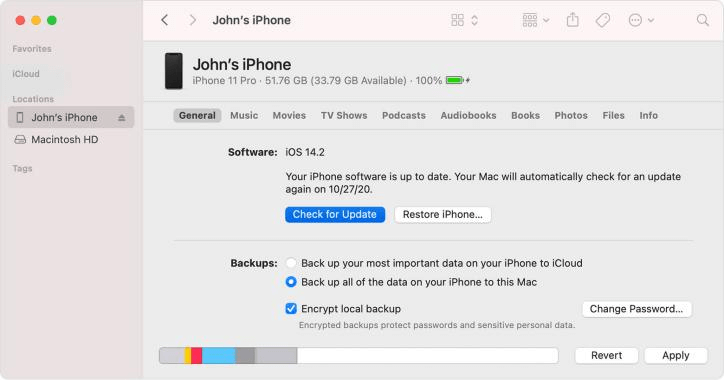
Step 3. On your computer, you will see an option to "Update" or "Restore." Always choose "Update" first. This will try to reinstall iOS without erasing your data.
Method 5. Restore iPhone via Recovery or DFU Mode (Erases Data)
Use this as a last resort if all else fails. Warning: This will erase all content and settings on your iPhone.
Step 1. Connect your iPhone to a computer and open iTunes/Finder.
Step 2. Force restart your iPhone and keep holding the buttons to enter Recovery Mode (see Method 4, Step 2). For deeper issues, you may need to enter DFU Mode.
Step 3. When you see the "Restore" option on your computer, select it.
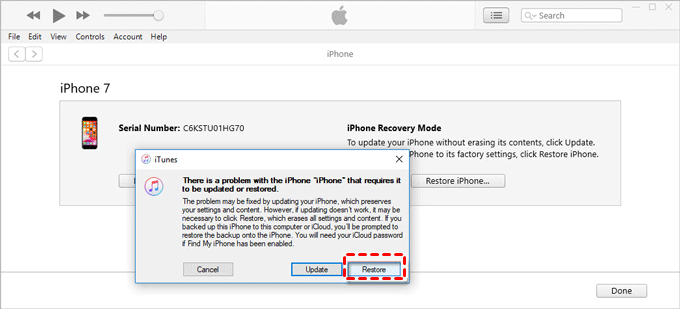
Step 4. Your computer will erase the iPhone and install the latest iOS. You can then set it up as new or from a backup.
Method 6. Contact Apple Support
If all software solutions fail, the problem may be related to hardware. Visit the official Apple Support website for diagnostics or to schedule a repair.
Frequently Asked Questions
Conclusion
An iPhone stuck on a black screen with a spinning wheel is a serious but usually solvable software problem. Always start with a force restart and ensure your device is charged. For persistent issues, a dedicated tool like FoneTool Repair offers a powerful and data-safe solution to repair the corrupted iOS system. If that fails, a full restore via Recovery Mode is the final step.
Fixes 160+ iOS/iPadOS issues, boot loops, crashes, failed updates, with no data loss.
-
 iOS 27 Compatible
 iPhone 17 Supported
100% Secure

Kelsey is an English editor at FoneTool, passionate about helping users solve tech issues. She specializes in iPhone data management, backup, and recovery. In her free time, she enjoys learning IT skills and spending time with loved ones.
Read author info >>



 as a preferred
source on Google
as a preferred
source on Google