How to Downgrade iOS Without iTunes [2026 Guide]
Learn the essential prerequisites and follow guide to downgrade your iPhone's iOS without using iTunes. We compare methods from easy one-click tools to advanced manual techniques, helping you choose the best path.


Can You Really Downgrade iOS Without a Computer?
If you're searching for a way to downgrade your iPhone's iOS without using any computer at all, the short and direct answer is: you cannot. This is a fundamental technical limitation set by Apple's security and restoration process. All official and most reliable third-party downgrade methods require connecting your iPhone to a Mac or Windows PC.
Therefore, the phrase "without iTunes" in this guide means using alternative computer software that is not iTunes or Finder. These methods offer distinct advantages, such as a simpler interface, the potential to avoid data loss, or the ability to handle more complex scenarios like downgrading from a beta version.
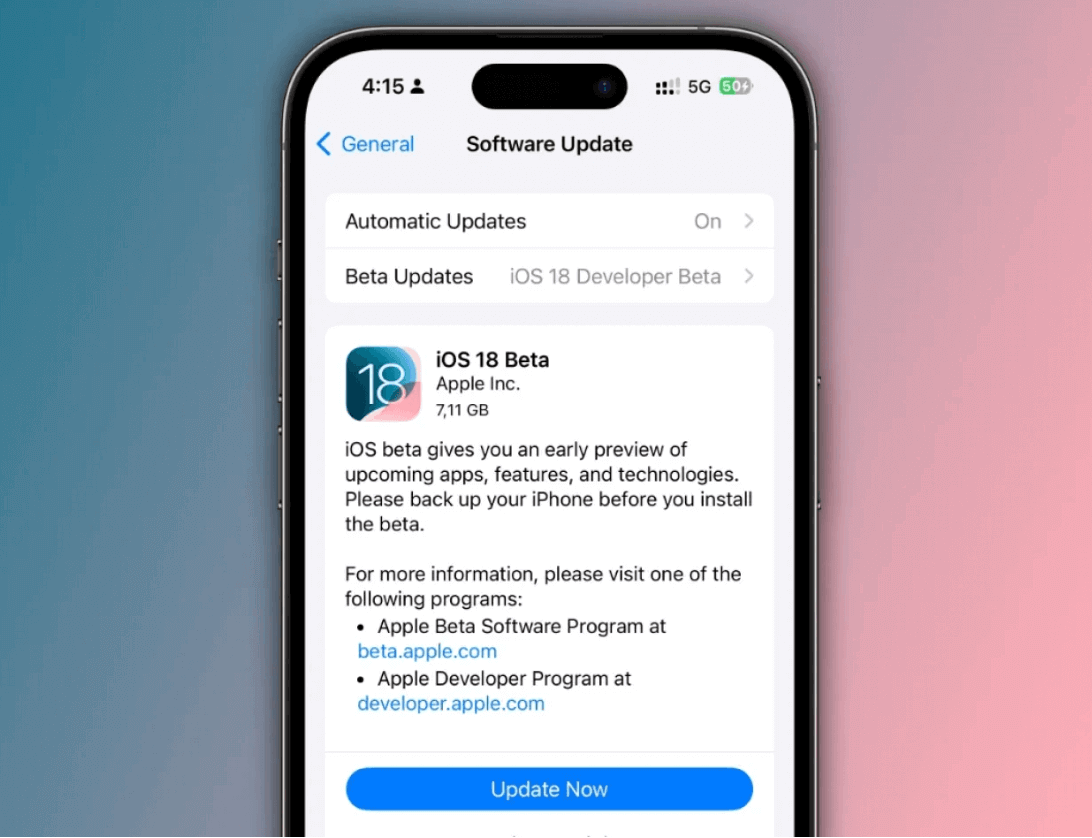
The #1 Rule Before You Start: iOS Signing Status
Apple uses a system called "signing" to control which iOS versions can be installed. Think of it as a time-limited permission slip. Once Apple stops "signing" an older version (which usually happens a few weeks after a new release), you cannot downgrade to it through standard methods.
For example, as of late 2025, you likely cannot downgrade from iOS 26 to versions like iOS 18.5 because Apple has stopped signing them. Your only official option may be a slightly newer version like iOS 18.6, if it is still being signed.
How to Check: Always verify the signing status on websites like ipsw.me before proceeding. Professional downgrade tools will also only show you firmware versions that are currently viable to install.
How to Downgrade iOS Without iTunes (3 Methods)
Here are the most effective ways to roll back your iOS version without using Apple's iTunes or Finder. We recommend starting with Method 1 for most users.
Method 1. Using FoneTool Repair (Easiest & Recommended)
Specialized iOS system repair toolslike FoneTool Repair provide the simplest and safest downgrade experience. They automate complex steps, often allow you to keep your data, and are the best alternative to iTunes.
This powerful iOS system repair tool is the best way to fix iOS/iPadOS issues without data loss
Step 1. On your Windows PC, download and install FoneTool Repair.
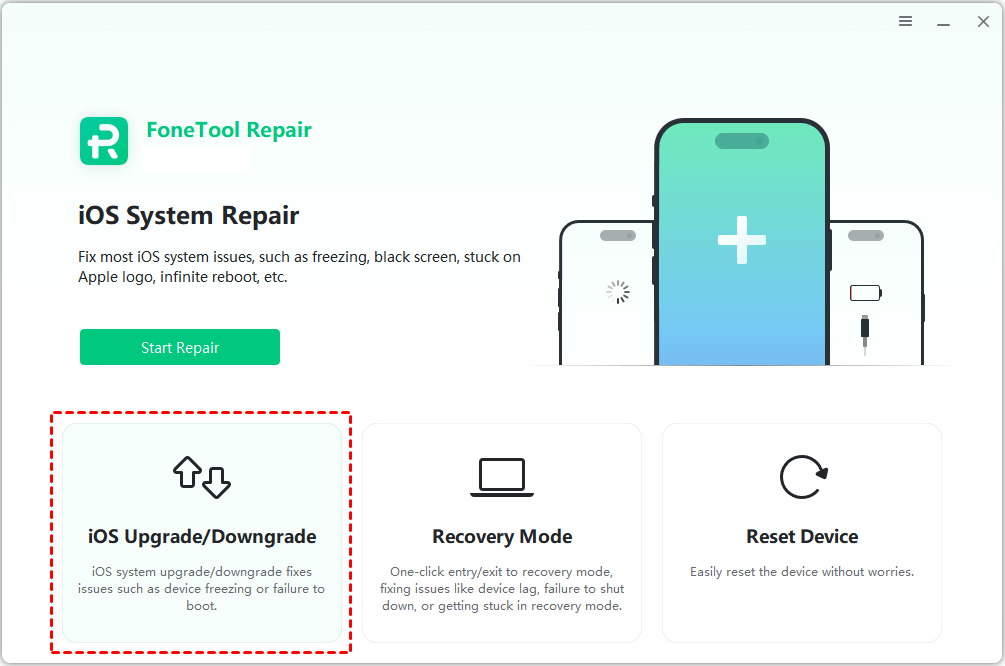
Step 2.Run the software and connect your iPhone via a USB cable. From the main interface, select the “iOS Upgrade/Downgrade“.
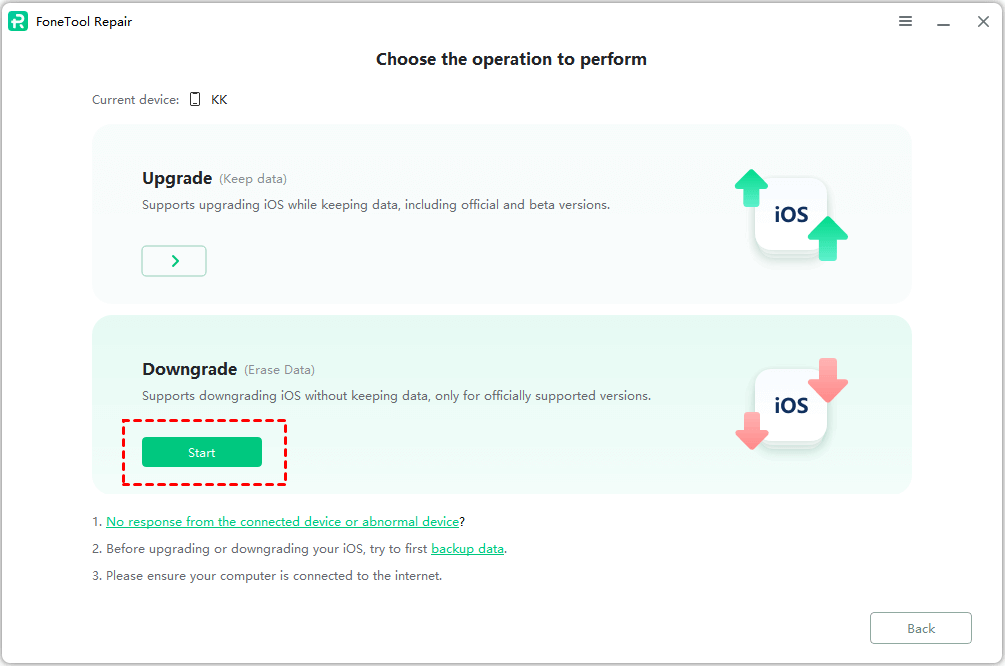
Step 3.Choose the "Downgrade" optionand click "Start".
Step 4.The tool will show available, signed iOS versions. Select your target version and click "Download" to get the firmware package.
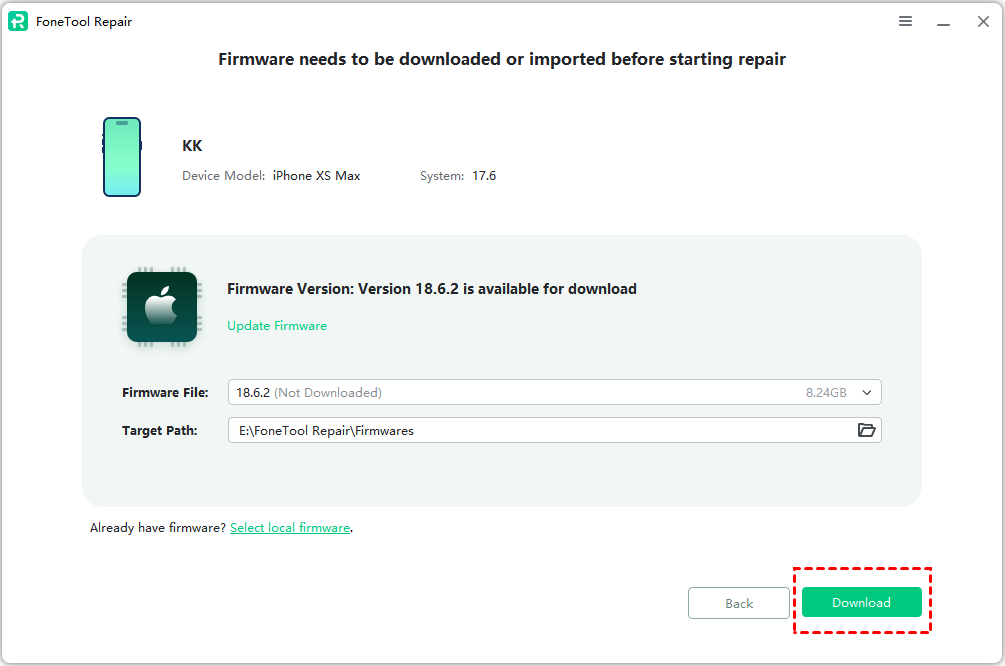
Step 5. Once the firmware is downloaded, click "Start Downgrade".
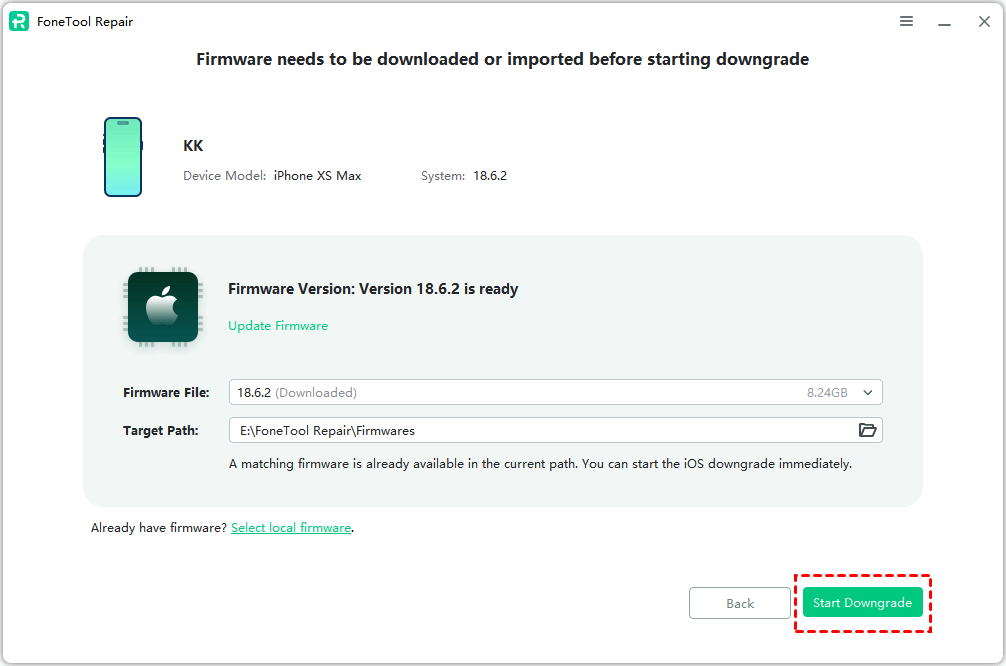
- ★Tip:
- Although the Standard Mode aims to protect data, it is highly recommended to create a full backup of your iPhone before starting any system modification. You can use FoneTool's backup features or iCloud.
Method 2. Using a Signed IPSW File with Third-Party Utilities
This manual method is for users comfortable with handling firmware files. It uses tools like 3uTools but typically requires a full restore, which erases all data on your device.
Step 1.Go to ipsw.me, select your exact iPhone model, and download the signed IPSW file for your target iOS version.
Step 2. Open a utility like 3uTools and connect your iPhone.
Step 3. Navigate to the “Flash”or “Restore”section. You may need to put your device into Recovery Mode first.
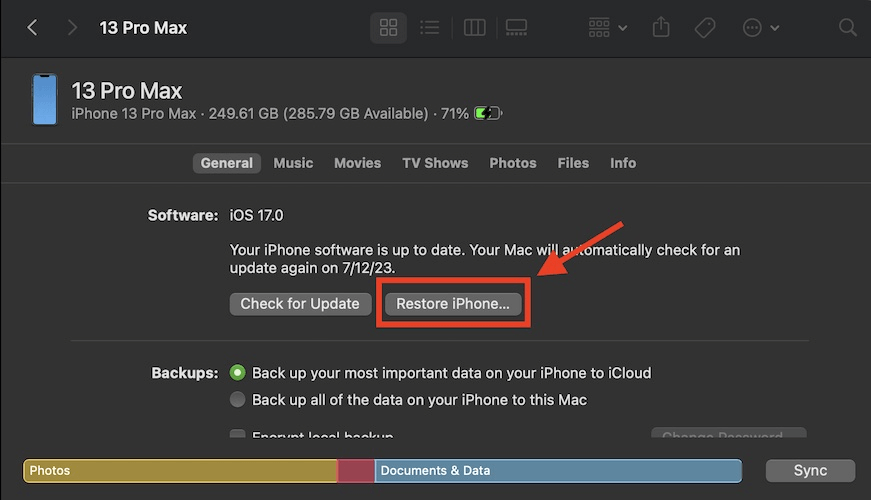
Step 4.Click to import or select the IPSW file you downloaded in Step 1.
Step 5. Start the flashing/restoration process. The tool will install the older iOS version, erasing all data in the process.
Method 3. Advanced Method for Unsigned iOS Versions(For Experts)
If you need to downgrade to a version Apple no longer signs (e.g., a specific iOS 17 version after iOS 26 is out), the process becomes highly complex and risky. It typically requires:
- SHSH Blobs: Unique cryptographic signatures you had to save for your specific device when the iOS version was still signed.
- Command-Line Tools: Using advanced tools like Futurerestore which require precise command-line inputs.
- Technical Expertise: This method is not for beginners and has a high chance of failure or "bricking" your device if done incorrectly.
Comparison of Downgrade Methods
|
Method |
Best For |
Difficulty |
Data Loss Risk |
Key Requirement |
|
FoneTool Repair |
Most users; easiest & safest experience |
Easy |
Low (with Standard Mode) |
Computer, Signed iOS version |
|
IPSW with 3uTools |
Tech-savvy users comfortable with manual steps |
Medium |
High (Erases device) |
Computer, Signed IPSW file |
|
Futurerestore (Advanced) |
Experts needing to install unsignediOS |
Very Hard |
High |
Computer, SHSH Blobs, Technical skill |
Frequently Asked Questions (FAQ)
Summary
Successfully downgrading iOS without iTunes is achievable by using the right computer-based alternative. The most critical step is to verify the signing status of your target iOS version. For the vast majority of users seeking a balance of safety, simplicity, and data preservation, a professional one-click tool like FoneTool Repair is the optimal choice.
For more complex needs like downgrading to unsigned versions, advanced tools like Futurerestore exist but come with significant complexity and risk. Always ensure you have a complete backup before beginning any system modification process.
Fixes 160+ iOS/iPadOS issues, boot loops, crashes, failed updates, with no data loss.
-
 iOS 27 Compatible
 iPhone 17 Supported
100% Secure

Kelsey is an English editor at FoneTool, passionate about helping users solve tech issues. She specializes in iPhone data management, backup, and recovery. In her free time, she enjoys learning IT skills and spending time with loved ones.
Read author info >>



 as a preferred
source on Google
as a preferred
source on Google