Easy Samsung FRP Tool Not Working: 5 Effective Solutions
This article addresses issues with Easy Samsung FRP Tool not working, along with their potential causes, and provides 5 detailed, step-by-step solutions and recommends a more reliable alternative - FoneTool Unlocker.


If you've ever purchased a second-hand Samsung phone or forgotten your Google account credentials after a factory reset, you're probably familiar with the FRP(Factory Reset Protection) lock - a Google security feature that prevents unauthorized access to your device after a reset.
Easy Samsung FRP Tool is a popular free tool for bypassing this lock on Samsung devices running Android 5.1 to 9.0, but many users encounter errors during the process. The most frequently encountered error messages include:
- Easy FRP driver install failed - The tool cannot install the necessary Samsung USB drivers on your PC.
- Launching browser event failed - The tool fails to open the browser window on the Samsung device needed to download FRP bypass APKs.
- Device not detected - The tool doesn't recognize the connected Samsung phone at all.
- Compatibility errors - The tool crashes or refuses to run on newer Windows versions.
These failures can stem from several underlying causes: loose or faulty USB connections, missing/incompatible Samsung USB drivers, Windows driver signature enforcement blocking unsigned drivers, conflicting background software (Samsung Kies, Smart Switch, antivirus), outdated tool versions, or simply using the tool on unsupported Android versions (Android 10+). Below, we'll walk through 5 effective solutions to resolve these issues step by step, and an alternative error-free FRP bypass tool.
How to Solve Easy Samsung FRP Tool Not Working
Try the solutions below to fix your Easy Samsung FRP Tool failed for FRP unlocking now.
Method 1. Check USB Connection
The most common reason Easy Samsung FRP Tool fails is a faulty or unstable USB connection. If the cable is damaged, the port is loose, or the phone keeps disconnecting and reconnecting, the tool cannot communicate with the device properly, leading to "device not detected" or "installing drivers failed" errors.
Step 1. Disconnect your Samsung phone from the PC and inspect the USB cable for any visible damage. If possible, use an original Samsung USB cable or a high-quality certified cable.
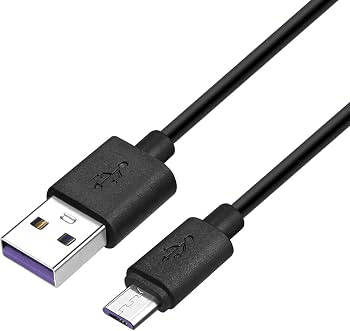
Step 2. Try plugging the cable into a different USB port on your computer - preferably a USB 2.0 port directly on the motherboard (back of the PC), as USB 3.0 ports or front-panel ports sometimes cause compatibility issues.
Step 3. Open Device Manager (right-click the Start button and select Device Manager). Expand the Universal Serial Bus controllers section and check if your Samsung device appears without any warning icons (yellow exclamation marks).
Step 4. Reconnect the device and run the Easy Samsung FRP Tool again to check if it detects your phone.
Method 2. Disable Driver Signature Enforcement
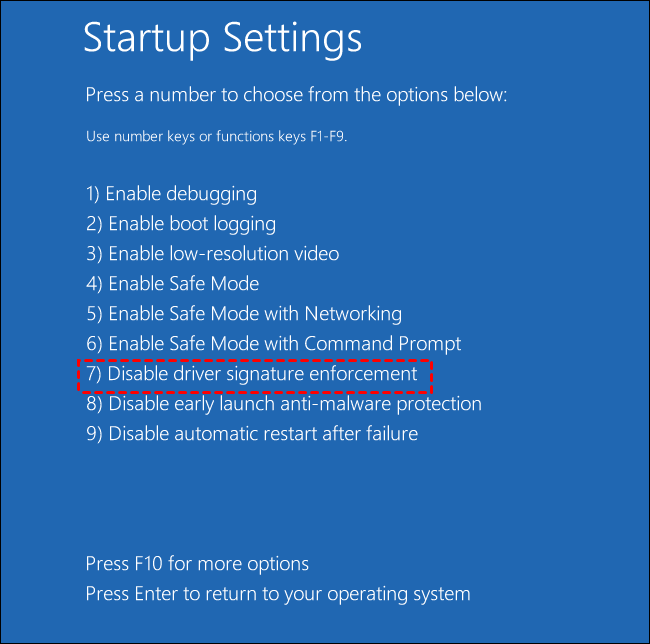
By default, Windows only allows installation of digitally signed drivers. The Samsung USB drivers required by Easy Samsung FRP Tool are often unsigned, which causes Windows to block the installation. Disabling driver signature enforcement temporarily allows these drivers to install.
Step 1. Go to Settings > Update & Security > Recovery and click Restart now under Advanced Startup.
Step 2. After the PC restarts, navigate to Troubleshoot > Advanced Options > Startup Settings > Restart.
Step 3. When the Startup Settings screen appears, press F7 or 7 to select Disable driver signature enforcement.
Step 4. After the PC boots up, run Easy Samsung FRP Tool again and try reinstalling the Samsung USB drivers.
Method 3. Use the Correct APK
Easy Samsung FRP Tool relies on downloading and installing FRP bypass APKs from external websites (such as efrp.me or gsmclassic.com) through a browser window that opens on your Samsung phone. Using the wrong APK for your Android version or downloading a corrupted/outdated APK will cause the bypass process to fail. The "launching browser event failed" error is often related to this step.
Step 1. Make sure your Samsung phone is connected to a stable Wi-Fi network before clicking "Bypass FRP" in the tool - the APK download requires internet access.
Step 2. When the browser window opens on your Samsung device, navigate to a trusted FRP bypass APK source.
Step 3. Identify your device's Android version (Settings > About Phone > Software Information) and select the matching APK. Different Android versions require different bypass methods - using an APK designed for Android 8 on an Android 9 device will not work.
Step 4. Download the APK and allow installation from unknown sources when prompted (Settings > Security > Install Unknown Apps).
Step 5. Install and open the APK, then follow its instructions to set a new screen lock (pattern, PIN, or password). Restart your device to complete the FRP bypass.
Step 6. If one APK doesn't work, try an alternative from the same website - multiple APK options are usually available for different Samsung models and firmware versions.
Method 4. Reinstall/Update Samsung USB Driver
Missing, outdated, or corrupted Samsung USB drivers prevent Easy Samsung FRP Tool from detecting and communicating with your phone. This is one of the most frequent causes of the "installing drivers failed" error. Reinstalling or updating the drivers through Device Manager often resolves this issue.
Step 1. Connect your Samsung phone to the PC via USB cable. Open Device Manager (right-click Start > Device Manager).
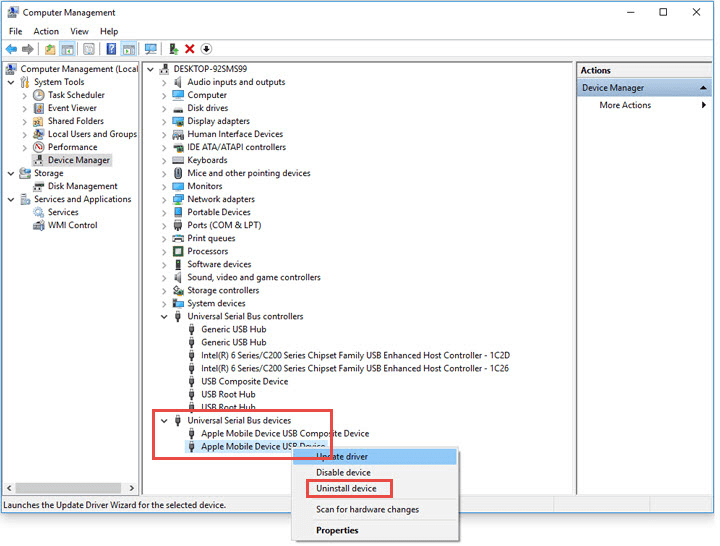
Step 2. Look for your device under Other devices, Portable devices, or Universal Serial Bus controllers. If it appears with a yellow warning icon, the driver is missing or faulty.
Step 3. Right-click the device and select Uninstall device or Update Driver. For updates, choose Search automatically for drivers and follow the on-screen instructions.
Step 4. If Windows cannot find a driver, download the official Samsung USB Driver from Samsung's website or a trusted source. Run the installer, follow the prompts (Next > Agree > Install), and complete the setup.
Method 5. Run Easy Samsung FRP Tool in Compatibility Mode
Easy Samsung FRP Tool was last updated in 2021 (V2.7) and may not be fully compatible with newer versions of Windows such as Windows 11. Running the tool in Compatibility Mode for an older Windows version can resolve crashes, launch failures, and compatibility-related errors.
Step 1. Locate the Easy Samsung FRP Tool executable file (.exe) on your computer. Right-click the .exe file and select Properties. Go to the Compatibility tab.
Step 2. Check the box for Run this program in compatibility mode for: and select an older Windows version from the dropdown - try Windows 7 or Windows 8 first.
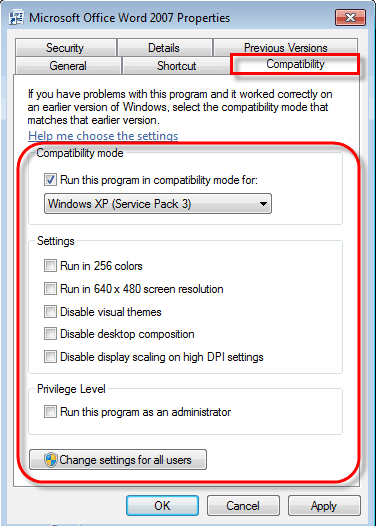
Step 3. Check the box for Run this program as an administrator at the bottom of the same tab. Click Apply, then OK.
Step 4. Alternatively, click Run compatibility troubleshooter on the same tab, select Try recommended settings, and click Test the program to let Windows find the best compatibility settings automatically.
Best Easy Samsung FRP Tool Alternative - Simple-to-Use & Error-Free
Even with all the troubleshooting methods above, Easy Samsung FRP Tool may still fail, especially on Samsung devices running Android 10 or later, or on PCs with persistent driver conflicts. If you've spent hours trying to fix the tool without success, it's time to consider a more reliable alternative - FoneTool Unlocker.
- Key Features:
- One-click FRP removal: It offers a universal removal method for supported devices, even with no system information about the device. It also offers various methods for Android OS 16, 11/12/13, 6/9/10, and 7/8, and it also supports MediaTek and Qualcomm (Snapdragon) chipsets.
- Broader device support: It supports most Samsung Galaxy models, including S26, S25, S24, and selected S, A, M, Z, Fold, and Flip series devices.
- Simple to use: A clean, guided interface through the entire process - no manual APK downloads or driver troubleshooting required.
- iOS device unlocking: It also offers Unlock iOS Devices for removing Screen Time passcode, removing iTunes backup encryption, bypassing Apple ID, removing iOS Screen password, entering iPhone recovery mode, and so on.
Step 1. Connect your FRP-locked Samsung phone to a Windows PC using a reliable USB data cable.
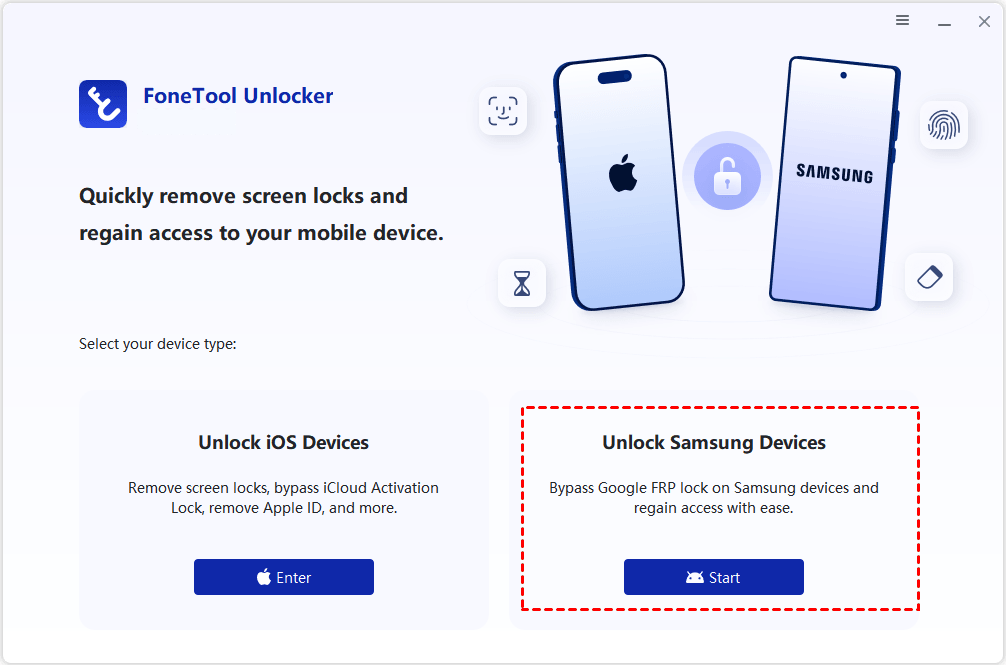
Step 2. Run FoneTool Unlocker on the computer. Select Unlock Samsung Devices and click Start.
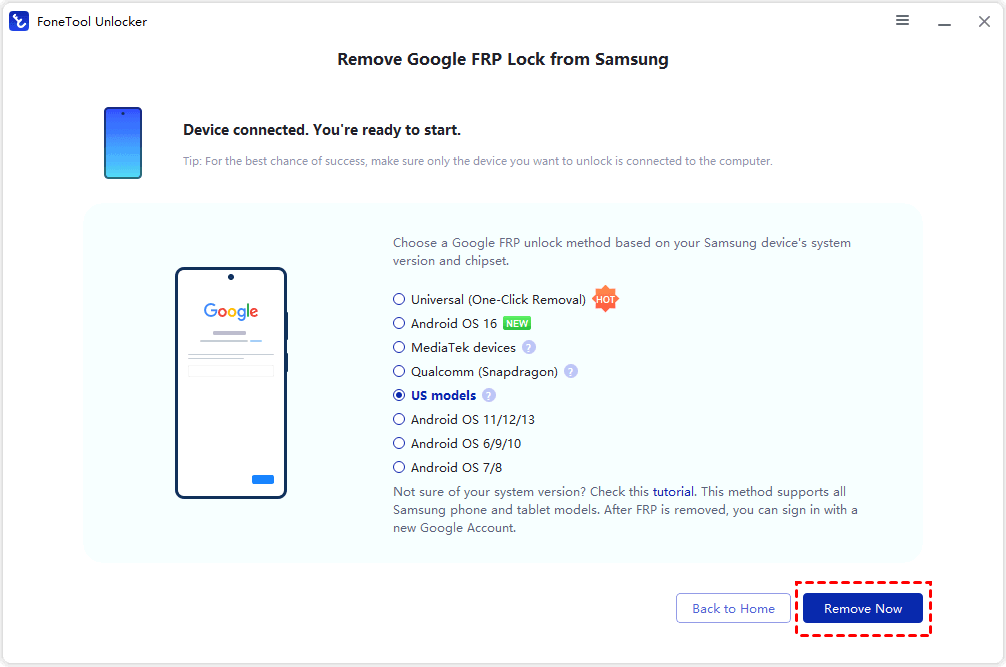
Step 3. Choose the FRP removal method according to the device's Android version and chipset, and click Remove Now. The Universal (One-Click Removal) option is recommended if you don't know your system version.
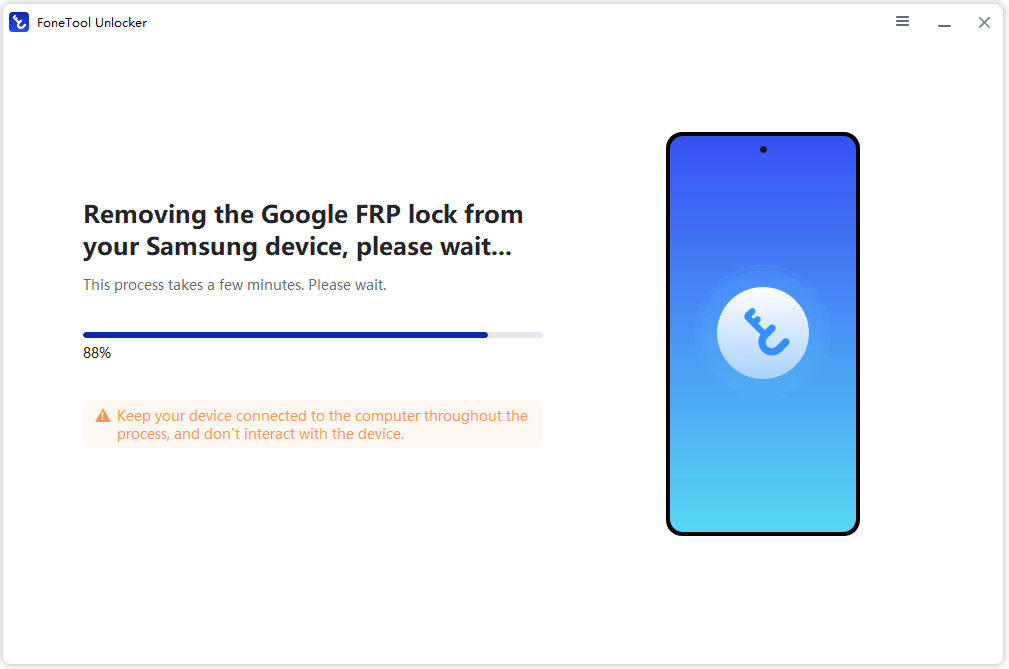
Step 4. Follow the on-screen instructions to tap Emergency Call and enter a specified code, such as *#0*#, to access the Samsung device's test mode. Then click Next on FoneTool Unlocker to start the FRP removal process, and keep the device connected to computer while the process is running.
Step 5. When it shows the unlocking process is complete, follow the instructions to complete device setup with your own Google account.
FAQs on Easy Samsung FRP Tool Not Working
1️⃣Does Easy Samsung FRP Tool work on Android 10 or later?
No. The tool's latest version (V2.7, released in 2021) only supports Samsung devices running Android 5.1 to 9.0. Newer Android versions have security patches that block the legacy bypass methods the tool relies on. For Android 10+ devices, use a regularly updated alternative like FoneTool Unlocker.
2️⃣Why does Easy Samsung FRP Tool show an ADB error?
An ADB error may indicate missing components, an unavailable connection, insufficient authorization, or incompatible software. Follow the tool's documented connection requirements. If the phone is on the Google verification screen, ADB access may not be available through normal device settings.
3️⃣Why does Easy Samsung FRP Tool keep crashing on Windows?
The program may be corrupted, incompatible with your Windows environment, or blocked by Windows Security. Download a fresh copy from a verifiable source, extract the files correctly, and review the error message. Avoid disabling antivirus protection to run an untrusted executable.
Conclusion
Easy Samsung FRP Tool is a useful free tool for bypassing FRP locks on older Samsung devices, but Easy Samsung FRP Tool not working can be frustrating. The 5 solutions outlined above address the most common causes of failure.
However, if you've tried all these fixes and the tool still won't work, or if your Samsung device runs Android 10 or later, FoneTool Unlocker offers a reliable, error-free alternative with broader compatibility, automatic driver handling, one-click simplicity, and professional support. Rather than spending hours troubleshooting a free but outdated tool, investing in a maintained solution can save time and get you back into your device quickly and safely.
FoneTool Unlocker - 1-Click Phone Unlock Software
Easily remove passcodes and restrictions from iPhone, iPad, iPod touch, and Samsung devices.
-
 iOS 27 Compatible
 iPhone 18 Supported
-
Samsung FRP Removal
100% Secure

Jona is an expert in mobile data backup and transfer, phone unlocking, and resolving iPhone issues. She maintains a sharp insight into the latest technology trends, ensuring that the information she provides stays current with industry developments.
Read author info >>



 as a preferred
source on Google
as a preferred
source on Google