[Fixed] Installing Drivers Failed Easy Samsung FRP Tool
"Installing drivers failed" on Easy Samsung FRP Tool? Learn the four root causes and apply 8 fixes, from disabling driver signature enforcement and installing the Samsung USB driver manually to using FoneTool Unlocker for a driver-free bypass.


Why Installing Drivers Failed Easy Samsung FRP Tool Occurs?
Easy Samsung FRP Tool can be used to bypass Google Factory Reset Protection (FRP), but users may encounter unexpected errors during the process; one common problem is - installing drivers failed.
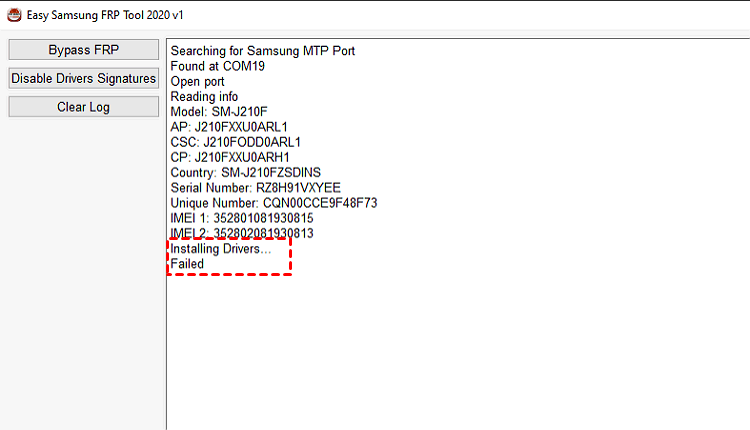
This is because Easy Samsung FRP Tool (V2.7) ships with an unsigned Samsung USB driver, and modern Windows blocks unsigned drivers by default. When the tool's "Disable Drivers Signatures" workaround does not stick, the error is usually triggered by one of the following root causes:
- Incompatible driver version for the Samsung device. The driver bundled in the V2.7 archive (released 2020/2021) was not designed for newer Galaxy hardware, so installation aborts midway.
- No administrative privileges. Driver installation is a privileged system operation. A standard user account can copy files, but Windows will refuse to register the driver.
- Outdated or conflicting drivers on the PC. A previous Samsung driver, Samsung Kies, Smart Switch, or another phone tool may already own the USB port and reject the new driver.
- Incomplete or corrupted driver files. Many online "V2.7 download" mirrors are tampered with. A truncated or virus-modified archive installs the tool, but the driver folder is broken or missing.
How to Fix Easy Samsung FRP Tool Installing Drivers Failed - 8 Ways
You may try the fixes below for Easy Samsung FRP Tool installing drivers failed. If you are in a rush to bypass Samsung FRP verification, the quickest solution is to turn to another FRP removal software.
Solution 1. Check Your USB Connections
A poor USB connection can prevent Windows from detecting your Samsung device correctly.
- Use the original Samsung USB cable, not a third-party charging-only cable.
- Plug into a rear USB 2.0 port on the PC; skip hubs, docks and front-panel ports.
- Try a different port, then a different cable, until the phone is recognized without a warning icon in Device Manager.
- Confirm the phone is in MTP mode and not in Download Mode or Recovery Mode — the tool cannot enumerate it in either state.
Solution 2. Turn to Error-Free Easy Samsung FRP Tool - FoneTool Unlocker
If driver errors keep derailing the bypass, the fastest fix is to stop fighting Windows and use a tool that does not need manual drivers at all. FoneTool Unlocker provides dedicated functions to bypass Google FRP lock on Samsung phones & tablets.
It only needs you to connect to the phone and handles every driver and firmware step behind the scenes. No ADB commands, no APK sideloading, no "Disable Drivers Signatures" gymnastics.
- Highlighted Features:
- One-click FRP removal: It provides a Universal Removal option for supported devices even if you don’t know the system information of your device.
- Multiple unlocking methods: It offers various methods for Android OS 16, 11/12/13, 6/9/10, and 7/8, and it also supports MediaTek and Qualcomm (Snapdragon) chipsets.
- Wide device support: It supports most Samsung Galaxy models, including S26, S25, S24, and selected S, A, M, Z, Fold, and Flip series devices. And it runs perfectly on Windows 11, 10, 8.1, 8, and 7.
- iOS-related unlocking: It also works for removing Screen Time passcode, bypassing Apple ID, removing iOS Screen password or iTunes backup password by bypassing the password.
Proceed with the following the steps below to learn how to remove FRP lock when Easy Samsung FRP tool failed:
Step 1. Connect your FRP-locked Samsung device to a Windows PC using an original USB cable.
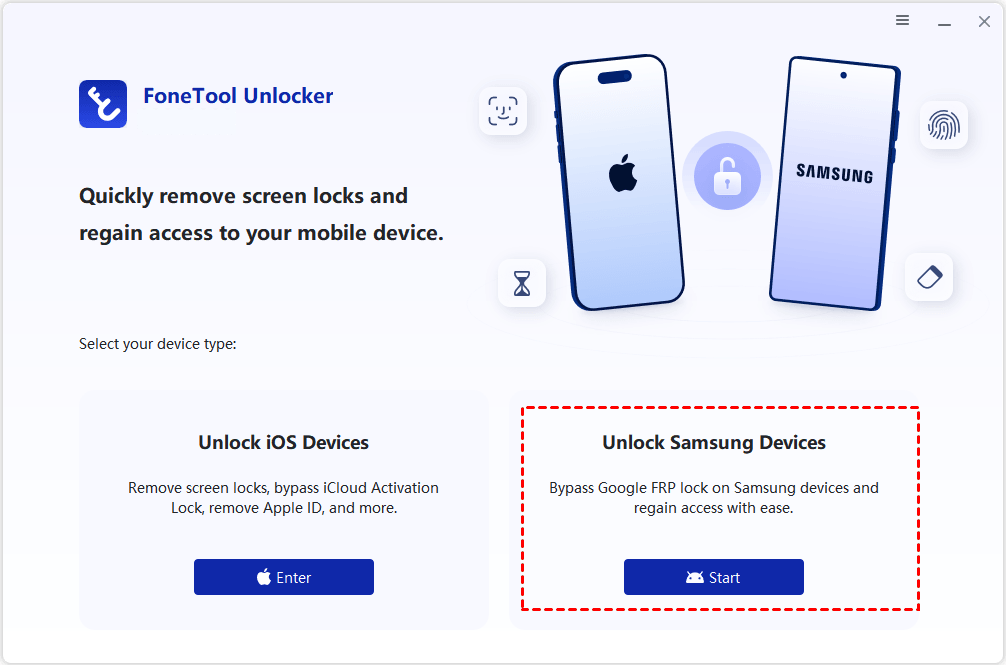
Step 2. Run FoneTool Unlocker on the Windows computer. Click Start under Unlock Samsung Devices.
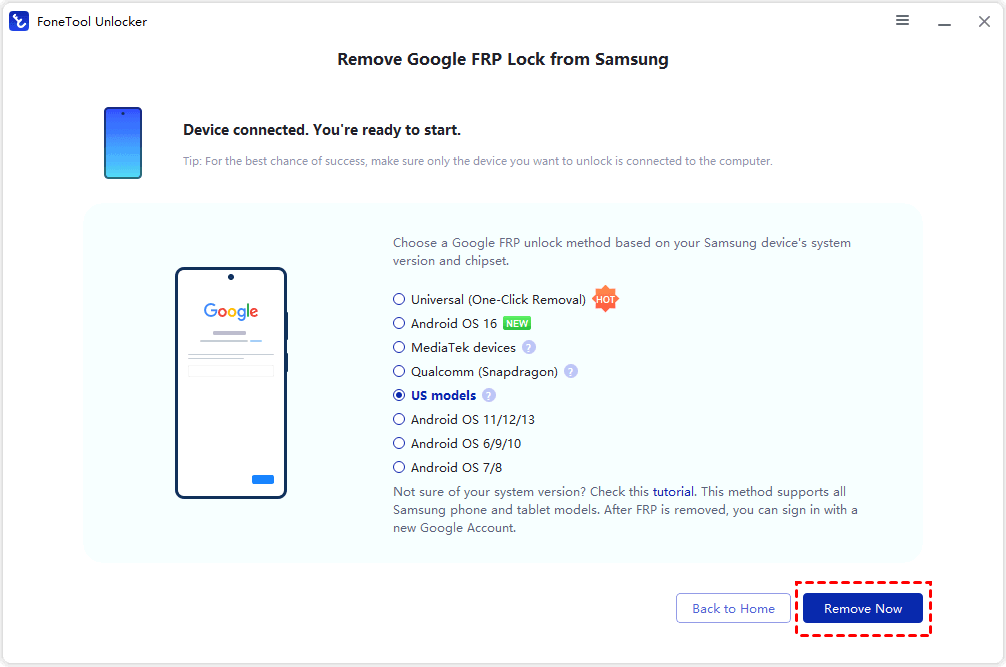
Step 3. Choose the removal method according to your Samsung device's Android version and chipset, and click Remove Now.
Step 4. Follow the on-screen instructions to tap Emergency Call and enter a specified code, such as *#0*#, to enter the test mode. Then click Next on the FoneTool Unlocker interface.
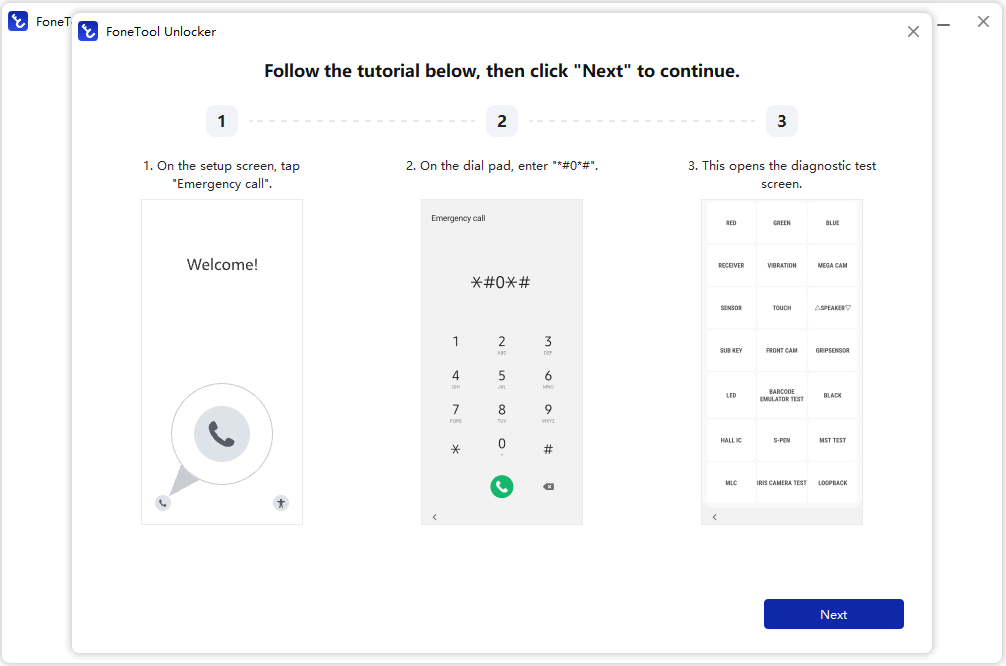
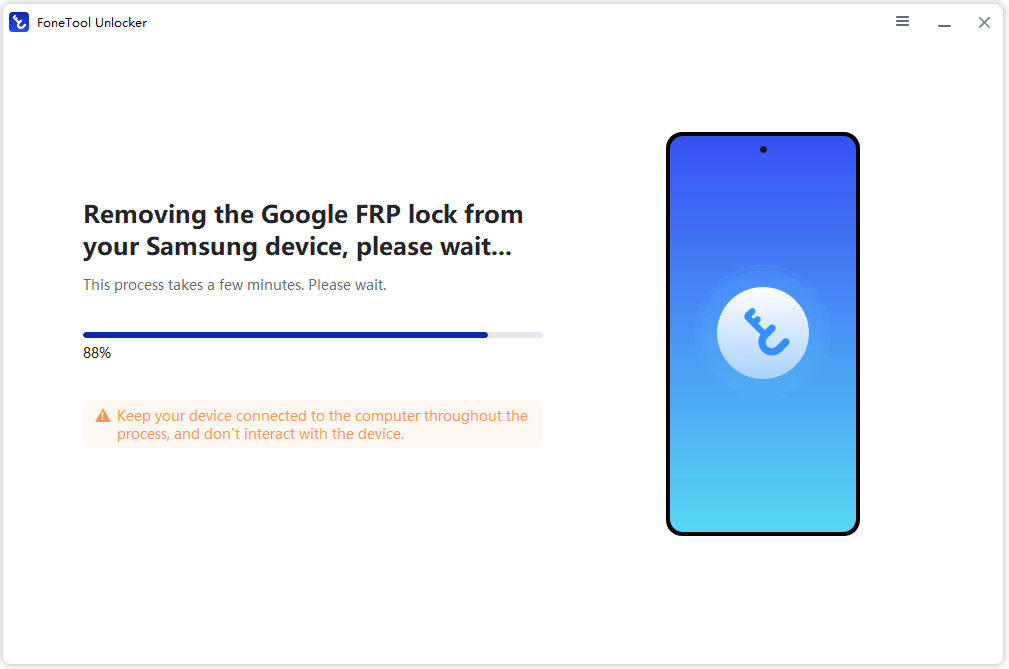
Step 5. Then, the tool will start the supported FRP removal procedure. Keep the phone connected and wait for the process to complete.
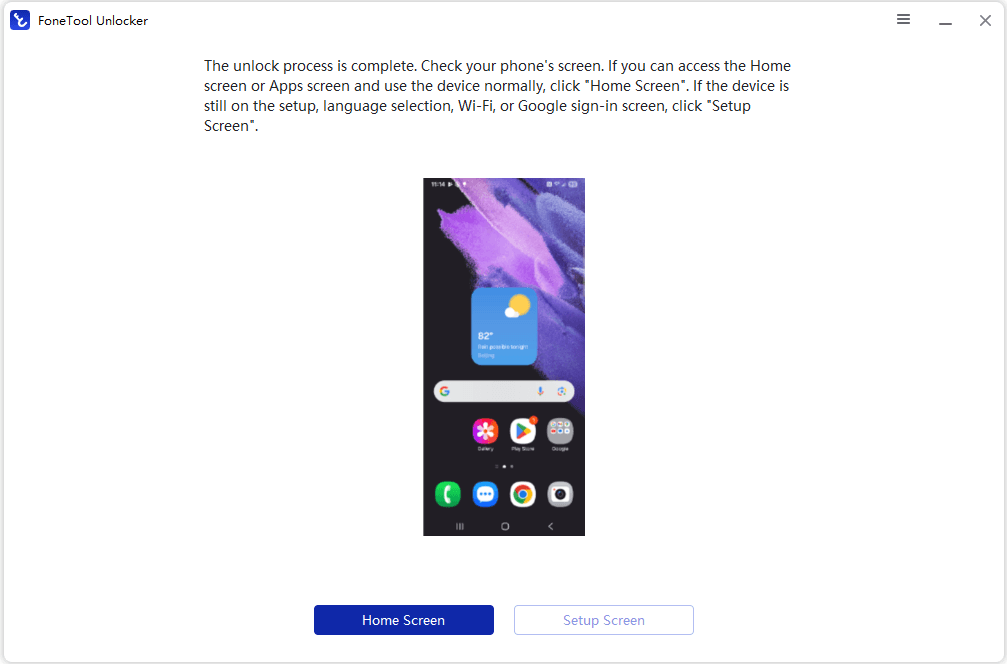
Step 6. When it’s done, follow the instructions to go to Home Screen or Setup Screen to set up your Samsung device with your own Google account.
Solution 3. Disable Driver Signature Enforcement Manually
Easy Samsung FRP Tool's built-in Disable Drivers Signatures button only flips a one-boot override, and Windows reverts it on the next restart. The reliable version is to do it through Advanced Startup yourself.
Step 1. Hold Shift and click Restart in Windows.
Step 2. Go to Troubleshoot > Advanced options > Startup Settings > Restart.
Step 3. When the list appears, press 7 (or F7) for Disable driver signature enforcement.
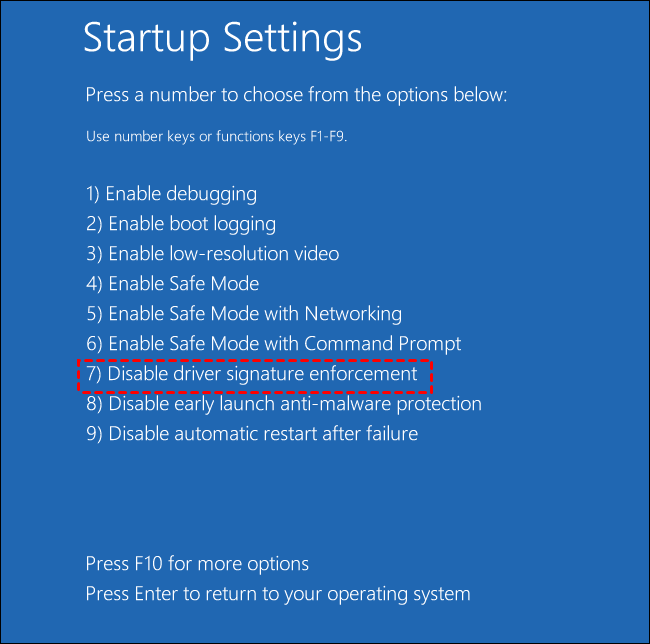
Step 4. Re-open Easy Samsung FRP Tool and install the driver without restarting the PC again. If you do restart, repeat the override.
If the override is taking effect you will see a "Test Mode" watermark in the lower-right corner of the desktop. No watermark means Secure Boot is silently blocking it - you will need to disable Secure Boot in UEFI/BIOS, or run bcdedit /set testsigning on in an administrator Command Prompt and reboot.
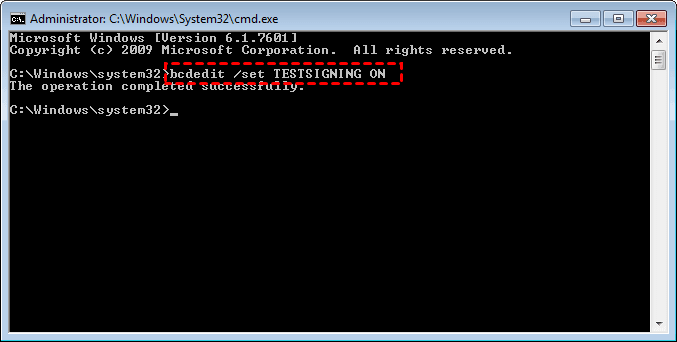
Solution 4. Install Samsung USB Driver Manually
If automatic installation fails, installing the correct Samsung USB driver manually may resolve the issue.
Step 1. Extract the Samsung USB Driver folder from the Easy Samsung FRP Tool ZIP, or download the official Samsung USB driver from the Samsung developer site.
Step 2. Right-click the installer >Run as administrator, accept the prompts, and restart the PC.
Step 3. If Windows warns that the publisher cannot be verified, choose Install this driver software anyway.
Solution 5. Update Drivers via Device Manager
An outdated or incorrectly installed driver can interfere with USB communication.
Step 1. Connect the phone and open Device Manager in your computer.
Step 2. Look under Portable Devices or other devices for an entry with a yellow exclamation mark, usually Samsung Android driver, SAMSUNG Mobile USB Device, or Android composite ADB device.
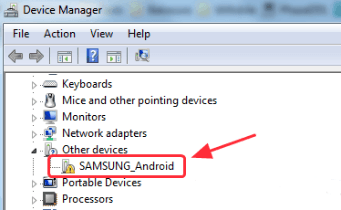
Step 3. Right-click it > Update driver > Browse my computer for drivers > Let me pick from a list.
Step 4. If a previous bad driver is already present, right-click >Uninstall device, tick Delete the driver software for this device, reboot, then install again from scratch.
Solution 6. Fix the Missing SM Bus Controller Driver
A missing SM Bus Controller entry in Device Manager means your chipset driver is not installed, and the Samsung driver will keep failing as a result.
Step 1. Right-click SM Bus Controller → Update driver.
Step 2. Choose Browse my computer for drivers → Let me pick from a list of available drivers.
Step 3. Scroll to System devices, select Intel as the manufacturer and SM Bus Controller as the model, then click Next.
Step 4. Restart the PC. For a cleaner fix, install your motherboard or laptop vendor's current chipset driver instead of the generic one.
Solution 7. Run in Compatibility Mode and Safe Mode
Easy Samsung FRP Tool V2.7 dates back to 2020/2021 and was not built for current Windows builds, so the executable itself sometimes refuses to install drivers.
- Right-click the Easy Samsung FRP Tool executable > Properties > Compatibility > tick Run this program in compatibility mode for and choose Windows 7 or Windows 8, then also tick Run this program as an administrator.
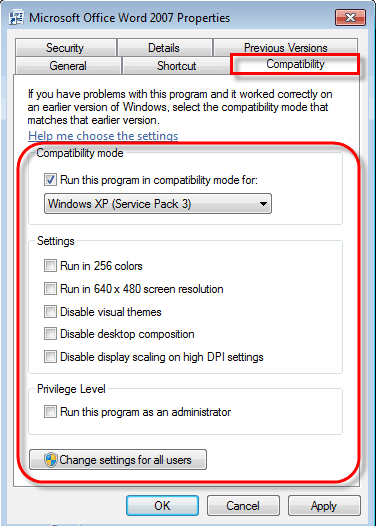
- If conflicts persist, install the tool and the Samsung driver in Safe Mode: hold Shift, click Restart, then Troubleshoot > Advanced options > Startup Settings > Restart > press 4. Reboot normally afterwards.
Solution 8. Restart ADB and Reauthorize USB Debugging
A malfunctioning or unresponsive ADB connection can also cause Easy Samsung FRP Tool launching browser event failed or installing drivers failed. In such a case, it is necessary to restart the ADB service manually. Learn how to do it:
Step 1. Open Command Prompt as administrator and run: adb kill-server, then adb start-server, then adb devices.
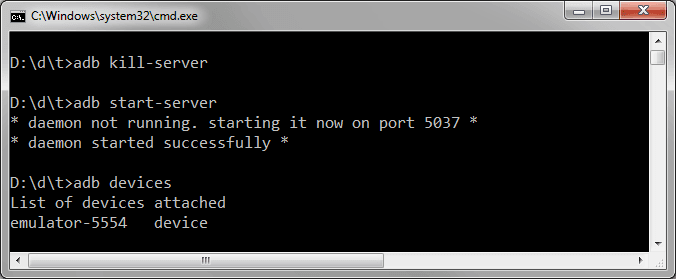
Step 2. If the phone shows as unauthorized, open Settings > Developer options, turn USB debugging off and back on, then tap Revoke USB debugging authorizations.
Step 3. Reconnect the phone, accept the Allow USB debugging prompt, and tick Always allow from this computer.
Before retrying, also disable antivirus, Windows Defender real-time protection, and close Samsung Kies, Smart Switch and any other phone-management tool so they do not grab the port or quarantine the driver files.
Conclusion
"Installing drivers failed on Easy Samsung FRP Tool" almost always points to Windows refusing to load the unsigned driver. Updating Windows, manually disabling driver signature enforcement, installing the Samsung USB driver by hand, fixing the SM Bus Controller, and reinstalling through Device Manager clear most cases.
If none of the foregoing solutions stick, typically on Android 10 and later, where the legacy bypass is patched, FoneTool Unlocker is the practical option: it skips the driver problem entirely, supports Galaxy devices up to the latest S26 series, and completes the FRP removal in only a few clicks.
FoneTool Unlocker - 1-Click Phone Unlock Software
Easily remove passcodes and restrictions from iPhone, iPad, iPod touch, and Samsung devices.
-
 iOS 27 Compatible
 iPhone 18 Supported
-
Samsung FRP Removal
100% Secure

Jona is an expert in mobile data backup and transfer, phone unlocking, and resolving iPhone issues. She maintains a sharp insight into the latest technology trends, ensuring that the information she provides stays current with industry developments.
Read author info >>



 as a preferred
source on Google
as a preferred
source on Google