How to Put iPhone in Recovery Mode| 2026 Full Guide
how to put iphone in recovery mode, iphone recovery mode, enter recovery mode, recovery mode steps, itunes restore, recovery mode iphone black screen


When your iPhone is stuck on the Apple logo, unresponsive, or facing software issues like update failures, knowing how to put iPhone in recovery mode can help restore it quickly. Recovery mode lets you reinstall iOS via a computer without needing to fully boot the device. This guide covers step-by-step methods for all iPhone models, troubleshooting tips, and a simpler alternative using FoneTool Repair to resolve system issues efficiently.
What Is Recovery Mode and When to Use It?
Recovery mode is a special state where your iPhone communicates with a computer to reinstall iOS, bypassing normal startup. It’s useful for fixing problems like:
- Stuck Apple logo or boot loops.
- Black/red/blue screen errors.
- Failed iOS updates or unresponsive touchscreens.
- "Connect to iTunes" screen displays.
- Computer not detecting the device.
Before starting, ensure you have:
- A computer with the latest iTunes (Windows/macOS Mojave and earlier) or Finder (macOS Catalina and later).
- A USB cable and recent data backup, as recovery may erase your device.
How to Put iPhone in Recovery Mode: Step-by-Step Methods
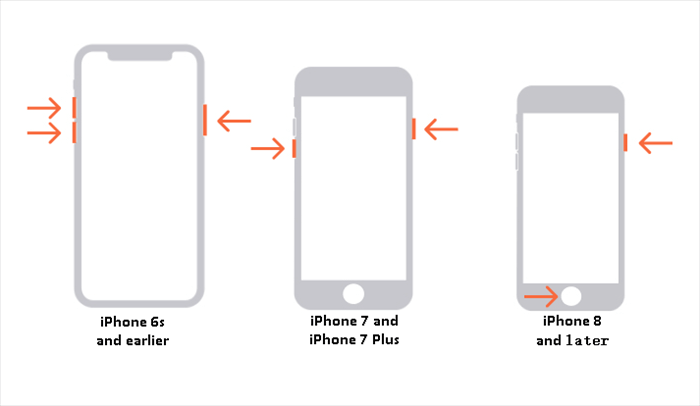
Entering recovery mode requires specific button combinations. Follow these steps based on your iPhone model for a successful restore.
For iPhone 8 and Newer Models
Step 1. Connect your iPhone to a computer via USB and open iTunes or Finder.
Step 2. Quickly press and release the Volume Up button, then quickly press and release the Volume Down button.
Step 3. Press and hold the Side button until the recovery mode screen (cable/computer icon) appears.
Step 4. Release the button- iTunes/Finder will detect the device and prompt an update or restore.
For iPhone 7 and 7 Plus
Step 1. Connect to a computer and launch iTunes/Finder.
Step 2. Simultaneously press and hold the Side and Volume Down buttons.
Step 3. Keep holding until the recovery mode screen displays .
Step 4. Release the buttons; proceed with restoration in iTunes/Finder.
For iPhone 6s and Earlier (With Home Button)
Step 1. Connect to a computer with iTunes/Finder open.
Step 2. Press and hold both the Home and Top (or Side) buttons.
Step 3. Hold until the recovery mode screen appears.
Step 4. Release the buttons and follow on-screen computer prompts.
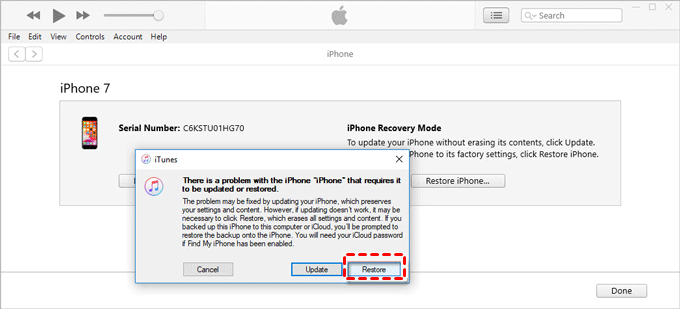
After entering recovery mode, choose "Update" in iTunes/Finder to reinstall iOS without data loss or "Restore" to erase all content . If the process fails, check your cable, internet connection, or try FoneTool Repair for automated fixes.
Using FoneTool Repair for One-Click Recovery and System Fixes
If manual methods are challenging or your iPhone remains stuck, FoneTool Repair simplifies recovery mode entry and resolves underlying iOS issues. This tool avoids complex button presses and repairs over 160 system problems, like boot loops or black screens, with high success rates .
This powerful iOS system repair tool is the best way to fix iOS/iPadOS issues without data loss
Step 1. Download FoneTool Repair on Windows PC, and connect your iPhone to PC via USB cable.
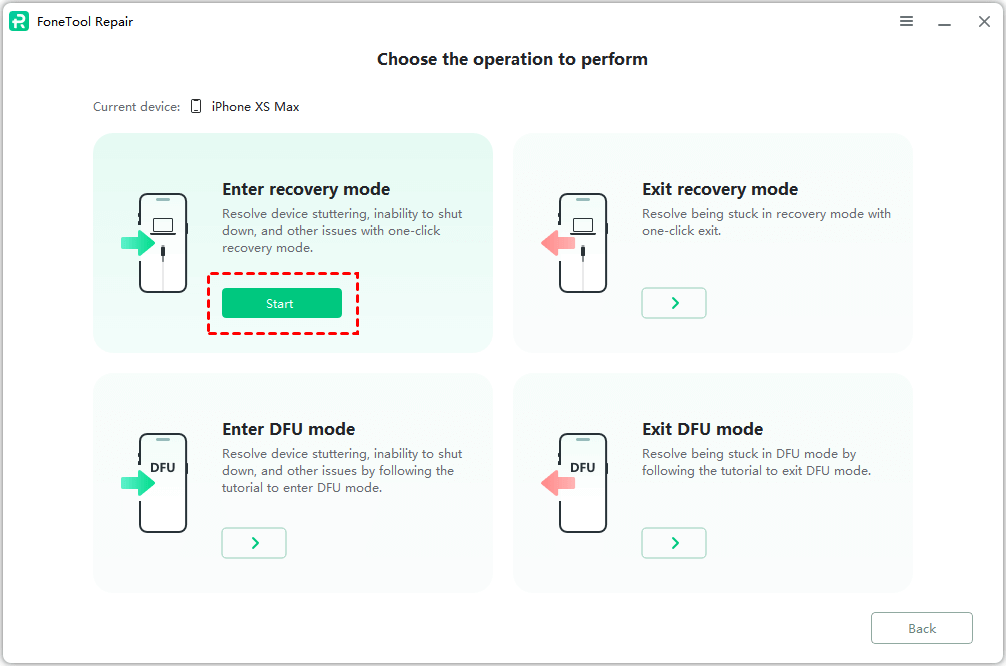
Step 2. Lauch FoneTool Repair and choose the Recovery Mode feature.
Step 3. Go to Enter Recovery Mode > Start.
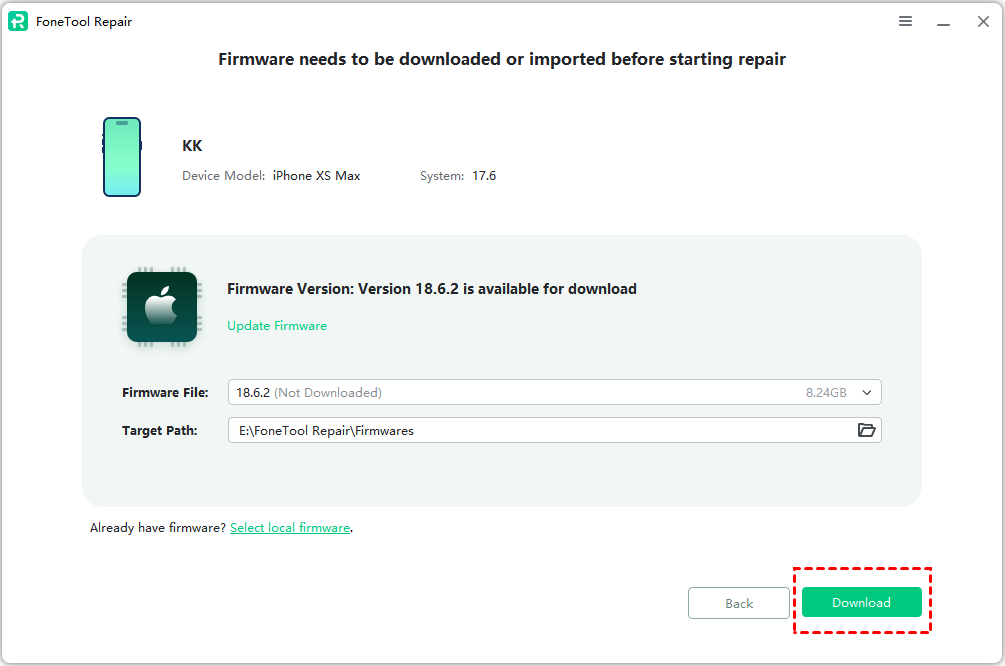
Step 4. Follow prompts to download compatible iOS firmware, and click Start to automatically enter recovery mode.
This approach is ideal for repeated failures or broken buttons, providing a safe alternative to manual recovery mode.
Troubleshooting Common Recovery Mode Issues
Computer Not Detecting iPhone: Use an Apple-certified USB cable, try different ports, or update iTunes/Finder.
😣Recovery Mode Screen Doesn’t Appear: Ensure correct button timing; force-restart your iPhone and retry.
😣Update/Restore Fails: Check internet stability or use FoneTool Repair to address system errors .
😣Buttons Damaged: Rely on FoneTool Repair for one-click access or contact Apple Support for hardware service .
Frequently Asked Questions on Recovery Mode
Conclusion
Entering recovery mode is a vital skill for resolving iPhone software problems, and this guide ensures you can do it for any model. For a simpler, more reliable solution, FoneTool Repair offers one-click recovery mode access and comprehensive iOS repairs without data loss. Whether you use manual methods or tools like FoneTool, always maintain backups to safeguard your data. If issues persist, seek help from official Apple Support for further assistance
Fixes 160+ iOS/iPadOS issues, boot loops, crashes, failed updates, with no data loss.
-
 iOS 27 Compatible
 iPhone 17 Supported
100% Secure

Kelsey is an English editor at FoneTool, passionate about helping users solve tech issues. She specializes in iPhone data management, backup, and recovery. In her free time, she enjoys learning IT skills and spending time with loved ones.
Read author info >>



 as a preferred
source on Google
as a preferred
source on Google