Best FRP Removal Tool for PC to Remove Google FRP Lock Safely
Locked out by FRP after a factory reset? Learn how to bypass it using the best FRP removal tool for Windows – plus tips to prevent future FRP lock issues.


What Is FRP Lock on Android?
FRP Lock, short for Factory Reset Protection, is a security feature built into Android devices to help protect personal data if a phone is lost or stolen. It is associated with the Google account previously used on the device.
When FRP is enabled, simply performing a factory reset does not necessarily remove the device's security protection. After the reset, Android may ask you to sign in with the Google account that was previously synced with the phone before you can finish the setup.
You may encounter an FRP verification screen after situations such as:
- Performing a factory reset while a Google account remains associated with the phone.
- Resetting a device through recovery mode.
- Buying a used Android phone that was reset without removing the previous owner's Google account.
- Forgetting the Google account credentials used on an older device.
If you own the phone, the normal solution is to sign in with the previously associated Google account or follow Google's account-recovery process if you have forgotten the credentials.
Are FRP Removal Tools Safe to Use?
The safety of an FRP removal tool depends heavily on where you get it, what tool you use, and how you use it. You should choose an FRP tool based on device compatibility, developer reputation, security, privacy, and the availability of official recovery options—not simply on whether it promises to bypass FRP.
FRP Removal Tool vs. Official Google Account Recovery
FRP removal tools and Google account recovery address different situations. Understanding the difference can help you choose an appropriate solution.
|
Option |
Best for |
Main advantage |
Potential concern |
|
Google Account Recovery |
Forgotten Google account password or username |
Official and designed to restore account access |
May require account verification |
|
FRP removal tool |
Authorized device servicing or specific technical scenarios |
May provide device-specific troubleshooting functions |
Security, compatibility, privacy, and legitimacy vary |
|
Manufacturer support |
FRP problems that cannot be resolved through account recovery |
Can provide model-specific assistance |
May require proof of purchase or ownership |
Best FRP Bypass Tool for PC to Unlock Samsung Devices
If you own a Samsung device or have permission to service it and are looking for a PC-based solution, FoneTool Unlocker is your go-to option.
- Key Features:
- ⭐Samsung FRP Bypass – Remove Google FRP lock from supported Samsung devices.
- ⭐USB connection – Connect your Samsung device to a Windows PC via USB to begin.
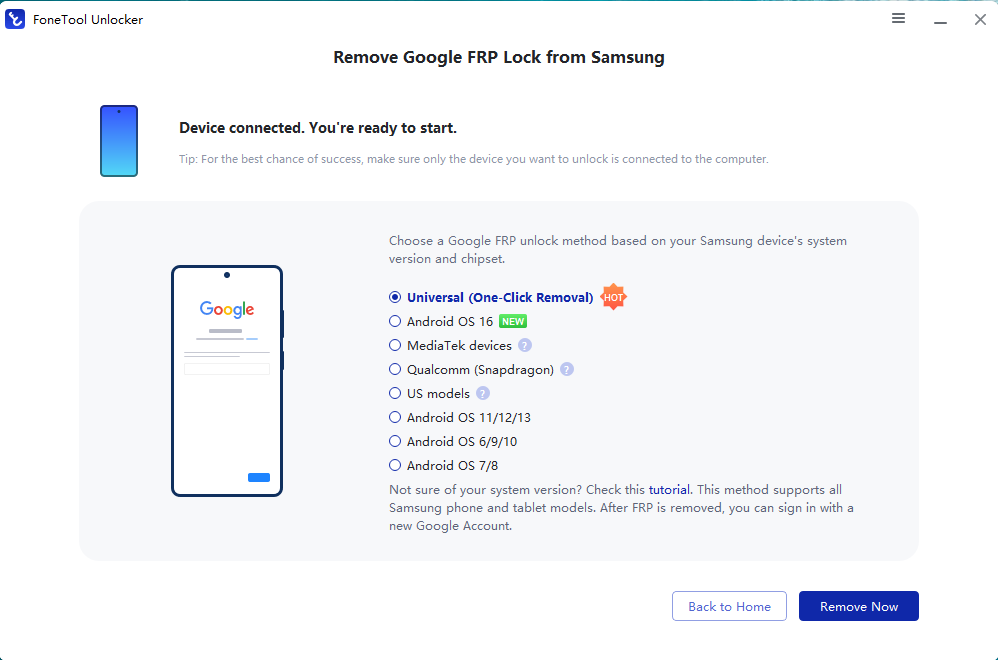
- ⭐Multiple FRP unlock methods – Includes One-click Removal, plus solutions for Android OS 16, MediaTek devices, Qualcomm (Snapdragon) devices, US models, and Android OS 6/7/8/9/10/11/12/13.
- ⭐Supported devices – Samsung Galaxy S26, S25, S24, and selected Galaxy S, A, M, Z, Fold, and Flip models.
- ⭐System requirements – Works with Windows 11, 10, 8.1, 8, and 7, and supports Android OS 6 through 16.
How to Bypass FRP in Recovery Mode Step by Step
First, download and install FoneTool Unlocker on your Windows PC.
Then follow the steps below to do FRP bypass after factory reset with the best Samsung FRP bypass tool.
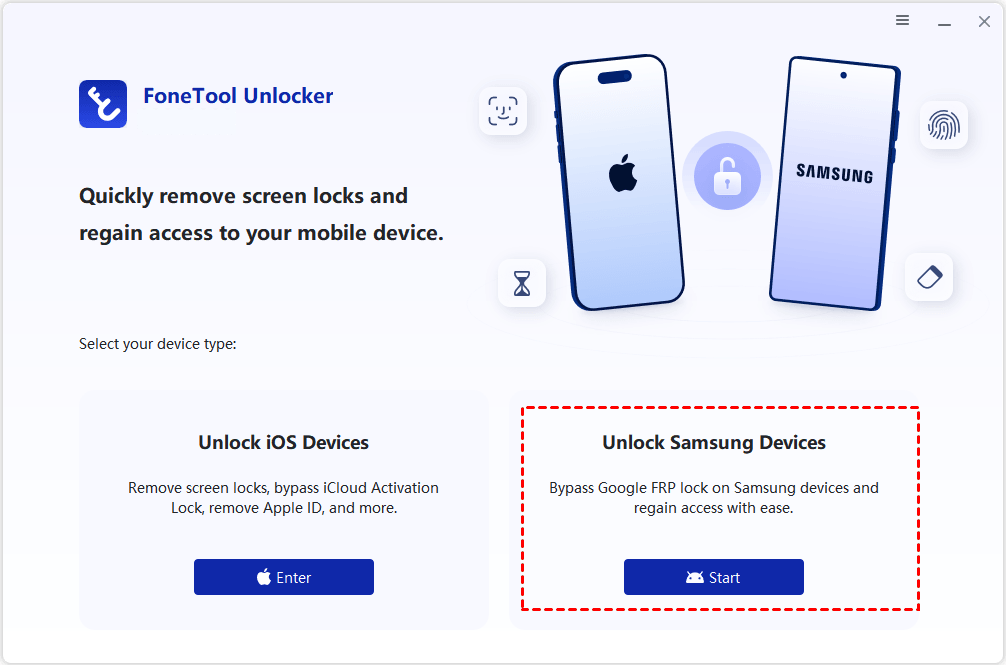
Step 1. Connect your Samsung phone to the computer using a USB cable and launch FoneTool Unlocker. On the main interface, click Start in the Unlock Samsung Devices section.
Step 2. Choose a Google FRP unlock method based on your Samsung device's system version and chipset, then click Remove Now. If you are not sure of your system version, choose Universal (One-Click Removal), which supports all Samsung phone and tablet models.
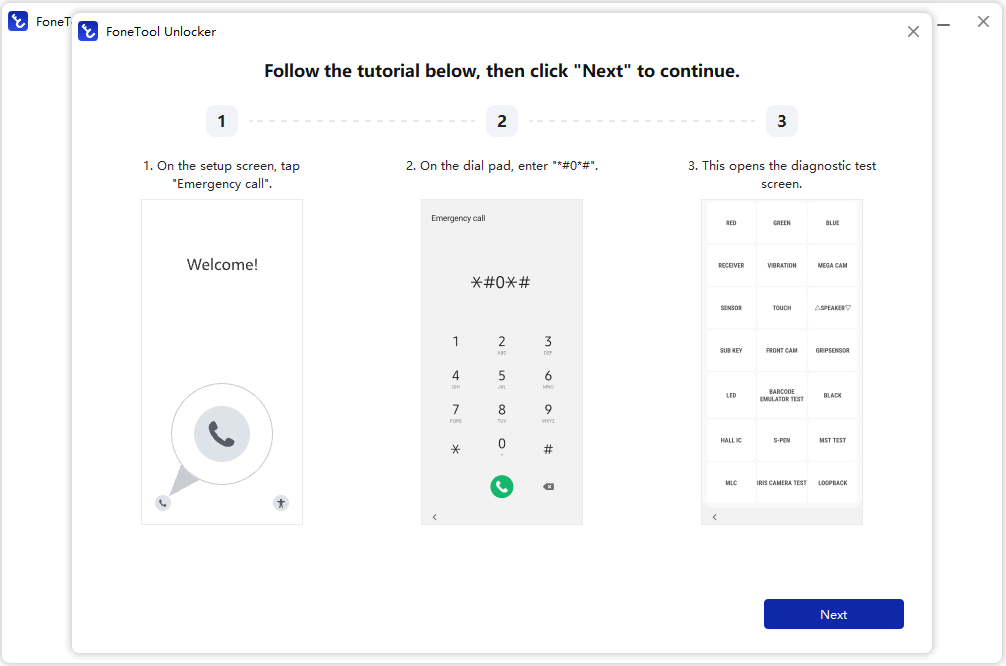
Step 3. During the removal process, a prompt will appear requiring you to perform specific actions on your Samsung phone. Tap Emergency Call on the phone screen and enter the specific code (e.g., *#0*#) to activate Test Mode. Once completed, click Next on the computer.
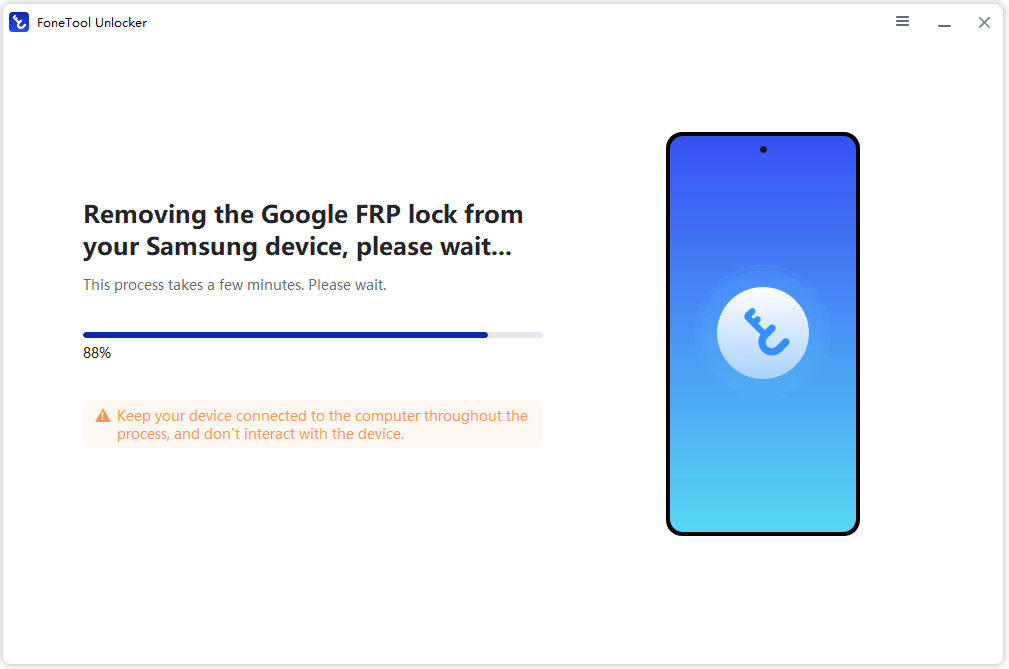
Step 4. After authorization on the device, FoneTool Unlocker will automatically execute the FRP lock removal process. Wait for the process to finish.
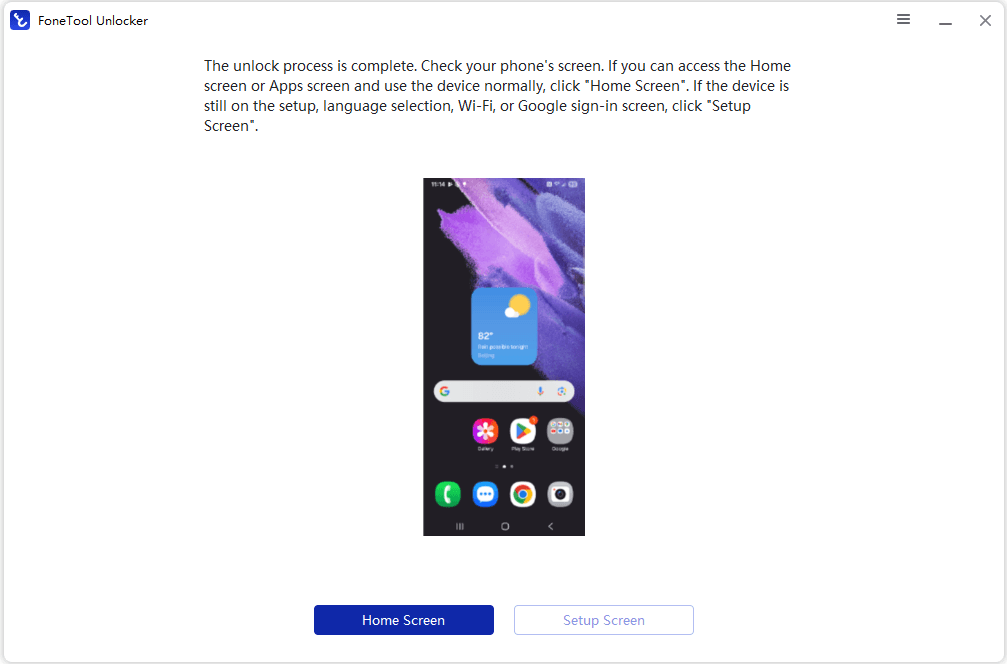
Step 5. After the unlock process is complete, check your phone’s screen. If you can access the Home screen, click Home Screen on the computer. If your device is still on the setup, click Setup Screen.
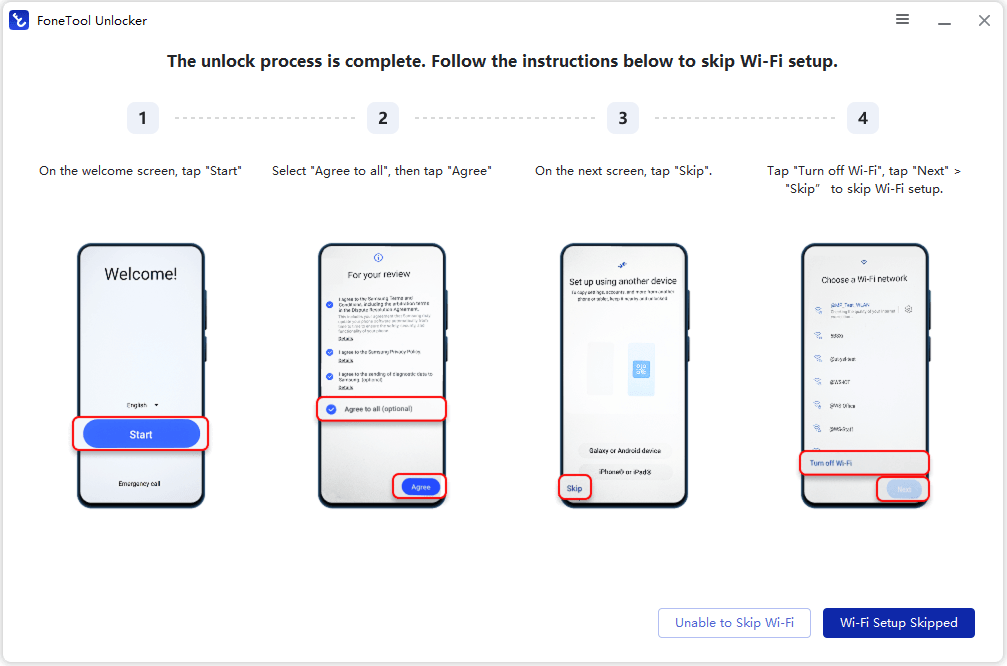
Step 6. (Optional) Follow the on-screen instructions to finish setup while skipped Wi-Fi setup.
How to Prevent FRP Lock Problems in the Future
To avoid FRP problems when you plan to sell, trade in, or give away your Samsung device, you can remove your Google account from your device before factory reset. Here’s how to do it:
Step 1. From Settings, swipe to and tap Accounts and backup.
Step 2. Tap Manage accounts, and then select your Google account.
Step 3. Tap Remove account, and then tap Remove account again to confirm.
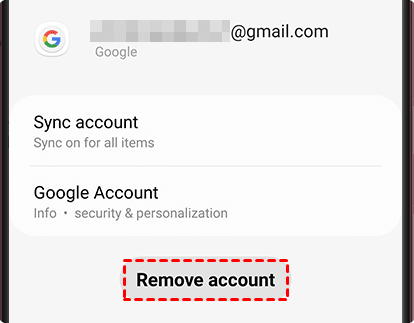
Step 4. If you have Google device protection features enabled, you may be asked to verify your identity before you can fully log out of your account.
Related Guides to FRP Removal Tool
FRP problems can happen in different situations, and the best next step depends on what happened to your Android device and what you can currently access. Use the guides below to find the information that matches your specific situation.
✨ Not Sure What FRP Lock Means?
If you have encountered a Google account verification screen but don't understand why it appeared, start with What Is FRP Lock? This beginner-friendly guide explains Factory Reset Protection, when it can be triggered, why a factory reset may not remove it, and what you should know before trying to resolve the lock.
✨ Need an FRP Bypass Tool for PC?
If you want to handle the FRP verification problem from a Windows computer, start with our guide to FRP Bypass Tool for PC. It covers PC-based FRP tools, device compatibility, Windows requirements, USB connections, and what to check before using an FRP utility on a device you own or are authorized to service.
✨ Locked Out After a Factory Reset?
If your phone is asking for the previously linked Google account immediately after a factory reset, see FRP Bypass After Factory Reset. This guide explains why a factory reset does not necessarily remove FRP and walks through available solutions for supported Samsung and Xiaomi devices.
✨ Trying to Bypass FRP in Recovery Mode?
If you are already in Android Recovery Mode and are wondering whether you can remove FRP from there, read How to Bypass FRP in Recovery Mode. It explains what Recovery Mode can and cannot do, why a recovery-mode factory reset may leave FRP active, and what options you can consider afterward.
✨ Using a Samsung Galaxy Phone?
For Samsung-specific FRP problems, check our Samsung FRP Bypass Tool guide. It focuses on Samsung Galaxy devices and explains the factors that can affect FRP removal, including the device model, Android version, security patch, chipset, and Windows PC requirements.
FAQs about FRP Bypass Software for PC
1. Can I use FRP bypass software on any Android phone?
No. Compatibility varies by device manufacturer, model, Android version, chipset, region, and security patch. Always check the tool's current supported-device list before using it.
2. Do I need a Windows PC to use an FRP bypass tool?
Many PC-based FRP tools are designed for Windows. Depending on the software, supported versions may include Windows 11, 10, 8.1, 8, or 7. Check the software's system requirements before installation.
3. Does a factory reset remove FRP?
Not necessarily. Factory Reset Protection is designed to remain active after certain unauthorized resets. After resetting the phone, Android may require verification using the Google account previously associated with the device.
4. What should I do if I forgot the Google account password?
If you own the device, try Google's official account-recovery process first. Recovering the original account is generally preferable to using an unfamiliar third-party tool.
5. Can FRP bypass software recover my data?
FRP tools are primarily intended to address device-access or verification issues and should not be assumed to recover deleted or lost files. If your main concern is data recovery, use an appropriate data-recovery solution instead.
Summary
FRP (Factory Reset Protection) helps protect Android devices from unauthorized use after a factory reset. If you encounter an FRP lock, first determine your device model, Android version, and the Google account associated with it. Official Google Account Recovery should be the first option when you have forgotten your credentials.
If you own or are authorized to service a supported Samsung device, FoneTool Unlocker is a Windows-based FRP removal tool worth considering. It supports selected Samsung models and provides different FRP unlock workflows depending on the device model, Android version, and chipset.
What’s more, it is a practical app to find Wi-Fi password on iPhone. Don’t hesitate to try it out!
FoneTool Unlocker - 1-Click Phone Unlock Software
Easily remove passcodes and restrictions from iPhone, iPad, iPod touch, and Samsung devices.
-
 iOS 27 Compatible
 iPhone 18 Supported
-
Samsung FRP Removal
100% Secure

Lily Green is dedicated to helping users protect their valuable mobile data and addressing issues that arise on mobile devices. She consistently stays vigilant about the latest trends in technology, guaranteeing that the given information aligns with the ongoing advancements in the field.
Read author info >>



 as a preferred
source on Google
as a preferred
source on Google