Samsung J7 TalkBack Not Working? What to Check
Is samsung j7 frp bypass talkback not working on your phone? Check the screen reader controls and available menus, then try account verification or a suitable FoneTool Unlocker method.


If TalkBack is not working during a Samsung J7 FRP attempt, first check whether the screen reader responds to touch. If it reads items aloud but a required menu is missing, TalkBack may be working normally while the bypass process cannot continue.
Older Samsung software may call the screen reader Voice Assistant rather than TalkBack. The name and available menus can differ, so matching the phone’s actual controls matters more than repeating a gesture.
This article covers Google verification after a reset on a J7 you own or are authorized to service. For other models and failure points, see frp bypass talkback not working.
Samsung J7 FRP Bypass TalkBack Not Working: What Happens?
Choose the situation closest to yours:
| 🧩 Your Situation | ✅ What to Do Next |
| The phone reads a button aloud but does not open it | Start with Method 1 to check touch controls |
| You cannot find TalkBack by name | Check Voice Assistant in Method 2 |
| The screen reader works, but a required menu is missing | Check the model and software with Method 2 |
| Settings opens, but Google verification returns | Consider Method 3 or Method 4. |
| The phone works normally except for spoken feedback | This is a screen reader issue, not necessarily FRP. |
A prompt asking for a Google account previously synced with the phone is different from a normal lock screen or a Samsung account request. Read the message before choosing a solution.
Method 1. Use the Correct TalkBack Touch Controls
When TalkBack or Voice Assistant is active, tapping once usually selects an item instead of opening it. This can make a working screen appear unresponsive.
Step 1. Tap a visible button once. Listen for its name and check whether a focus outline appears.
Step 2. Double-tap the screen to activate the selected button.
Step 3. If you need to move through a page, swipe with two fingers rather than one.
Step 4. Check whether the expected screen opens. If selection and activation work, move on to checking the missing menu or next action.
If there is no spoken feedback, that alone does not prove the feature is off. Check whether items receive a focus outline or require a double-tap. Also check the volume before assuming the touchscreen is faulty.
Method 2. Check Your J7 Model and Available Menus
“Galaxy J7” is not enough to confirm that a set of instructions matches your phone. J7 models and software versions can have different menus. For example, Samsung documents an Android 9 update for the SM-J730F. That does not mean every J7 runs Android 9 or has the same interface.
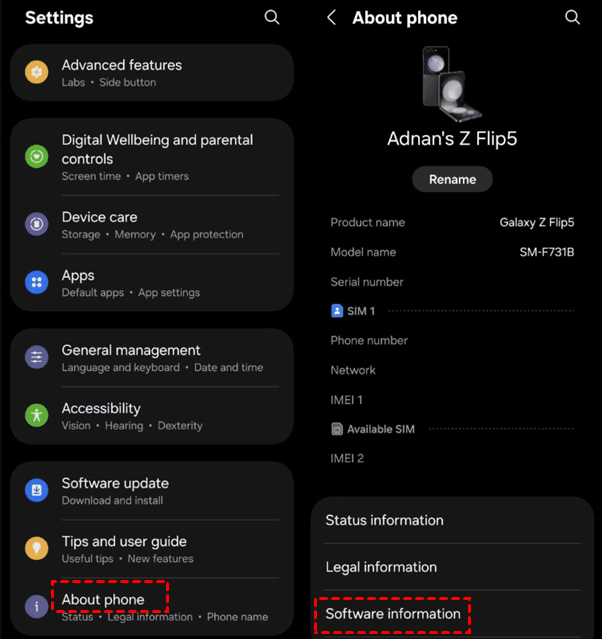
Step 1. If Settings is accessible, open Settings > About phone or About device, depending on the software, and record the Model number.
Step 2. Find Software information and check the Android version. On some older layouts, the version may appear directly under About device.
Step 3. If you can access the accessibility settings, look for TalkBack or Voice Assistant. Use the name shown on your phone.
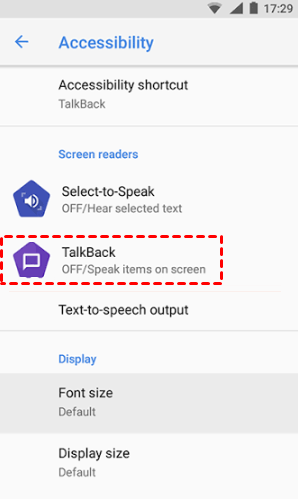
Step 4. Compare the required menu with the options actually available. If a necessary help link or command is absent, stop following that sequence rather than repeating the same gesture.
If setup blocks Settings, check the box or purchase record for the model number. Do not assume the original Android version is still installed after years of updates.
Also distinguish Voice Assistant, Samsung’s screen reader name, from Google Assistant, which handles voice requests. Seeing Voice Assistant does not mean the Google Assistant step in a bypass process is available.
If the failure occurs specifically when opening Settings, use the FRP Bypass Open Settings not working checks.
Method 3. Sign In With the Previous Google Account
If the TalkBack process cannot continue, you may still complete normal verification with an account previously synced with the J7. This does not require opening Settings.
Step 1. Return to the setup screens using Back, where available, and connect the J7 to Wi-Fi.
Step 2. At Google verification, enter the email address or phone number associated with the previously synced account and then the password. Tap Next after each selection.
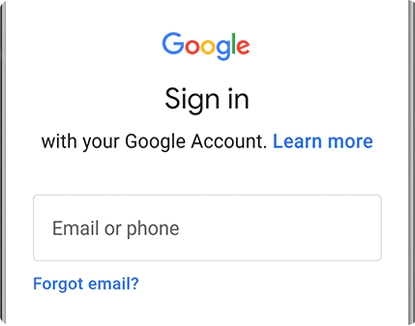
Step 3. Complete any additional identity checks shown. Once the account is accepted, follow the remaining setup prompts.
If setup offers the previous PIN, password, or pattern, you can use that displayed option. A new Google account will not replace the required verification.
Method 4: Recover a Previous Google Account
If you forget a password of previously synced Google account, you can try to recover it from another iPhone.
Step 1. On another phone, open Google Account recovery, enter the account identifier, and select Next.
Step 2. Select a way to sign in and complete the available identity checks. Use Try another way if it appears and you cannot complete the current check.
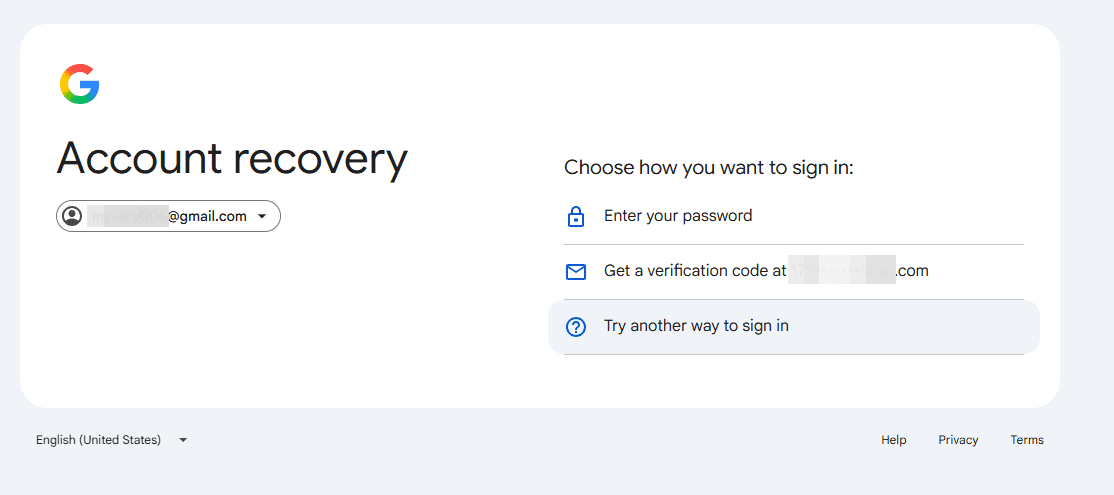
Step 3. After recovering access, return to the J7 and sign in. Follow any waiting instructions shown before retrying.
For a used phone linked to the seller’s account, ask the seller to complete verification personally. They should not need to send you their password.
Method 5. Unlock Google FRP Verification on a Windows PC
If account recovery isn't an option, try FoneTool Unlocker. It's a reliable PC FRP bypass tool with multiple removal methods for different Samsung devices, especially handy when the TalkBack FRP bypass isn't working.
The removal methods are divided into three groups: Android version, chipset, and Universal (One-Click Removal). For a J7 with a known system version, start with the matching version group:
- Android 6: Select Android OS 6/9/10.
- Android 7 or 8: Select Android OS 7/8.
- Android 9: Select Android OS 6/9/10.
These are conditional selections, not a claim that every J7 runs one of these version. Be sure to confirm your exact J7 model before start. Note that the Samsung FRP removal doesn't erase your device data.
Do not select Qualcomm (Snapdragon) simply because the phone is a Samsung. Chipset choices require the exact model’s processor information. Consider Universal (One-Click Removal) only after confirming neither the Android version nor the chipset option matches.
To perform a Samsung J7 FRP bypass, follow the steps below:
Step 1. Launch FoneTool Unlocker on a Windows PC and click Start for the Samsung device unlock feature.
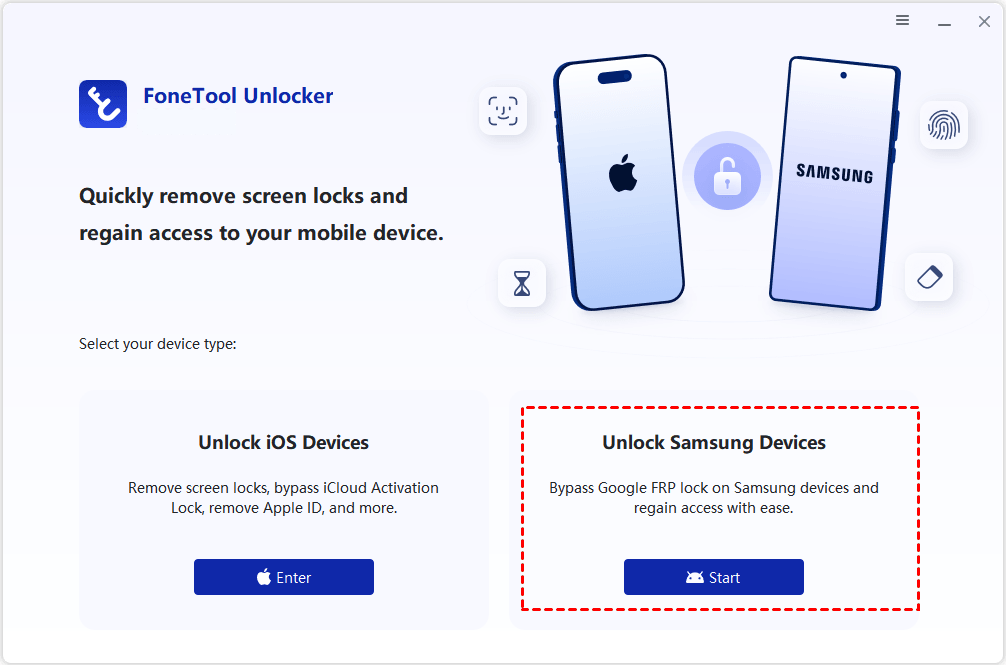
Step 2. Connect the J7 as required by the selected solution. On Remove Google FRP Lock from Samsung, select the matching Android version or chipset.

Step 3. Click Remove Now and follow the prompts to activate test mode. Keep the phone connected while the FRP removal process runs.
After completion, continue setup and check that you can use your own Google account normally.
FAQs
Does Turning Off Voice Assistant Remove Google Verification?
No. Turning off Voice Assistant changes spoken feedback and touch navigation. It does not remove the account verification requirement.
Can I Use Another Method Without TalkBack?
Yes, depending on your device and available equipment. Account verification and supported PC-based workflows do not depend on repeating a missing TalkBack shortcut. Compare the Bypass FRP without TalkBack options before switching methods.
Conclusion
For a Samsung J7 FRP bypass Tallback not working, first separate a touch-control problem from a missing menu. Check the exact model and installed Android version before following device-specific instructions. If the TalkBack process cannot continue, use the previous account where possible or choose a supported FoneTool Unlocker method that matches your system.
FoneTool Unlocker - 1-Click Phone Unlock Software
Easily remove passcodes and restrictions from iPhone, iPad, iPod touch, and Samsung devices.
-
 iOS 27 Compatible
 iPhone 18 Supported
-
Samsung FRP Removal
100% Secure

Ivey is passionate about teaching users how to easily protect mobile device data. With the FoneTool series of iPhone management, unlocking, and repair software, even beginners can perform data backup, iPhone unlocking, and troubleshooting like a pro.
Read author info >>



 as a preferred
source on Google
as a preferred
source on Google