FRP Bypass TalkBack Not Working? What to Do Next
If FRP bypass talkback not working has left you stuck at Google verification, identify the failed step and choose help for your phone, system, or available tool


If a TalkBack FRP bypass stops working, first check whether TalkBack itself is responding or a later step is blocked. A missing menu, an unresponsive Google Assistant, and a Settings link that will not open need different checks. Repeating the whole process may leave you at the same screen.
TalkBack is a screen reader. Turning it on does not remove Google's Factory Reset Protection (FRP). This article focuses on Samsung phones and helps you choose your next step on a device you own or are authorized to service.
FRP Bypass TalkBack Not Working: Where Does It Stop?
Start with the last action that worked. Identify the problem before trying another method:
- Tapping selects an item but does not open it: Check TalkBack’s touch controls.
- TalkBack responds, but a menu is missing: Check whether the method matches the options on your phone.
- Google Assistant does not respond: Note whether it fails to open or opens but cannot follow your command.
- Open Settings does nothing: Identify the app or link you are using.
- Settings opens, but verification returns: The setup process is still incomplete.
With TalkBack’s default controls, tap an item once to select it, then double-tap to activate it. Swipe with two fingers to scroll. An item being read aloud without opening does not necessarily mean the phone is frozen. These controls are covered in Google’s TalkBack gesture instructions.
If those controls work but the required option is absent, the problem is no longer simply how you tap the screen. Note the missing option and choose the relevant help below. Avoid changing unrelated settings while trying to find a menu that is not available.
Why Isn't the TalkBack FRP Bypass Working?
TalkBack can work normally while a FRP bypass attempt fails. The attempt may depend on opening another app, using a help link, or reaching Settings during setup. Each required step must be available for the process to continue.
3 differences are worth checking:
- Touch controls: TalkBack changes how you select and open items.
- Menus: Your phone may not have the same options as the instructions you are following.
- Software: Android and TalkBack versions can change the available controls and menus.
Do not assume every Android 12 phone behaves the same way, or that an older Samsung FRP bypass method applies to a newer model. A missing option also does not prove that every alternative is unavailable. It tells you that the current process cannot continue as written.
If Settings is accessible, check Settings > About phone for the model and Software information for the Android version. If setup blocks Settings, use the box or purchase record to identify the model. The box does not confirm which Android version is currently installed.
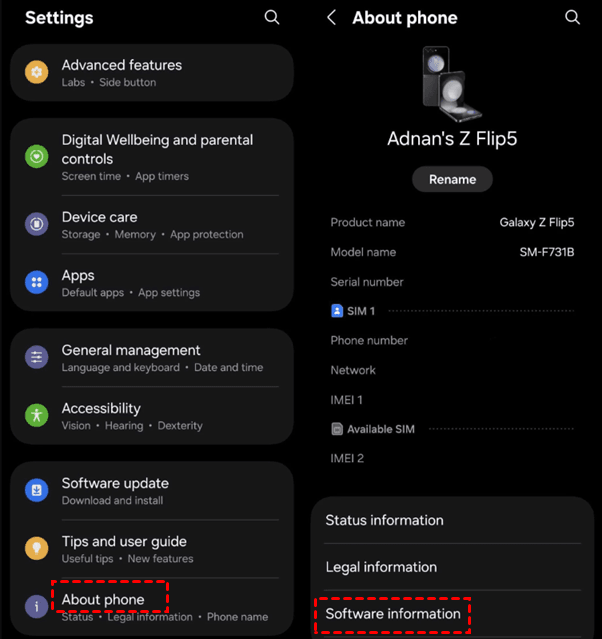
Start with 3 details: your model, your Android version if known, and the first action that failed. These help you choose the next check without collecting unnecessary information.
Find Help for Your Phone or Failed Step
Choose the page that matches your problem. If you know the exact model, start there. Otherwise, choose the failed step or the alternative you want to try.
- Want a method without TalkBack? See Bypass FRP Without TalkBack.
- Not sure why TalkBack fails on your Samsung? See Samsung FRP Bypass TalkBack Not Working.
- Using a Galaxy J7? See Samsung J7 TalkBack Not Working.
- Cannot open Settings? See FRP Bypass Open Settings Not Working.
- Running Android 12? See TalkBack FRP Bypass on Android 12.
- Google Assistant not working on your A53 5G? See Samsung A53 5G Google Assistant Not Working.
- Using an A13 without a computer? See Samsung A13 FRP Bypass Without a PC.
“Without TalkBack” and “without a PC” are different requirements. A method can avoid TalkBack but still need Windows and a USB connection. Check what equipment is needed before choosing another method.
What Can You Try Without TalkBack?
Your next choice depends on whether you can access the Google account and whether a computer is available.
Recover the Previous Google Account
Sign in with a Google account previously synced with the phone. If setup offers the previous PIN or pattern as a verification choice, use that option. A newly created Google account does not replace the required account.
If you forgot the password, you can recover the account on another phone.
Step 1. Open Google Account recovery, enter the account’s email address or phone number, and select Next.
Step 2. Select a way to sign in and complete the available identity checks. Select Try another way if it appears and you cannot complete the current check.
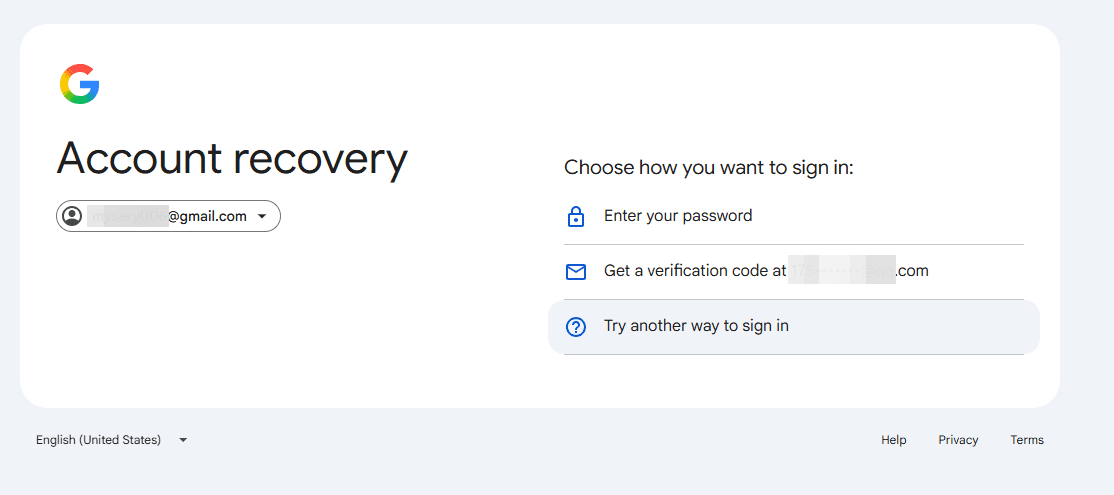
Step 3. Once access is restored, return to the locked phone and sign in. Follow any waiting instructions shown before retrying.
Account recovery completes normal verification; it is not an FRP bypass. For a second-hand phone, ask the previous owner to help complete verification personally rather than send you their password.
Check What Another Method Needs
An APK needs a way to download or transfer it, permission to install it, and access to the functions it uses. A USB drive or browser shortcut provides only part of that process.
Before switching methods, check whether the alternative avoids the step that already failed. If both methods require the same unavailable Settings link, changing the APK will not fix that missing entry.
Also check the result. Downloading a file or opening an app is not the same as completing setup. Choose a method whose requirements you can meet, and confirm that it lets you use the phone normally afterward.
Perform a Google FRP Bypass on a PC
If you can't recover the account but have access to a Windows PC, try an FRP bypass tool like FoneTool Unlocker. It offers multiple unlock methods for Samsung devices, grouped into 3 types:
- Android version: Start with the matching version group, for example, Android OS 11/12/13 for Android 12.
- Chipset: Choose MediaTek devices or Qualcomm (Snapdragon) if it matches your phone's processor.
- Universal (One-Click Removal): Consider this alternative when neither the version nor the chipset options fit.
Start with the Android version or chipset option for the best chance on your first attempt. FRP removal does not erase your device data.
Step 1. Launch FoneTool Unlocker on Windows and click Start under the Samsung device unlock feature.
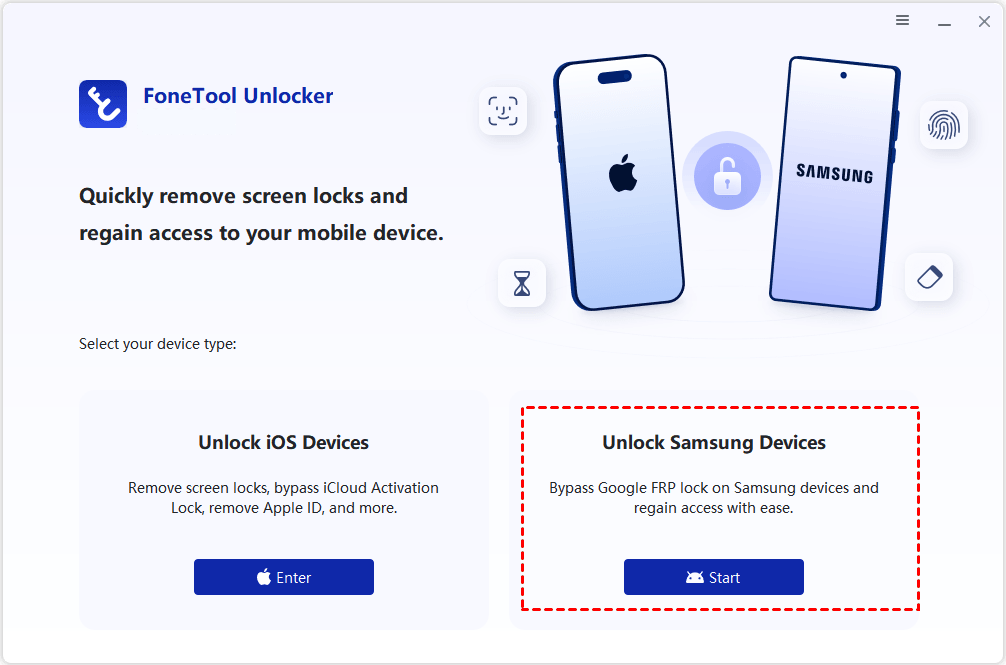
Step 2. Connect your phone as instructed. On Remove Google FRP Lock from Samsung, select the option that matches your Android version or chipset.

Step 3. Click Remove Now and follow the prompts to activate test mode on your device. After that, just let it run until the removal finishes.
After completion, check that you can finish setup and use the phone normally.
FAQ
Does Reaching the Home Screen Prove FRP Is Removed?
No. Check that normal setup is complete and you can use your own Google account. Temporary access to an app or the home screen is not enough if verification still blocks normal use.
Will FRP Removal Restore Files Erased by a Factory Reset?
No. Removing FRP does not recover files already erased. After recovering your account, check for existing cloud backups or copies stored elsewhere.
Conclusion
When TalkBack FRP bypass fails, identify the first blocked step and choose the matching help page. Recover the previous account where possible. If you move to a PC-based option, select the FoneTool Unlocker method that matches your phone instead of repeating a missing TalkBack shortcut.
FoneTool Unlocker - 1-Click Phone Unlock Software
Easily remove passcodes and restrictions from iPhone, iPad, iPod touch, and Samsung devices.
-
 iOS 27 Compatible
 iPhone 18 Supported
-
Samsung FRP Removal
100% Secure

Ivey is passionate about teaching users how to easily protect mobile device data. With the FoneTool series of iPhone management, unlocking, and repair software, even beginners can perform data backup, iPhone unlocking, and troubleshooting like a pro.
Read author info >>



 as a preferred
source on Google
