Samsung Tab E Factory Reset Without Google Account: 2 Ways
Want to factory reset your Samsung Tab E without a Google account? This guide shows you two ways – and how to deal with FRP verification afterward.


What to Do Before Resetting Samsung Tab E
Before performing a factory reset on your Samsung Galaxy Tab E, check a few things to choose the right reset method and avoid unnecessary data loss or FRP problems.
- Check Settings access – If you can unlock the tablet and open Settings, you can reset directly through the system menu. If you're locked out or the tablet is unresponsive, use Recovery Mode instead.
- Back up important data – A factory reset permanently erases photos, videos, files, apps, and settings. If you can still unlock the device, back up your phone to a computer, SD card, or cloud first. If it's already locked, local data may not be recoverable.
- Confirm your model number – Galaxy Tab E variants (SM-T560, SM-T561, SM-T377 series, etc.) differ in hardware and software, so reset options and button combinations may vary. Check the model number on the tablet or its packaging.
- Check for a linked Google account – Look in Settings > Accounts. If a Google account is present, know its login details or remove it before resetting—otherwise, Factory Reset Protection (FRP) may require verification of that account during setup.
- Charge the tablet – Make sure the battery has enough power to complete the reset. A stable power supply helps prevent interruptions.
🌟 To learn more about bypassing FRP on Samsung, please check this complete guide: Samsung FRP Bypass.
How to Do Samsung Tab E Factory Reset Without Google Account
There are two ways to reset a Samsung Tab E without signing in to a Google account. Check them one by one.
Method 1: Factory Reset Samsung Tab E Through Settings
If you can unlock your Samsung Tab E and access its home screen, use the built-in Settings menu. You do not need to enter your Google account password just to open the factory reset option, although the tablet may request your screen lock credentials.
Step 1. Navigate to and open Settings, and then tap General management (or Backup and reset on some older versions).
Step 2. Swipe to and tap Reset, then tap Factory data reset, and then review the information.
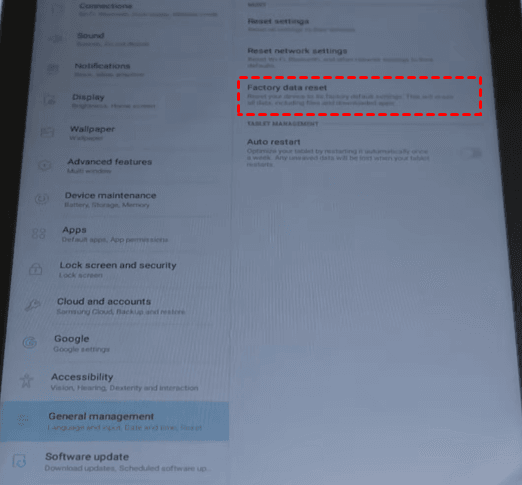
Step 3. When you're ready, swipe to and tap Reset. Type in your screen lock PIN, password, or pattern, and enter your Samsung Account password if prompted.
Step 4. Tap Delete all to start the reset process.
Step 5. Wait for the tablet to restart and complete the reset. Follow the initial setup instructions when it turns on.
Method 2: Perform Samsung Galaxy Tab E Hard Reset
You can also perform Samsung Tab E factory reset through Android Recovery Mode. However, FRP is triggered when the device is reset using methods other than the Factory data reset option in Settings. To avoid FRP lock after factory reset, you may remove your Google account beforehand. Follow the instructions below.
👉 Part 1: Remove Google Account
Step 1. Open Settings on your Samsung Galaxy Tab E. Then swipe to and tap Accounts and backup.
Step 2. Tap Manage accounts, and then select your Google account.
Step 3. Tap Remove account, and then tap Remove account again to confirm.
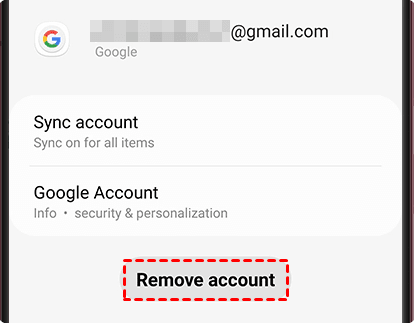
Step 4. If you have Google device protection features enabled, you may be asked to verify your identity before you can fully log out of your account.
Step 5. Return to the account list and check that the Google account is no longer listed.
👉 Part 2: Reset Samsung Tab E Using Recovery Mode
Step 1. Press and hold the Power and Volume Down keys for about 5 to 10 seconds until the screen turns black.
Step 2. Immediately press and hold the Power, Volume Up, and Home buttons at the same time to enter the Recovery Mode.
Step 3. Once the recovery menu appears, use the Volume Down button to highlight Wipe data/factory reset, then press the Power button to select it.
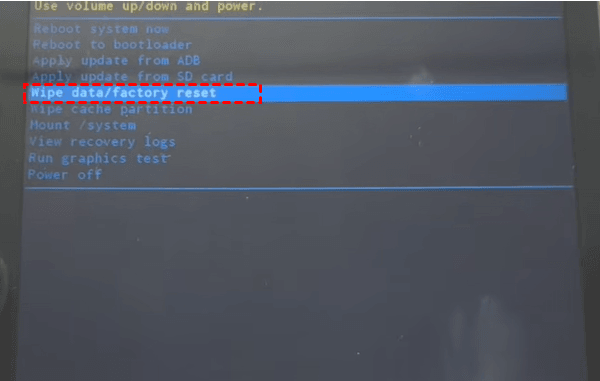
Step 4. Highlight Yes (or Yes — delete all user data), then press Power again.
Step 5. After the reset finishes, select Reboot system now and press the Power button.
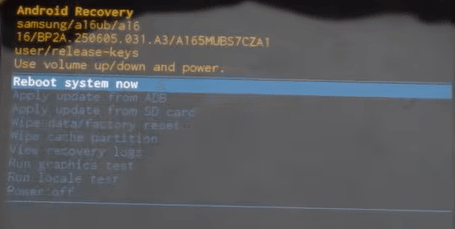
Step 6. Wait for the tablet to restart. Complete the initial Android setup.
Bonus: How to Bypass FRP on Samsung Galaxy Tab E After Factory Reset
If you have already factory reset your tablet through Recovery mode and are stuck on the "Verify your account" screen upon boot, you may look for ways to bypass FRP on Samsung Galaxy Tab E. The best FRP removal tool - FoneTool Unlocker can give you a hand.
- Key Features:
- Samsung FRP removal: Addresses Google FRP on supported Samsung phones and tablets.
- Multiple unlock methods: Provides different methods for supported Android versions, MediaTek and Qualcomm chipsets, and certain U.S. models.
- USB-based workflow: The Samsung device can be connected directly to a Windows PC.
- Guided operation: The software displays instructions for the required actions on the phone.
- Broad Samsung support: Supports selected Galaxy S, A, M, Z, Fold, and Flip models, including newer supported models.
Download and install FoneTool Unlocker on a Windows PC. Then follow these steps to run Samsung Tab E FRP bypass safely:
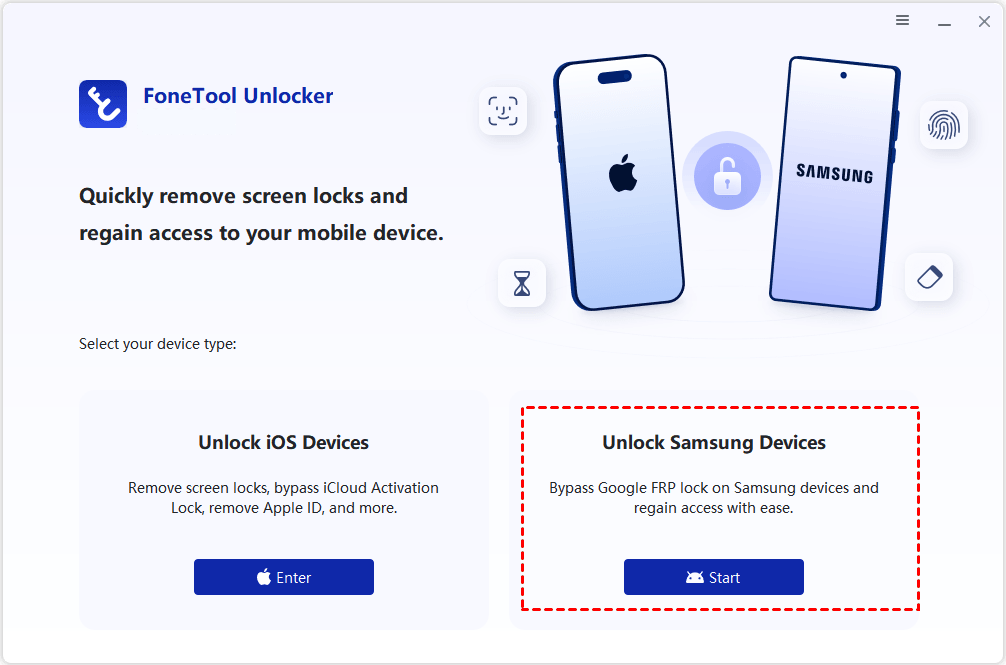
Step 1. Use a USB data cable to connect the tablet to the computer. In FoneTool Unlocker, choose Unlock Samsung Devices and click Start.
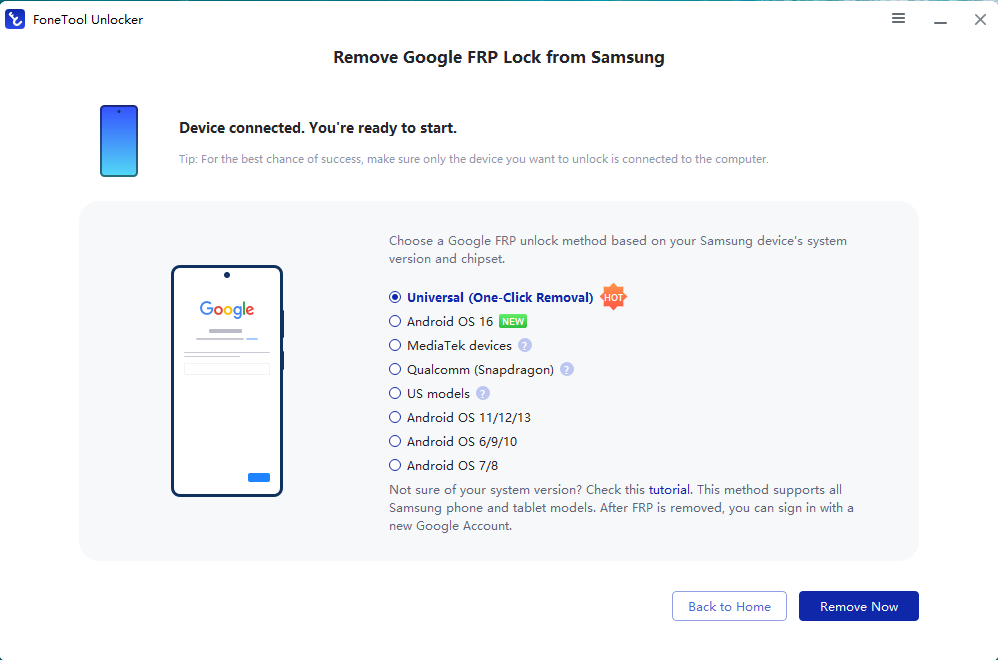
Step 2. Choose a compatible FRP removal method. If you are not sure about your Galaxy Tab E model and software configuration, pick Universal (One-Click Removal), then click Remove Now.
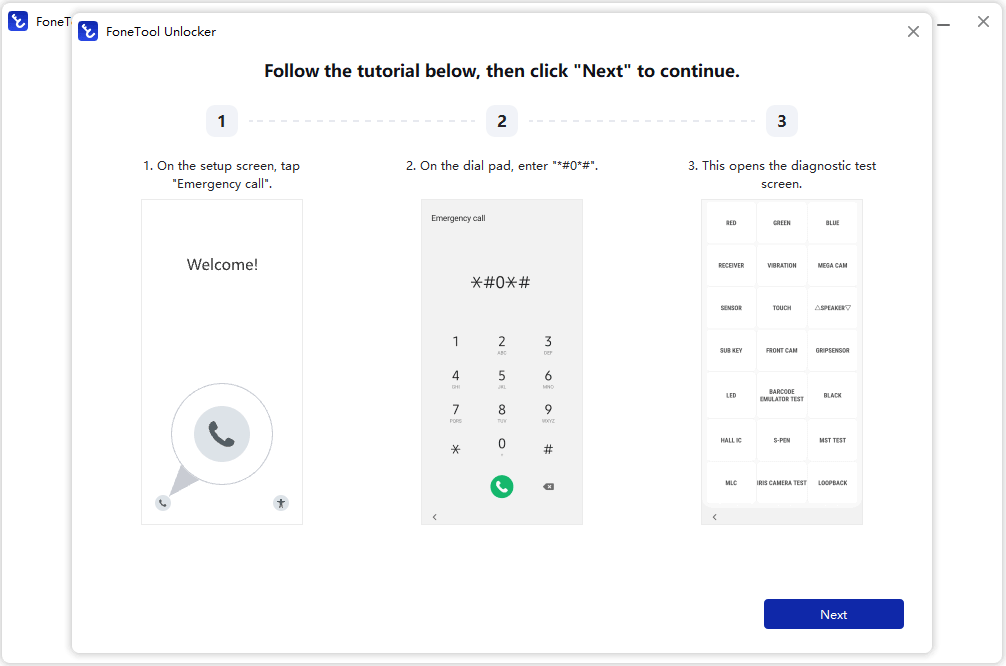
Step 3. Follow the instructions shown by the program - typically tap Emergency call on your tablet and enter a test-mode code such as *#0*#. Then click Next in the software.
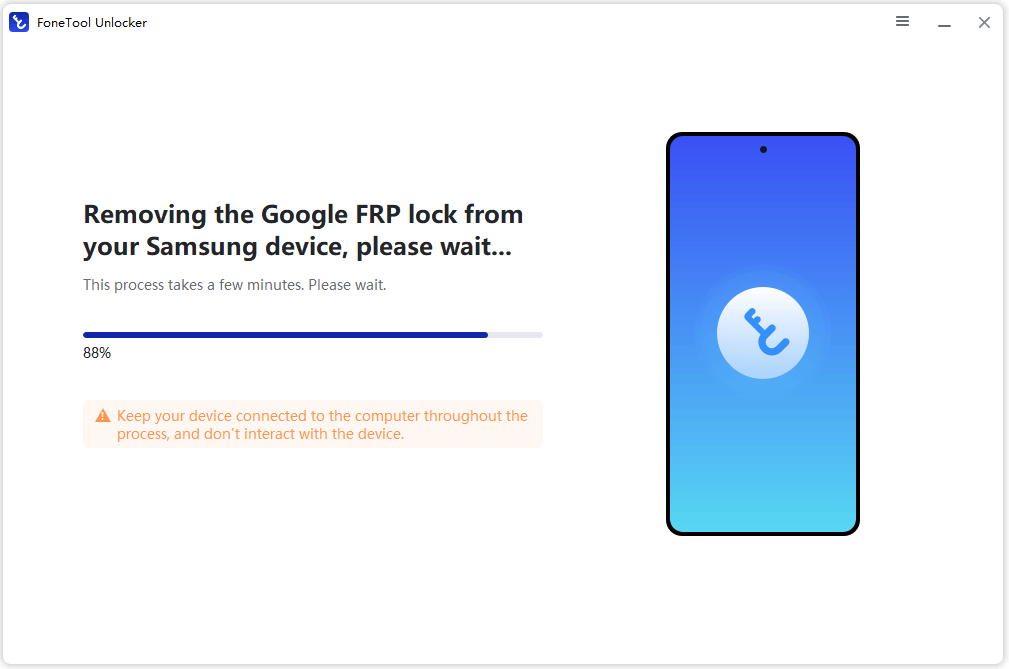
Step 4. Keep the tablet connected to the PC and avoid interrupting the operation.
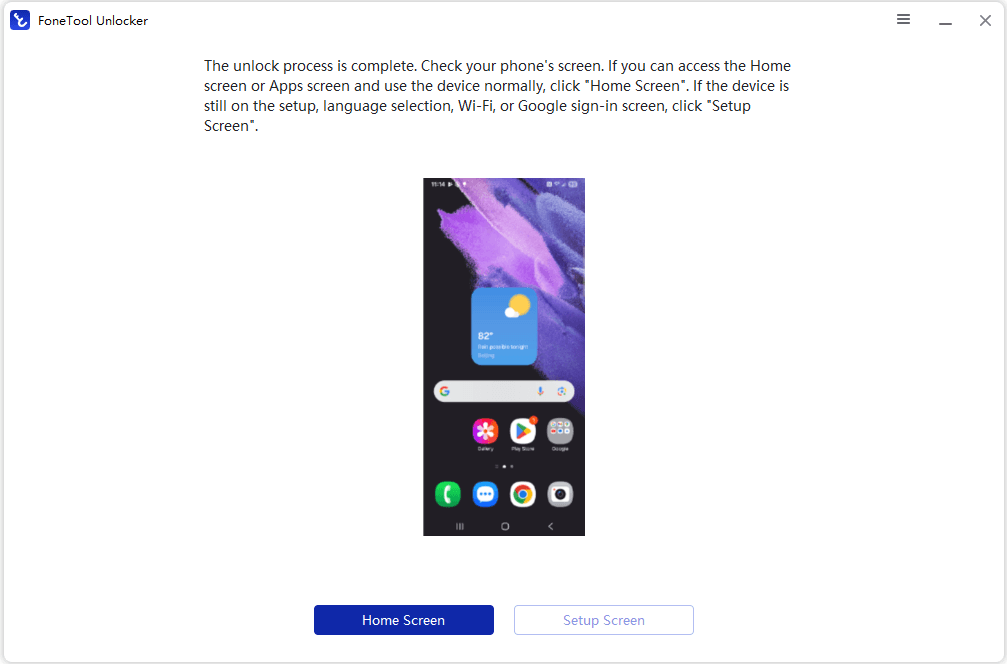
Step 5. When the program reports that the process is complete, follow its instructions to finish setup on your tablet.
FAQs about Samsung Tab E Factory Reset
1. How do I hard reset Samsung Galaxy Tab E if I forgot the password?
Turn off the tablet, then use the Volume Up, Home, and Power buttons to enter Android Recovery Mode. Select wipe data/factory reset, confirm the operation, and choose reboot system now when it finishes. This erases local data and may trigger FRP afterward.
2. Will a factory reset remove Google FRP from Samsung Tab E?
No. A factory reset does not automatically disable FRP. If a Google account was linked to the tablet before the reset, you may need to verify that previously synced account during setup. To avoid this when you can still access your tablet, remove the Google account from Settings before resetting it.
3. What should I do if I bought a used Samsung Tab E that is FRP-locked?
Contact the seller or previous owner and ask them to help complete the Google account verification process. If you cannot reach them, consider reliable FRP bypass tools for PC.
Verdict
There are two ways offered in this article to help you perform Samsung Tab E factory reset without a Google account - through Settings or Android Recovery Mode. The Recovery Mode method requires you to remove your Google account beforehand to avoid an FRP lock.
If you've already performed a factory reset on your tablet and find yourself stuck on the "Verify your account" screen at startup, you can use FoneTool Unlocker to bypass FRP. It offers several FRP removal methods and a straightforward interface to help you work through the process. Why not give it a shot?
FoneTool Unlocker - 1-Click Phone Unlock Software
Easily remove passcodes and restrictions from iPhone, iPad, iPod touch, and Samsung devices.
-
 iOS 27 Compatible
 iPhone 18 Supported
-
Samsung FRP Removal
100% Secure

Lily Green is dedicated to helping users protect their valuable mobile data and addressing issues that arise on mobile devices. She consistently stays vigilant about the latest trends in technology, guaranteeing that the given information aligns with the ongoing advancements in the field.
Read author info >>



 as a preferred
source on Google
