Find App Store Password? Recover or Reset It Now
This guide shows you how to find saved passwords step by step from the built-in Passwords app, reset your password, and use a dedicated password manager - FoneTool Unlocker. Keep reading to get back in.


You're trying to download an app, update a game, or install that tool you've been meaning to try. Then it hits you: the dreaded "Incorrect Password" prompt. You tap it again. Your thumb hovers over "Forgot Password?" as frustration creeps in.
Sound familiar? You're not alone.
Here's the truth: Your App Store password is your Apple Account password- the same one for iCloud, FaceTime, and Apple Music. Find it once, and you've unlocked everything.
The good news? Your password is likely already saved on your iPhone, iPad, or Mac. And if not, resetting it takes minutes.
In this guide, we'll cover every way to find or reset it- from Apple built-in Passwords to a lastresort solution when nothing else works.
Keep reading - your password is closer than you think.
Check Your iOS Device Built- in Password Manager
Before you reset your password or contact Apple Support, check if your iPhone or iPad already saved it. Apple's built-in Passwords app can store your credentials across all your devices. If you previously saved your Apple Account password, you can retrieve it in seconds- no reset, no waiting.
This works on any iOS device, you don't need to prove your identity to Apple - just authenticate using Face ID, Touch ID, or device passcode. If you want to check all saved credentials, you can go to the full guide on view saved app passwords on iPhone.
Way 1: Find App Store Password using Passwords (iOS 18+)
Step 1. Open Settings. Search for Passwords and select it on your iPhone or iPad.

Step 2. Then, scroll down to the bottom and click Open Passwords. Authenticate using Face ID, Touch ID, or your device passcode.
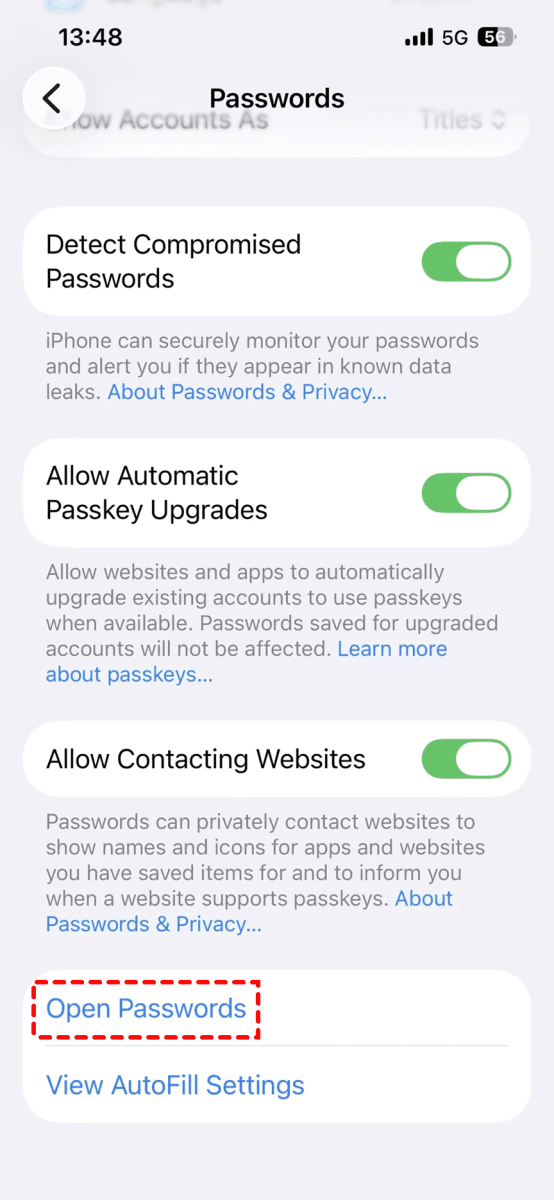
Step 3. In the Passwords app, type "Apple" or "apple.com" in the search box and check if any matching entry appears. Tap it to find App Store password.
Way 2: Check Saved Passwords in Google Chrome or iCloud Keychain
If you use Chrome as your primary browser, your App Store password might be saved there instead.
👉 On Chrome (Desktop):
Step 1. Click the three-dot menu > Settings > Passwords and autofill >Google Password Manager.
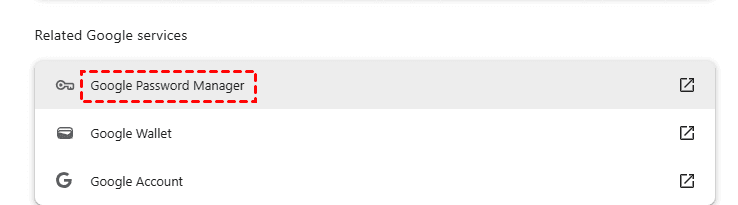
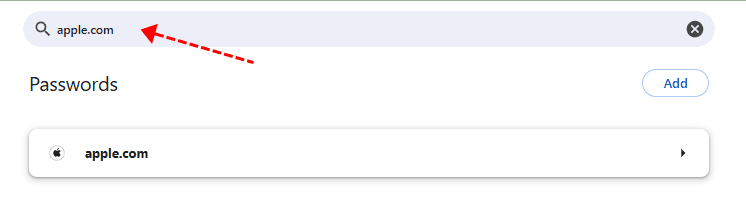
Step 2. Search for "apple.com" or "appleid.apple.com".
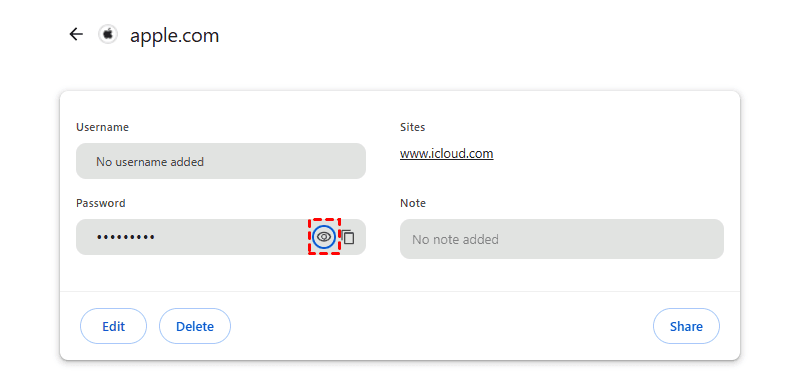
Step 3. Click the eye icon to reveal the password (you'll need to enter your computer's login password).
👉 On Chrome (Mobile):
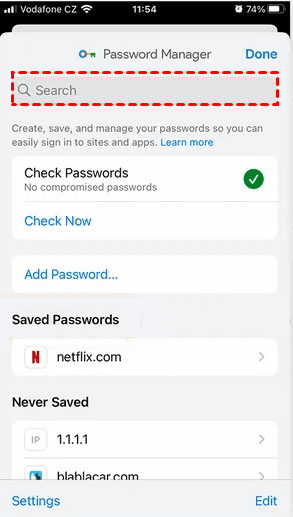
Step 1. Tap the three-dot menu > Settings > Password Manager.
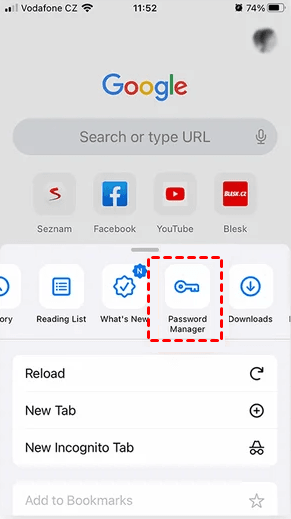
Step 2. Search for "apple" and tap the entry to view it.
👉 On iCloud Keychain (using Mac):
Step 1. Open System Settings >Passwords (or Keychain Access on older macOS).
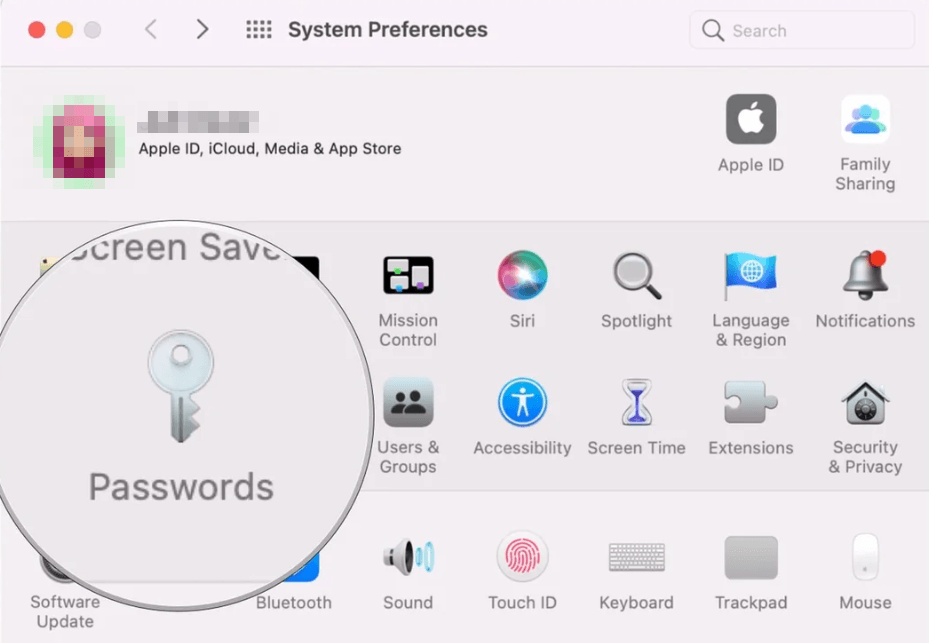
Step 2. Authenticate with Touch ID or your Mac administrator password. Once inside, search for "apple.com" and double-click to view the saved password.
Reset App Store Password If It Isn't Saved
If the Passwords app and your browser don't show you any Apple ID entry, you probably never saved your App Store password at all. This time, you can only reset your password using a trusted device. Just a few minutes, and it’s the safest and most straightforward method, especially if you still have access to your iPhone or iPad.
Way 1: Reset Password through Settings on iPhone or iPad
This is the quickest official method. It works as long as you know your device passcode and are still signed in to your Apple Account.
Step 1. Open the Settings app on your iPhone or iPad. Tap your Apple ID name and then Sign-In & Security.
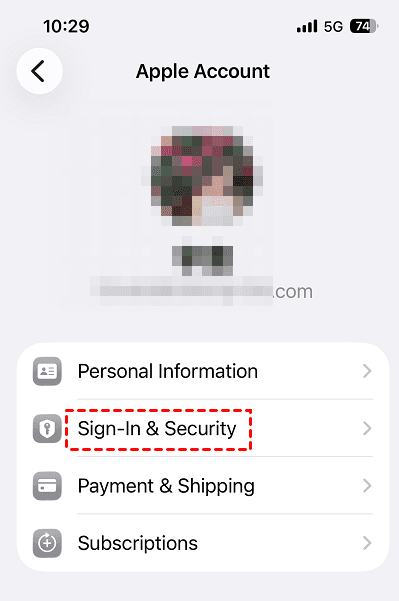
Step 2. Tap Change Password. Enter your device passcode when prompted.

Step 3. Enter a new password and confirm it. Tap Continue.
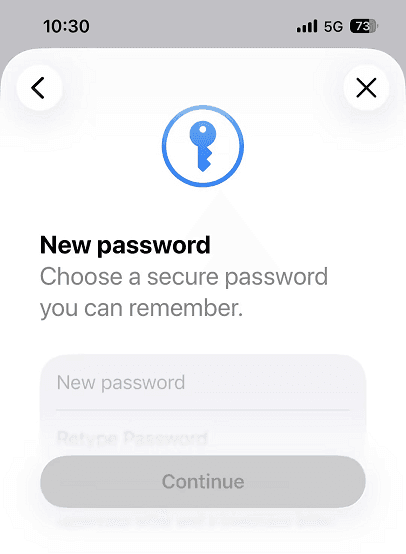
Step 4. The new password will automatically update across all Apple services linked to your account. Try to sign in to your App Store using the new one.
Way 2: Reset Password using the Apple Support App
If your current device is locked, disabled, or you simply can't access it, don't worry, you can borrow someone else’s trusted device for resetting. It must bean iPhone or iPad running iOS 15 or later. This method works even if you don't have access to your trusted phone number, as long as you can verify your identity through the app.
Step 1. Borrow a friend or family member's device. Download the Apple Support app (if not already installed).
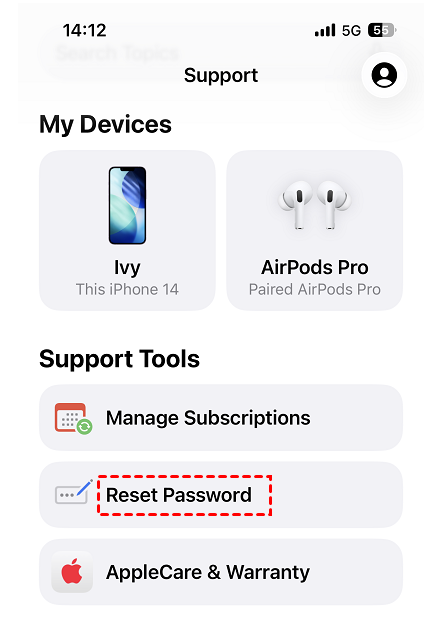
Step 2. Open the Apple Support app, scroll down to Support Tools, and tap Reset Password.
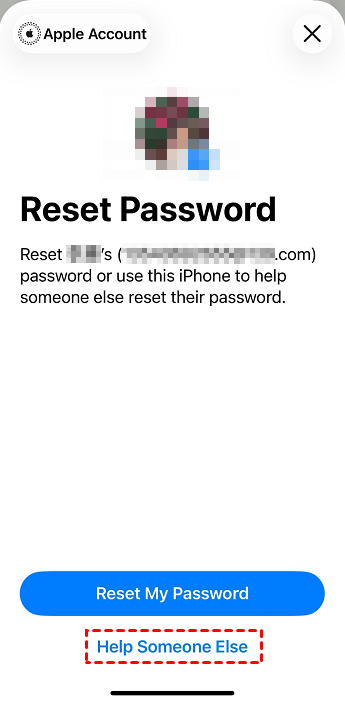
Step 3. Select Help Someone Else.
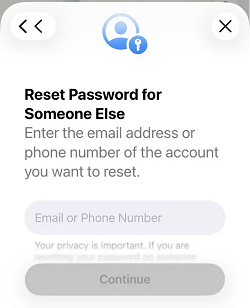
Step 4. Type your email address or phone number and follow the prompts to verify your identity and reset your App Store password.
Stuck with an Unresponsive Account? Use FoneTool Unlocker
Sometimes, standard recovery methods simply don't work. You may no longer have access to your trusted phone number, forgot your security questions, or be dealing with a secondhand device that's still tied to the previous owner's Apple ID. When standard recovery methods fail, a different solution is required.
FoneTool Unlocker is a core data recovery and viewing tool and provides users with two methods to break this issue.
- Thoroughly scan your iOS device and retrieve saved App Store passwords. You can also check WiFi passwords, Apple ID information, Safari browserand appsaccount credentials, and more.
- Remove Apple ID, locked iCloud activation, screen passcode, screen time passcode, and more. So you can access your iOS device even if you forget a password or it’s locked.
Step 1. Download, install, and launch FoneTool Unlocker on your Windows PC. On the main interface, click Password Management.
Step 2. Click Start Scan to find all passwords (including App Store) and credentials.
Step 3. For a smooth scan, connect your iPhone, unlock it, tap Trust This Computer, and confirm it's trusted in FoneTool Unlocker.
Step 4. Click Continue Scan and wait for the process to be complete.
Step 5. Click View Password when scan completed successfully.
Step 6. Click Screen Time Passcode, Wi-Fi account, Web & App Passwords, etc., to check all passwords and credentials it finds.
Tips to Protect Your App Store Credentials
Once you've regained access to your account, it's time to make sure you never get locked out again. A few simple precautions can save you hours of frustration down the road.
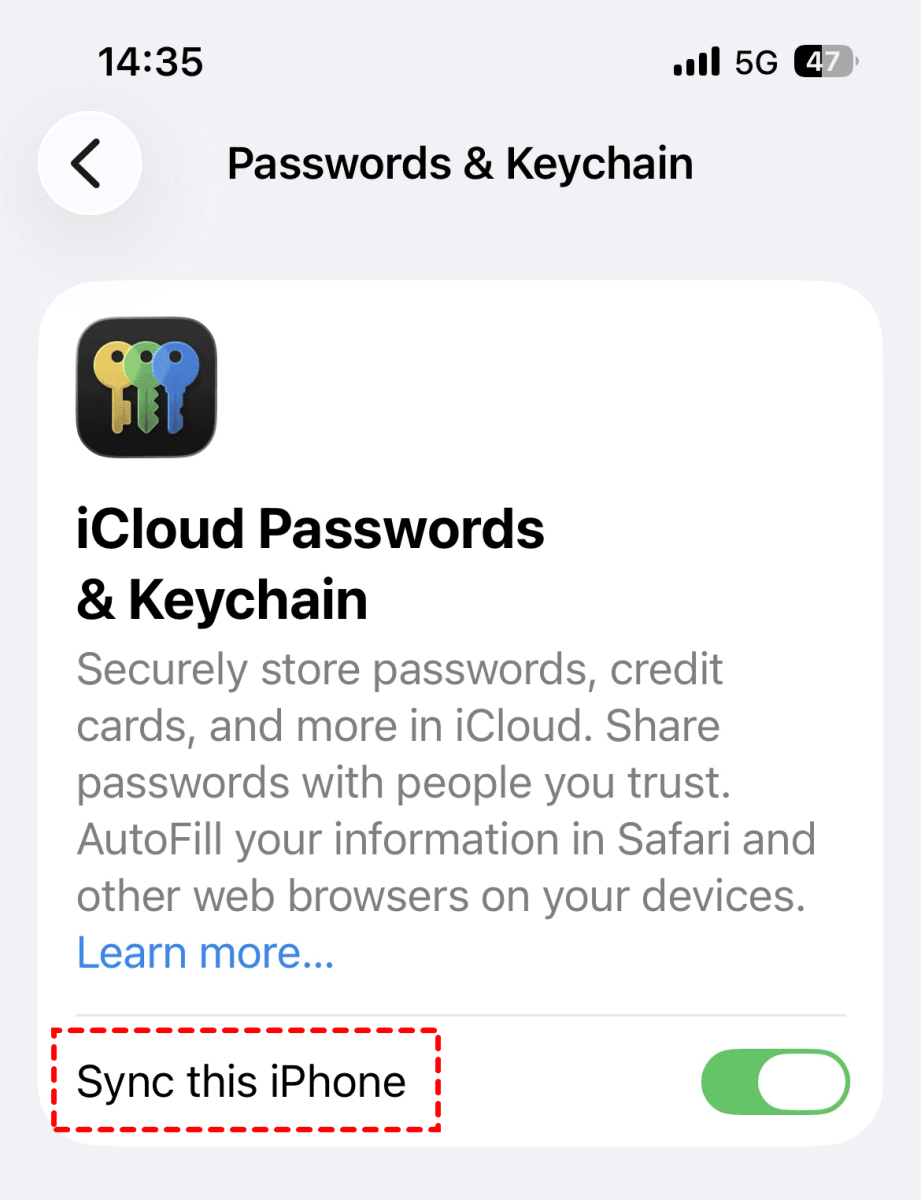
Tip 1: Enable iCloud Keychain
Turn on iCloud Keychain to automatically save and sync your Apple Account password across all your Apple devices. This way, even if you forget the password on one device, it's still accessible on anotherwithout resettingrequired.
Go to Settings> [Your Name] > iCloud > Passwords & Keychain and toggle on Sync this iPhone.
Tip 2: Set Up an Account Recovery Contact
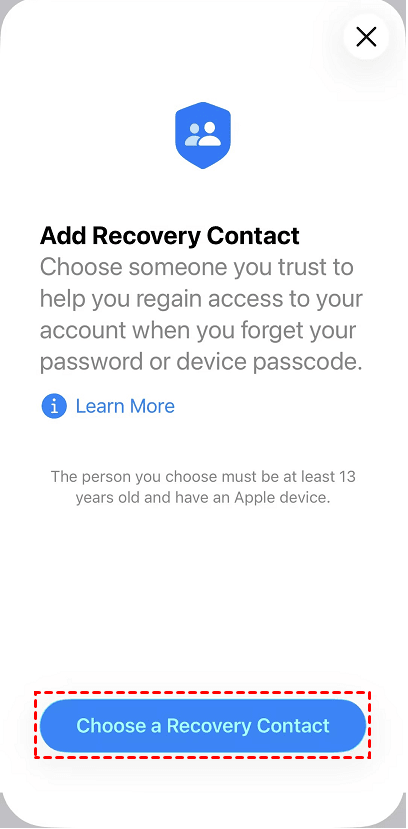
Assign a trusted friend or family member as your account recovery contact. If you ever get locked out, they can generate a recovery code to help you regain access without needing to know your password.
Go to Settings> [Your Name] > Sign In & Security > Recovery Contacts > Choose a Recovery Contact and follow the on-screen instructions.
Tip 3: Employ a trusted password Manager
A dedicated password manager for iOS like Bitwarden, RoboForm, Proton Pass, etc., acts as a secure vault for all your credentials, including your App Store password. Unlike iCloud Keychain, these tools work across platforms (Windows, iOS, Android, browsers), so you can access your passwords even when you're not on an Apple device.
Most premium tools also offer advanced features, such as a 2FA generator, breach monitoring, secure sharing features, etc. You can go to Passwords and switch AutoFill from Passwords to your preferred password manager, such as Bitwarden. It will save, generate, and auto-fill passwords automatically.
Conclusion
Forgetting your App Store password is frustrating, but it's never a dead end. Start by checking your iOSbuilt-in Passwords app or browser manager to find App Store passwords. If it's not saved there, reset it directly through Settings or the Apple Support app.
If official methods fail, try FoneTool Unlocker. It allows you to scan your iOS and find saved passwords as well as remove old Apple ID and restore full access App Store. This is especially useful on secondhand or locked devices.
Once you're back in, take a few minutes to enable iCloud Keychain, set up an account recovery contact, and save your password in a trusted third-party manager. These small steps will save you from repeating this cycle.
FoneTool Unlocker - 1-Click iPhone Unlock Software
Easily unlock all passcodes and restrictions on your iPhone, iPad, and iPod Touch.
-
 iOS 27 Compatible
 iPhone 17 Supported
100% Secure

Ivey is passionate about teaching users how to easily protect mobile device data. With the FoneTool series of iPhone management, unlocking, and repair software, even beginners can perform data backup, iPhone unlocking, and troubleshooting like a pro.
Read author info >>



 as a preferred
source on Google
as a preferred
source on Google