Find My iPhone Alert Went Off by Itself? Why & How to Stop It
Find My iPhone alert went off by itself? Here’s why and how to stop the false alarms. Also covers Apple ID sign-out issues and fixes.


You're sitting at your desk when suddenly – your phone goes off with that incredible, heart-pounding Find My Apple Device alarm. You hurried to get your phone, preparing for the worst. But when you unlock the screen, there is nothing. There is no "Lost Mode" prompt. There is also no indication that someone triggered this pattern
Sound familiar? If you find my iphone alert went off by itself, you're not alone. Every year, thousands of iPhone users report such false alarms. Sometimes this is due to a program glitch, sometimes it can be caused by something else. Let's let those distractions go. The reasons why this condition arises and how to fix it completely will be detailed below.
Why Did My Find My iPhone Alert Go Off by Itself?
Before you think your iPhone is not working or someone is trying to hack your Apple account, let's take a look at the most common reasons:
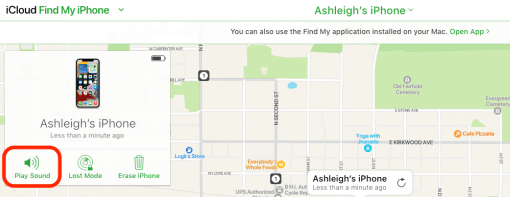
⛔Unexpected Trigger from Another Device -If you share an Apple account with your family or have a second device like an iPad or Mac, it's possible that someone else accidentally triggered the alert. When you open the Find My app on any device and tap Play Sound, the alert is sent to your iPhone.
⛔Lost Mode Was Activated Remotely - Sometimes, the activation process of Lost Mode is so swift that you don't see the relevant notifications at all. If someone triggers the lost mode in a very short time, the alarm will go off even after the mode is canceled. This can happen if your Apple account is logged in on a device that has been compromised, or when your family members are testing the feature.
⛔iCloud Sync Failure - Apple's iCloud servers are not flawless. Sometimes, iCloud sync errors can cause the Find My system to send a command to play a sound that was set days or weeks ago. This is rare, but it does happen, and once it happens, your Find My iPhone alarm goes off on its own without finding an obvious reason.
⛔Apple ID Security Alert - If someone tries to log in to your Apple account from an unfamiliar device, Apple sometimes triggers a Find My alert based on its security protocols. You don't usually see a notification of a login attempt on your screen, but the alert is the first clue that you notice something unusual.
⛔Confusion between Bluetooth and AirPods - Your work can be viewed not only on your iPhone, but also on other devices. If you have AirPods or AppleWatch nearby, these devices can sometimes send a lost signal to your iPhone, triggering an alarm. This is not common, but it is worth checking if you use multiple Apple accessories.
Method 1. Stop the Phantom iPhone Alerts
If you find my iphone alert went off by itself, start here. These steps will be able to fix the most common problems, without the need to use third-party tools.
Step 1. Open the Find My app on your iPhone.
Step 2. Tap the "Devices" tab at the bottom.
Step 3. Look for any devices that show "Playing Sound" or have a recent alarm log. If you find such a device, tap on it and select "Stop playing sound".
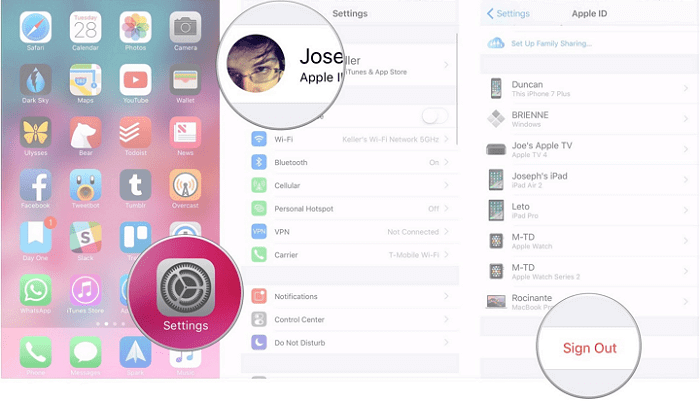
Step 4. Go to Settings - tap Your name at the top - Sign out of your Apple account and log back in. This will refresh your iCloud connection and clear any stuck commands.
Step 5. Check if you have shared your Apple account with your family. If so, have everyone turn on Find My to see if someone accidentally triggered the alert.
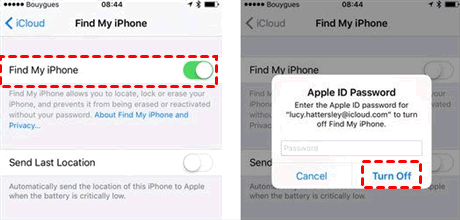
Step 6. If the alarm continues to sound, go to Settings > Notifications > Find My Device > Turn Off Notifications and turn it off. Wait 30 seconds before turning it back on.
Method 2. When Apple ID Issues Cause False Alerts
Sometimes these random alarms aren't really irregular. They actually reflect a deeper problem: your Apple account is logged in on a device you no longer control, or someone has been trying to trigger "lost mode". If you've ruled out common causes and your Find My iPhone alert false alarm over and over again, the easiest solution is to delete the Apple account entirely, but it becomes difficult if you forget your password or if Find My is malfunctioning.
FoneTool Unlocker solves this problem in minutes. It removes Apple accounts without a password, bypasses activation lock and clears residual Find My commands that cause false alerts.
- ★Highlights:
-
✅ Remove Apple ID without a password, even if Find My is still on.
✅ Bypass activation lock when you’re locked out of a second-hand device.
✅ Remove Apple ID after turning off Find My feature in advance to keep data.
✅ Sign out of a stuck Apple ID that won’t let you disconnect.
✅ Work on iPhones, iPads, and even older devices where the screen is unresponsive.
Download Freeware Win 11/10/8.1/8/7/XPSecure Download
Step 1. Download and install FoneTool Unlocker on Windows PC .Connect your iPhone to PC using a USB cable.
Step 2. Select the Remove Apple ID feature from the main menu.
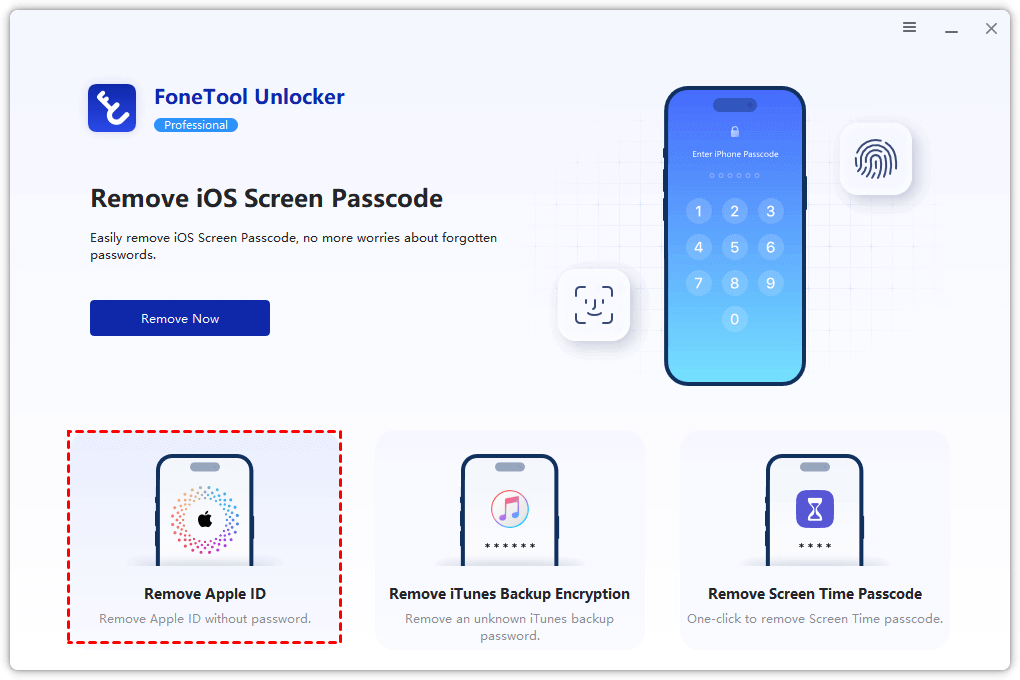
Step 3. Follow the on-screen prompts to disable Find My (the software walks you through this step by step) and set a backup password.
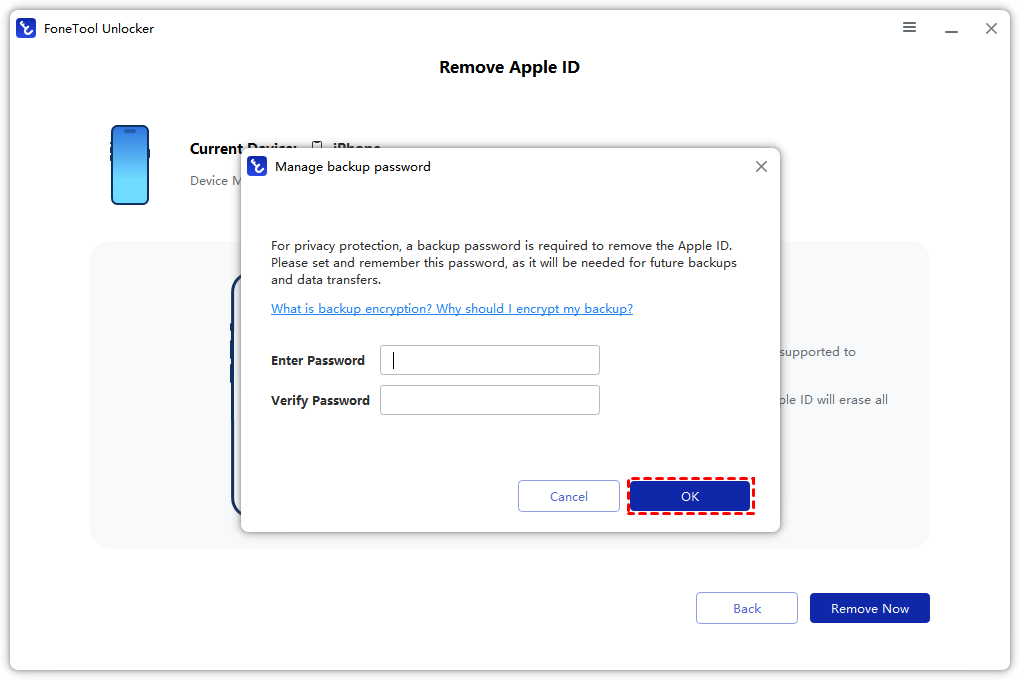
Step 4. Click the Remove Now button and wait while the tool removes the Apple ID from your device.
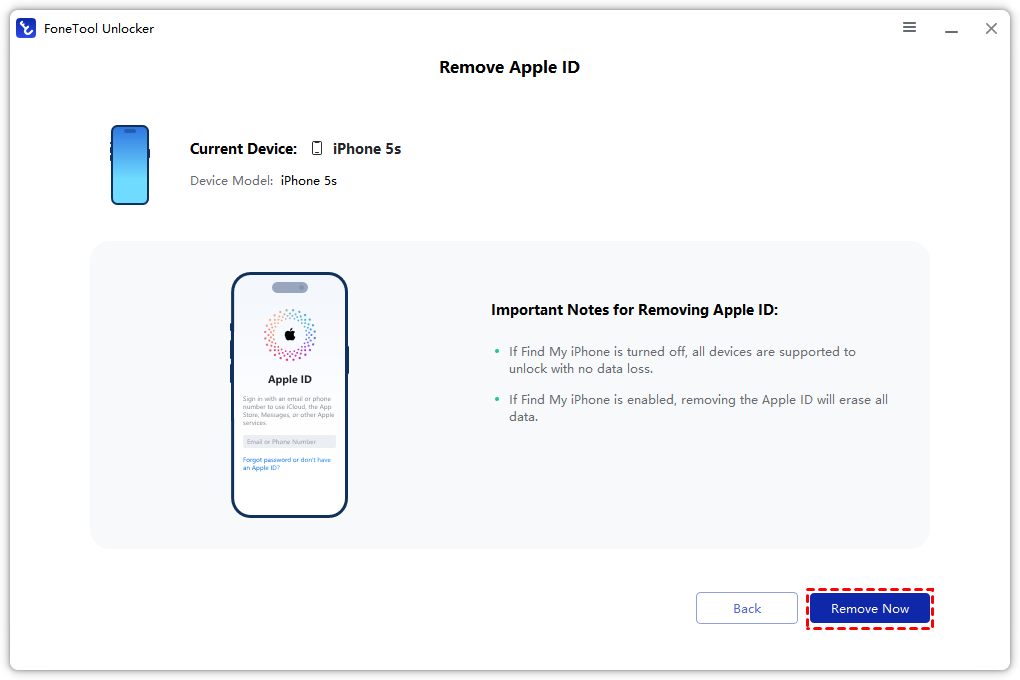
Step 5. Once completed, your iPhone will restart with no Apple ID attached. Set up a fresh Apple ID or sign back in with your original credentials after confirming your account is secure.
This doesn’t just stop the random alerts, it gives you a clean slate. No more lingering commands. No more mystery sounds at 2 AM.
Method 3. Check Your Apple Watch and AirPods
Sometimes the problem is not with your iPhone at all. If your iPhone alert went off for no reason, then check if it's your Apple Watch or AirPods triggering it through proximity sensing.
Step 1. Open Find My on your iPhone.
Step 2. Tap Devices and look at your Apple Watch.
Step 3. If the watch shows “Playing Sound”, tap it and select Stop Playing Sound.
Step 4. For AirPods, open the Find My app, tap your AirPods, and check if they’re flagged as “Left Behind”. Some users report that the “Notify When Left Behind” feature sends alerts to the iPhone even when the AirPods are still in your bag.
Step 5. Turn off “Notify When Left Behind” for your AirPods and Apple Watch temporarily to see if the alerts stop.
FAQs About Random Find My Alerts
Yes, if they have access to your Apple ID credentials or are signed into Find My on a shared device. That’s why it’s important to check which devices are linked to your account.
This usually happens when an iCloud sync glitch replays a previously queued command. It can also happen if a family member opened the Find My app and accidentally tapped “Play Sound”earlier, but the alert was delayed.
Not always. Most cases are glitches or accidental triggers. But if you see multiple alerts with no explanation, it’s worth changing your Apple ID password and checking “Devices”in your Apple ID settings for anything unfamiliar.
A full factory reset (Erase All Content and Settings) will stop the alerts if the cause is software-related. But make sure you have a backup first - and if your Apple ID is stuck, you may need FoneTool Unlocker to complete the reset without getting locked out.
Open Find My on another device or iCloud.com. Check the Devices list. If your iPhone shows “Lost Mode”or a recent location update that you didn’t initiate, someone may have accessed your account.
Conclusion
If your find my iphone alert went off by itself, nine times out of ten it’s a glitch, a shared Apple ID, or a forgotten AirPods notification. Start with the quick fixes in Method 1, they solve most cases in under five minutes.
💡 Still hearing random alerts? Download FoneTool Unlocker to remove a stuck Apple ID and silence the phantom alerts for good.
FoneTool Unlocker - 1-Click iPhone Unlock Software
Easily unlock all passcodes and restrictions on your iPhone, iPad, and iPod Touch.
-
 iOS 27 Compatible
 iPhone 17 Supported
100% Secure

Kelsey is an English editor at FoneTool, passionate about helping users solve tech issues. She specializes in iPhone data management, backup, and recovery. In her free time, she enjoys learning IT skills and spending time with loved ones.
Read author info >>



 as a preferred
source on Google
as a preferred
source on Google