iPhone Asking for Passcode After Factory Reset? Solved
This guide explains why your iPhone asks for a passcode after a reset (Activation Lock, forgotten code) and provides clear solutions: Apple's Recovery Mode and using FoneTool Unlocker for Activation Lock.


Old iPhone Reset Still Asking for Passcod
I erased all my data & selected the option to give the phone to a new user, but it is asking for a password on the ‘hello’setup screen.
- Question from Apple Support Community
You've followed the steps to factory reset your iPhone and were expecting a fresh start, only to suddenly see a screen asking for a passcode. This confusing and annoying situation, as often reported by users of models such as the iPhone 7, is actually a security feature, not a malfunction. Whether you've forgotten your password, purchased a second-hand device, or encountered an incomplete reset, this guide sheds light on the reasons and guides you on effective steps to regain access to your iPhone.
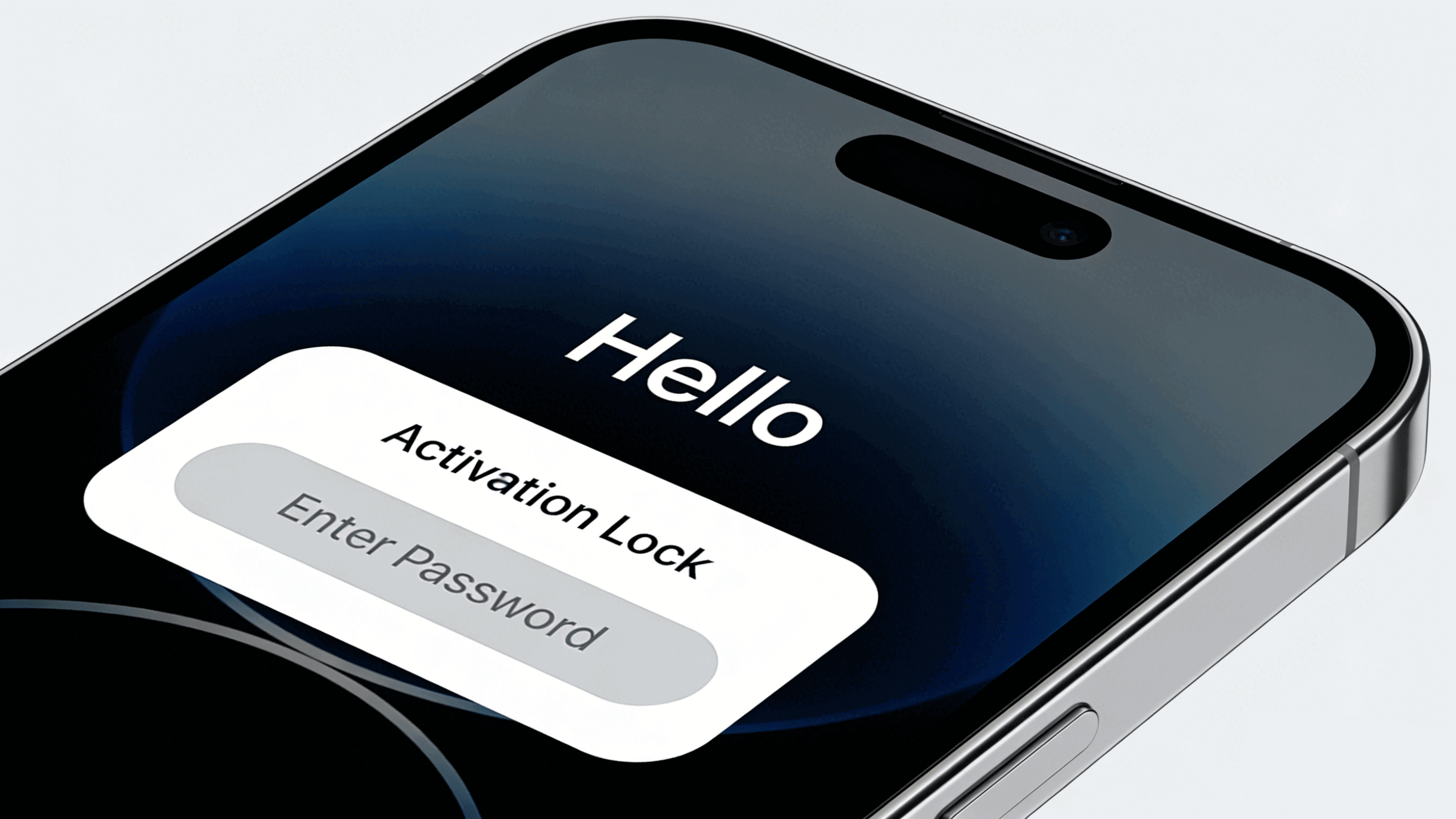
Why Your iPhone Still Asks for a Passcode After Reset?
You've reset your iPhone, but it's asking for a passcode. This isn't a mistake—it's security in action. Here’s a quick guide to the main reasons:
|
Reason |
In a Nutshell |
Key Sign |
|
Activation Lock |
“Find My iPhone” is ON, locking the device to the original owner’s Apple ID. |
Password prompt appears on the very first setup screen. |
|
Forgotten New Passcode |
You set a new lock screen code after the reset, but can’t recall it. |
You used the phone for a while before it got locked again. |
|
Incomplete Reset |
The reset process was interrupted or didn’t fully finish. |
The phone acts strangely right after the reset. |
|
Hardware Issue |
A rare internal fault prevents normal passcode checks. |
Phone has physical damage or repair history. |
How to Fix “iPhone Asking for Passcode After Reset”
The right solution depends on the cause. Follow this flowchart to identify your best first step.
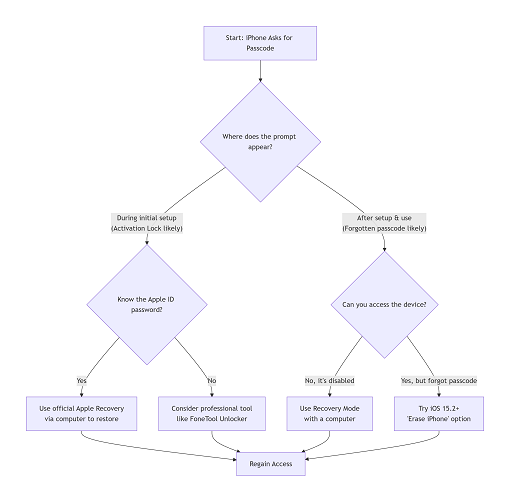
Solution 1. The Official Apple Method -Recovery Mode
This is Apple’s prescribed method for removing a forgotten passcode when you don’t have “Find My iPhone” enabled or when other methods fail. Warning: This erases all data on the device.
Prerequisites: A computer (Mac or PC), a USB cable, and internet access.
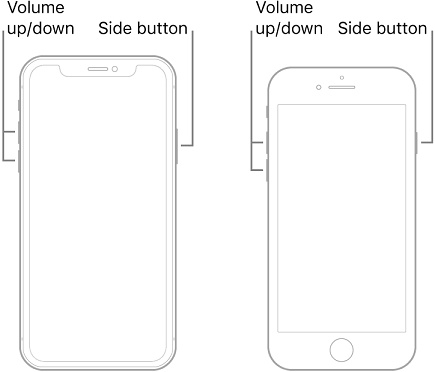
Step 1. Connect your iPhone to the computer. Quickly force-restart it and enter Recovery Mode. The button sequence varies by model:
- iPhone 8 or later: Press and quickly release the Volume Up button, then the Volume Down button. Then, press and hold the Side button until the Recovery Mode screen (a cable and computer icon) appears.
- iPhone 7/7 Plus: Press and hold the Side and Volume Down buttons until the Recovery Mode screen appears.
- iPhone 6s and earlier: Press and hold the Home and Side (or Top) buttons until the Recovery Mode screen appears.
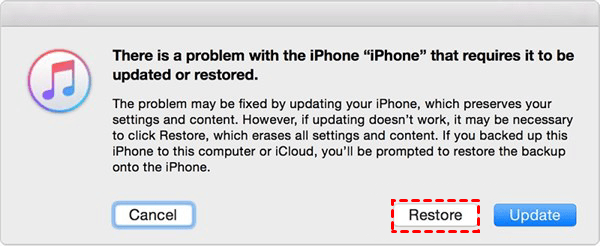
Step 2. On your computer, a prompt will appear. Select “Restore”. Your computer will download the latest iOS firmware and completely erase and reinstall iOS on your iPhone.
Step 3. After the process finishes, you can set up your iPhone as new. If Activation Lock is on, you will need the original Apple ID password to proceed.
Solution 2.When Official Paths Are Blocked – Using FoneTool Unlocker
Among the reasons for a passcode prompt after a reset, the most common and stubborn is the Activation Lock. This occurs when the device, at the “Hello” setup screen, asks for the previous owner's Apple ID password. This renders standard fixes useless if you don't have that account's credentials.
FoneTool Unlocker is specifically designed to bypass this exact barrier. It removes the iCloud Activation Lock, allowing you to fully reset and reclaim your device when official methods fail.
✅ Directly removes Apple ID Activation Lock and screen passcodes.
✅ A reliable and effective solution for regaining access.
✅ Clear, step-by-step instructions make the process simple for anyone.
✅ A broad range of iPhone models and iOS versions.
Step 1. Download and run FoneTool Unlocker on your computer and connect your iPhone via USB.
Step 2. Choose the “Remove iCloud Activation Lock” option from the main interface.
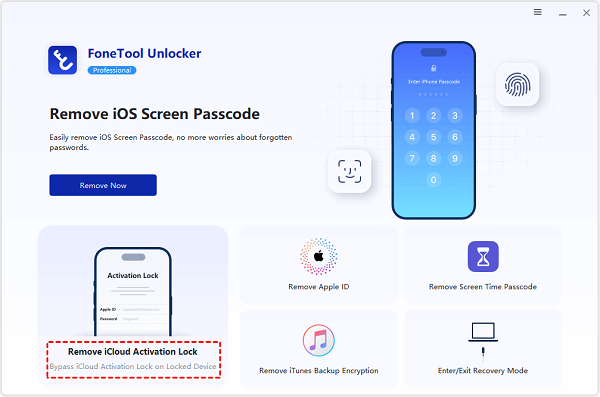
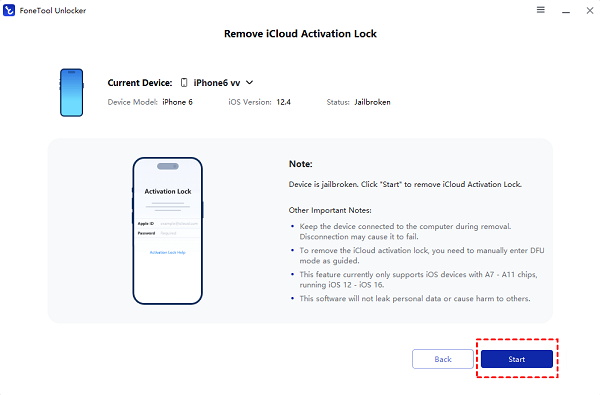
Step 3. The software will guide you through the simple preparation steps.
Step 4. Click “Start” to initiate the process. FoneTool Unlocker will handle the rest, removing the Activation Lock.
Frequently Asked Questions
Summary
An iPhone asking for a passcode after a factory reset is primarily a security measure, not an error. To resolve it, first identify if the prompt is due to Activation Lock (needs the original Apple ID) or a forgotten new passcode. Use Apple’s official Recovery Mode for a standard forgotten passcode. For persistent Activation Lock on a legitimately owned device where credentials are lost, a professional tool like FoneTool Unlocker offers an effective solution.
FoneTool Unlocker - 1-Click iPhone Unlock Software
Easily unlock all passcodes and restrictions on your iPhone, iPad, and iPod Touch.
-
 iOS 27 Compatible
 iPhone 17 Supported
100% Secure

Kelsey is an English editor at FoneTool, passionate about helping users solve tech issues. She specializes in iPhone data management, backup, and recovery. In her free time, she enjoys learning IT skills and spending time with loved ones.
Read author info >>



 as a preferred
source on Google
as a preferred
source on Google